

Microsoft has provided the developer community many cool features with the introduction of the Visual Studio 2012. This article speaks about some of the cool features in Visual Studio 2012.
You need to have Visual Studio installed in your computer to check these cool features. If you do not have it installed and if you do not have a license for it then you can download the trial version and can test the new version.
Feature 1: Preview Images
We will first discuss the ability to see previews of an image. To do this I have added a JPG file to my existing project as below: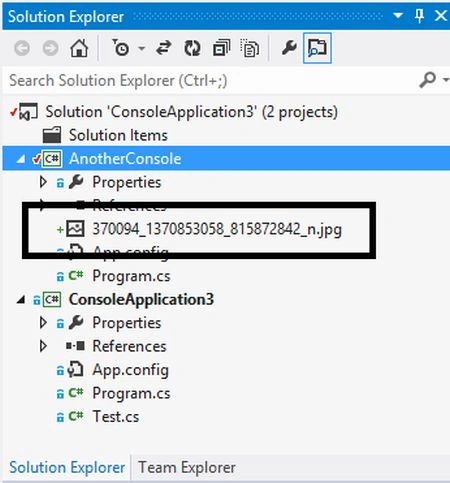
Now place your mouse on the jpg file added to the project and observe. It shows a preview of the image.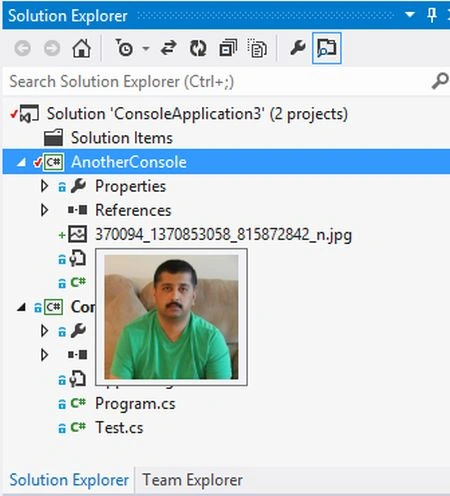
Pretty cool feature, right!!!
Feature 2: View Multiple Solution Explorers (Copy of Solution Explorer in multiple windows)
Will it not be good if we can have two Solution Explorers where you can select the project from any one of them and drag the explorers anywhere in the screen? It is a fantastic feature provided by Microsoft for developers.
Let us see how we can view multiple Solution Explorers. If you observe we already have one Solution Explorer opened in the Visual Studio and now if you select another one, it will open a copy of the same explorer in another window.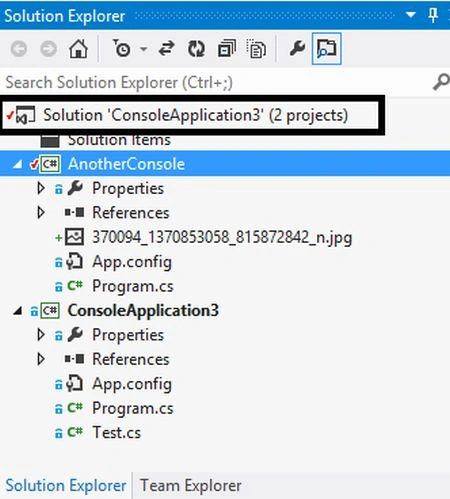
Now right-click on the solution and you will have the following options: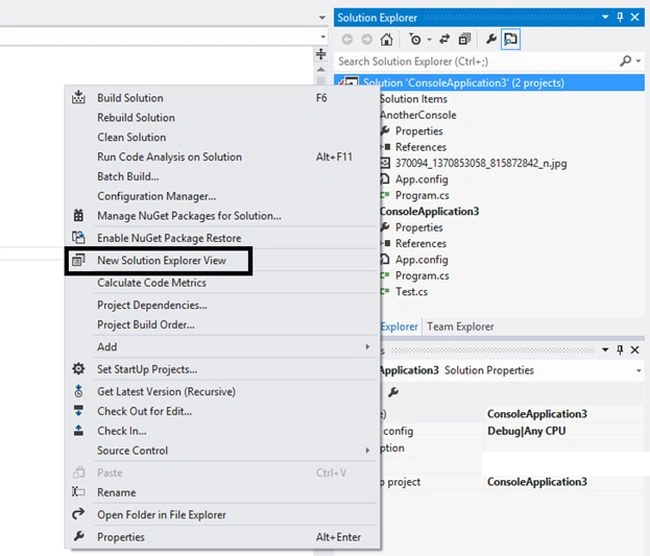
You can now expand one project in one explorer and work on the files.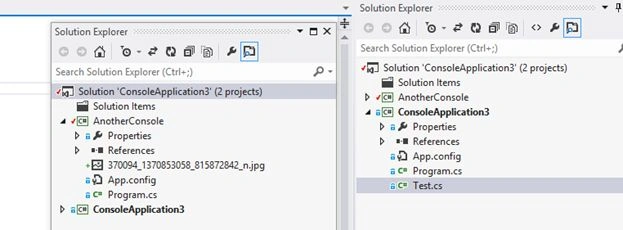
You can drag the windows anywhere in the Visual Studio editor. This will be helpful when you are working on complex solutions. You can use the features like Scoping and Filtering with the New Solution Explorer feature that we will now discuss.
Feature 3: Filters in the Solution Explorer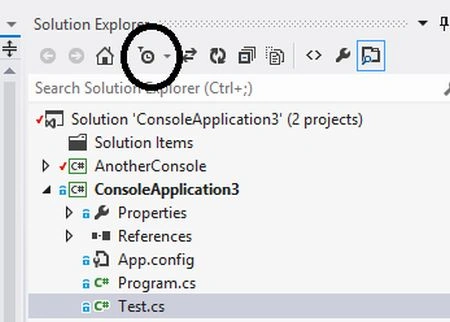
In the Solution Explorer you will find an icon for filtering the files listed in the Solution Explorer. There are two features available for filtering.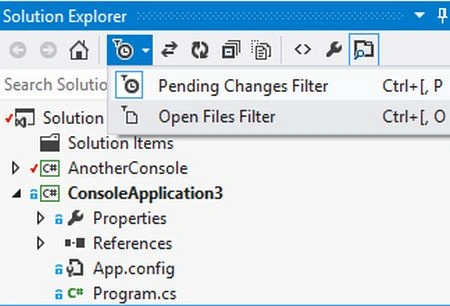
Filtering options
- Pending Changes Filter
- Open Files Filter
Before going to test the filter options we need to add our solution to Team Foundation Server so that we can check-in and check-out the files. The Pending Changes Filter is used to list only the files that are recently added or modified and are pending for check-in. I have added a JPG file to the project in the Solution Explorer. So, when I select option 1 it should show me only the JPG file.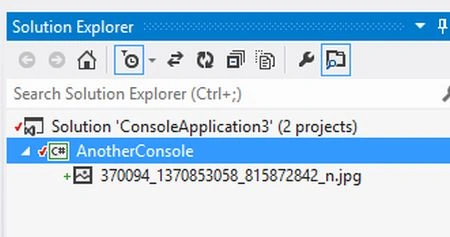
You see that only one project is selected and only the image file is listed.
"Open Files Filter" is to show only the files opened in the editor and you want to get rid of unopened files in the Solution Explorer.
In my editor I have opened only 3 files and so when I select the second option it should show only the 3 files that were opened.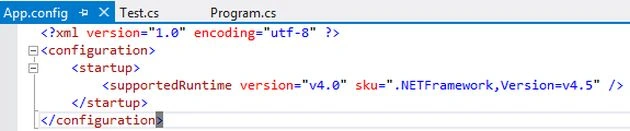
Now check the files listed in the Solution Explorer: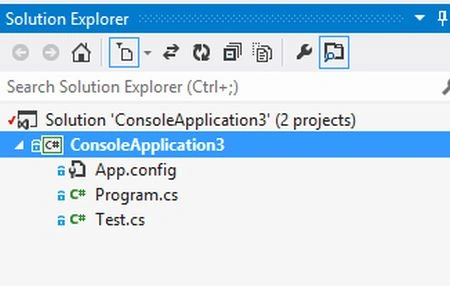
Now let us see how multiple explorer features help regarding filtering. I have opened a new Solution Explorer. In the first explorer I have selected Pending Changes Filter and in the second one I have selected the Open Files filter.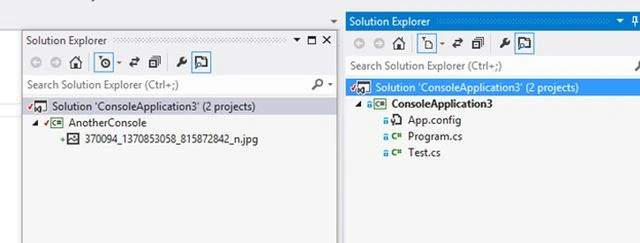
Feature 4: Scoping
Let us assume you have a Solution Explorer with multiple projects with numerous files. If you are working on one of the projects then you may not like to see all the projects. In that case, the only option available before Visual Studio 2012 is to minimize the Project's tree view. But you cannot get rid of them.
Visual Studio 2012 came up with a feature called Scoping. This feature helps you to scope your Solution Explorer to show only the projects that you are working on.
In my Solution Explorer I have two projects listed out as below: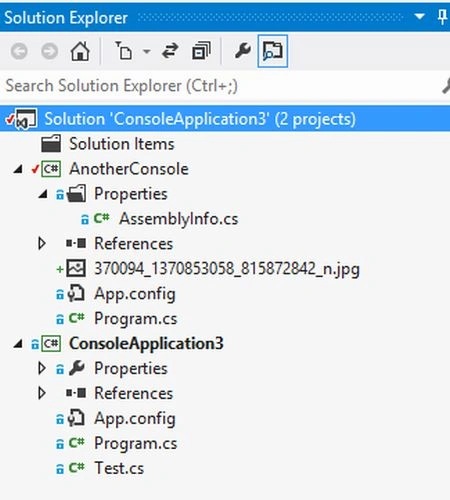
Imagine I am working on the project called "AnotherConsole" and so I would like to scope it to this project.
Right-click on the project to scope the Solution Explorer.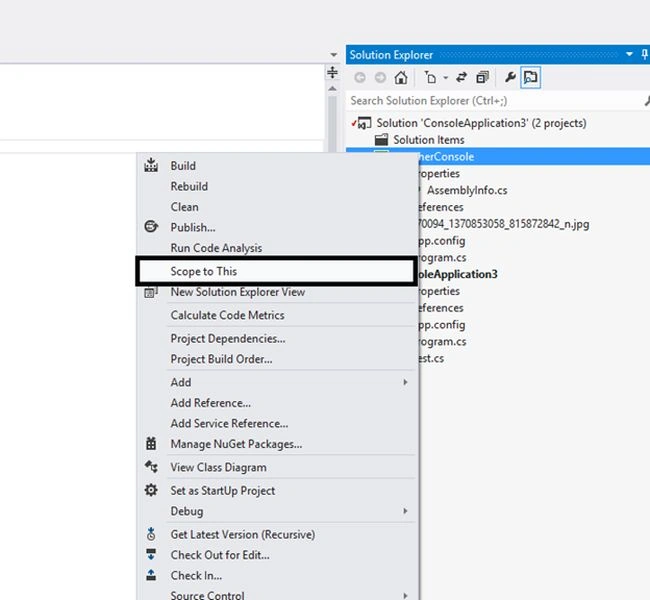
Now you see that only one project is listed in the Solution Explorer as below: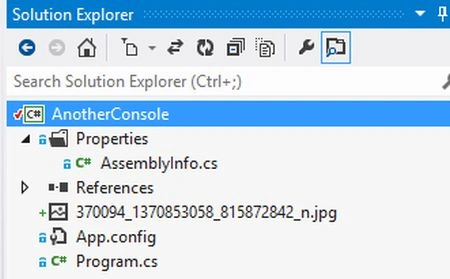
You can use multiple Solution Explorers for one window having scoping enabled and another one with filtering enabled as below: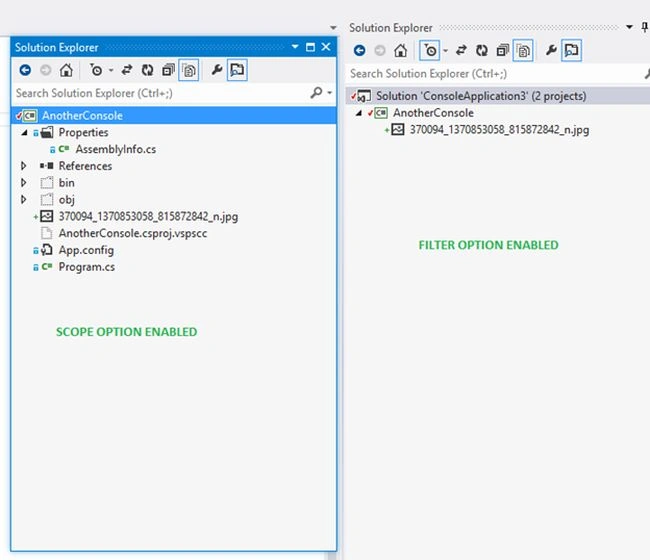
If you want to reset the scope option in the Solution Explorer then select the "Home" icon on the top. 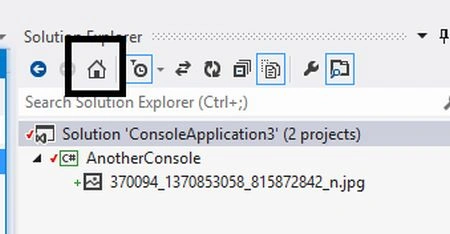
We will discuss other cool features in the next article. Hope you all have enjoyed this article. Try using these features for your benefit. Happy coding guys!!!!
Satya RathorePosted Nov 7, 2014, 2:45 AM
With all above feature included By Akki some more feature of the VS2012;Please follow below link have 21 new feature of VS2012 - 2013 Click Here
Akkiraju IvaturiPosted Feb 2, 2013, 7:06 PM
Good to know that Rama Sagar Pulidindi...
Ramasagar PulidindiPosted Feb 2, 2013, 9:14 AM
Well Explained Akkiraju iam simply using VS 2012 but doesnt know all the features which u have listed..waiting for your next article..
Akkiraju IvaturiPosted Jan 27, 2013, 4:56 PM
Thanks guys!!! Share whatever you have used or aware of as a benefit for other members... Thanks
Rishikesh Kumar SinghPosted Jan 24, 2013, 9:10 AM
really very nice feature...
Anil KumarPosted Jan 24, 2013, 7:55 AM
good one :)
Akkiraju IvaturiPosted Jan 23, 2013, 9:18 PM
Hey Thanks Mahesh... Even I am exploring many things now...
Mahesh ChandPosted Jan 23, 2013, 8:46 PM
Great article Akki. I didn't know about couple of features. Multiple Solution Explorer windows - very useful for large projects.