

Introduction
In this article, you will see how to copy files from SharePoint to Azure Blob storage using Microsoft Flow. Whenever a file is added to a SharePoint document library folder, the Flow copies the file to an Azure blob storage.
Prerequisites
- Create an Azure storage account
- Create a blob container
Steps involved -
- Navigate to the Flow site.
- On the top navigation, click My flows.
- Click "Create" from templates.
- Type “Azure blob” in the search box, select "Copy files from a SharePoint folder to an Azure Blob" folder.
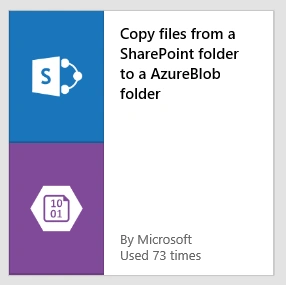
- Sign up for your SharePoint site by passing the credentials.
- Click "Create" to connect to the Azure Blob Storage.
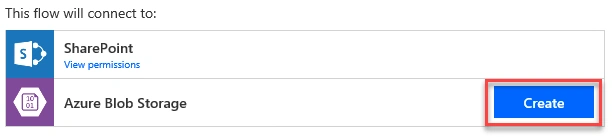
- Enter the following details and click "Create".
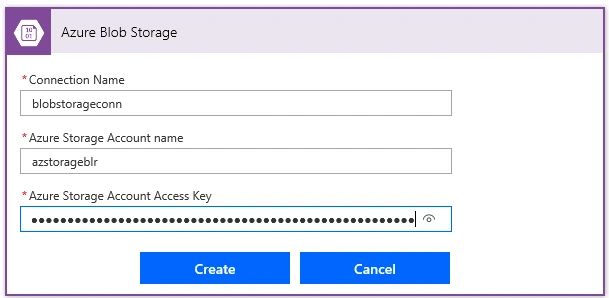
- Connection Name –a user-friendly name for the connection
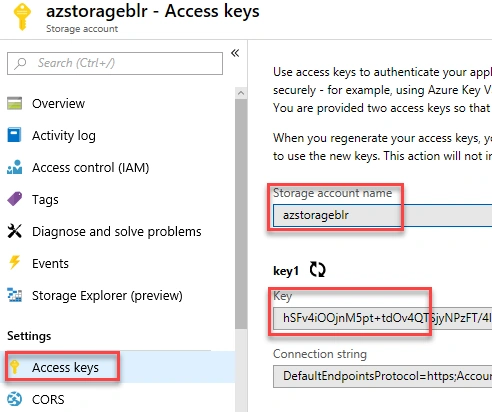
- Azure Storage Account Name & Azure Storage Account Access Key – Copied from Azure Storage Account settings page as shown in the below screenshot.
- When a file is created trigger – Select the site address and folder Id from where the documents have to be copied.
- Create file action – Select the Folder path where the document to be stored and the default values for the parameters can be edited by clicking "Edit".
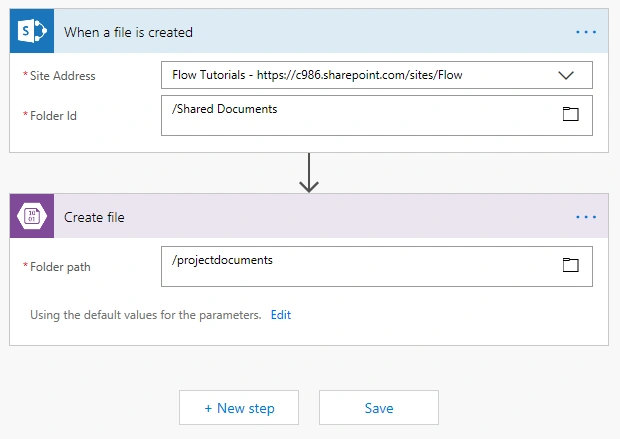
- Click "Save" once the changes are completed.
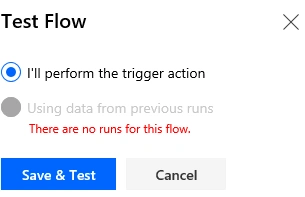
- Click "Test" to test the workflow.

- Navigate to the SharePoint Document library and upload the document.
- Flow ran successfully as shown below.

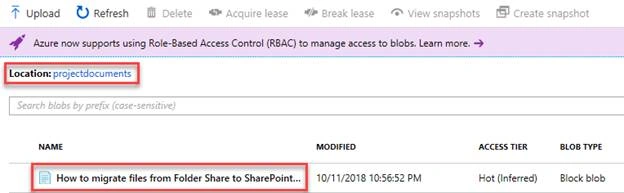
- Navigate to the Azure Blob folder to verify the copied document.
Summary
Thus, in this article, you saw how to copy files from SharePoint to an Azure Blob Storage using Microsoft Flow.
Liju P NandananPosted Oct 6, 2021, 12:40 PM
I need to create a nested folder structure in azure blob like sharepoint documnet library. Is that possible?
Bharat Bhushan KvPosted Apr 18, 2020, 12:24 AM
Hey I want an Azure Automated Scheduled Job[Weekly] that can Move Folders, Files, Nested Folder Structure between Document Libraries from Different SP Online Site Collections. Can you give me the Guidance on it?
Abhishek MishraPosted Oct 12, 2018, 11:51 AM
Awesome :) highly useful info