
I have created a custom list named “K2 Workflow Tutorials” in which a K2 workflow will be created to copy a list item. The item will be copied to the custom list named “K2 Workflow List”. Please refer to my previous article to create a K2 workflow in SharePoint 2013 Online.
Go to K2 designer, drag and drop a Copy List Item step from the List Item workflow steps in the ribbon interface.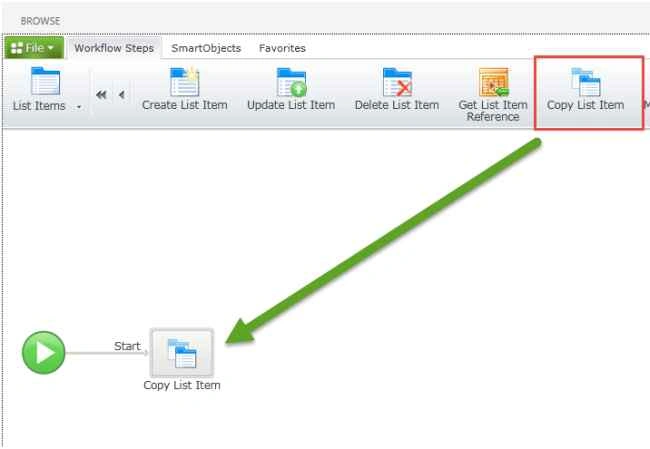
Specify a list item that must be copied and then click the Next button.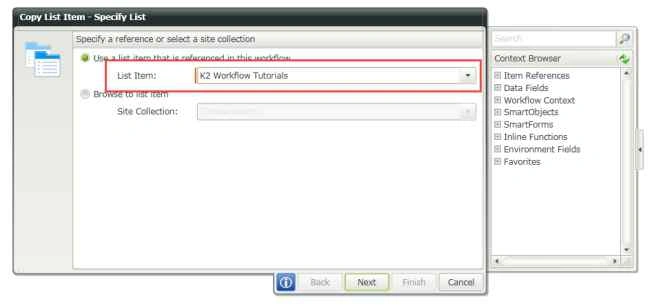
Specify the destination to where you want to copy the list item and then click the Next button.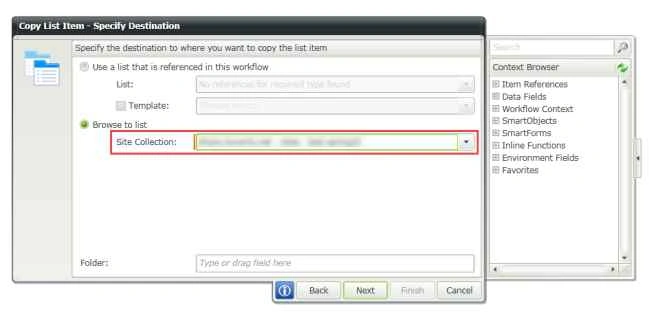
Specify the destination list and then click the Next button.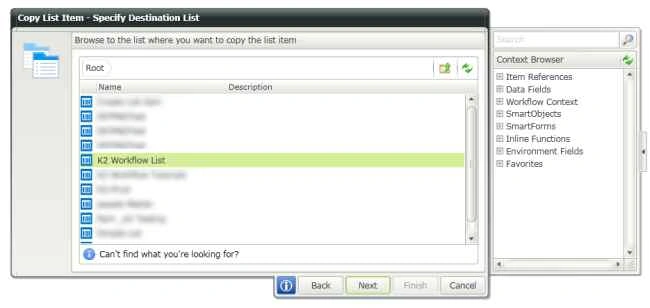
Specify properties for the list item to copy and then click the Finish button.
Note: I have only a “Title” field in the custom list because of which properties are not displayed.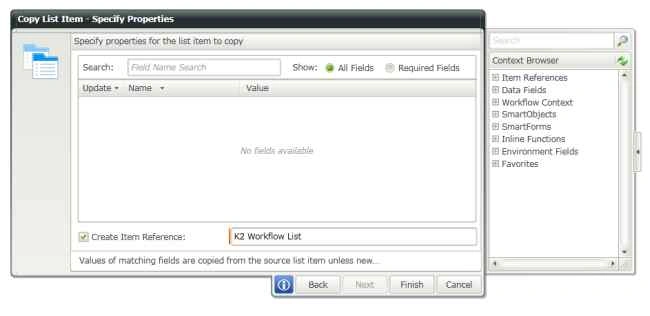
Deploy the workflow. Create a list item in “K2 Workflow Tutorials”. After a few minutes the workflow will be completed and the list item will be copied to the “K2 Workflow List” list.

Copy List Item Using K2 Workflow in SharePoint 2013 Online
Join the conversation! Your thoughts help the community grow.
Sign in to leave a comment
It is the same account you read, post and publish with — and you will come straight back to this page.
Kumaresh RajalingamPosted Mar 24, 2016, 10:02 AM
Nice share sir
Vaikesh K PPosted Aug 25, 2015, 1:28 AM
Good One
Gowtham KPosted Aug 22, 2015, 10:10 PM
Nice Share
Abhay ShankerPosted Aug 22, 2015, 9:43 PM
Nice One...
Santhakumar MunuswamyPosted Aug 22, 2015, 7:13 AM
Nice Article. Thanks for sharing
Vaikesh K PPosted Aug 22, 2015, 3:29 AM
Good One
Chervine BhiwooPosted Aug 22, 2015, 1:59 AM
Thanks for sharing!
Nilesh JadavPosted Aug 22, 2015, 12:13 AM
Nice one sir
Karthikeyan KPosted Aug 21, 2015, 9:28 PM
Good sir...Thanks for share