

The underlying connection was closed. Could not establish trust relationship for the SSL/TLS secure channel.
In this article we will be seeing how to resolve the following issue "The underlying connection was closed. Could not establish trust relationship for the SSL/TLS secure channel".
Problem
I was trying to create Visual Web Part in SharePoint 2010 using Visual Studio 2010 in which I need to access the HTTPS listdata.svc web service. When I was trying to access the https web service I was getting the following error
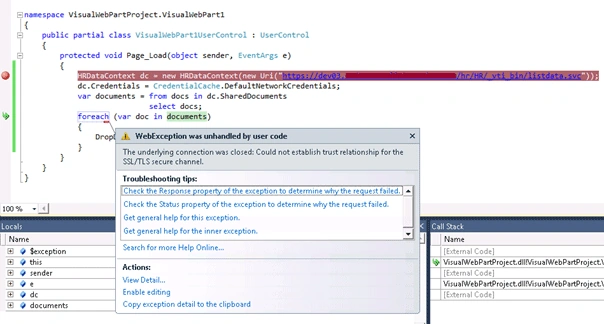
Error Message
"The underlying connection was closed. Could not establish trust relationship for the SSL/TLS secure channel".
How to resolve
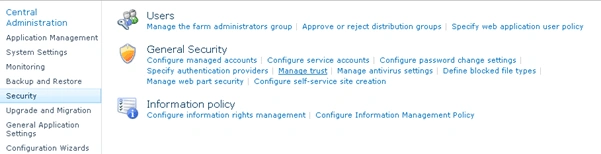
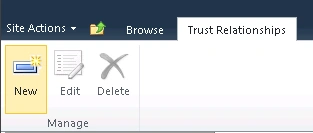
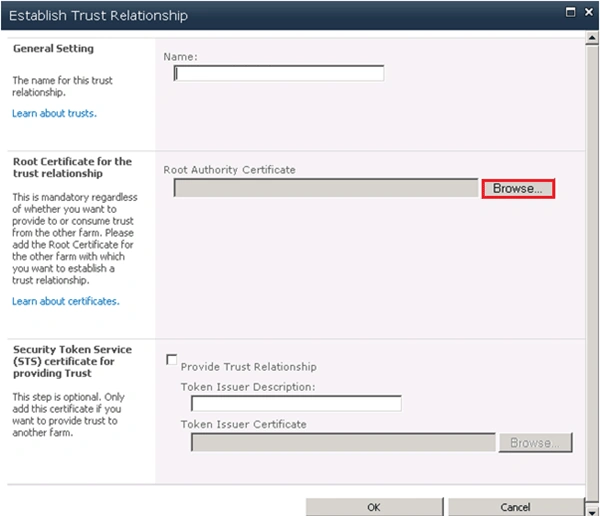
Since we are trying to access the HTTPS web service we need to add the SSL to the SharePoint Trusted Root Authority.
Export an SSL certificate from windows server
Steps Involved
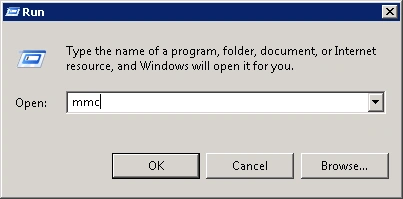
- Go to Start => Run => Type MMC and then click on Ok.
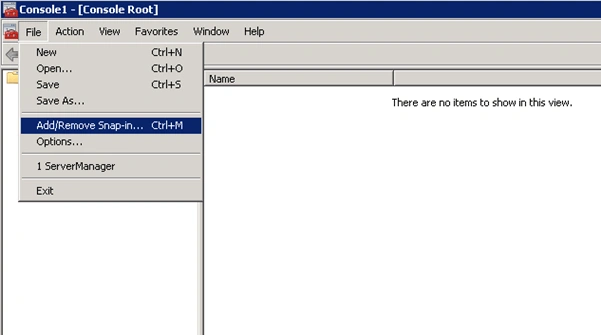
- In Microsoft Management Console, Click on the File menu and then click on Add\Remove Snap-in...
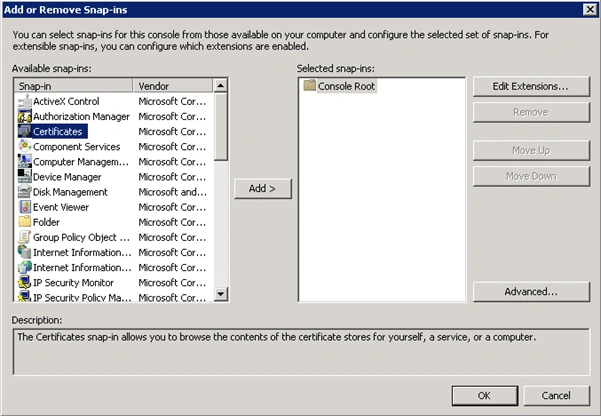
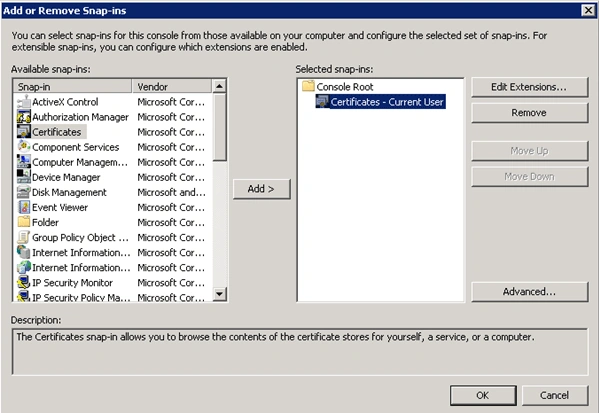
- In the Add or Remove Snap-ins wizard, select Certificates from the available snap-ins and then click on Add.
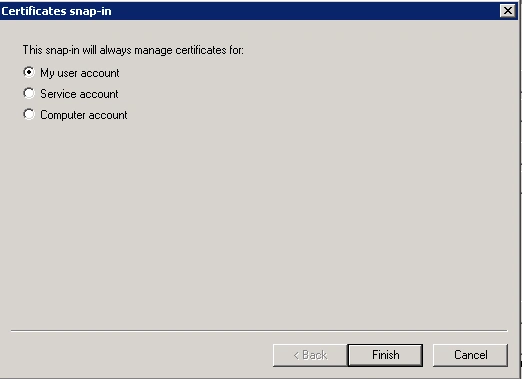
- Select My user account and click on Finish.
- Certificate will be added and click on Ok.
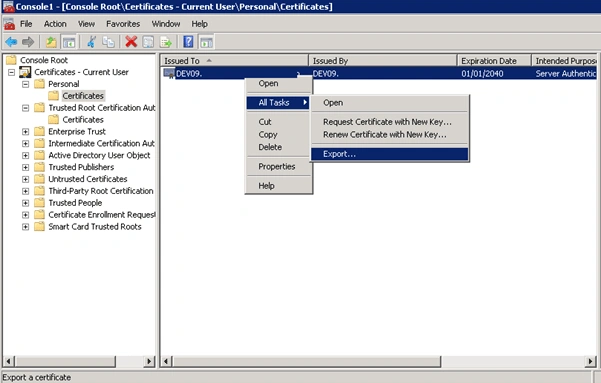
- In the left pane expand Certificates, and then expand Personal.
- Click on Certificates folder.
- Right click on the certificate, click on All Tasks and then click on Export.
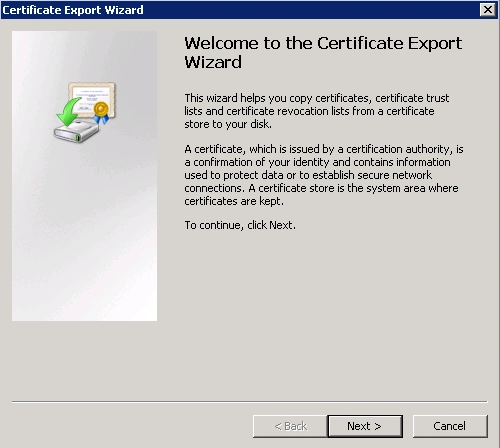
- Certificate Export Wizard will pop up, click on Next.
- In the Export File Format select DER encoded binary X.509 (.CER) format.
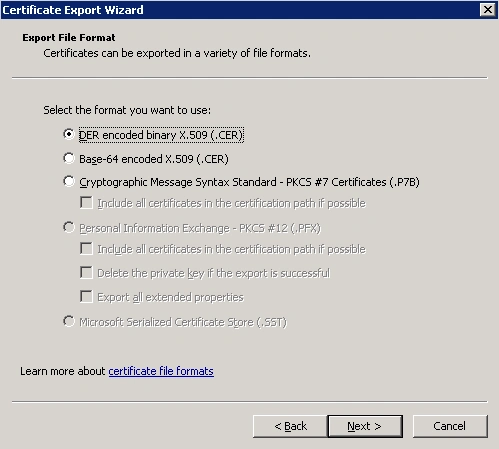
- Click on Next.
- In the File to Export click on browse, select the location and enter the Name.
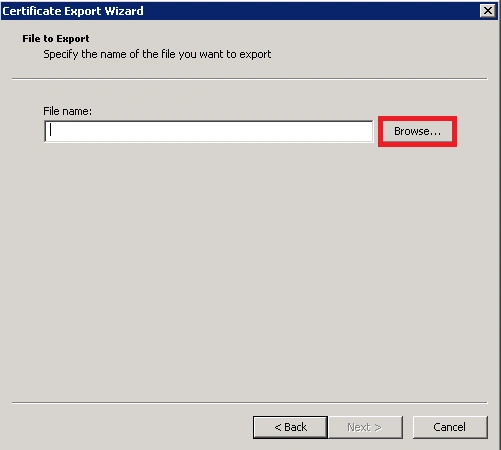
- Click on Save, the certificate will be saved.
- In the Certificate Export Wizard, click on Finish.
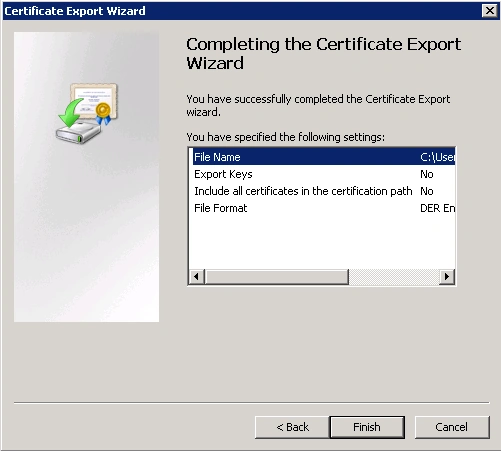
- You will be getting the following pop up, click on Ok.
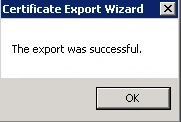
- The certificate is exported successfully.


Lalit ChaudharyPosted Nov 21, 2023, 12:15 PM
Thanks, This link useful for me.
andy mcraePosted Nov 20, 2018, 5:02 AM
Thanks for the post
Prasad KambarPosted Jul 19, 2017, 1:53 PM
Excellent information.
SubashPosted Sep 14, 2016, 1:39 AM
Useful one
kalu singh raoPosted Jul 6, 2016, 1:51 AM
Nice...
Kumaresh RajalingamPosted Mar 24, 2016, 10:00 AM
Nice one sir
Tareq SartawiPosted Sep 26, 2015, 6:33 AM
after applying these steps , still get the same error , the webservice on production server , and i'm trying to consume it from the development server , bot are on different domain ,,
sahil kakkarPosted Sep 5, 2013, 7:51 AM
i have certificate already there is no need to export it but where i need toi add it
sahil kakkarPosted Sep 5, 2013, 7:51 AM
i am having this same issue when go mmc and find the certificate under trusted root certification authorities
sahil kakkarPosted Sep 5, 2013, 7:50 AM
Hi i am having the same issue i had created a certificate and bind it to the application i created on iis under default websitetual directory .and