
When I have a search for recent content in a SharePoint site it's not showing.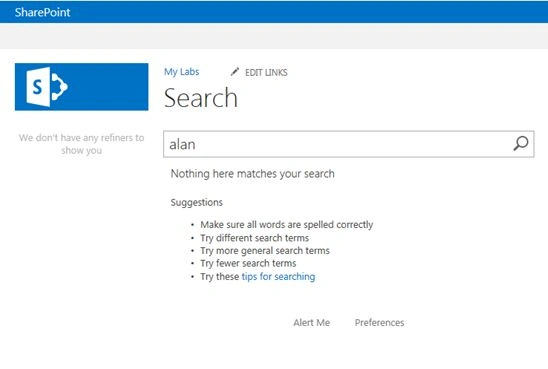
Step 1
Go to SharePoint 2013 Central Administration.
Click the Start menu then click Microsoft SharePoint 2013 Products then click SharePoint 2013 Central Administration.
Step 2
Click Manage service applications under Application Management.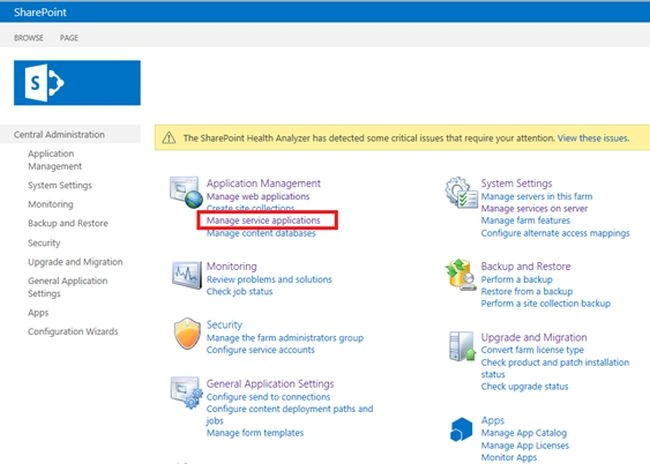
Step 3
Click your Search Service Application.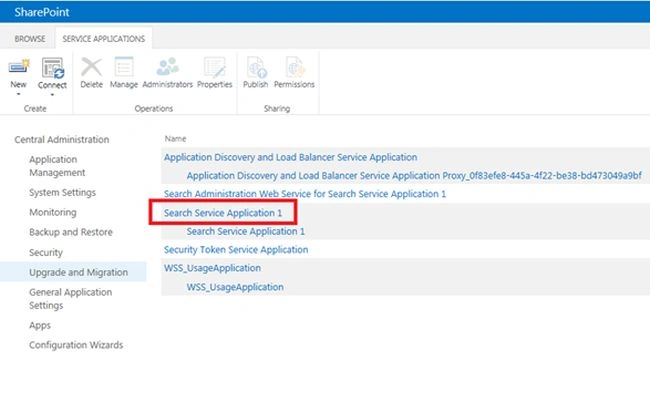
Step 4
The following screen will appear.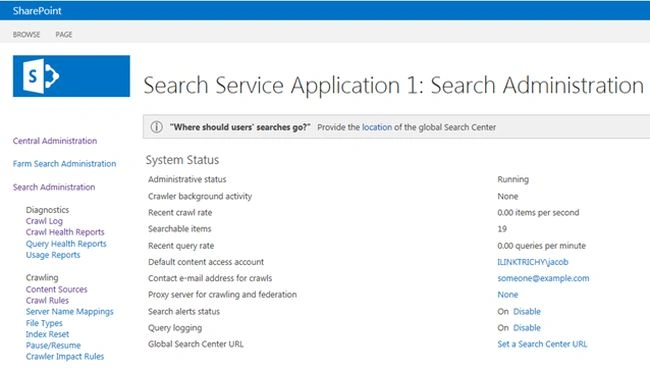
Step 5
Click Content sources under Crawling.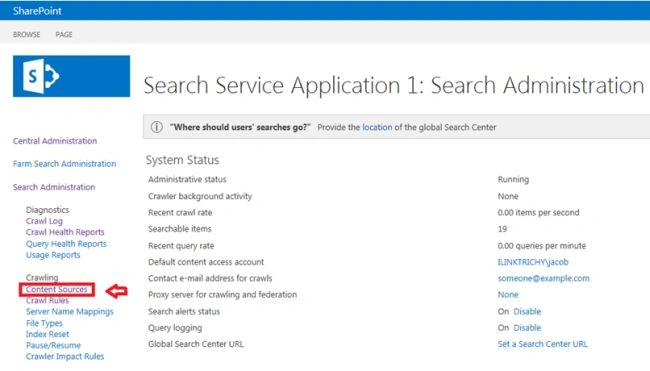
Step 6
Manage Content Sources as as in the following.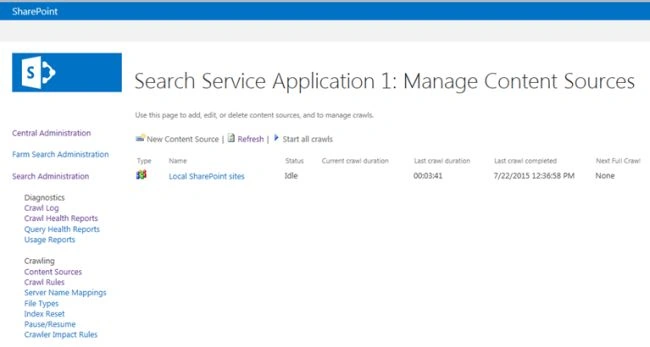
Step 7
Click Local SharePoint Sites from Name Selection. Check your site collection under the Start Addresses section.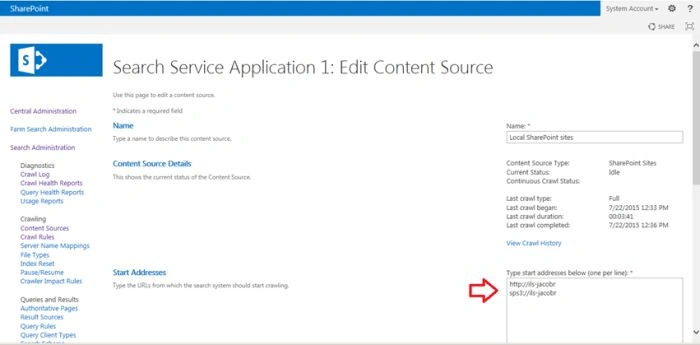
Step 8
Click the OK button.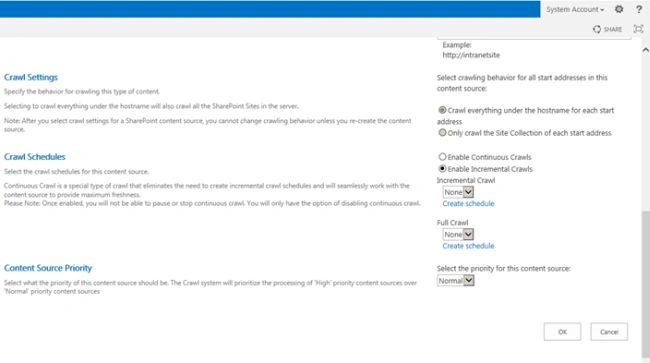
Step 9
Click the drop down option in the Local SharePoint sites item and click Start Full Crawl for your SharePoint site.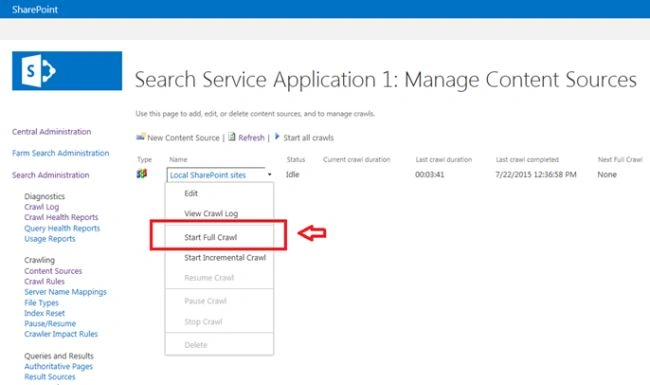
Step 10
Click OK to continue.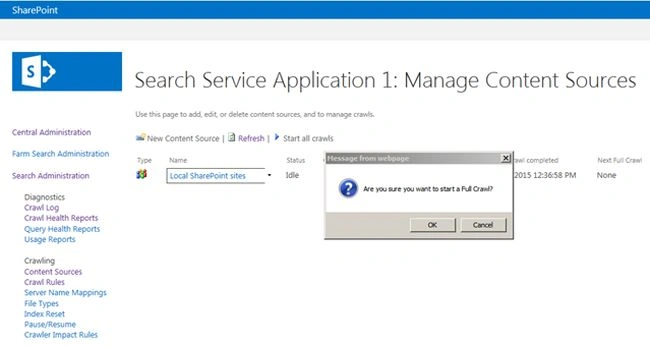
Your Crawl has begun. Click the Refresh button.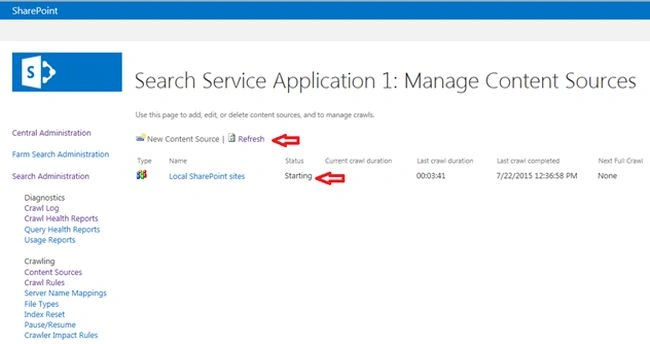
Once refreshed your status will change to Crawling Full.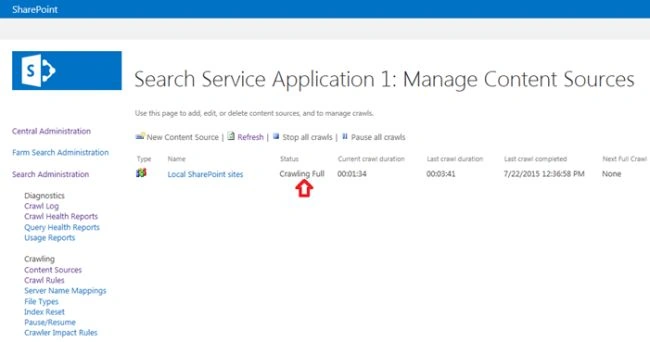
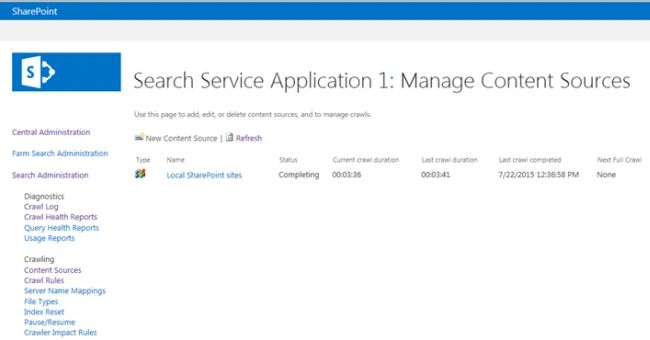
Once your crawl finishes the status will change to the Idle state.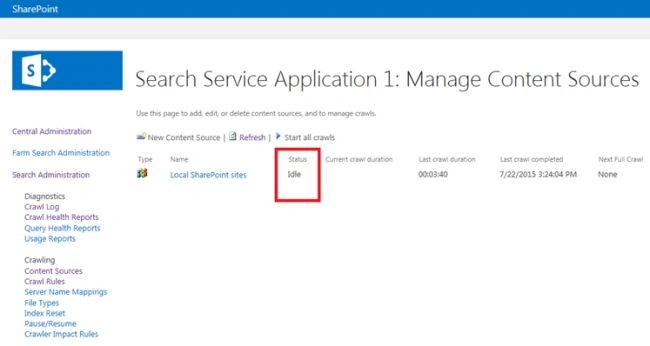
Step 11
After the crawl completes go to your SharePoint site and search the content. Your latest search contents will show.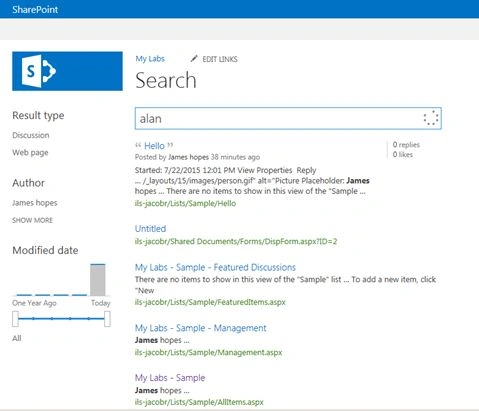
Summary
In this article we saw how to crawl for a SharePoint 2013 search service.

Crawl For Search Service in SharePoint 2013
Join the conversation! Your thoughts help the community grow.
Sign in to leave a comment
It is the same account you read, post and publish with — and you will come straight back to this page.
Jacob RobinsonPosted Jul 24, 2015, 12:21 AM
Thanks Santhakumar Sir..
Santhakumar MunuswamyPosted Jul 23, 2015, 2:49 PM
Thanks for nice article:)
Jacob RobinsonPosted Jul 23, 2015, 3:38 AM
Thanks Sibeesh..
Sibeesh VenuPosted Jul 23, 2015, 2:00 AM
Good Information