
Step 1
Go to SharePoint 2013 Central Administration.
Click the Start menu, then click Microsoft SharePoint 2013 Products and click SharePoint 2013 Central Administration
Step 2
Click Manage Service Applications under Application Management.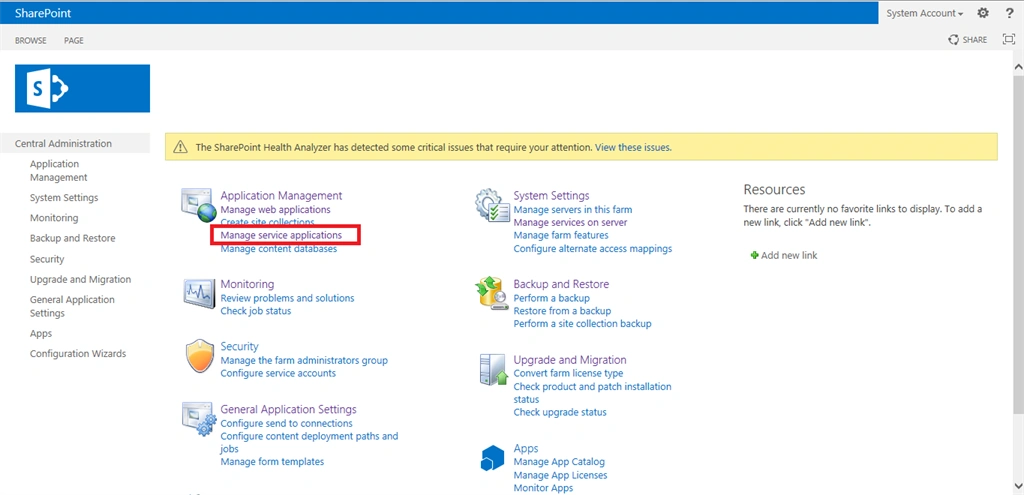
Step 3
Click your Search Service Application.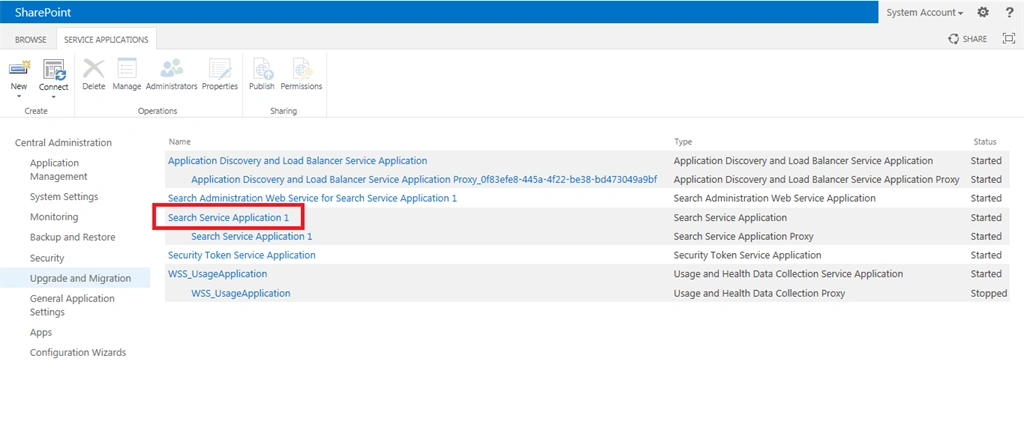
Step 4
The following screen will appear.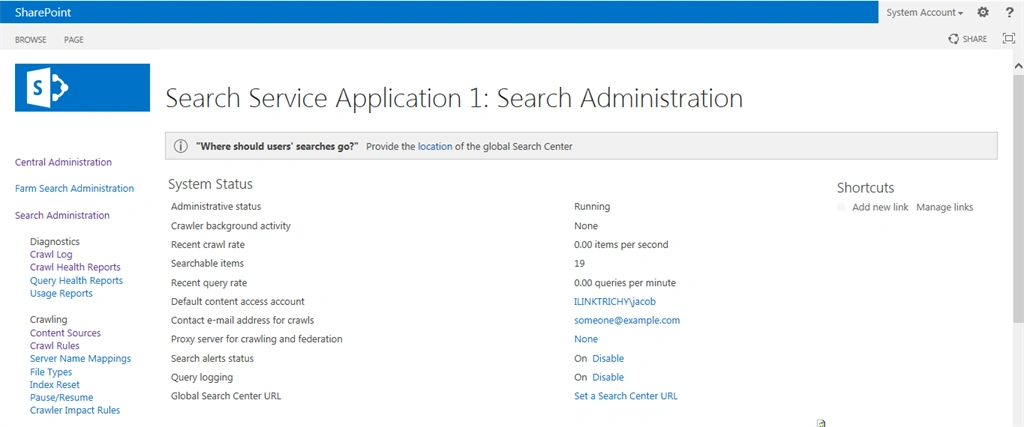
Step 5
Click Crawl Rules under Crawling from the left panel.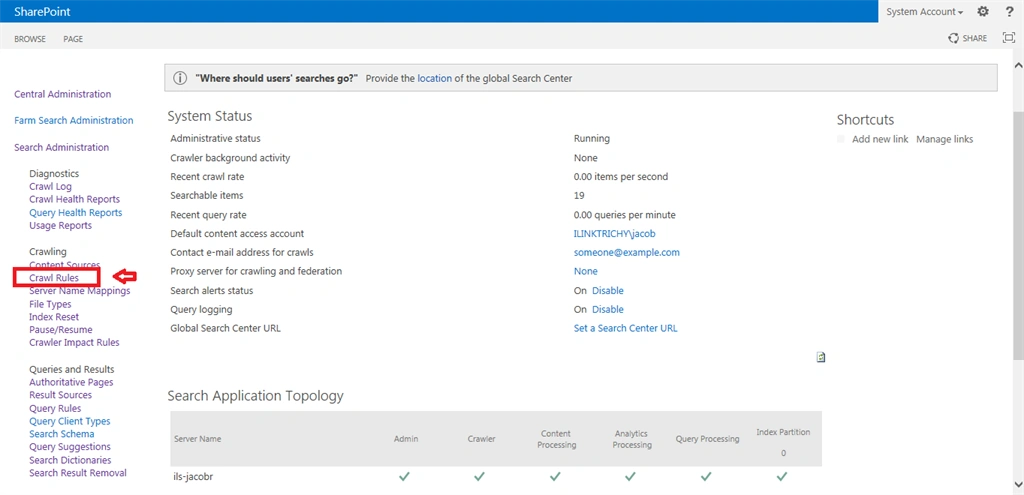
Step 6
Click New Crawl Rule for including contents.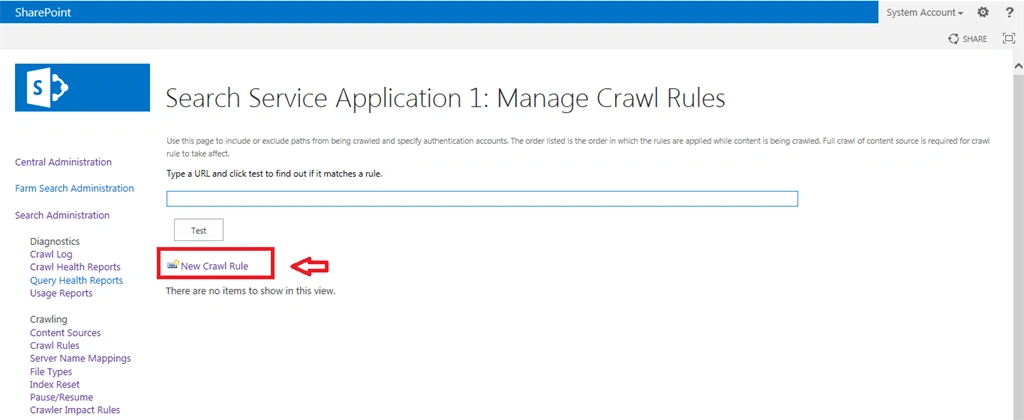
Step 7
Enter the path of the specific SharePoint list. Here I have crawled for the employee details list.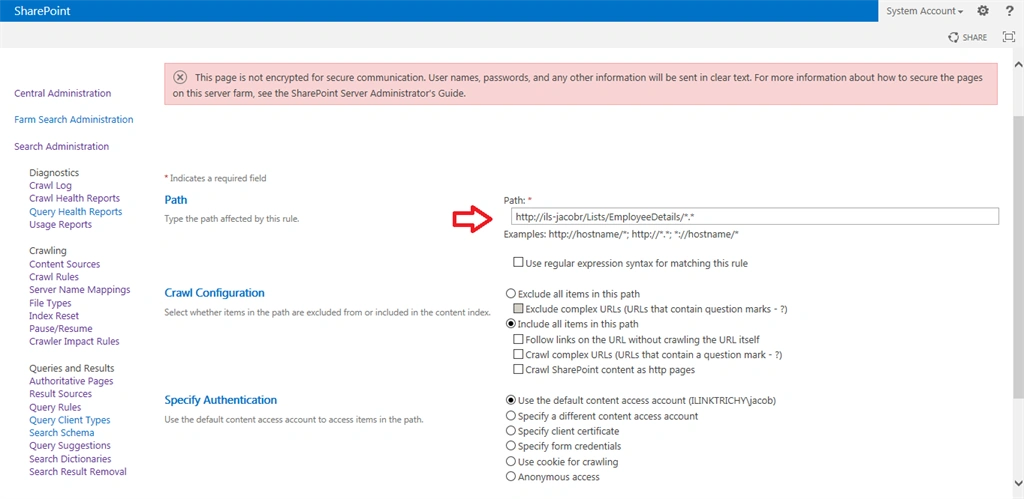
Step 8
Select the “include all items in this path” option from the crawl configuration and click the OK button.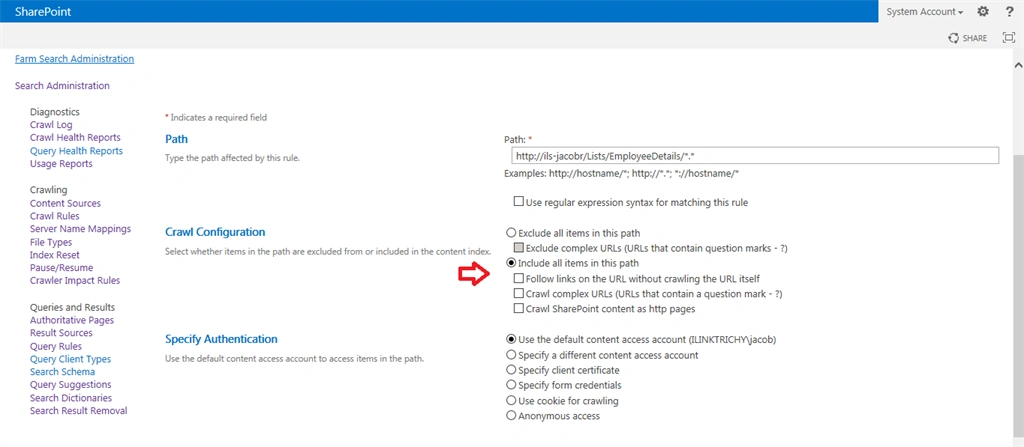
Step 9
The following screen will appear.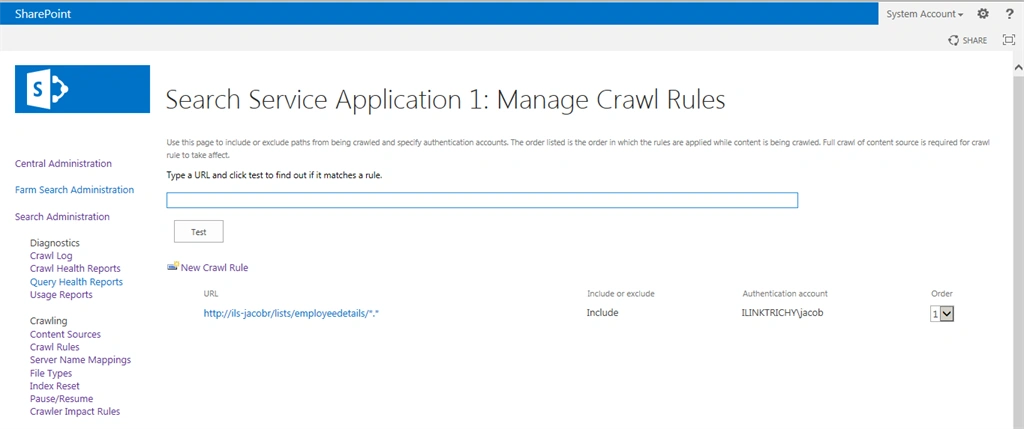
Step 10
Again go to crawl rules for exclude contents and click the new crawl rule.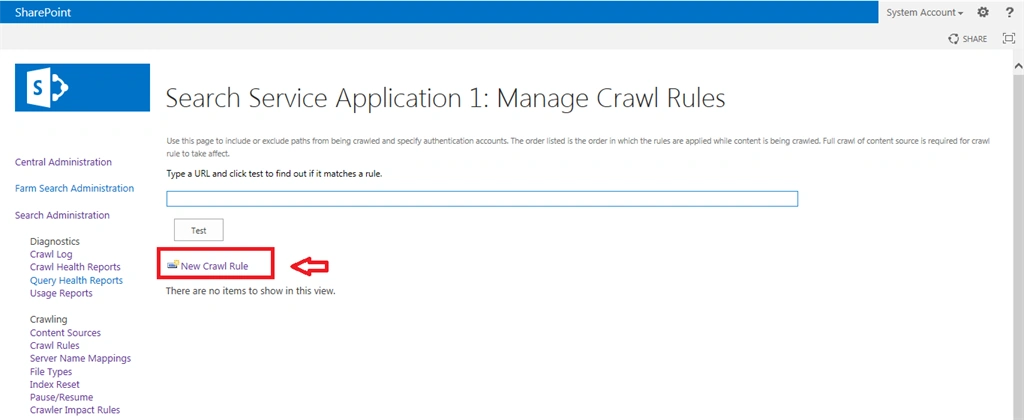
Step 11
Enter the path as in the following. Select the “Exclude all items in this path” option from the crawl configuration. Then click the OK button.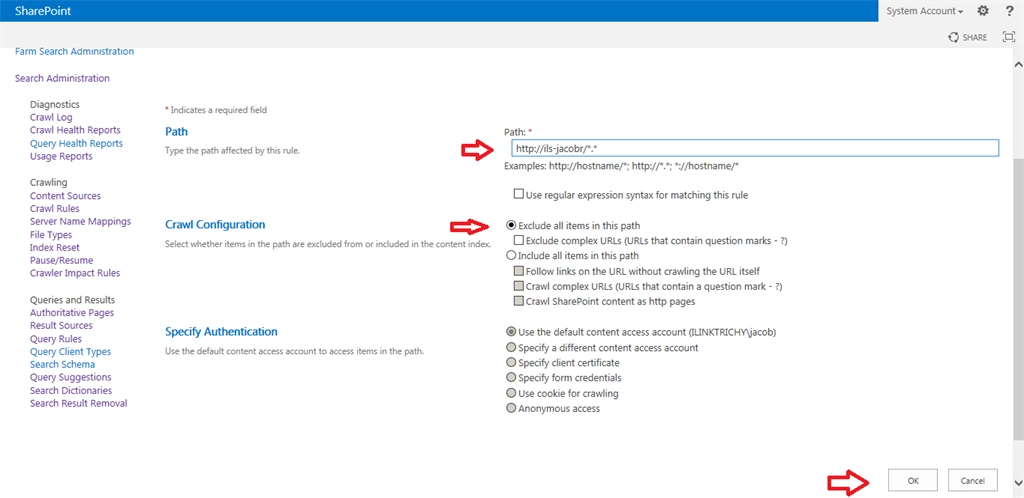
Step 12
The following screen will appear.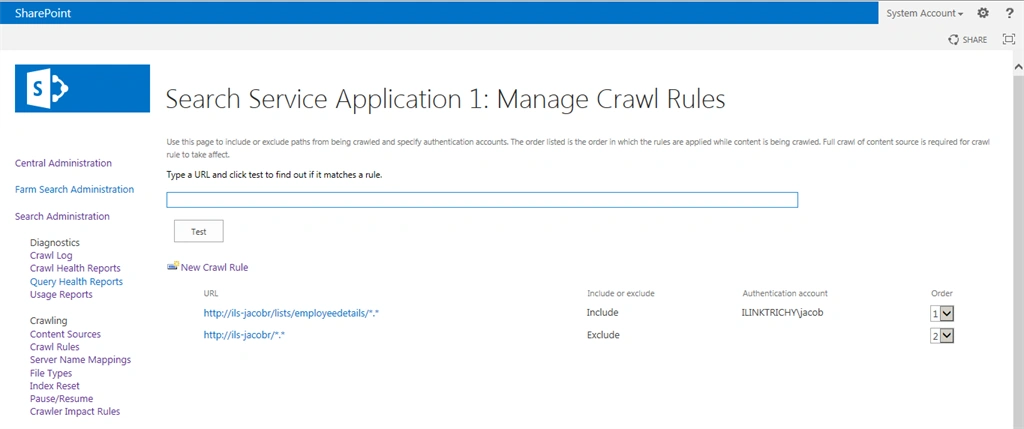
Step 13
Now go to the content sources.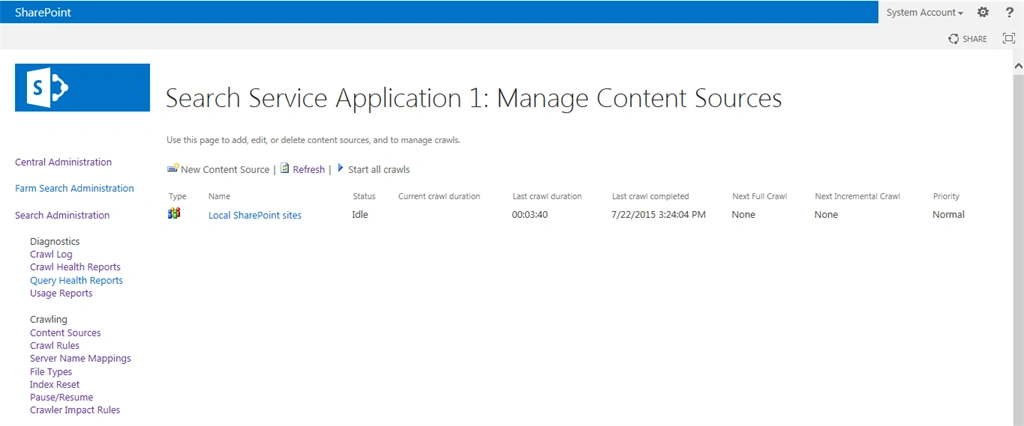
Start Full Crawl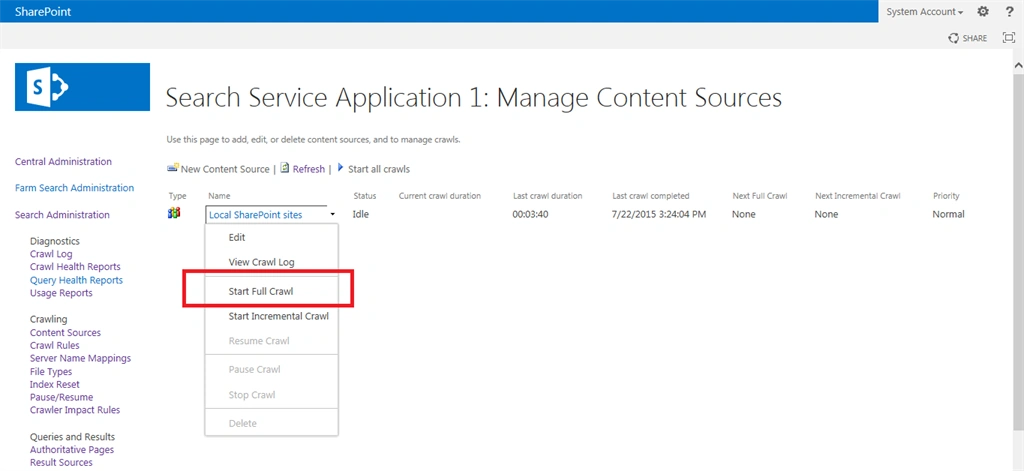
After a successful crawl, try some keyword search in your site collection. The search results only comes from a specific list only.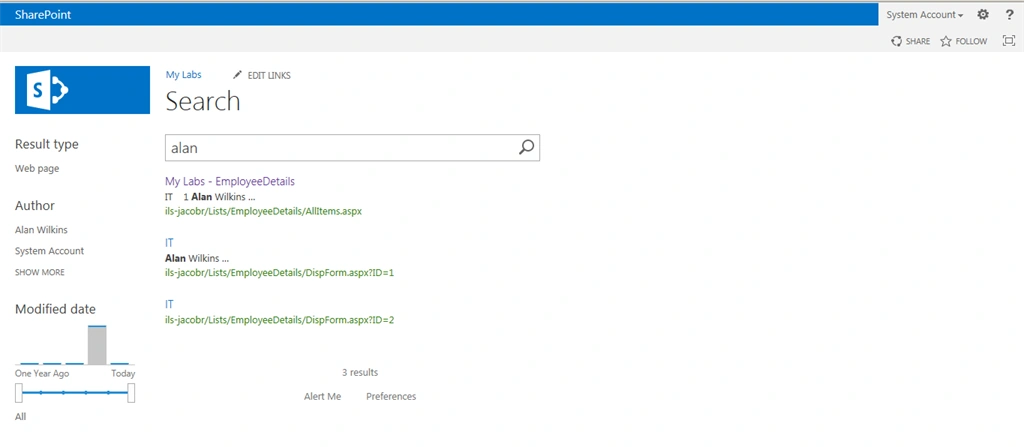
Summary
In this article we learned how to crawl the specific lists for the SharePoint 2013 search service.

Santhakumar MunuswamyPosted Jul 24, 2015, 2:20 PM
Good one
Neeraj KumarPosted Jul 24, 2015, 1:07 PM
Nice Article
Shridhar SharmaPosted Jul 24, 2015, 12:22 PM
nice share Jacob Robinson
Abhay ShankerPosted Jul 24, 2015, 10:10 AM
nice....
Gopi ChandPosted Jul 24, 2015, 10:06 AM
Nice work
RakeshPosted Jul 24, 2015, 8:16 AM
Good one
Rahul Kumar SaxenaPosted Jul 24, 2015, 7:41 AM
Good Show