

Upon customizing the SharePoint Online List / Library form using Power Apps, the default date picker that's available is bigger and not so easy to use. Also, it has a downside of having a fixed date/year instead of showing current day/year on the edit forms.
This default component cannot be modified as it is a single package; to overcome this we can make use of the calendar-based date picker control available in the PowerApps in a customized way.
SharePoint List default date picker is simple and straightforward. But when the list form is customized using Power Apps the date picker is over-ridden by the Power Apps form date picker

Steps to utilize the calendar date picker available in the Power Apps form.
Open the SharePoint List form in Power Apps,
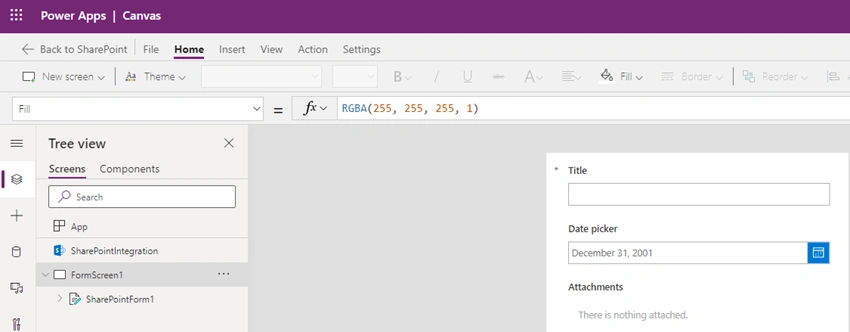
Add a Calendar component in a new screen,

Expand the component and select the following elements only from that,
- MonthDayGallery
- WeekdayGallery
- iconNextMonth
- iconPrevMonth
- LblMonthSelected
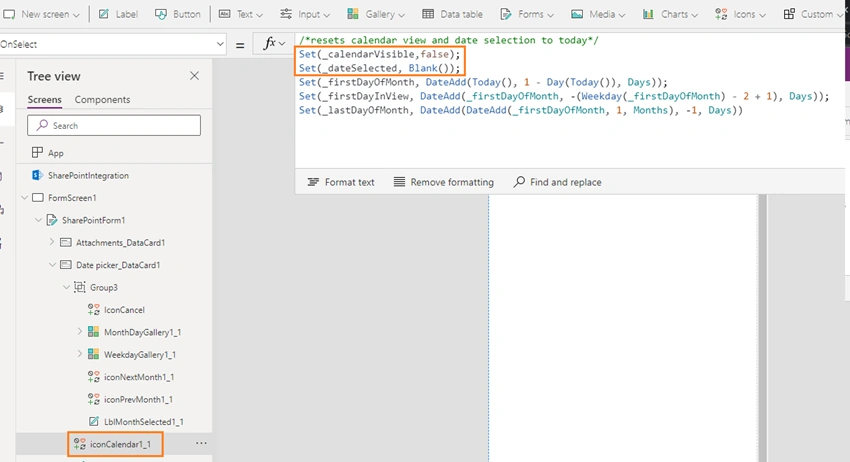
- iconCalendar

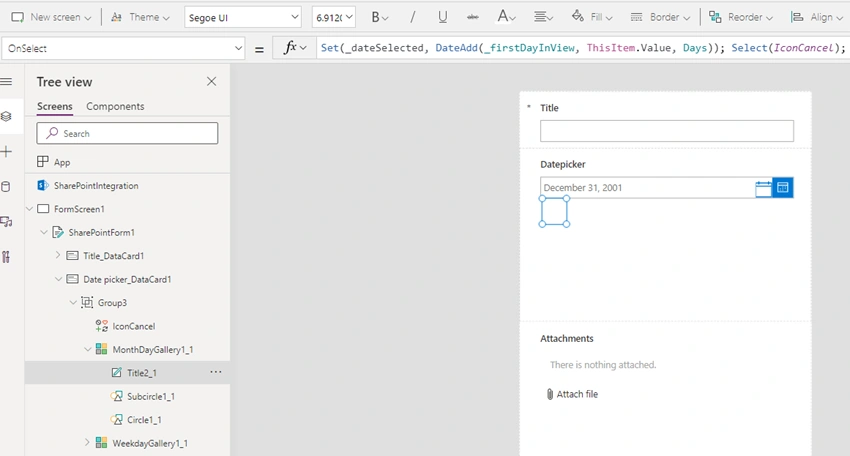
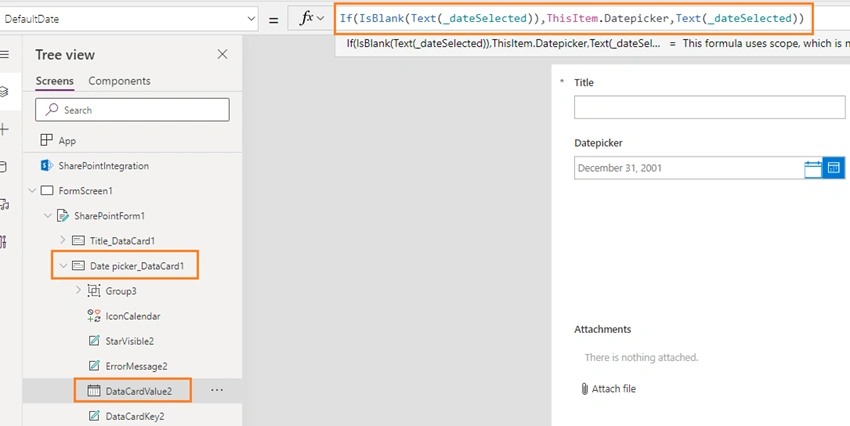
Copy the elements from the new screen and paste in the SharePointForm (inside the date picker field by unlock and adding the elements),

Insert a new icon “Cancel” (optional step, to toggle between visible and cancel the display of date picker).

Group the elements into one component (except 1 element iconCalendar). Delete the new screen (which will not be required, if any error is thrown in the screen will be fixed in next steps).

For removing the errors.
Delete the naming conventions.

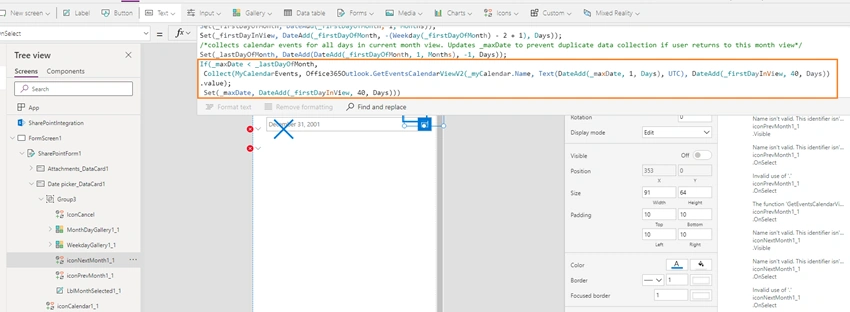
Delete the conditions for iconNextMonth in the OnSelect property, if section,






Join the conversation! Your thoughts help the community grow.