

In this article we are going to see how to create a custom page layout in Share Point 2013 and Office 365. In many scenarios we come across having custom page layouts which will be used globally throughout the site collections. This indeed helps the developers to keep a similar look and feel experience for the users and also a similar branding for all the sites. Hence it is very useful to see how can we create a custom page layout.
Let’s quickly start with it.
- Go to Site Settings of your site.
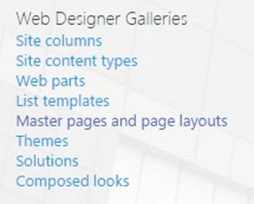
- Under Web Designer Galleries, click on “Master pages and page layouts”.
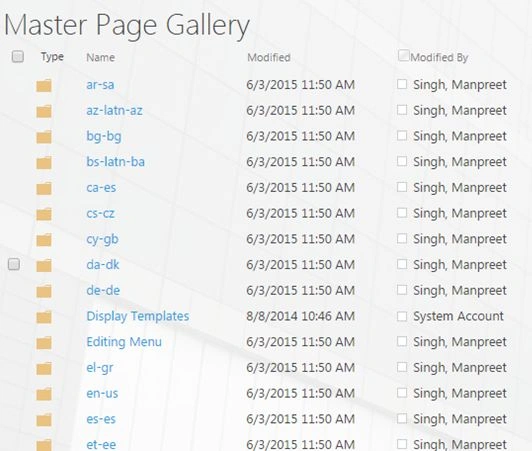
- You will reach the Master Page Gallery.
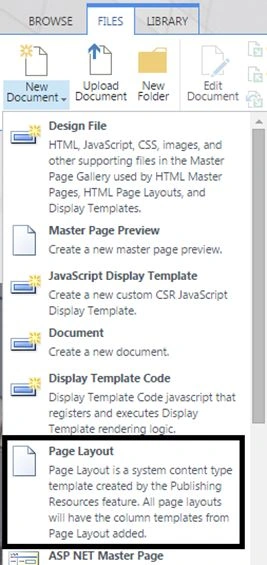
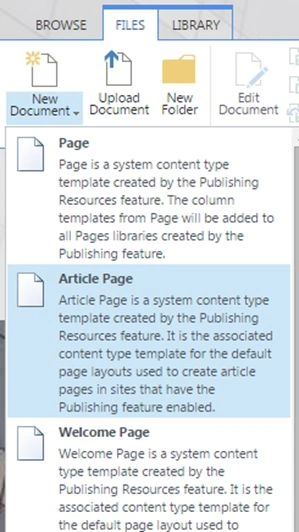
- Click on FILES and then on New Document select Page layout form the options provided and click on it.
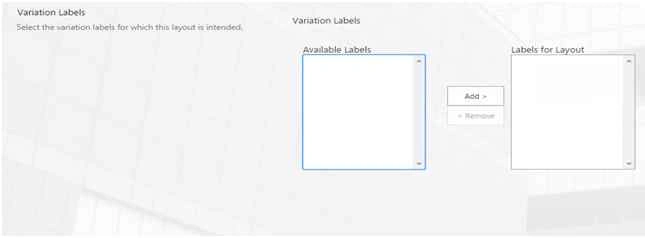
- You will reach the following form.
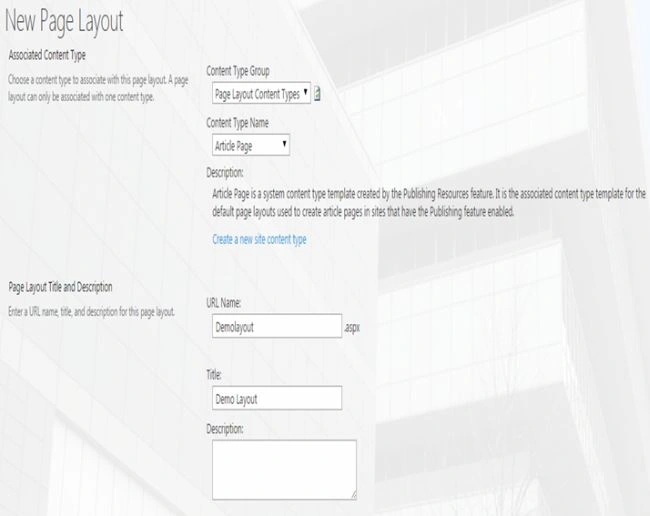
Configuration
- Associated Content Type
Under this category, select the content type you want this page layout to get attached to. As stated you can only associate this page to only one content type. - Content Type Group
Select the content type among the two: Page Layout content Types and Publishing Content Types.
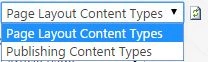
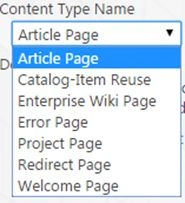
- Content Type Name
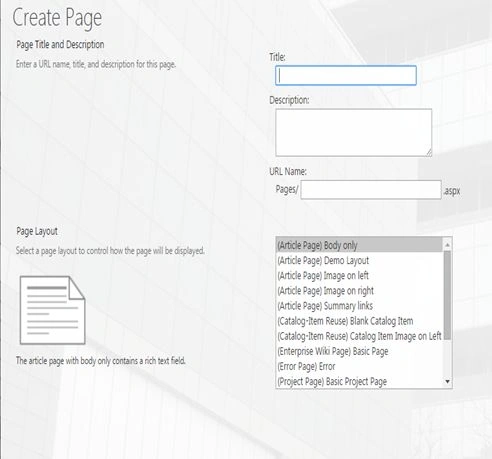
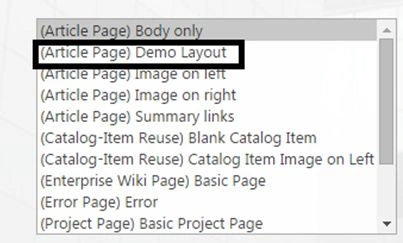
Select one from the various content type available. - Under the Page Layout Content Types we have the following options:
Mukesh KumarPosted Oct 30, 2015, 2:14 AM
Good One
Harshad PansuriyaPosted Oct 30, 2015, 1:38 AM
Nice one
Sibeesh VenuPosted Oct 30, 2015, 12:41 AM
Nice Share
Rupali ShindePosted Oct 30, 2015, 12:07 AM
nice
Vinodh NarayananPosted Oct 29, 2015, 11:44 PM
Good one
Priyaranjan K SPosted Oct 29, 2015, 12:51 PM
Thanks for the Share
Kamlesh BhorPosted Oct 29, 2015, 12:13 PM
Nice Sir...