

Here is the procedure to create a Media web part in SharePoint Site Pages.
Step 1
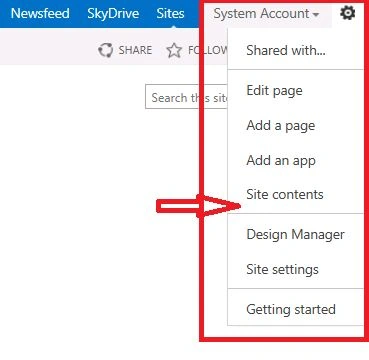
Click the settings menu near User account (System Account). The following popup will appear, in that item details click the Site contents.
Step 2
Step 2
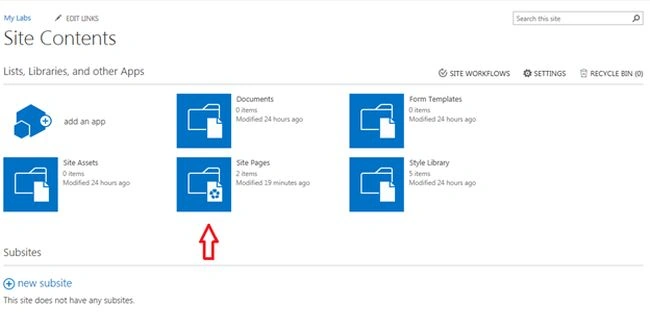
The following site contents page will appear, click Site Pages menu.
Step 3
Step 3
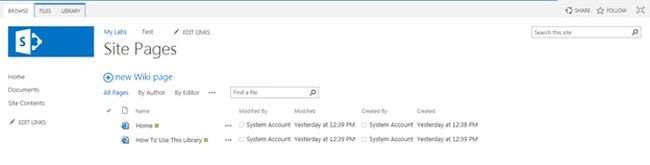
The following screen will appear.
Step 4
Step 4
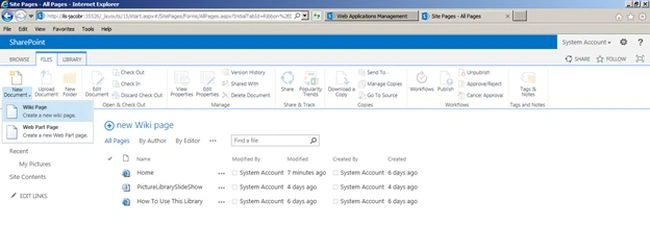
Click Files in the Top Navigation Menu then click New Document. Now click the Wiki Page options available under the New Document menu.
Step 5
Step 5
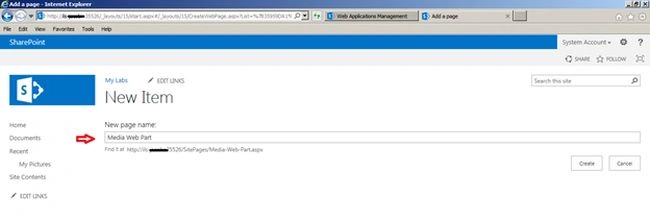
Enter the Page name and click the Create button.
Step 6
Step 6
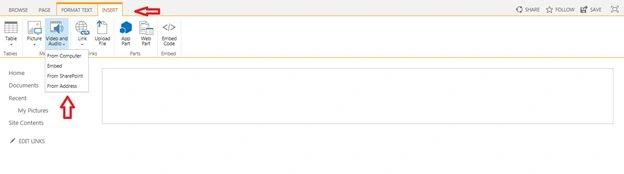
Click the INSERT menu item in the top navigation and click Video and Audio menu, then click the options where the media file is saved. Here I have saved my media file in the SharePoint assets library (here I have selected from the SharePoint option).
Step 7
Step 7
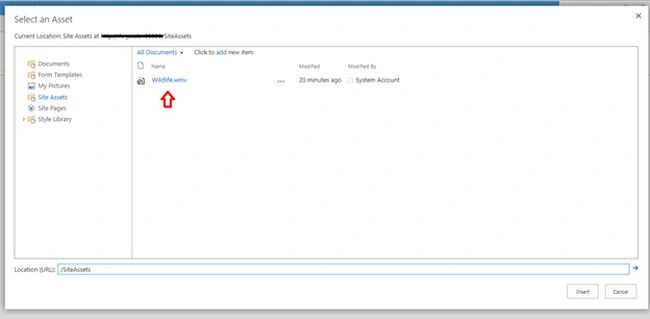
Select the media file and click the Insert button.
Step 8
Step 8
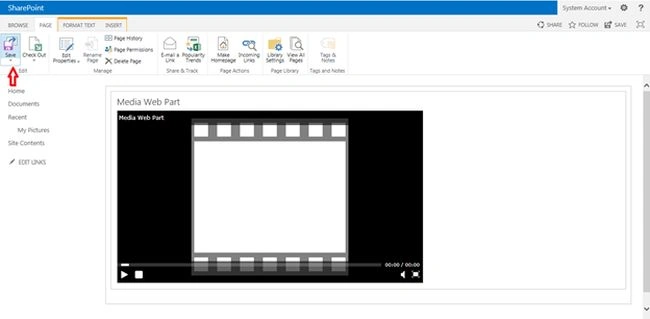
Click the Page menu item in the top navigation and click the Save menu.
Step 9
Step 9
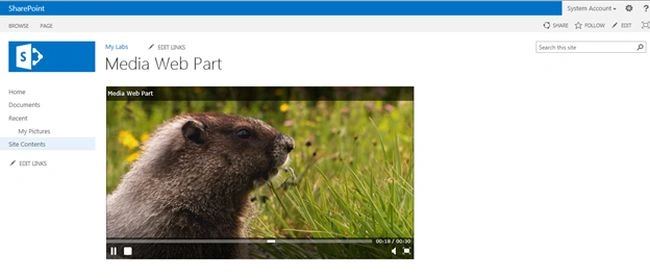
Finally the Media Web Part is created successfully.
Summary
In this article we explored how to create a Media Web Part in SharePoint Site Pages.
Summary
In this article we explored how to create a Media Web Part in SharePoint Site Pages.
SriramPosted Jul 2, 2015, 8:11 AM
Good.........
Shailesh UkePosted Jun 23, 2015, 10:23 AM
Nice Article............
Abhay ShankerPosted Jun 23, 2015, 10:16 AM
nice one...
Santhakumar MunuswamyPosted Jun 22, 2015, 2:16 PM
Nice one
Sibeesh VenuPosted Jun 22, 2015, 5:00 AM
Good One.