

Abstract
This is a tip for creating PDFs using ItextSharp and downloading the PDF file using ASP.NET MVC.
Introduction
As we know whenever we are working on a project there is a need of reports that a user wants to view for a respective business date -- it can be any day-to-day transactional reports, inventory reports of stores etc. Irrespective of the project in the tip of code snippet I will be generating a PDF report of a sample records which I will fetch from the database as shown below step by step.
Create New Project
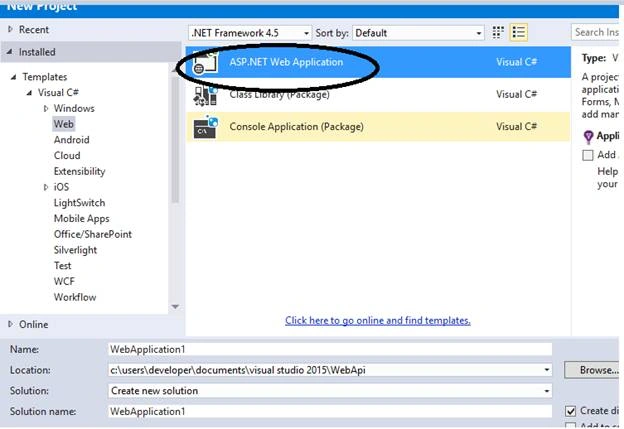
Figure 1. New Project in VS 2015
Select the MVC Template for creating a WEB Application as shown below
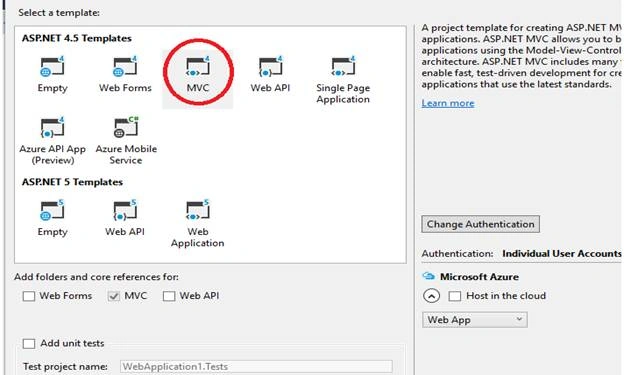
Figure 2. Selecting MVC Template
Here I will use Entity Framework to retrieve records from the table. If you are new to Entity Framework my suggestion is to go and read my basic article on Entity Framework.
Getting Started With Entity Framework
First what records I am going to show in the PDF file?
I will be showing Employee details to the User as shown below in the snapshot.

Figure 3. Information to be shown in pdf
Creating your Models
Now we will create a Model class named Employee as shown below.
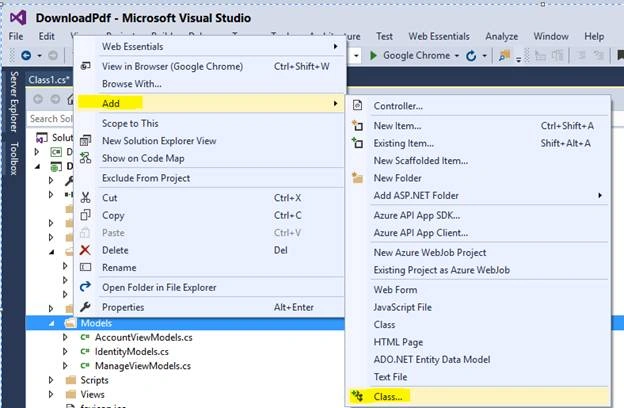
Figure 4. Creating Model Class
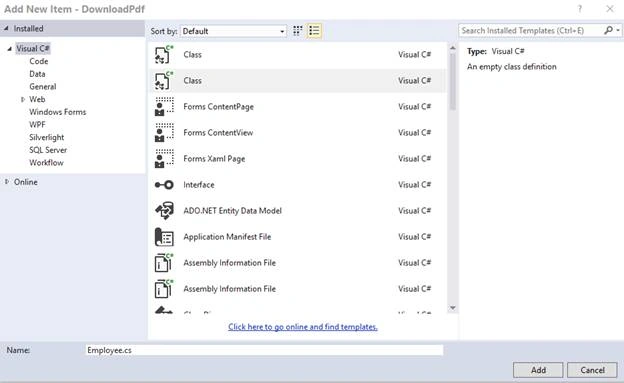
Figure 5. Naming your Model Class
using System.Text;
using System.Threading.Tasks;
using System.ComponentModel.DataAnnotations;
namespace DownloadPdf.Models
{
    public class Employee
    {
        [Key]
        public int EmployeeId { get; set; }
        public string Name { get; set; }
        public string Gender { get; set; }
        public string City { get; set; }
        public int DepartmentId { get; set; }
        public DateTime Hire_Date { get; set; }
    }
}
So now In order to create our db connectivity I will add a class that will act as DataModel for this project.
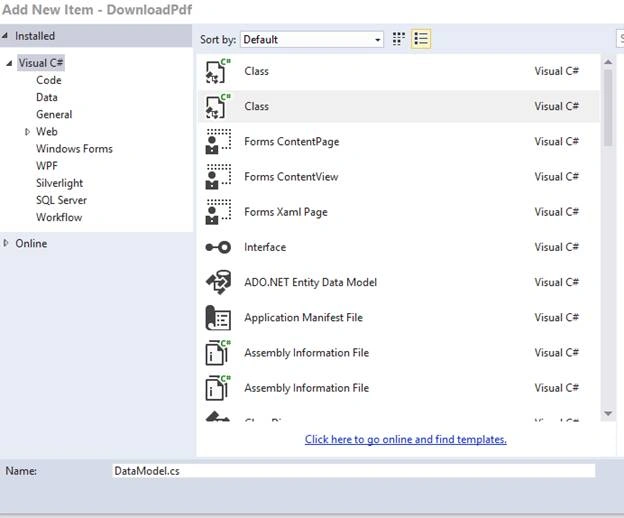
Figure 6.Creating DBContextDataModel Class
using System.Data.Entity;
namespace DownloadPdf.Models
{
    public class DataModel : DbContext
    {
        public DbSet<Employee> employees
        {
            get;
            set;
        }
        protected override void OnModelCreating(DbModelBuilder modelBuilder)
        {
            modelBuilder.Entity<Employee>().ToTable("tblEmployee");
        }

    }
}
Adding the connection string
Go to Server Explorer.
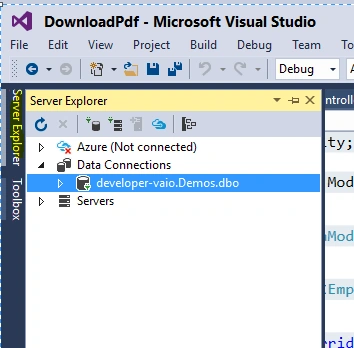
Figure 7. Server Explorer window
Click on Data Connections and add a new connection.
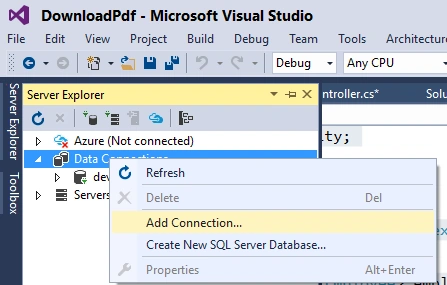
Figure 8. Adding Data Connection in asp.net MVC
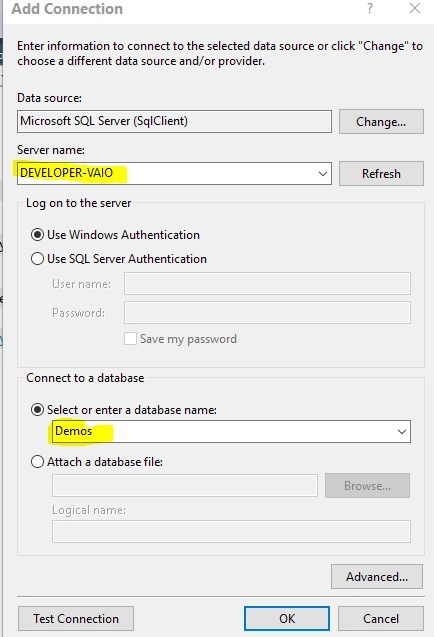
Figure 9. Selecting your db
Select your server name and enter your database name. Click on ok to confirm.
Right-click on the newly created connection.
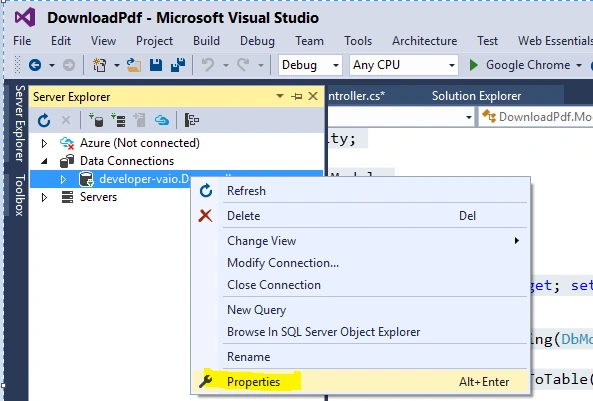
Figure 10. Checking Properties of New Data Connection
Go to properties.

Figure 11. Connection String Property
Copy the connection string and create a connection string in the web. config file as shown below.
<connectionStrings>
    <add name="DataModel" connectionString="Data Source=DEVELOPER-VAIO;Initial Catalog=Demos;Integrated Security=True" providerName="System.Data.SqlClient" />
</connectionStrings>
Make sure you name the connection string with the same name as your DataModel. Here I will use the default Home controller and show the details from the table in the view.
DataModel _context = new DataModel();
public ActionResult Index()
{
    List<Employee> employees = _context.employees.ToList<Employee>();

    return View(employees);
}
View
@model IEnumerable<DownloadPdf.Models.Employee>
@{
    ViewBag.Title = "Home Page";
}
<div class="row">
    <div class="col-md-12">
        <div class="h2 text-center">Employee Details</div>
        <table class="table table-bordered">
            <thead>
                <tr>
                    <td>Id</td> <td>Name</td> <td>Gender</td> <td>City</td> <td>Hire_Date</td>
                </tr>
            </thead>
            <tbody>
                @foreach(var emp in Model)
                {
                    <tr>
                        <td>@emp.EmployeeId</td> <td>@emp.Name</td> <td>@emp.Gender</td> <td>@emp.City</td> <td>@emp.Hire_Date</td>
                    </tr>
                }
            </tbody>
        </table>
    </div>
    <div class="col-sm-2">
        <div class="btn btn-success">@Html.ActionLink("Create Pdf", "CreatePdf", "Home")</div>
    </div>
</div>
After running the application Our View.
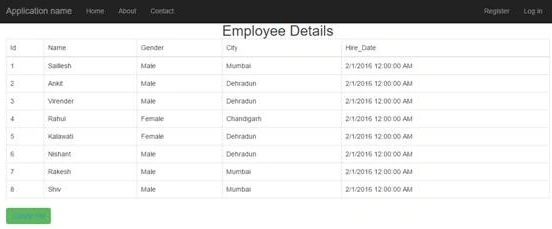
Figure 12.Our Employee Details View
Now we will create a method to create pdf and download the same using Itextsharp so now we need to download Itextsharp.
ITextSharp
“iText Software is a world-leading specialist in programmable PDF software libraries for professionals. Its solutions are used in sales and marketing, legal and governance, finance, IT, operations and HR by a diverse customer base that includes medical institutions, banks, governments and technology companies.”
Source: About
Go to Manage Nuget Package Manager and search for Itextsharp as shown below.
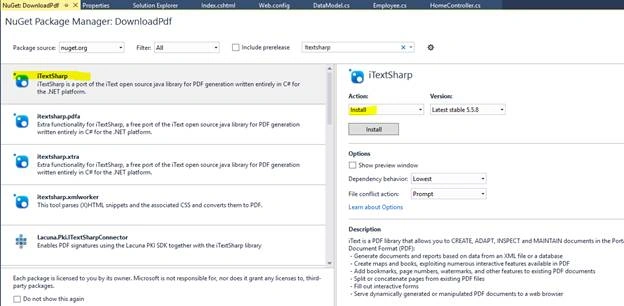
Figure 13. Installing Nuget Package Manager
And install the same.
Now we will see the itextsharp library added to our references.
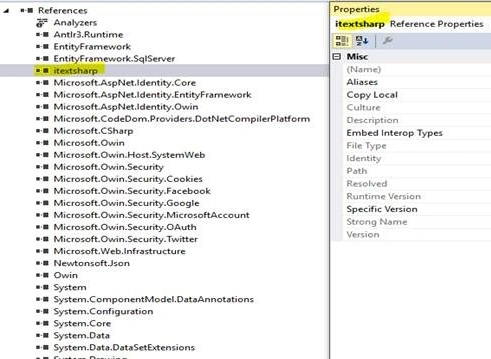
Figure 14. Demonstrating the Addition of ItextSharpdll in references
Now let’s start creating our method for pdf creation.
In MVC we have several Action Results egPartialViewResult, Content, JavaScript Result, EmptyResult, Redirect Result, etc. We will be using FileResult which is used to send binary file content to the response.
Let's get started.
public FileResult CreatePdf()
{
    MemoryStream workStream = new MemoryStream();
    StringBuilder status = new StringBuilder("");
    DateTime dTime = DateTime.Now;
    // file name to be created
    string strPDFFileName = string.Format("SamplePdf" + dTime.ToString("yyyyMMdd") + "-" + ".pdf");
    Document doc = new Document();
    doc.SetMargins(0f, 0f, 0f, 0f);
    // Create PDF Table with 5 columns
    PdfPTable tableLayout = new PdfPTable(5);
    doc.SetMargins(0f, 0f, 0f, 0f);
    // Create PDF Table
    // file will created in this path
    string strAttachment = Server.MapPath("~/Downloadss/" + strPDFFileName);
    PdfWriter.GetInstance(doc, workStream).CloseStream = false;
    doc.Open();
    // Add Content to PDF
    doc.Add(Add_Content_To_PDF(tableLayout));
    // Closing the document
    doc.Close();
    byte[] byteInfo = workStream.ToArray();
    workStream.Write(byteInfo, 0, byteInfo.Length);
    workStream.Position = 0;
    return File(workStream, "application/pdf", strPDFFileName);
}
protected PdfPTable Add_Content_To_PDF(PdfPTable tableLayout)
{
    float[] headers = { 50, 24, 45, 35, 50 }; // Header Widths
    tableLayout.SetWidths(headers); // Set the pdf headers
    tableLayout.WidthPercentage = 100; // Set the PDF File witdh percentage
    tableLayout.HeaderRows = 1;
    // Add Title to the PDF file at the top
    List<Employee> employees = _context.employees.ToList<Employee>();
    tableLayout.AddCell(new PdfPCell(new Phrase("Creating Pdf using ItextSharp", new Font(Font.FontFamily.HELVETICA, 8, 1, new iTextSharp.text.BaseColor(0, 0, 0))))
    {
        Colspan = 12,
        Border = 0,
        PaddingBottom = 5,
        HorizontalAlignment = Element.ALIGN_CENTER
    });
    //// Add header
    AddCellToHeader(tableLayout, "EmployeeId");
    AddCellToHeader(tableLayout, "Name");
    AddCellToHeader(tableLayout, "Gender");
    AddCellToHeader(tableLayout, "City");
    AddCellToHeader(tableLayout, "Hire Date");
    //// Add body
    foreach (var emp in employees)
    {

        AddCellToBody(tableLayout, emp.EmployeeId.ToString());
        AddCellToBody(tableLayout, emp.Name);
        AddCellToBody(tableLayout, emp.Gender);
        AddCellToBody(tableLayout, emp.City);
        AddCellToBody(tableLayout, emp.Hire_Date.ToString());
    }
    return tableLayout;
}
// Method to add single cell to the Header
private static void AddCellToHeader(PdfPTable tableLayout, string cellText)
{

    tableLayout.AddCell(new PdfPCell(new Phrase(cellText, new Font(Font.FontFamily.HELVETICA, 8, 1, iTextSharp.text.BaseColor.YELLOW)))
    {
        HorizontalAlignment = Element.ALIGN_LEFT,
        Padding = 5,
        BackgroundColor = new iTextSharp.text.BaseColor(128, 0, 0)
    });
}
// Method to add single cell to the body
private static void AddCellToBody(PdfPTable tableLayout, string cellText)
{
    tableLayout.AddCell(new PdfPCell(new Phrase(cellText, new Font(Font.FontFamily.HELVETICA, 8, 1, iTextSharp.text.BaseColor.BLACK)))
    {
        HorizontalAlignment = Element.ALIGN_LEFT,
        Padding = 5,
        BackgroundColor = new iTextSharp.text.BaseColor(255, 255, 255)
    });
}
Now let’s run our Application and check whether the pdf is getting generated or not.

Figure 15. View
Once the User clicks on Generate Pdf. Pdf gets generated successfully as shown below.

Figure 16. PDF Generation
Now once we open the pdf we will see our records displayed in table format as shown below.
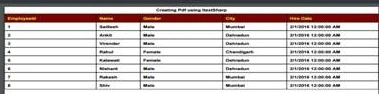
Figure 17. PDF View in Google Chrome
Hence I want to commence this code snippet tip for creating PDF files using ItextSharp in ASP.NET MVC. I hope this tip was useful and stay tuned on C# Corner for upcoming topics.
Read more articles on ASP.NET.
Lukasz ZbikowskiPosted Feb 20, 2019, 11:34 AM
Great job !!! Thank You :)
Nithish ReddyPosted Dec 3, 2018, 3:19 AM
CAN WE DOWNLOAD THAT FILE ONLY IN IMAGE FORMAT ?
bainapalli krishnaPosted Oct 29, 2018, 12:37 AM
'The document has no pages.'
bainapalli krishnaPosted Oct 29, 2018, 12:37 AM
System.IO.IOException: 'The document has no pages.'
bainapalli krishnaPosted Oct 29, 2018, 12:36 AM
I have one error in this content
sumit singhPosted May 2, 2018, 5:24 AM
Public FileResult CreatePdf() { MemoryStream workStream = new MemoryStream(); StringBuilder status = new StringBuilder(""); DateTime dTime = DateTime.Now; //file name to be created string strPDFFileName = string.Format("SamplePdf" + dTime.ToString("yyyyMMdd") + "-" + ".pdf"); Document doc = new Document(); doc.SetMargins(0f, 0f, 0f, 0f); //Create PDF Table with 5 columns PdfPTable tableLayout = new PdfPTable(5); doc.SetMargins(0f, 0f, 0f, 0f); //Create PDF Table //file will created in this path string strAttachment = Server.MapPath("~/Downloadss/" + strPDFFileName); PdfWriter.GetInstance(doc, workStream).CloseStream = false; doc.Open(); //Add Content to PDF doc.Add(Add_Content_To_PDF(tableLayout)); // Closing the document doc.Close(); byte[] byteInfo = workStream.ToArray(); workStream.Write(byteInfo, 0, byteInfo.Length); workStream.Position = 0; return File(workStream, "application/pdf", strPDFFileName); } protected PdfPTable Add_Content_To_PDF(PdfPTable tableLayout) { float[] headers = { 50, 24, 45, 35, 50 }; //Header Widths tableLayout.SetWidths(headers); //Set the pdf headers tableLayout.WidthPercentage = 100; //Set the PDF File witdh percentage tableLayout.HeaderRows = 1; //Add Title to the PDF file at the top List<Employee> employees = _context.employees.ToList<Employee>(); tableLayout.AddCell(new PdfPCell(new Phrase("Creating Pdf using ItextSharp", new Font(Font.FontFamily.HELVETICA, 8, 1, new iTextSharp.text.BaseColor(0, 0, 0)))) { Colspan = 12, Border = 0, PaddingBottom = 5, HorizontalAlignment = Element.ALIGN_CENTER }); ////Add header AddCellToHeader(tableLayout, "EmployeeId"); AddCellToHeader(tableLayout, "Name"); AddCellToHeader(tableLayout, "Gender"); AddCellToHeader(tableLayout, "City"); AddCellToHeader(tableLayout, "Hire Date"); ////Add body foreach (var emp in employees) { AddCellToBody(tableLayout, emp.EmployeeId.ToString()); AddCellToBody(tableLayout, emp.Name); AddCellToBody(tableLayout, emp.Gender); AddCellToBody(tableLayout, emp.City); AddCellToBody(tableLayout, emp.Hire_Date.ToString()); } return tableLayout; } // Method to add single cell to the Header private static void AddCellToHeader(PdfPTable tableLayout, string cellText) { tableLayout.AddCell(new PdfPCell(new Phrase(cellText, new Font(Font.FontFamily.HELVETICA, 8, 1, iTextSharp.text.BaseColor.YELLOW))) { HorizontalAlignment = Element.ALIGN_LEFT, Padding = 5, BackgroundColor = new iTextSharp.text.BaseColor(128, 0, 0) }); } // Method to add single cell to the body private static void AddCellToBody(PdfPTable tableLayout, string cellText) { tableLayout.AddCell(new PdfPCell(new Phrase(cellText, new Font(Font.FontFamily.HELVETICA, 8, 1, iTextSharp.text.BaseColor.BLACK))) { HorizontalAlignment = Element.ALIGN_LEFT, Padding = 5, BackgroundColor = new iTextSharp.text.BaseColor(255, 255, 255) }); } public ActionResult About() { ViewBag.Message = "Your application description page."; return View(); } public ActionResult Contact() { ViewBag.Message = "Your contact page."; return View(); }
Kim BlackPosted Feb 23, 2018, 12:54 PM
Or just use zetpdf.com instead , good one
Mudassar IqbalPosted Jan 25, 2018, 8:36 AM
I want to download embed image in PDF File its not showing properly in PDF file.
Savadamuthu SaravananPosted Nov 30, 2017, 3:50 AM
Very Helpful, Thank you
Anu PrasadPosted Jul 16, 2017, 5:21 AM
Instead of downloading how to open the pdf file in new tab..This is my view @Html.ActionLink("view pdf", "CreatePdf", "Pdf", null, new { target = "_blank" }) ..But its not working..
Eric GametiPosted Jul 15, 2017, 1:04 PM
Great article. Thank you
Nguyễn NữPosted Jun 8, 2017, 10:59 PM
Thank you so much for sharing
Vignesh ManiPosted Mar 23, 2017, 9:34 AM
Thank You so much for Sharing!!!
Vaibhav DeshmukhPosted Mar 23, 2017, 5:34 AM
Thank you Saillesh Pawar.Its very clean and neat with step by step guide.
SubashPosted Oct 12, 2016, 5:07 AM
Little confusion with controller name
Saillesh PawarPosted Sep 14, 2016, 8:03 AM
Enter your Heading here tableLayout.AddCell(newPdfPCell(newPhrase("Creating Pdf using ItextSharp", newFont(Font.FontFamily.HELVETICA, 8, 1, newiTextSharp.text.BaseColor(0, 0, 0)))) { Colspan = 12, Border = 0, PaddingBottom = 5, HorizontalAlignment = Element.ALIGN_CENTER });
Nitin AnandPosted Sep 13, 2016, 8:33 AM
One of the best & simple explainations in this topic. helped a lot. im wondering if its possible to modify the Table heading "Created pdf using itext".
Drew OttesonPosted Apr 28, 2016, 3:01 PM
I am relatively new to developing, but I am working on something incredibly similar and was hoping to display it in a custom format...
Drew OttesonPosted Apr 28, 2016, 2:59 PM
Would it be difficult to display the info in a format other than the table?
Jimmy HoffPosted Apr 22, 2016, 10:56 AM
Instead of coding the whole document/pdf, you may also want to start out with a template containing placeholders to indicate where you want your text/data. Check out www.docati.com, since it does exactly that and is also affordable, compared to many other products.
Kumaresh RajalingamPosted Mar 23, 2016, 9:18 PM
Nice one
Roshan MulePosted Mar 23, 2016, 2:11 PM
Very nice article..!
Saillesh PawarPosted Mar 21, 2016, 10:56 AM
Thanks Raja Sir
Raja TPosted Mar 21, 2016, 12:18 AM
Nice, Thanks for sharing
Humayun Kabir MamunPosted Mar 19, 2016, 11:59 PM
Nice...
Ankur MistryPosted Mar 19, 2016, 3:27 AM
Thanks for sharing Saillesh Pawar it is useful
Vignesh ManiPosted Mar 18, 2016, 4:52 PM
nice