

Introduction
In this article, we will learn the Procedure for using Windows to create a portable workspace.
Step 1
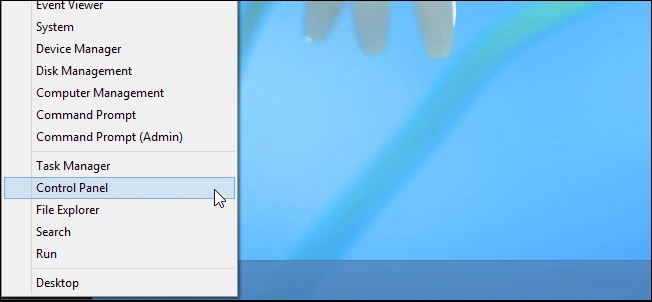
In the Windows 8 Desktop, first, we press the "Windows + X" key in our keyboard and select "Control Panel" from the context menu.
Step 2
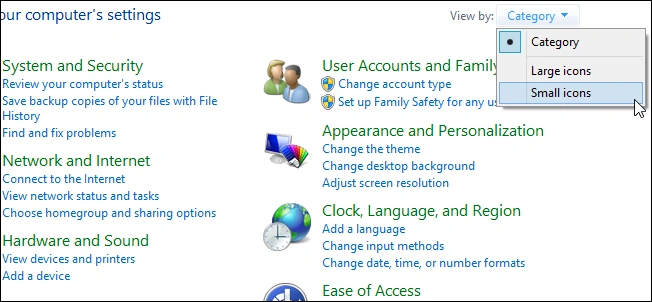
In the Control Panel window, we change the category in Small icons.
Step 3
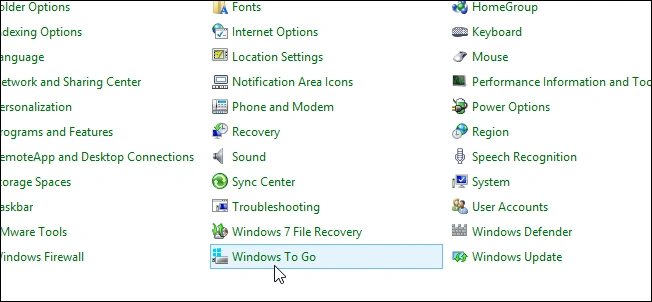
Then click the "Windows To Go" item.
Step 4
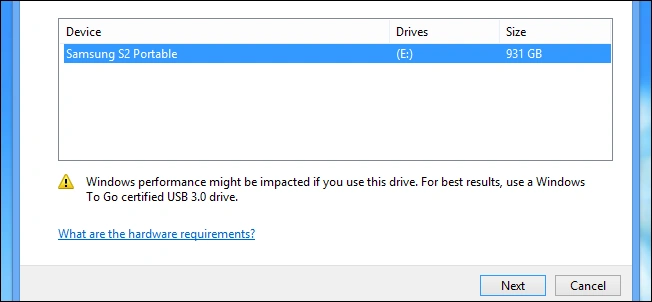
Then select the "USB drive" that we would like to turn into a portable workspace, then click "Next".
Step 5
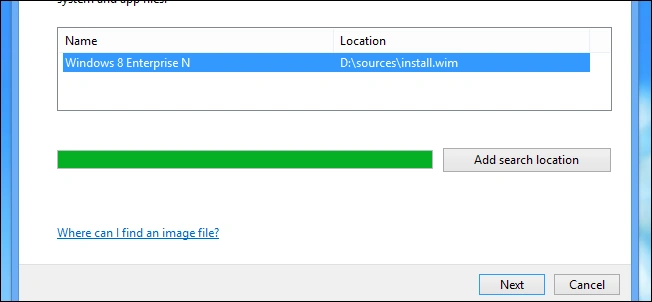
The wizard will automatically scan your CD\DVD and Removable drives for valid Windows installation files, once we have selected a version of Windows click "Next".
Step 6
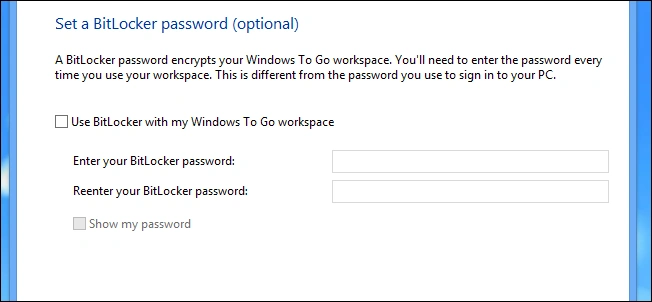
"Set a BitLocker password", but we'll pass on this option for now.
Step 7
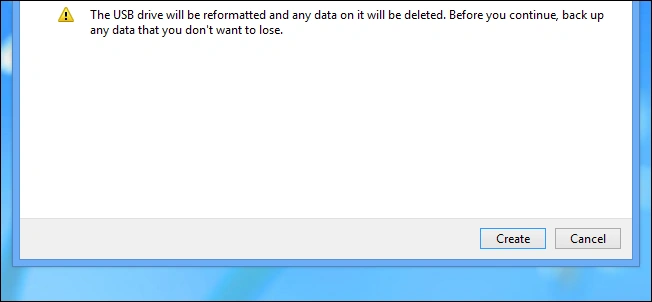
After that is the end of the wizard, our USB drive will be formatted and then click "Create".
Step 8
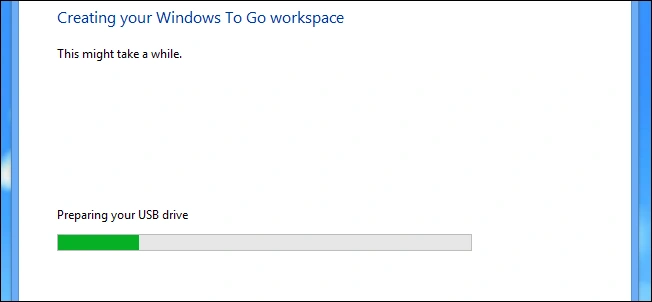
That's all there is to it, we now have a bootable USB with Windows on it.
How To Reformat Your Windows To Go To the USB Drive?
Step 1
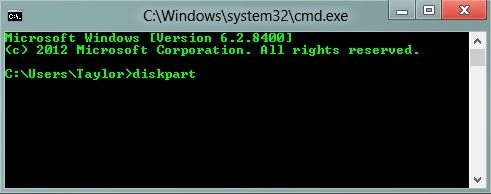
After using Windows on a drive, we can reformat the drive, then open a command prompt and enter "diskpart" and then hit "Enter".
Step 2
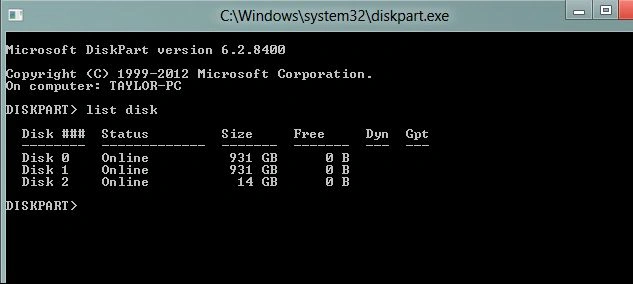
Then find the drive we want to format. The list disk command will show you all the drives currently connected to your system. Take note of your drive number because we will need it in the next step.
Step 3
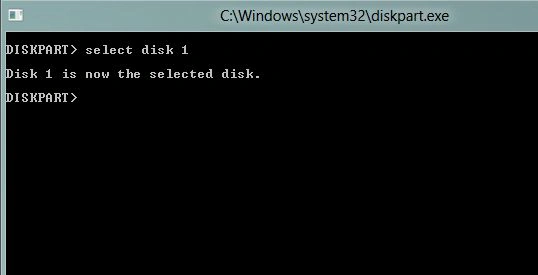
We now need to select the disk, we can simply use the select disk command along with your drive number from the previous step.
Step 4
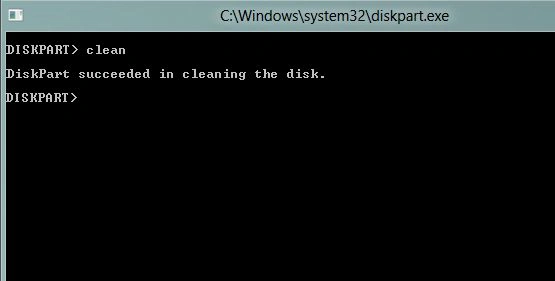
Now that the disk is selected we can go ahead and wipe it.
Step 5
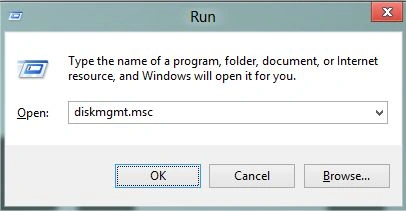
Then press the "Windows + R" key and type "diskmgmt.msc "and click "OK".
Step 6
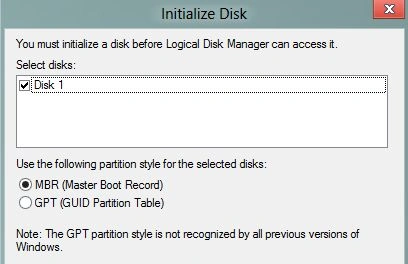
As soon as the Management console opens you will need to initialize the disk.
Step 7
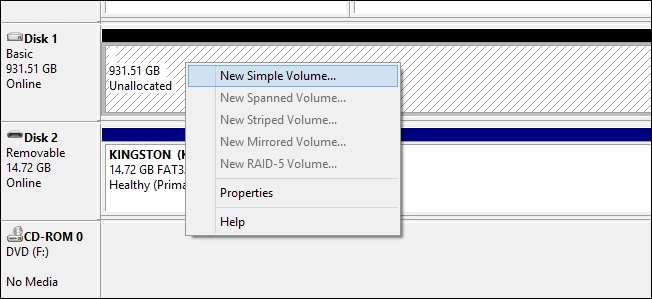
Then we can go ahead and create your drive's partition.
That's all there is to it.
Summary
In this article, we learned about Create a Portable Version of Windows 8 Without Extra Software.
Join the conversation! Your thoughts help the community grow.