

SharePoint Publishing feature is one of the features which extends SharePoint functionality as a content management system. Once the publishing feature is activated, we can create the publishing pages with the different page layouts and associate it to the custom master page. This creates a unique look and feel and helps to customize the way, content is published. Publishing feature can be activated at the site collection and the site level.
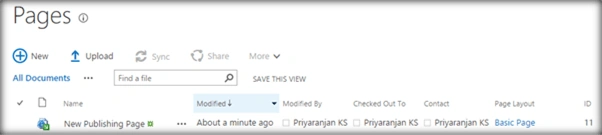
Once, it is activated, Pages library will be available in the site contents. 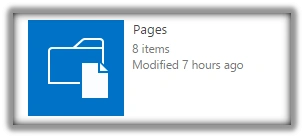
We can create the pages with the different page layouts in this library.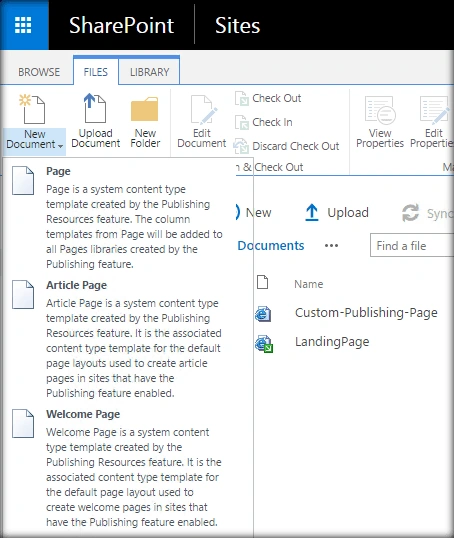
Let’s see, how we can do the same programmatically, using JavaScript Object Model.
Internal Implementation
- Add the reference to jQuery file.
- <script language="javascript" type="text/javascript" src="//ajax.googleapis.com/ajax/libs/jquery/1.8.1/jquery.min.js"></script>
- <script language="javascript" type="text/javascript">
- Within Document ready function, call SP.SOD.executeFunc, so as to load the on demand script SP.js. Call the main starting point function say: createPublishingPage.
- SP.SOD.executeFunc('sp.js', 'SP.ClientContext', createPublishingPage);
- Instantiate client context, Web and Master Page Library instance.
- //Get client context and web object
- var clientContext = new SP.ClientContext();
- var oWeb = clientContext.get_web();
- var oList = oWeb.get_lists().getByTitle('Master Page Gallery');
- Get the page layout by ID, using which, we will create a publishing page.
- pageLayoutitem = oList.getItemById(2268);
- Load the client context and execute the batch.
- clientContext.load(oWeb);
- clientContext.load(pageLayoutitem);
- clientContext.executeQueryAsync(QuerySuccess, QueryFailure);
- In the success callback, create a publishing page, using PublishingPageInformation object.
- var newPublishingPage = SP.Publishing.PublishingWeb.getPublishingWeb(clientContext,oWeb);
- var pageInfo = new SP.Publishing.PublishingPageInformation();
- pageInfo.set_name("New Publishing Page.aspx");
- pageInfo.set_pageLayoutListItem(pageLayoutitem);
- newPage = newPublishingPage.addPublishingPage(pageInfo);
- Load the client context and execute the batch, once again.
- clientContext.load(newPage);
- clientContext.executeQueryAsync(SecondQuerySuccess, SecondQueryFailure);
Full Code
The full code to create the publishing page, using JavaScript object model is shown below:
Nar NurburgPosted Jun 13, 2018, 8:58 AM
<script language="javascript" type="text/javascript" src="//ajax.googleapis.com/ajax/libs/jquery/1.8.1/jquery.min.js"></script><script type="text/javascript" src="/_layouts/15/sp.runtime.js"></script> <script type="text/javascript" src="/_layouts/15/sp.js"></script> <script type="text/javascript" src="/_layouts/15/core.js"></script> <script type="text/javascript" src="/_layouts/15/sp.publishing.js"></script> <script language="javascript" type="text/javascript"> $(document).ready(function () { ExecuteOrDelayUntilScriptLoaded(createPublishingPage, "sp.js"); }); var oWeb, clientContext, pageLayoutitem; function createPublishingPage() { //Get the client context,web and list object(Master Page Gallery) clientContext = new SP.ClientContext(); oWeb = clientContext.get_web(); var oList = oWeb.get_lists().getByTitle('Master Page Gallery'); //Get the page layout by ID using which we will create a publishing page pageLayoutitem = oList.getItemById(36); //Load the client context and execute the batch clientContext.load(oWeb); clientContext.load(pageLayoutitem); clientContext.executeQueryAsync(QuerySuccess, QueryFailure); } function QuerySuccess() { var pubweb = SP.Publishing.PublishingWeb.getPublishingWeb(clientContext, oWeb); var pageInfo = new SP.Publishing.PublishingPageInformation(); pageInfo.set_name("Test.aspx"); pageInfo.set_pageLayoutListItem(pageLayoutitem); newPage = pubweb.addPublishingPage(pageInfo); clientContext.load(newPage); clientContext.executeQueryAsync(SecondQuerySuccess, SecondQueryFailure); } function QueryFailure(sender, args) { alert('Request failed' + args.get_message()); } function SecondQuerySuccess(sender, args) { alert("Publishing page created successfully."); } function SecondQueryFailure(sender, args) { alert('Request failed ' + args.get_message()); } </script>
Nar NurburgPosted Jun 13, 2018, 8:57 AM
No working for me in 2013 or SharePoint Online
Delpin Susai RajPosted Aug 28, 2016, 3:48 AM
Nice
Tarun DPosted Aug 26, 2016, 1:01 AM
Thanks for sharing..
Vignesh ManiPosted Aug 25, 2016, 6:32 AM
Good one