

In this article, we will see how to create a site collection in SharePoint 2013 Central Admin. A site collection will act like a base for all of your different sites on SharePoint. You can use it for your organization or a public facing Website.
How to create?
Let’s open Central Admin of SharePoint on your machine. On your Windows desktop screen, click Start >> Administrative Tools >> SharePoint 2013 Central Administration.
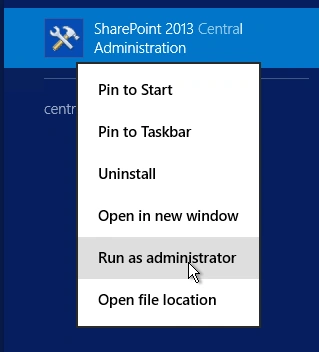
- Run it as an administrator to have the elevated privileges.
- You will see the screenshot given below.
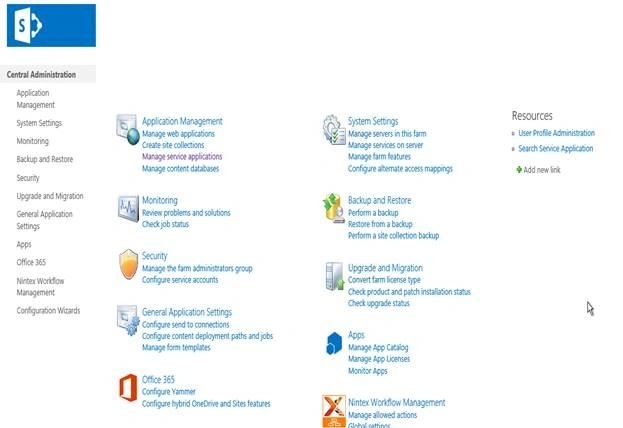
- Central Admin is configured under the categories given below.
- Click on Application Management.
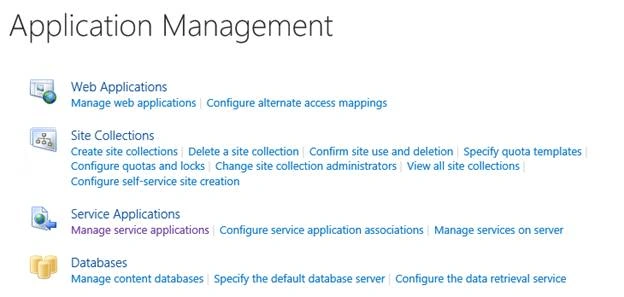
- Go to Web Applications >> Under Site Collections.

- Click on “Create Site Collections”.
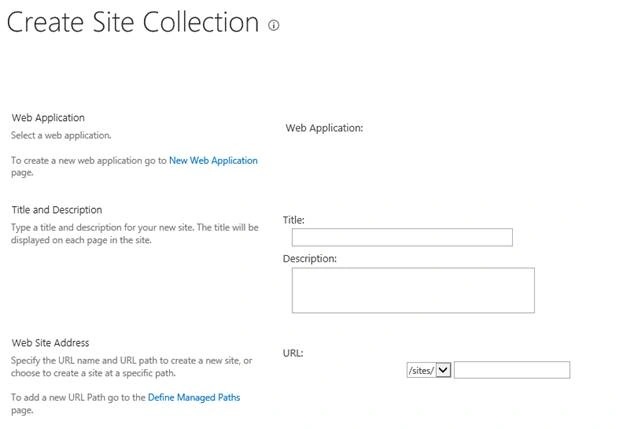
- You will see the screen below.
Configuration
- Web Application
Choose the Web application under which you want to create a site collection. - Title
Provide the title of the site collection. - Description
Provide a description of the site collection, if required. - Web Site Address
Select the Website address as /sites/ or /teams/ and provide the title as your URL should have it. You call also define the managed paths, as required by your organization.
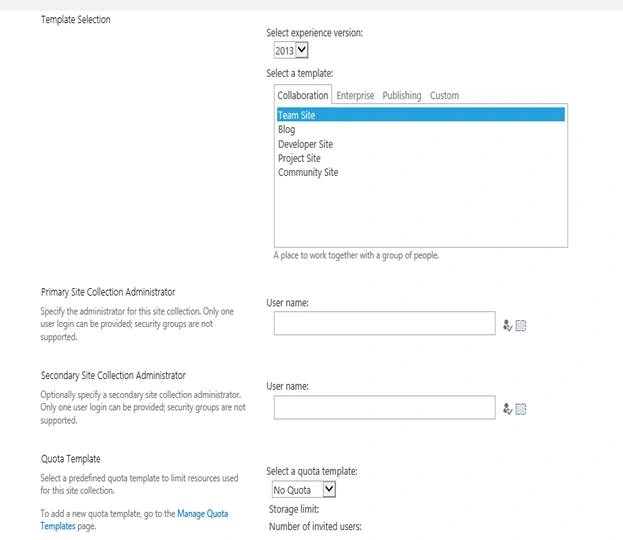
- Select Experience Version. You can choose what kind of experience, 2010 or 2013, you will have on the site.
- Templates
Now, you can choose your template, which is based on the categories given below.
Collaboration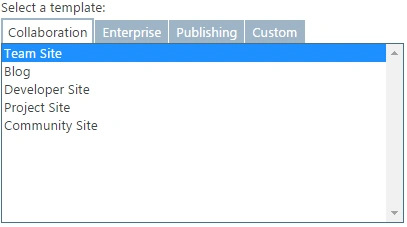
Under the collaboration section, we have the templates given below.
- Team Site
- Blog
- Developer Site
- Project Site
- Community Site
Enterprise
Under the Enterprise section, we have the templates given below.
- Document Center
- eDiscovery Center
- Team Site- SharePoint Online configuration
- Business Intelligence center
- Compliance Policy center
- Enterprise search Center
- My Site Host
- Community Portal
- Basic Search Center
- Visio Process Repository
Publishing
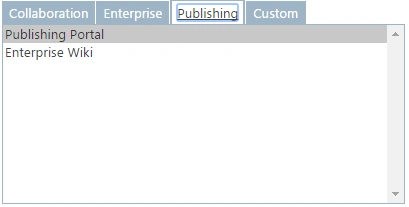
Under the publishing section, you have the following.
- Publishing Portal
- Enterprise Wiki
Custom
Here, you can choose a custom template, which you can build, which is based on your requirement.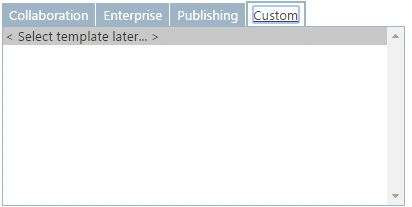
- Primary Site Collection Administrator
You can choose an administrator, who will have the full control on your site collection. - Secondary Site Collection Administrator
You can choose a secondary administrator, who will have the full control on your site collection.
You should provide a specific quota to your site collection, so that it does not degrade the performance for other site collections. As this is for our development phase, we might have many apps and many custom connections, so we can choose the default quota, so that our central admin has no issues.
Once you have configured, click on OK and your new collection will be created.
In this article, we saw how to create a site collection in SharePoint, using central administration. There are more to come in regards to central administration. Until then keep reading and keep learning.
Join the conversation! Your thoughts help the community grow.