

Introduction
- Android Studio 2.1.3
If you want to create a TextSwitcher app, you should follow the steps given below.
Step 1
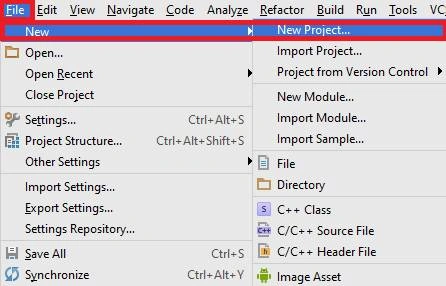
Now, open Android Studio and you can choose the file, and subsequently choose New. Afterwords, select New Project.
 Step 2
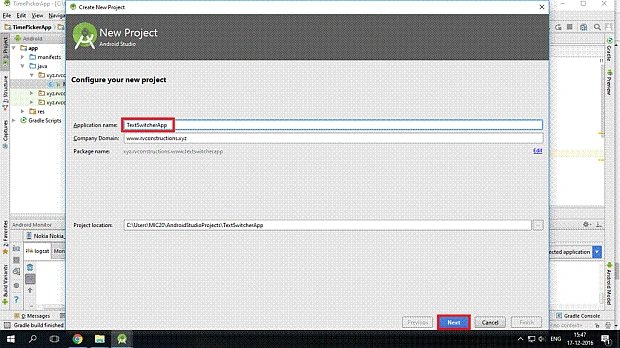
Here, you can create your application name and choose where your project is stored on the location. Then, click NEXT button.
Step 2
Here, you can create your application name and choose where your project is stored on the location. Then, click NEXT button.
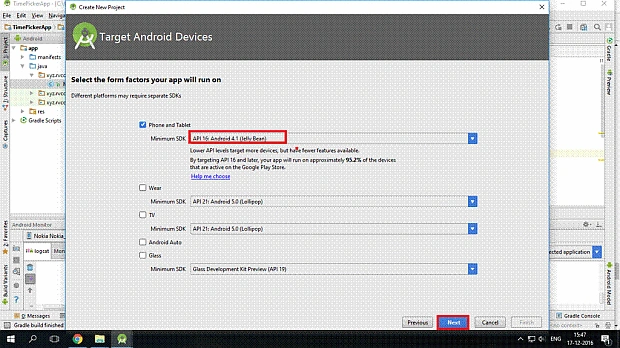
 Now, we can select the version of Android; it is Target Android Devices.
 Step 3
Here, we can add the activity and click the Next button.
Step 3
Here, we can add the activity and click the Next button.
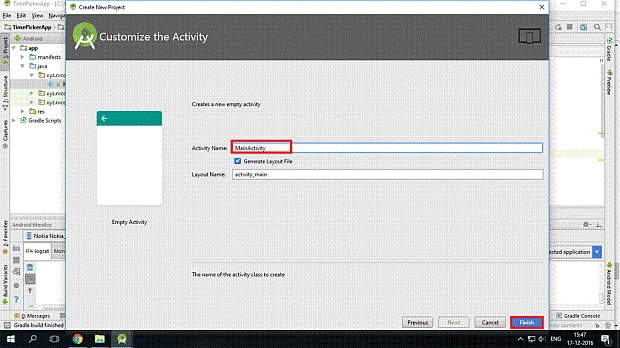
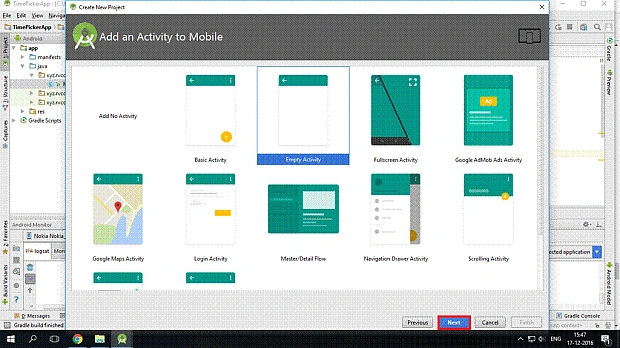 Now, we can write the activity name and click the Finish button.
  Step 4
Now, open your project and you will go to activity_main.xml and afterward, build the design. You should choose the toolbox if you want some options (TextSwitcher, button), and use the drag and drop method.
Step 4
Now, open your project and you will go to activity_main.xml and afterward, build the design. You should choose the toolbox if you want some options (TextSwitcher, button), and use the drag and drop method.
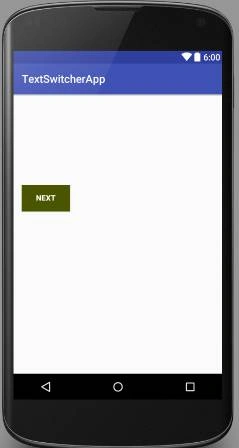
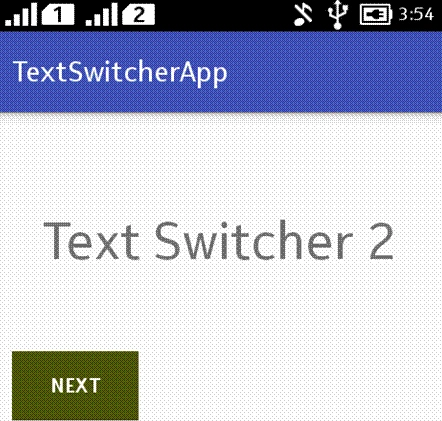
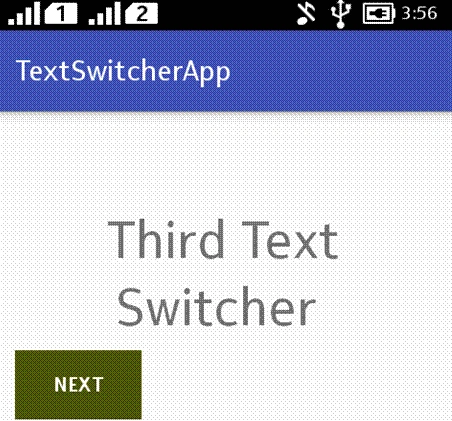
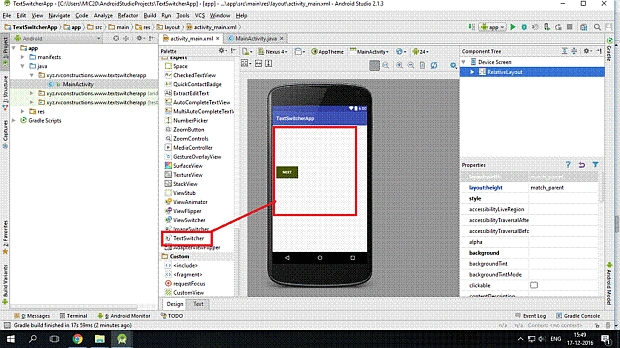 Now, we can see the Graphical User Interface design.
 Step 5
Here, you need to build on the design and write the.XML code.
activity_mai.xml code
Step 5
Here, you need to build on the design and write the.XML code.
activity_mai.xml code
- <?xml version="1.0" encoding="utf-8"?>
- <RelativeLayout xmlns:android="http://schemas.android.com/apk/res/android" xmlns:tools="http://schemas.android.com/tools" android:layout_width="match_parent" android:layout_height="match_parent" android:paddingBottom="@dimen/activity_vertical_margin" android:paddingLeft="@dimen/activity_horizontal_margin" android:paddingRight="@dimen/activity_horizontal_margin" android:paddingTop="@dimen/activity_vertical_margin" tools:context="xyz.rvconstructions.www.textswitcherapp.MainActivity">
- <TextSwitcher android:id="@+id/simpleTextSwitcher" android:layout_width="match_parent" android:layout_height="wrap_content" android:layout_gravity="center_horizontal" android:layout_marginTop="50dp" />
- <Button android:id="@+id/buttonNext" android:layout_width="wrap_content" android:layout_height="wrap_content" android:layout_marginTop="150dp" android:layout_gravity="center" android:background="#4b5500" android:textColor="#fff" android:textStyle="bold" android:text="NEXT" />
- </RelativeLayout>
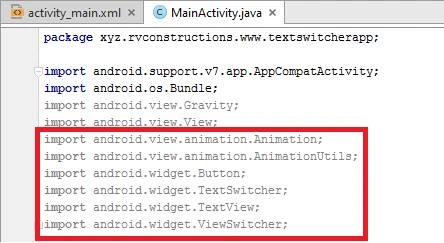
- package xyz.rvconstructions.www.textswitcherapp;
- import android.support.v7.app.AppCompatActivity;
- import android.os.Bundle;
- import android.view.Gravity;
- import android.view.View;
- import android.view.animation.Animation;
- .import android.view.animation.AnimationUtils;
- .import android.widget.Button;
- import android.widget.TextSwitcher;
- import android.widget.TextView;
- import android.widget.ViewSwitcher;
- public class MainActivity extends AppCompatActivity {
- private TextSwitcher firstTextSwitcher;
- Button bttnNext;
- String strings[] = {
- "First Text Switcher ",
- " SecondText Switcher ",
- "Third Text Switcher ",
- " Fourth Text Switcher ",
- "Five Text Switcher "
- };
- int messageCount = strings.length;
- int currentIndex = -1;
- @Override
- protected void onCreate(Bundle savedInstanceState) {
- super.onCreate(savedInstanceState);
- setContentView(R.layout.activity_main);
- bttnNext = (Button) findViewById(R.id.buttonNext);
- firstTextSwitcher = (TextSwitcher) findViewById(R.id.simpleTextSwitcher);
- firstTextSwitcher.setFactory(new ViewSwitcher.ViewFactory() {
- public View makeView() {
- TextView t = new TextView(MainActivity.this);
- t.setGravity(Gravity.TOP | Gravity.CENTER_HORIZONTAL);
- t.setTextSize(36);
- return t;
- }
- });
- Animation in = AnimationUtils.loadAnimation(this, android.R.anim.slide_in_left);
- Animation out = AnimationUtils.loadAnimation(this, android.R.anim.slide_out_right);
- firstTextSwitcher.setInAnimation( in );
- firstTextSwitcher.setOutAnimation(out);
- firstTextSwitcher.setCurrentText("click to next button to switch text");
- bttnNext.setOnClickListener(new View.OnClickListener() {
- public void onClick(View v) {
- currentIndex++;
- if (currentIndex == messageCount)
- urrentIndex = 0;
- firstTextSwitcher.setText(strings[currentIndex]);
- }
- });
- }
- }
Join the conversation! Your thoughts help the community grow.