

In this article we are showing the use of a theme in Windows Phone 7. Now in this article we have change a theme throw in property as well as also perform this functionality according to throw a static resources. A Windows Phone 7 theme plays a major role when developing an applications where color plays an important role. Background color with Windows Phone 7 has 2 options; one is Light Color and the other is the dark Color. Windows Phone 7 Themes are selected using the Setting options; when the user selects the theme the complete application system is changed, but again when we change some other theme only the theme related color changes within the application scope. Many theme properties are available in Windows Phone 7. In this property the designer can apply using control property or throw XAML using static resources. Some of the advantages of using the Themes in Windows Phone 7 development is consistency across the default controls used with in the application without adjusting some of the common properties like colors, fonts, styles etc.
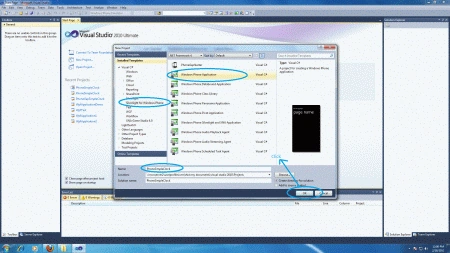
Step 1: In this step first of all we have to open a Windows Phone application.
- Go to Visual Studio 2010
- File->New->Project
- Select the template named Silverlight for Windows Phone
- Select the Windows Phone application
- Give it a name as you want.

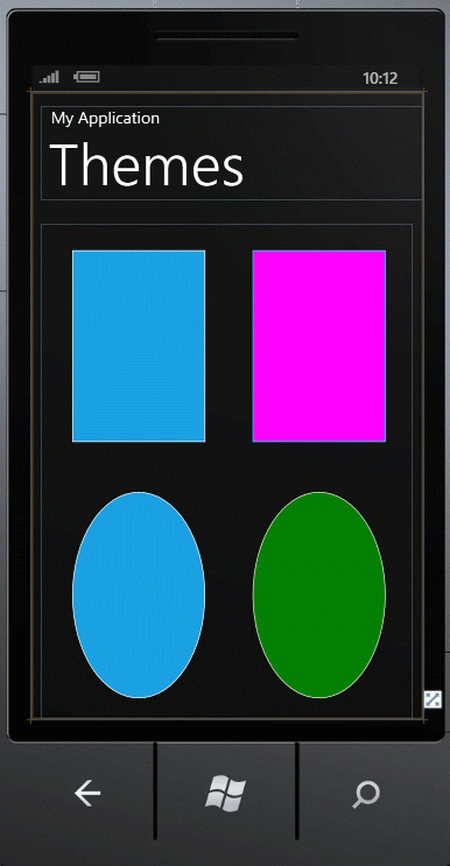
Step 2: To start, create a new Windows Phone application and add two rows, the first with a TextBox and a Button (and therefore, within a StackPanel) and the second with a TextBlock. The code for the XAML page is customized as in the above design.
Code
<phone:PhoneApplicationPage
x:Class="F5debugWp7Themes.MainPage"
xmlns="http://schemas.microsoft.com/winfx/2006/xaml/presentation"
xmlns:x="http://schemas.microsoft.com/winfx/2006/xaml"
xmlns:phone="clr-namespace:Microsoft.Phone.Controls;assembly=Microsoft.Phone"
xmlns:shell="clr-namespace:Microsoft.Phone.Shell;assembly=Microsoft.Phone"
xmlns:d="http://schemas.microsoft.com/expression/blend/2008"
xmlns:mc="http://schemas.openxmlformats.org/markup-compatibility/2006"
mc:Ignorable="d" d:DesignWidth="480" d:DesignHeight="768"
FontFamily="{StaticResource PhoneFontFamilyNormal}"
FontSize="{StaticResource PhoneFontSizeNormal}"
Foreground="{StaticResource PhoneForegroundBrush}"
SupportedOrientations="Portrait" Orientation="Portrait"
shell:SystemTray.IsVisible="True">
<!--LayoutRoot is the root grid where all page content is placed-->
<Grid x:Name="LayoutRoot" Background="Transparent">
<Grid.RowDefinitions>
<RowDefinition Height="Auto"/>
<RowDefinition Height="*"/>
</Grid.RowDefinitions>
<!--TitlePanel contains the name of the application and page title-->
<StackPanel x:Name="TitlePanel" Grid.Row="0" Margin="12,17,0,28">
<TextBlock x:Name="ApplicationTitle" Text="My Application" Style="{StaticResource PhoneTextNormalStyle}"/>
<TextBlock x:Name="PageTitle" Text="Themes" Margin="9,-7,0,0" Style="{StaticResource PhoneTextTitle1Style}"/>
</StackPanel>
<!--ContentPanel - place additional content here-->
<Grid x:Name="ContentPanel" Grid.Row="1" Margin="12,0,12,0">
<Rectangle Height="235" HorizontalAlignment="Left" Margin="38,33,0,0" Name="rectangle1"
Stroke="{StaticResource PhoneForegroundBrush}" StrokeThickness="1" VerticalAlignment="Top"
Fill= "{StaticResource PhoneAccentBrush}" Width="163" />

naresh rajuPosted Jul 12, 2012, 7:21 AM
hi where did u applied themes? i think this is not rightway! just you added ellipse and rectangle and applied their colors right!. i think will there some another way. because of you created themes not applicable for all pages in whole application.just we can compare b/w this and asp.net theme. thanks a lot for your idea!