

In this article I will show you how to create multiple alerts in just a few seconds in a Document Library.
I won't take much of your time.
Kindly find the script below that you need to change.
- URL
- Document Library name
- User name with full control
- Alert Name
Script
- $site = Get-SPSite "Add your url here"
- $web=$site.Rootweb
- $list=$web.Lists.TryGetList("Add your document library")
- $user = $web.EnsureUser('Domain\user')
- $newAlert = $user.Alerts.Add()
- $newAlert.Title = "Add your alert name here"
- $newAlert.AlertType=[Microsoft.SharePoint.SPAlertType]::List
- $newAlert.List = $list
- $newAlert.DeliveryChannels = [Microsoft.SharePoint.SPAlertDeliveryChannels]::Email
- $newAlert.EventType = [Microsoft.SharePoint.SPEventType]::Add
- $newAlert.AlertFrequency = [Microsoft.SharePoint.SPAlertFrequency]::Immediate
- $newAlert.Update()
- Open Windows PowerShell Modules using Run as Administrator.
- Paste in the preceding the code.
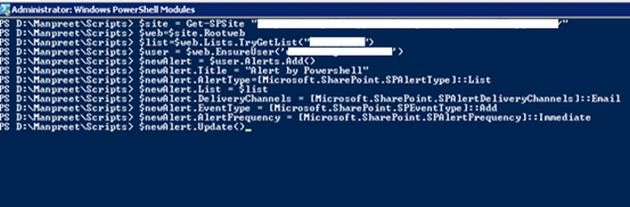
- Click Enter.
- After running go to the respective Document Library.
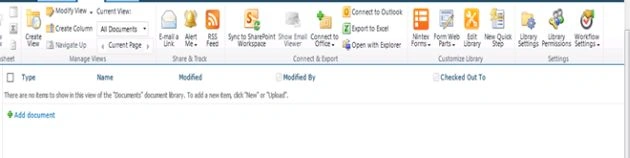
- On the top you can see an alert me icon.
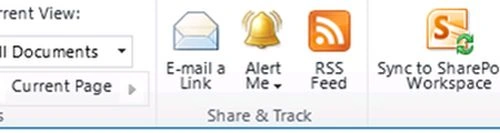
- Click on it.
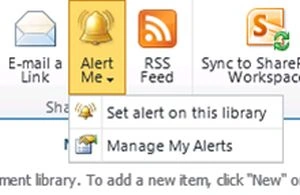
- A drop down comes up with buttons like Set alert on this library that is a manual process but you have already automated it.
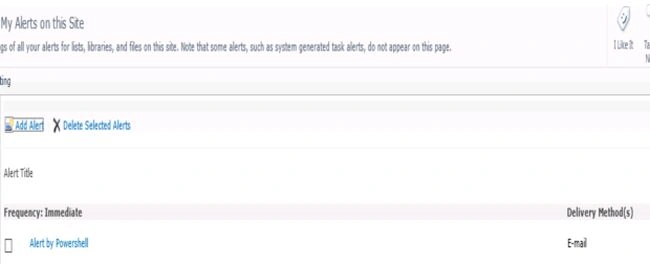
- Go to Manage my alerts.
- You will see your custom alert created by PowerShell.
- As for me it is ”Alert by PowerShell”.
Keep learning!
Cheers.
Join the conversation! Your thoughts help the community grow.