

As we saw from my last article how to create an App in Office 365 and SharePoint 2013 and create an app Part 1, here in this article we will see a different app that you will be able to use in your daily job profiles and it's actually going to help you a lot.
As in my last statement, “When we all see some new apps, the first thing of a techie guy that comes in mind is “Even I want to make an app” but people either get carried away or are not able to determine how to start.”
Create an App in Office 365 and SharePoint 2013: Part 1
So, let's go ahead and determine how to implement our new app.
So, let's go ahead and determine how to implement our new app.
- Open your site in Office 365 or on On-Premise.
- Click on the Site Settings and click on Add an app.
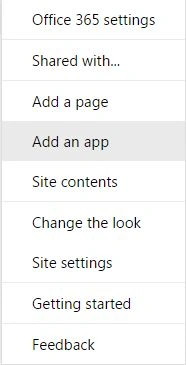
Figure 1: Office 365 Setting
- Add "Napa" Office 365 Development Tools from the SharePoint Store.
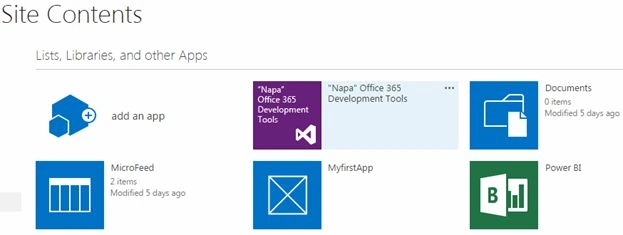
Figure 2: Site Contents
- Once you have added the tool, it will be available in your site contents. This app is a tool to start building apps for Office and SharePoint.
- Once added, click on it.
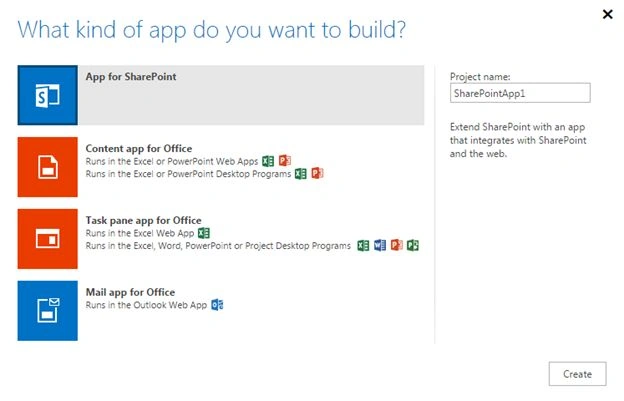
Figure 3: Build the App
- It will ask you what kind of app you want to build, for us it will be App for SharePoint.
- Provide it a name and click on Create.
- In this article we will create an app where on a button click you will be able to create a list.
- Here we will have a button placed on the site where we will create a list by just clicking on it rather than going to site contents and counting it manually.
- Now when your app has been created, you will see in the default.aspx page the code behind.
- Paste following code under PlaceHolder Main.
- <asp:Content ContentPlaceHolderID="PlaceHolderMain" runat="server">
- <div id="starter">
- <input type="text" value="List name" id="createlistbox"/><button id="createlistbutton">Create List</button>
- </div>
Now we need to write a function for the button to call, so click on App.js.
Here in App.js, copy the following variables on the top:
- var context = SP.ClientContext.get_current();
- var user = context.get_web().get_currentUser();
- var web = context.get_web();
- var lists = web.get_lists();
- var listItemCollection;
Under the document.ready function, paste in the flowing lines of code to call the function.
- $(document).ready(function()
- {
- $("#createlistbutton").click(function(event)
- {
- createnewlist();
- event.preventDefault();
- })
- }
Then paste the following function where we will write our function of createnewlist:
- function createnewlist()
- {
- // Create a new SharePoint list with the name on the text box.
- var listCreateInfo = new SP.ListCreationInformation();
- var listname = document.getElementById("createlistbox").value;
- listCreateInfo.set_title(listname);
- listCreateInfo.set_templateType(SP.ListTemplateType.genericList);
- lists = web.get_lists();
- var newList = lists.add(listCreateInfo);
- context.load(newList);
- context.executeQueryAsync(onListCreationSuccess, onListCreationFail);
- }
- }
- function onListCreationFail(sender, args)
- {
- alert('Failed to create the list. ' + args.get_message());
- }
- Now if you create a similar list with duplicate names the error in the message will tell you that a list with the same name exists so kindly use a different name.
- In that case when you click on the button, the list with a different name will be created or else it will throw an error.
- Now after this, let's deploy the code.
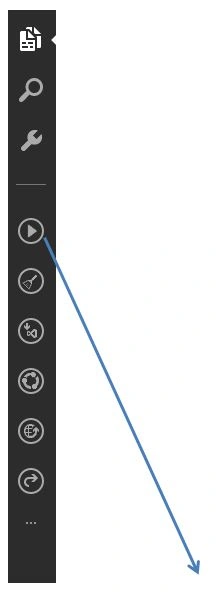
Figure 4: Bar
- Once you have made all the necessary updates to you code, click on the Play icon button that states “Run Project”.
- It will first prepare, then deploy and launch.
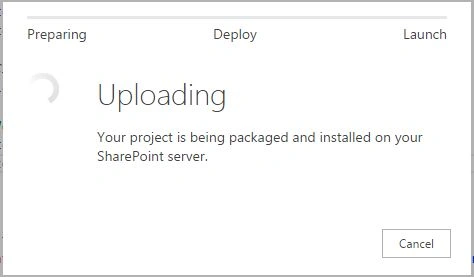
Figure 5: Output
- Here we have our app deployed with a button stating “Create List”.
- Add the list name there and click on Create List.

Figure 6: Add the List Name
- Your list will be created.
Here it was our second app demonstrating to create lists in a single click. Soon we will see many new apps on our way. Until then, keep learning.
SriramPosted Jul 3, 2015, 1:49 AM
Good.........
NitinPosted Jun 15, 2015, 9:34 AM
good one
Santhakumar MunuswamyPosted Jun 12, 2015, 2:26 PM
Thanks for nice article :)
Manpreet SinghPosted Jun 12, 2015, 2:03 PM
Thanks Nitin Tyagi !!
NitinPosted Jun 12, 2015, 7:56 AM
nice