

Prerequisites
Before starting, make sure you have,
- An SPFx project checked into an Azure DevOps Git repository.
- Access to an Azure DevOps organization and project.
- A SharePoint App Catalog site is created and accessible.
- A service account or credentials that can deploy to SharePoint (used in the deployment script).
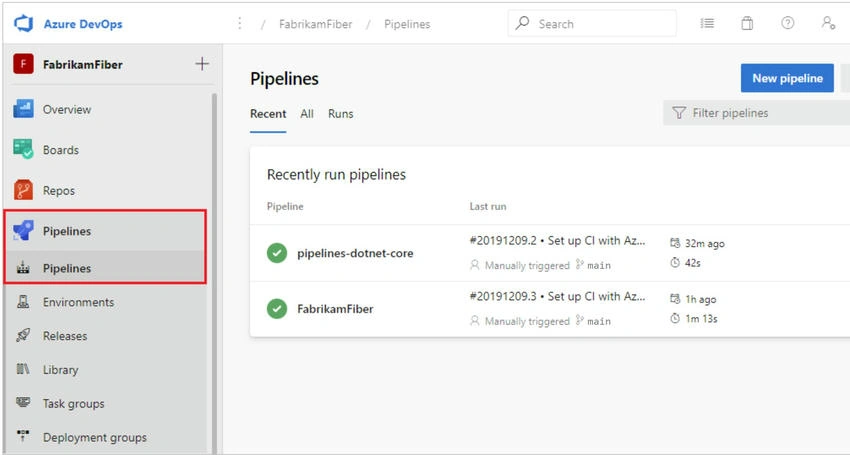
Step 1. In your Azure DevOps project, select Pipelines > Create Pipeline, and then select Azure Repos Git as the location of your source code.
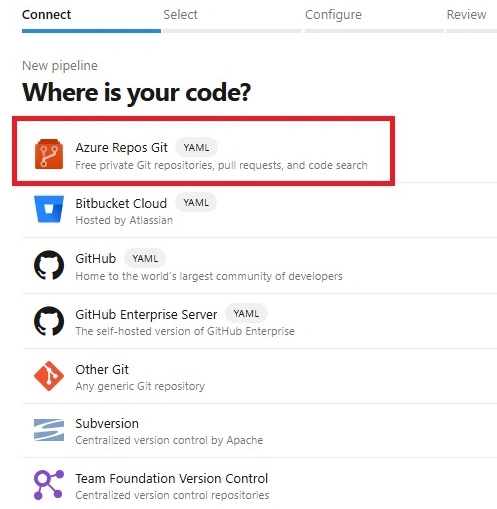
Step 2. On the Select a repository screen, select your forked sample repository.
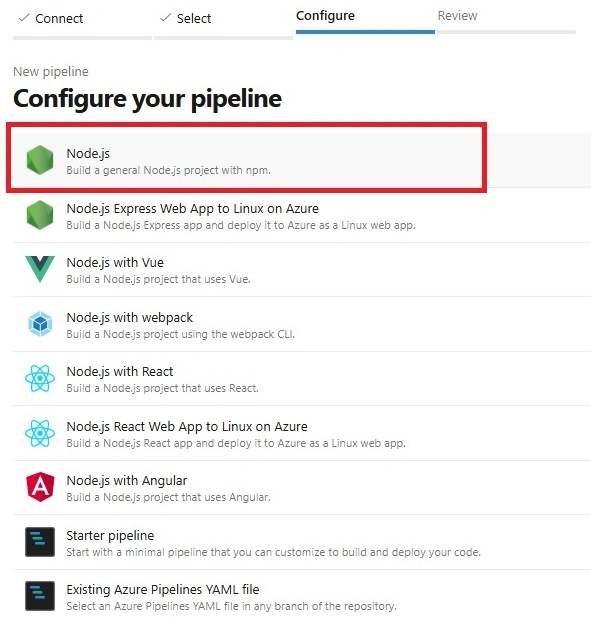
Step 3. On the Configure your pipeline screen, select Starter pipeline. Azure Pipelines generate a YAML file called azure-pipelines.yml for your pipeline.
Step 4. On the next screen, select Edit.
Edit your azure-pipelines.yml file as follows.
trigger:
  - main

pool:
  vmImage: 'ubuntu-latest'

steps:
  - task: UseNode@1
    inputs:
      version: '16.x'
    displayName: 'Install Node.js'

  - script: |
      npm install
    displayName: 'npm install'

  - script: |
      npm run build
    displayName: 'npm build'

  - script: |
      npm test
    displayName: 'npm test'
Step 5. Add the following new tasks to the pipeline.
- The copy files task copies the files from the src and public folders to the build artifact staging directory.
- The publish pipeline artifact task gets the files from the artifact staging location and publishes them as artifacts to be output with pipeline builds.
- task: CopyFiles@2
  inputs:
    sourceFolder: '$(Build.SourcesDirectory)'
    contents: |
      src/*
      public/*
    targetFolder: '$(Build.ArtifactStagingDirectory)'
  displayName: 'Copy project files'

- task: PublishPipelineArtifact@1
  inputs:
    artifactName: e2e-server
    targetPath: '$(Build.ArtifactStagingDirectory)'
    publishLocation: 'pipeline'
  displayName: 'Publish npm artifact'
Step 6. Click on the Validate and Save button on the upper right corner, then select Save, select Run, and select Run again.

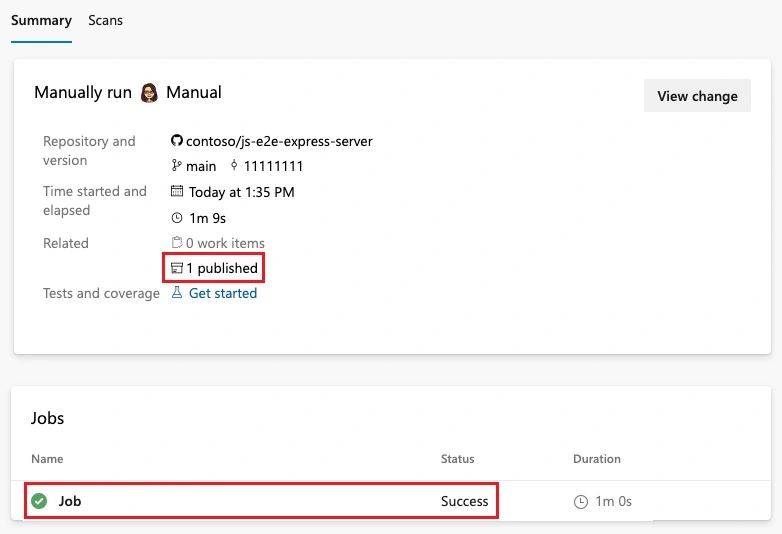
- After the successful job, you will see the SPFx App package at the given directory path. You can download it and use it.
- We will see automatic deployment to various environments in the next articles.
Conclusion
With this Azure DevOps pipeline, you’ve automated your SPFx build and deployment process. This setup enhances collaboration, increases reliability, and saves time when working on enterprise-grade SharePoint solutions.
Join the conversation! Your thoughts help the community grow.