

Create an Enterprise Search Center and a Custom Search Box Page in SharePoint 2010
- Open your SharePoint 2010 Site.
- Click Site Actions, and then click New Site.
- In the Create dialog box, click the Search category.
- Select the Enterprise Search Center template.
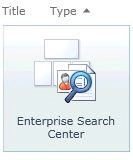
- Enter a Title and a URL Name of Documents and click Create.
- Click Site Actions, and then click More Options.
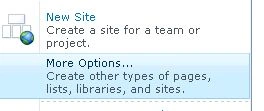
- In the Create dialog box, click the Page category.
- Select the Publishing Page template, and then click the Create button.

- Enter Documents in the Title text box.
- Enter Documents in the URL Name text box.
- Select (Welcome Page - Search box) in the Page Layout section list.
- Click the Create button.
- Click the Save & Close button on the Ribbon.
Create a Custom Search Results Page
- Click Site Actions, and then click More Options.
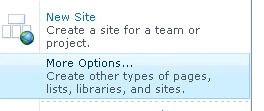
- In the Create dialog box, click the Page category.
- Select the Publishing Page template, and then click the Create button.

- Enter a DocumentResults in the Title text box.
- Enter DocumentResults in the URL Name text box.
- Select (Welcome Page - Search results) in the Page Layout section list.
- Click the Create button.
- Click the Save & Close button on the Ribbon.
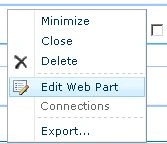
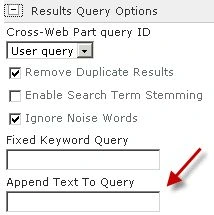
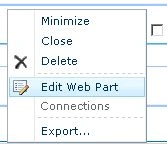
Modify the Search Core Results Web Part to Return Only Documents

Join the conversation! Your thoughts help the community grow.