

Create and Control Lookup Lists in a LightSwitch Application step by step :
In the last article, I discussed about the data format in LightSwitch, Sort and filter in LightSwitch, Master details in LightSwitch, a parameter in LightSwitch. Now in this article, I will tell you Create and lookup lists in LightSwitch Application.
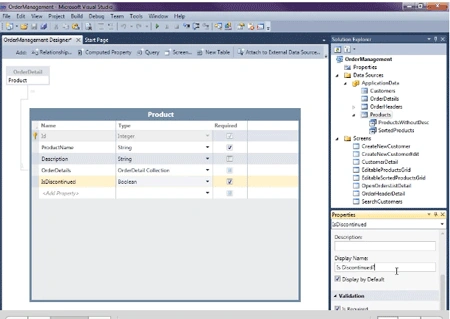
Step 1. Open the product table->Add property (IsDiscontinued)->Type (Boolean)->Go to properties->Write display name(IsDiscontinued2).
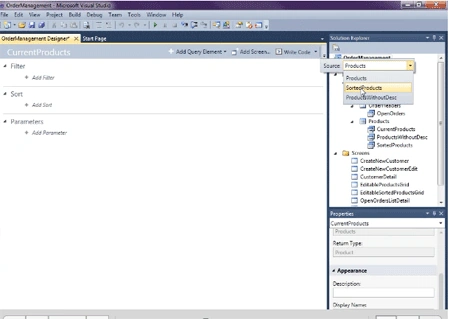
Step 2. Now add query->Change query name (CurrentProducts)->Select source (SoretedProducts).
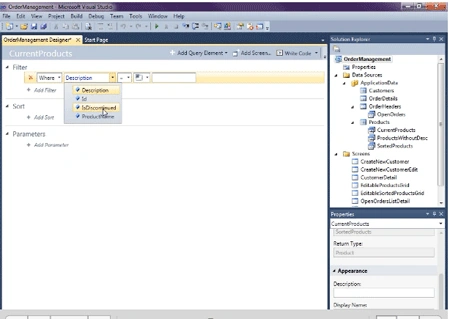
Step 3. Add filter (where IsDiscontinued is False).
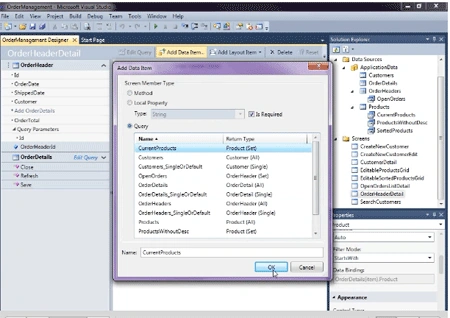
Step 4. Click OrderHeaderDetail screen->Add data item->Click query->Select current products->Ok.
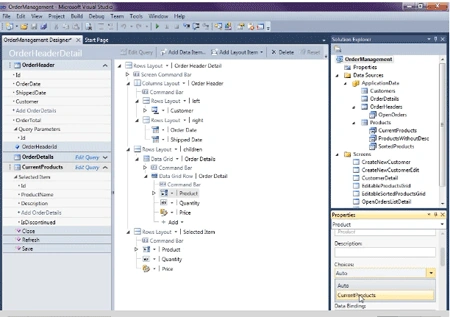
Step 5. Now go to product properties->Select choices (CurrentProducts).
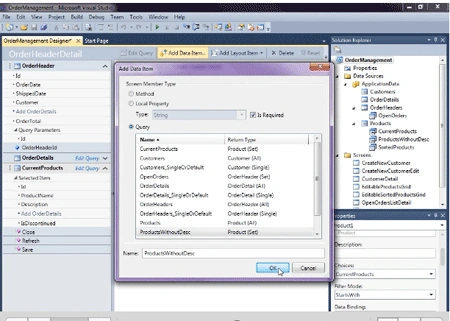
Step 6. Again add data item->Click query->Select ProductWithoutDesc->Ok.
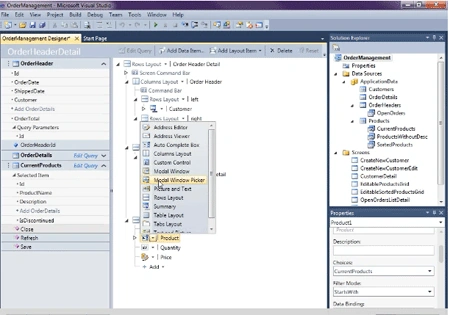
Step 7. Now click Product->Add Modal Window Picker.
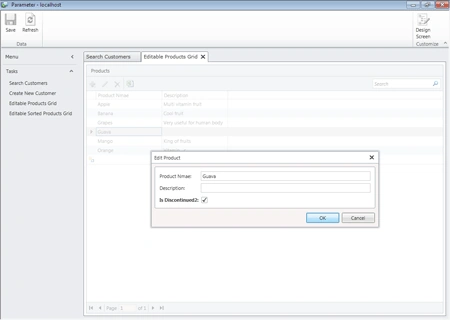
Step 8. Run Application->Click editable product grid->Open any product->Check IsDiscontinued->Ok->Save.
Step 9. Now open any customer->Click date.
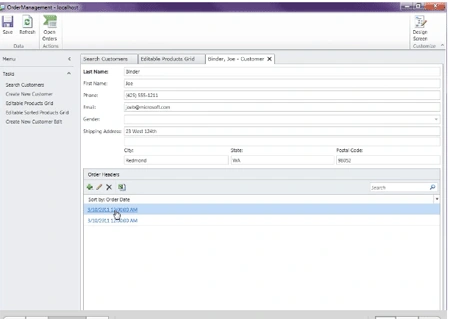
Step 10. Select any product->Then search product->Ok.

Summary
Using this article one can Create and Control Lookup
Lists in a LightSwitch Application. When we check the IsDiscontinued checkbox in
the edit product, it means that product will not show in the product name when you will do search.
Join the conversation! Your thoughts help the community grow.