

Create a Word document file in one drive and Convert the Word document to PDF with the Canvas App.
- Create a canvas app: UplaodDocApp
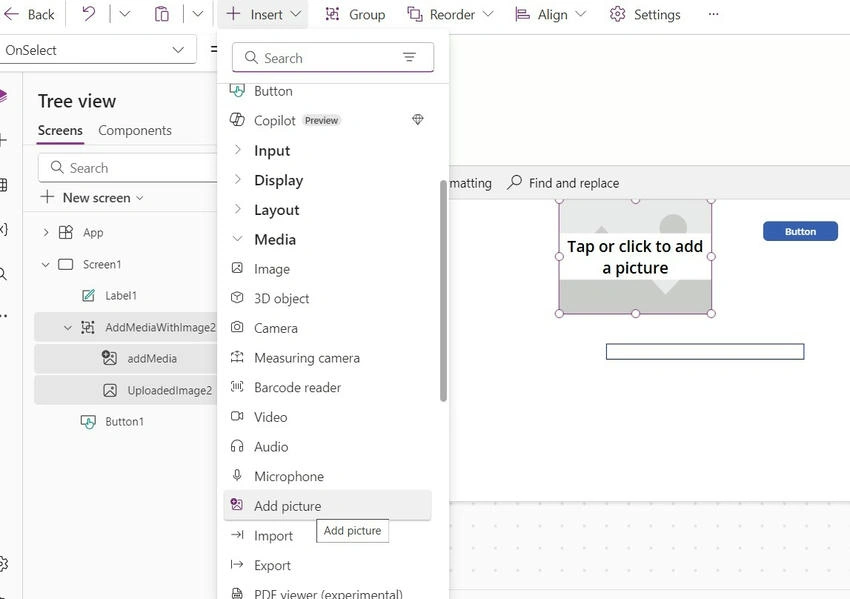
- Click ->Insert-> Select Media->Add picture.
1. Add picture
Event
OnSelect = Set(
    fileType,
    Lower(
        Last(
            Split(AddMediaButton1.FileName, ".")
        ).Value
    )
);
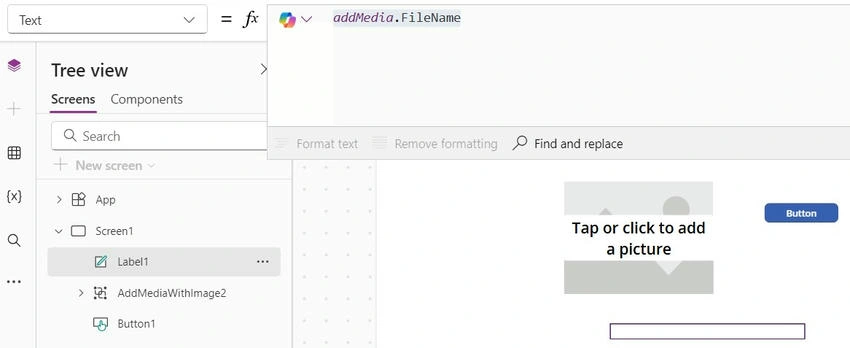
2. Label
Text = addMedia.Filename.
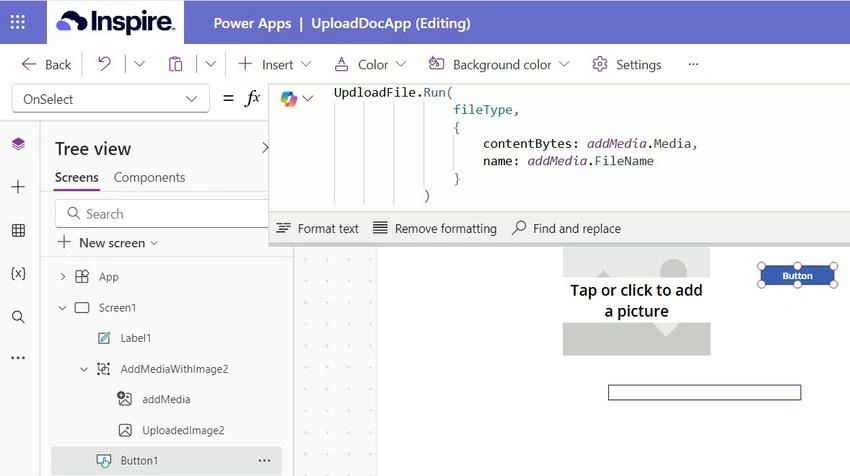
3. Button
OnSelect Event:
UpdloadFile.Run(
    fileType,
    {
        contentBytes: addMedia.Media,
        name: addMedia.FileName
    }
)
4. Create a Power Automate flow
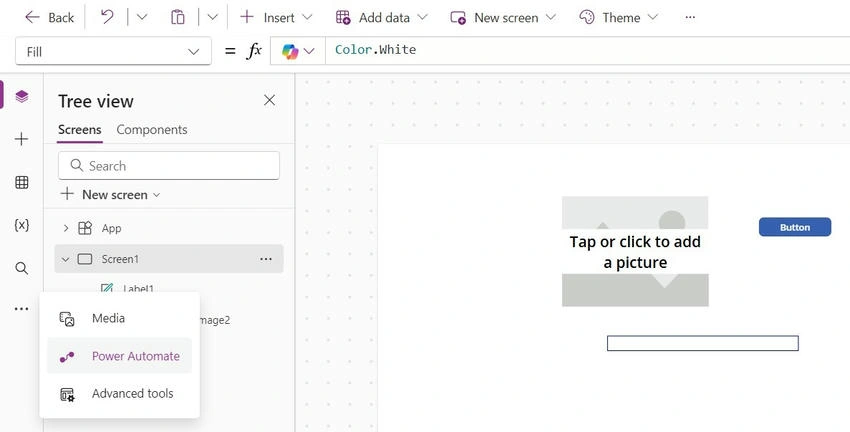
Add 2 parameters
i. DocType ii)File Content
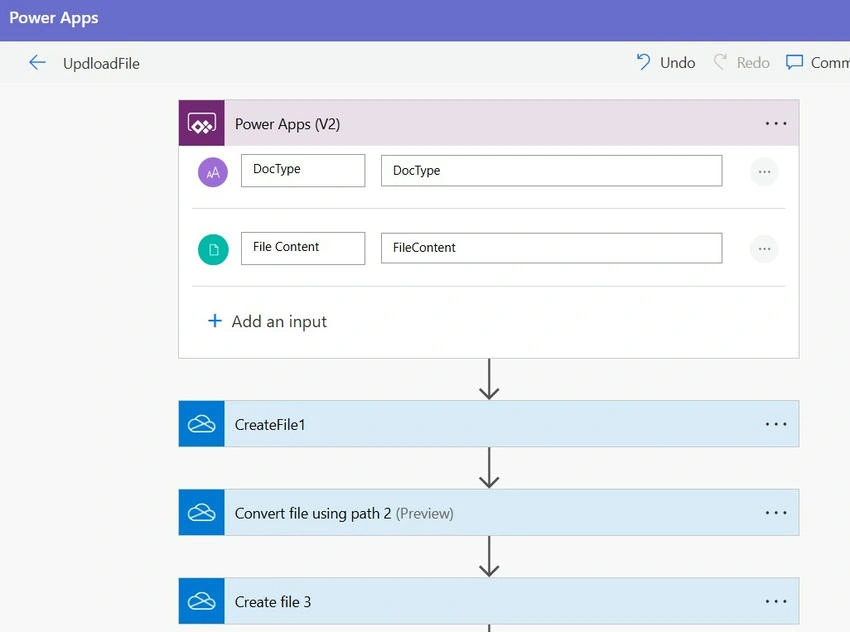
a. Create a file
- Folder Path: Add a folder path to create a file in your drive.
- File Name: SampleDoc.DocType ex: SampleDoc.docx.
- File Content: File Content from the trigger of the canvas app.

b. Convert file using path
- File Path: outputs(‘CreateFile1’)?[‘body/Path’]
- Target type: PDF

- We have multiple convert types ex: PDF, GLB, HTML, JPG

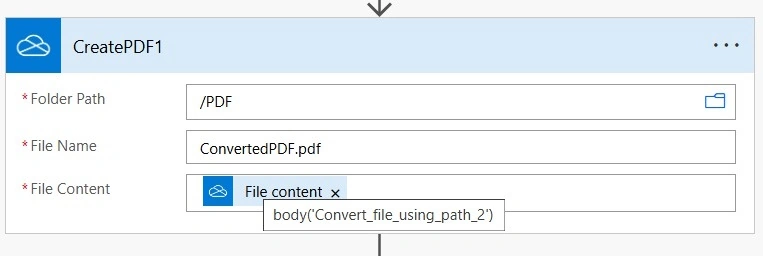
c. Create a file
- Folder Path: Add a folder path to create a file in your drive.
- File Name: ConvertPDF.pdf.
- File Content: File Content from the body of the canvas file using path2.

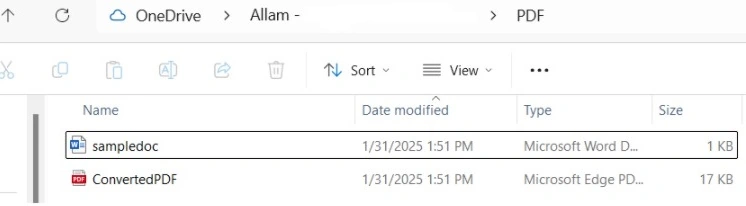
Output
Join the conversation! Your thoughts help the community grow.