

Introduction
In this article, we are going to explain how to create and use a Password Reset Disk or Flash Drive in Windows 8. If we have forgotten our password then we are frustrated, however, this situation could be completely alleviated if we always have a Password Reset Disk handy. Let's see how to create one in Windows 8.
How to create a Password Reset Disk in Windows 8?
Step 1
In the Windows 8 Desktop, first, we press the "Windows + F" key in our keyboard from the search page and switch over to the setting section.
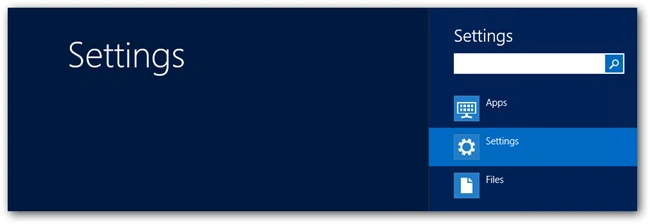
Step 2
Then we search "User Account", and select the first result.
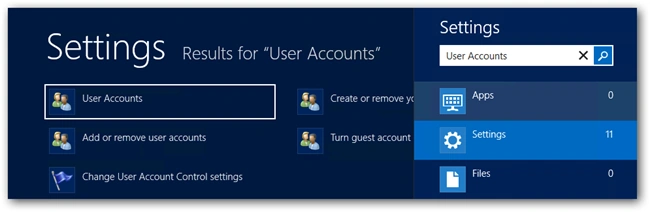
Step 3
The User Account window opens, then click the link "Create a password reset disk".
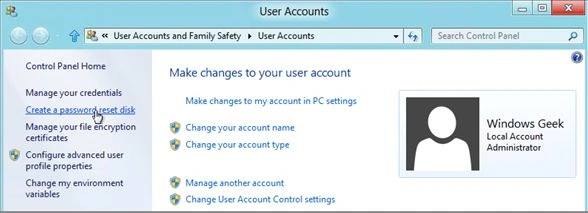
Step 4
We will be greeted with a Wizard, make sure that our Flash Drive is inserted before clicking "Next".
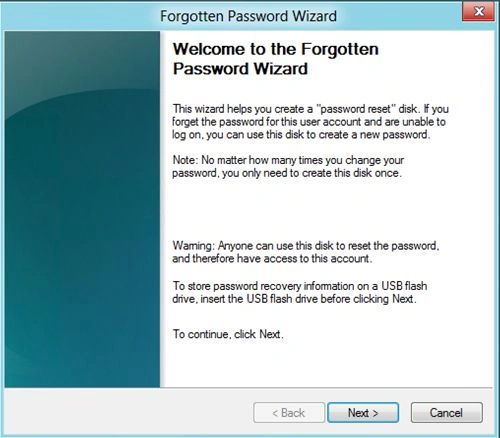
Step 5
After that we can select the Flash Drive and then create the password key on, then click "Next".
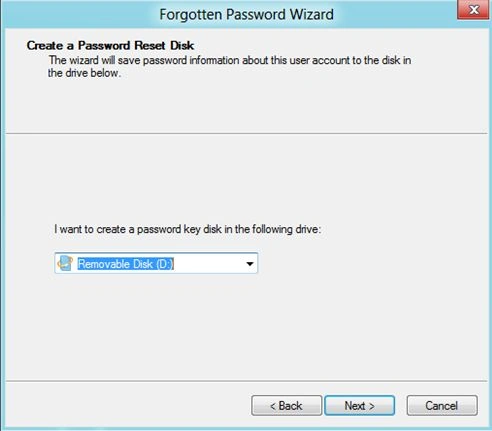
Step 6
It requests your current Windows password, then clicks "Next".
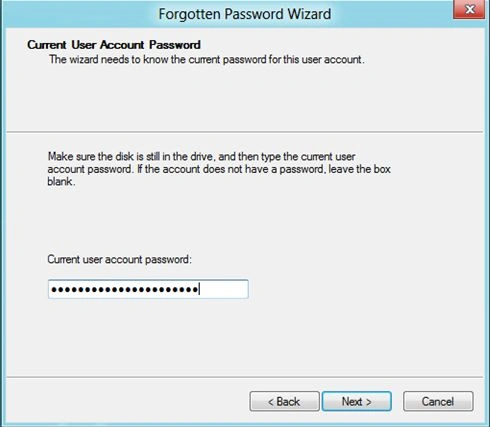
Step 7
That's all there is to creating a reset disk since anyone could use this to gain access to your machine you will need to store it in a safe place.
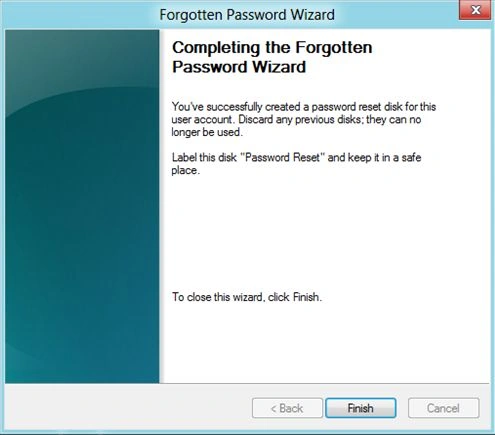
Some steps for resetting our password
Step 1
Once we have a Password Reset Disk, we can easily use it the next time we forget your password. Once we've typed the wrong password, Windows 8 will show a "Reset password" link below the login box.
Step 2
At this point, you should have your Flash Drive already plugged in, so go ahead and hit the reset password button, this will kick off a wizard, click "Next" to continue.
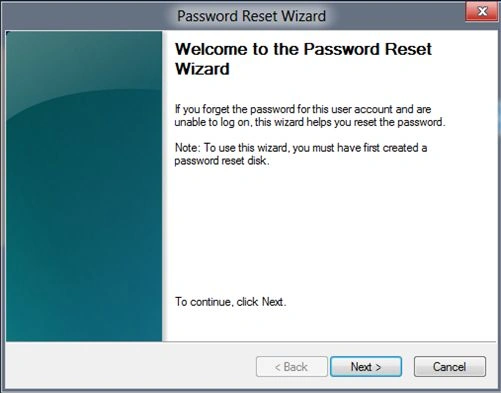
Step 3
You'll want to pick the right disk if you have more than one.
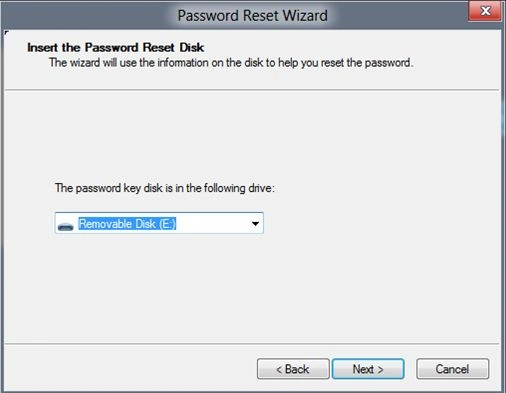
Step 4
Now we will need to type a new password, and of course a new hint for our password.
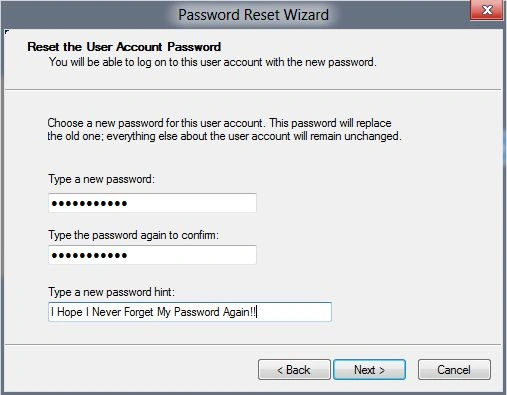
Step 5
That's all there is to it.
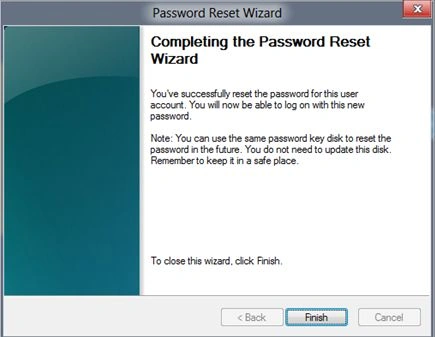
Now we can store the Flash Drive key somewhere safe, so that next time you forget your password you have it handy.
Summary
In this article, we learned about Create and Use a Password Reset Disk or USB In Windows 8.
Zachary PatersonPosted Dec 3, 2013, 4:00 AM
Powerful and detailed introduction for Windows 8 password reset through creating a disk with a USB flash drive. Thanks for share. And I know similar software, which is easier and safer, Windows Password Killer. If you are interested in that you can download it from http://www.windowspasswordkiller.com
Olsson TiffanyPosted Nov 29, 2013, 4:35 AM
Your introduced reset software and the steps are normal on Google we can say and also is the best choice when lost Windows 8 password. But here another software I want to highly recommend, Windows Login Recovery: http://www.windowsloginrecovery.com
Keith WoodPosted Nov 22, 2013, 2:01 AM
For Windows 8 security, to prepare a reset disk or use USB to create a reset disk can be important, especially important when lost password. If you choose to create one I will recommend you to download Anmosoft Windows Password Reset (http://www.resetwindowspassword.com) to create, which is safe and effective