

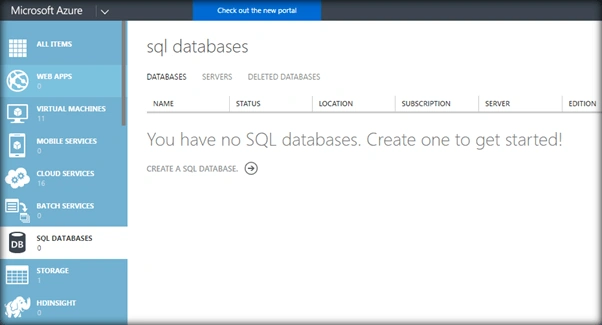
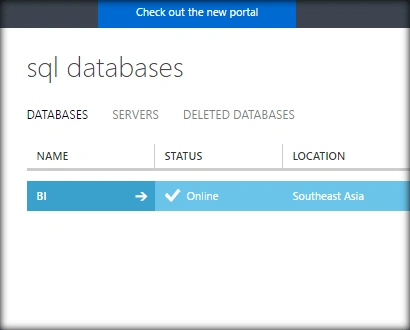
Microsoft Azure SQL DB is the cloud managed database that can be used for app development as well as online storage. It is offered as a Cloud Database as a Service. This makes maintaining apps online much easier. You can create the SQL Database from the Azure Portal Section “SQL Databases”. Select Create a SQL Database to get started with the creation of the database.
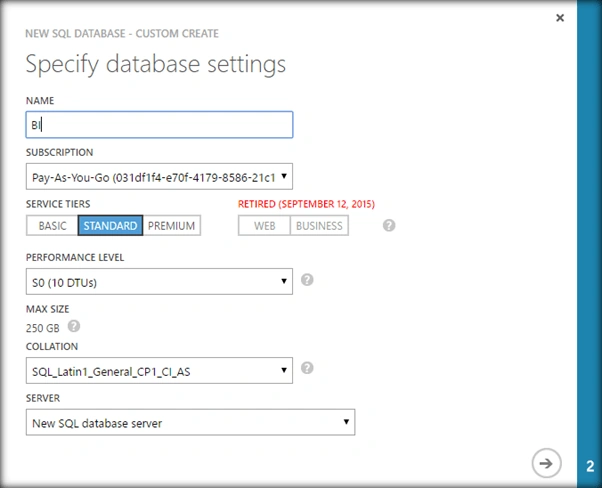
This will open up the page where we can specify the database settings like the name of the DB, Azure Subscription, DB Size etc.
Specify the login name and password that will be used for accessing the database.
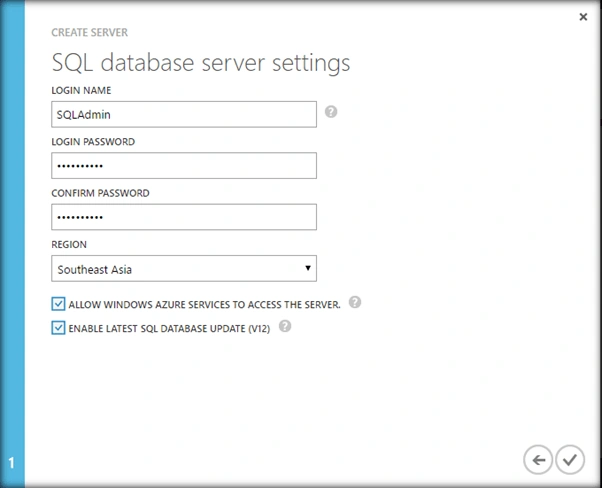
Click on the finish tick mark which will start the provisioning of the Azure SQL database.
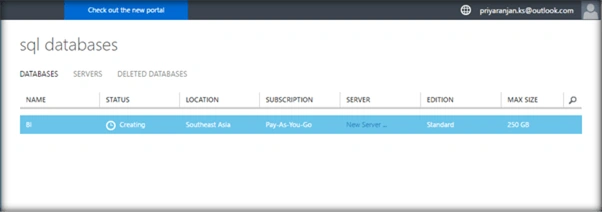
After a few minutes the database will be up and running.
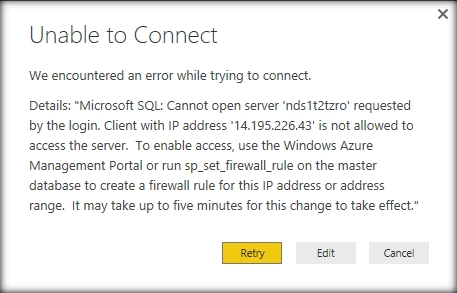
In case we try to open the Azure SQL Data Base from one of the Azure machines we are likely to get the below error if the IP is not in the allowed IP list.
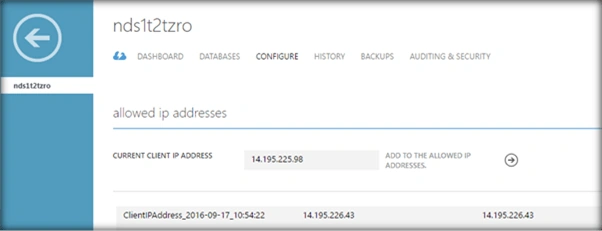
In order to resolve this go to the Configure section of the database created and add the IP of the server to the allowed ip address section.
Connect to Azure SQL DB
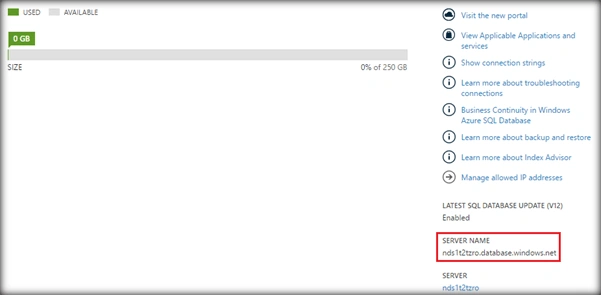
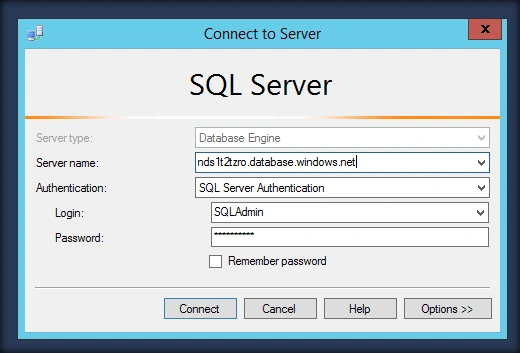
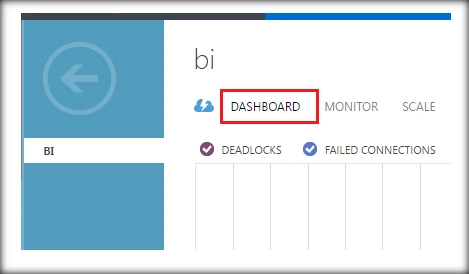
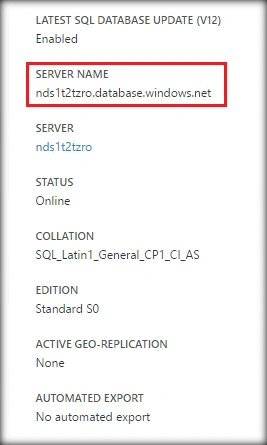
In order to connect to Azure SQL DB, let’s connect to one of the Azure Virtual Machines and from there open up the SQL Server management studio. In the Server name text box specify the fully qualified name of the database which can be found in the Azure Portal.
Use SQL Server authentication and specify the login name and password which was entered during the provisioning of Azure SQL Server.
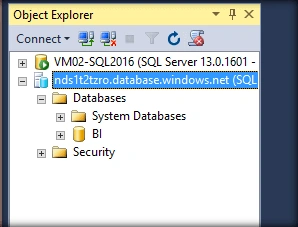
This will create a connection to the recently created Azure SQL Database as shown below. It has listed out the database which we had created by the name BI.
Populate Data
To consume the data from Power BI let's create a table and populate it with some data.
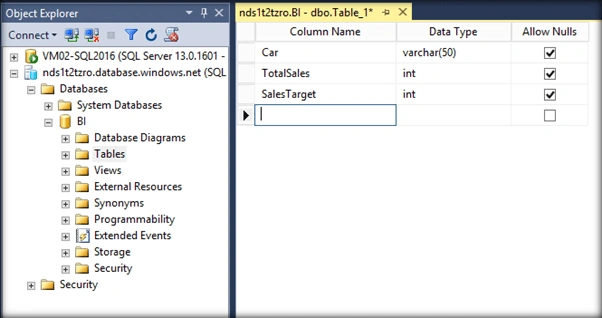
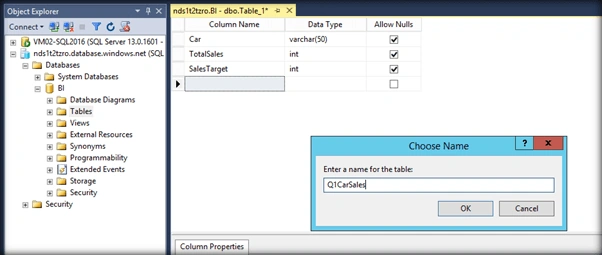
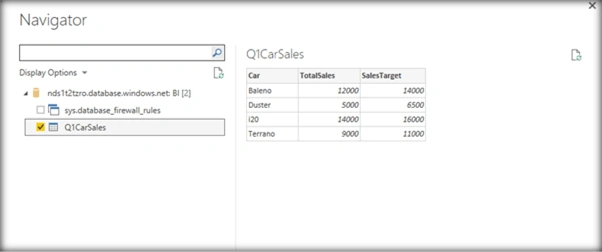
We have created a table that shows the Car Sales Statistics and have named it as Q1CarSales.
Populate some data to the table so that it can be pulled from Power BI
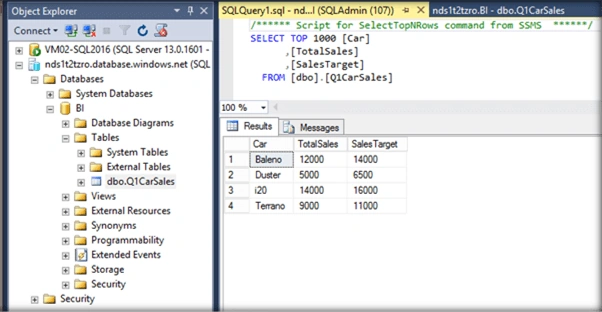
The back end is ready with Azure SQL DB
Spin Up Power BI
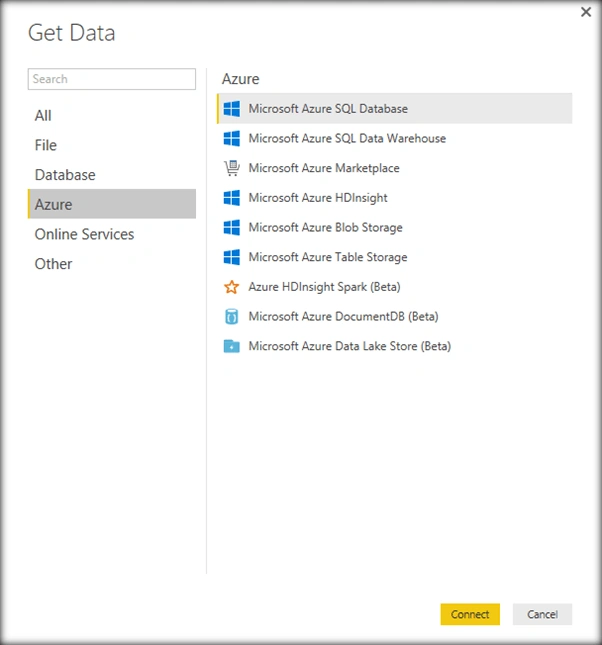
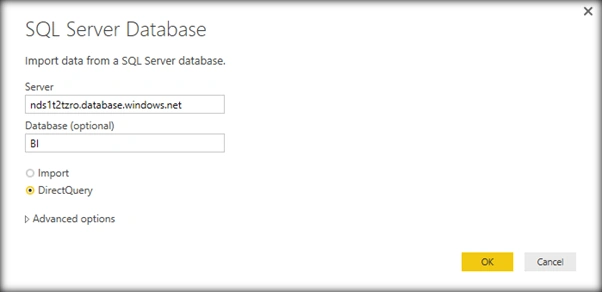
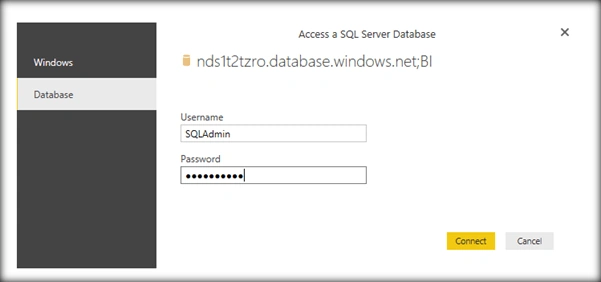
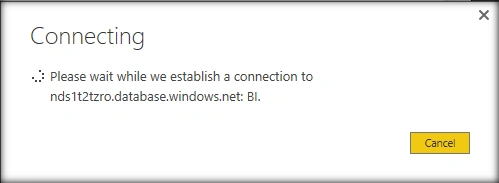
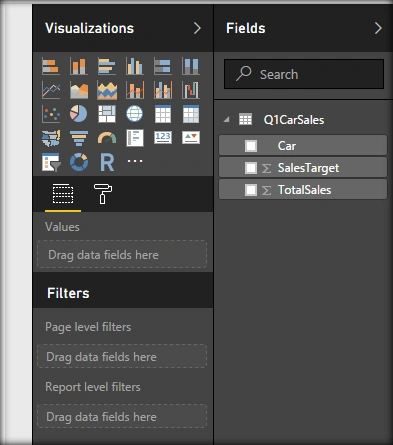
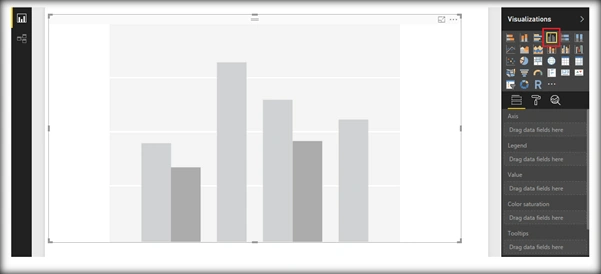
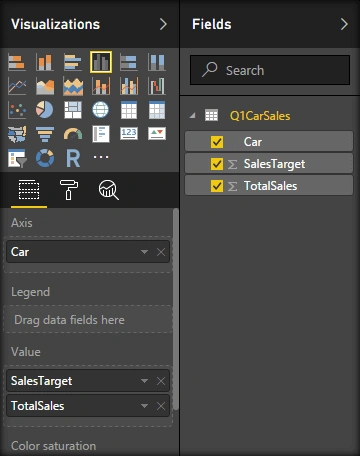
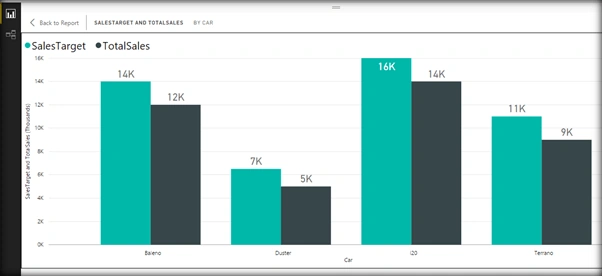
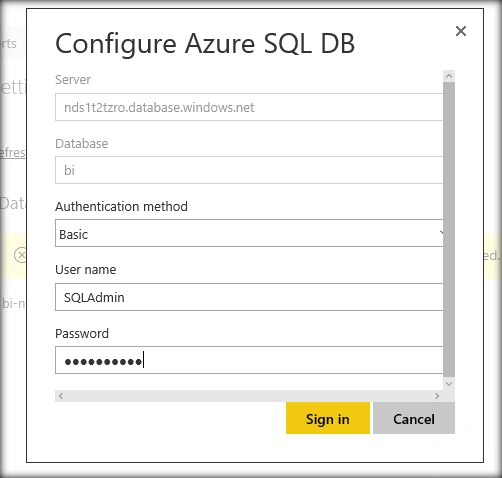
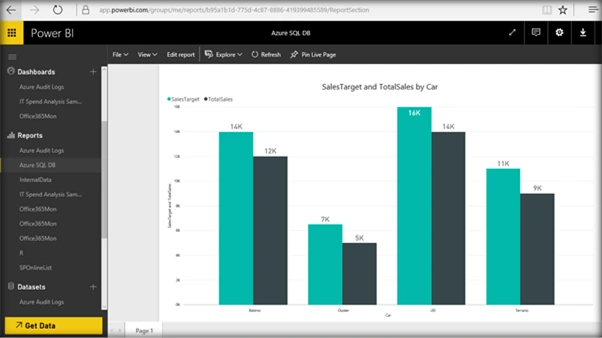
We will use Power BI desktop application to connect to Azure and derive business intelligence out of the DB Data.
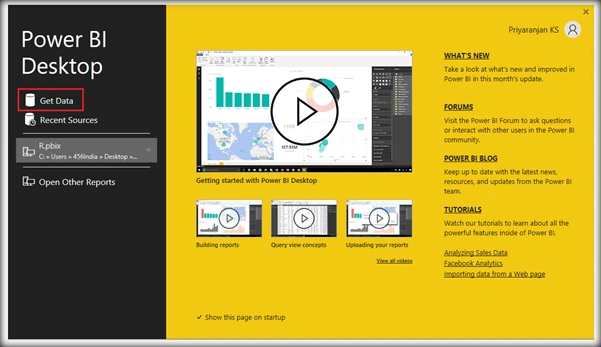
Select Get Data option.
Paridhi SharmaPosted Dec 20, 2018, 1:12 AM
Hi, what the best way to connect to data from power bi. Import or direct query?