
Introduction
In this article I will explain how to create a connection string once and then use the connection in multiple forms in Windows applications. In web applications we create a connection string in the web.config file and use this connection in multiple pages but in Windows Forms the web.config file does not exist. The question then arises of where to create a connection string to use in multiple forms without the necessity of supplying a connection string in each from. The solution is to put the connection string in the app.config file in Windows Forms applications and access these connection strings in multiple forms.
Use the following procedure to create it.
Step 1
Open a Windows Forms application in Visual Studio 2010 and right-click on your application name within Solution Explorer then choose "Add" >> "New Item" >> "Application Configuration File".

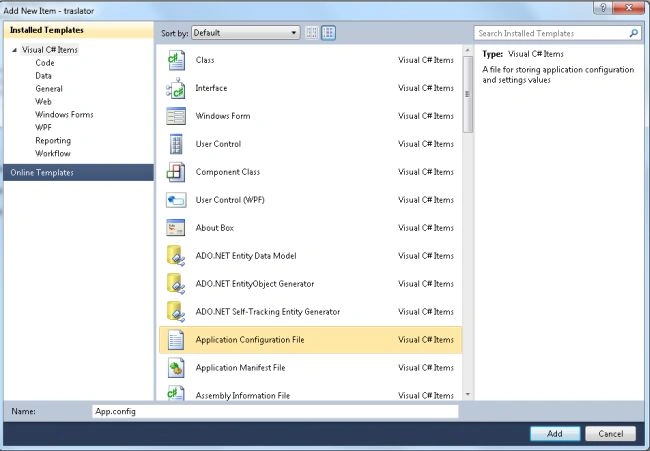
Step 2
Now the app.config file is added to your Windows Forms application where you can supply a connection string.
<?xml version="1.0" encoding="utf-8" ?>
<configuration>
<connectionStrings>
<add name ="Myconnectionstring" connectionString ="Data Source=.;Initial Catalog=pulkit;User ID=sa;Password=Wintellect" />
</connectionStrings>
</configuration>
Step 3
Now you can use this connection string in multiple Windows Forms. First add a reference to System.Configration and then write the code in the Windows Form.
using System.Configuration;
string connectionString = ConfigurationManager.ConnectionStrings["MyconnectionString"].ConnectionString;
Summary
In this article I have used a connection string in Widows Forms from an app.config file. In this way you can use a connection string in multiple forms.
SubashPosted Sep 7, 2016, 2:37 AM
Good one
Naveed ZamanPosted May 12, 2013, 11:00 AM
nice buddy
Santosh YadavPosted Mar 14, 2013, 12:45 PM
simple but very useful article...Thankyou
Satya PrakashPosted Mar 13, 2013, 6:32 AM
Really I was not aware about creating connection string this way. so thank to provide useful information.
Sam HobbsPosted Mar 12, 2013, 3:47 PM
Also note that most experienced programmers prefer to use the Entity Framework or maybe Table Adapters. Table Adapters are older technology. When they are used, the connection string is automatically put in the app.config file.
Sam HobbsPosted Mar 12, 2013, 3:41 PM
Windows Forms applications already have a Settings that maintains the app.config file. Just go to the project in the Solution Explorer and open the "Properties" node then double-click on "Setting.Settings". You will then get a grid with columns for Name, Type, Scope and Value. Specify a name then click in the Type cell. In the drop-down box select "(Connection string)". Then set the Scope to "Application". Then click in the Value cell and an ellipsis ("...") will appear in the right. Click on the ellipsis and create the connection string. Then in the program access the connection strong using: Properties.Settings.Default.{name} where {name} is the name you provided in the name column.