

Custom user actions are the commands which are available for user access at different locations within SharePoint.These custom actions can come up at any location within SharePoint like ribbon view, site settings page, ECB menu etc. It can be an icon/text, which implements a functionality such as navigating to a landing page, starting a Workflow on an item and so on. All the icons which come up in the list view ribbon are the examples of the custom actions. In many scenarios, we might want to add the custom business functionality as a custom user action for the ease of access. In this article, we will see how to add a custom user action to the edit the control block menu. The ECB menu houses the default custom action like edit, delete and view item options.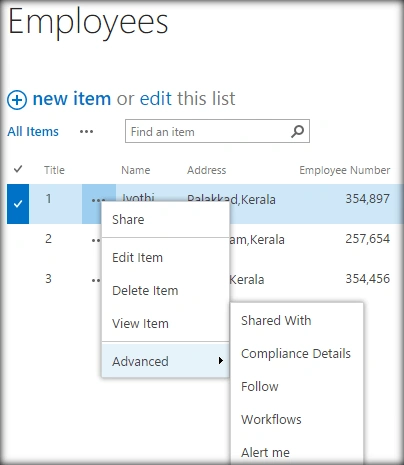
We will try to add an extra custom action to the above fly out menu, using JavSscript object model.
Let’s see, how we can do the same programmatically, using JavaScript object model.
Internal Implementation
- Add the reference to jQuery file.
- <script language="javascript" type="text/javascript" src="//ajax.googleapis.com/ajax/libs/jquery/1.8.1/jquery.min.js"></script>
- <script language="javascript" type="text/javascript">
- Within the document, call ready function SP.SOD.executeFunc, in order to load the on demand script SP.js . Call the main starting point function say: AddCustomUserActionToECB.
- SP.SOD.executeFunc('sp.js', 'SP.ClientContext', AddCustomUserActionToECB);
- Instantiate the client context, Web and Master Page Library instance.
- //Get the client context,web and list object
- var clientContext = new SP.ClientContext();
- var oWeb = clientContext.get_web();
- var oList = oWeb.get_lists().getByTitle('Test List');
- Create a custom user action and add it to the custom user action collection.
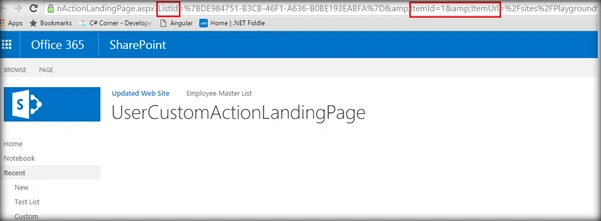
The line number 6 plays a major part in assigning the functionality to the custom action. It transfers the current item’s ID, list ID and the item URL to the new landing page.- var userCustomActionColl = oList.get_userCustomActions();
- var oUserCustomAction = userCustomActionColl.add();
- oUserCustomAction.set_location('EditControlBlock');
- oUserCustomAction.set_sequence(100);
- oUserCustomAction.set_title("Go to Landing Page");
- oUserCustomAction.set_url("/sites/playground/sitepages/UserCustomActionLandingPage.aspx?ListId={ListId}&ItemId=
- {ItemId}&ItemUrl={ItemUrl}");
- oUserCustomAction.update();
- Load the client context and execute the batch once again.
- clientContext.load(userCustomActionColl);
- clientContext.executeQueryAsync(QuerySuccess, QueryFailure);
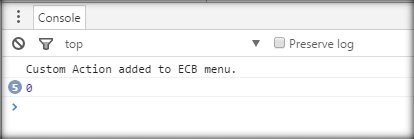
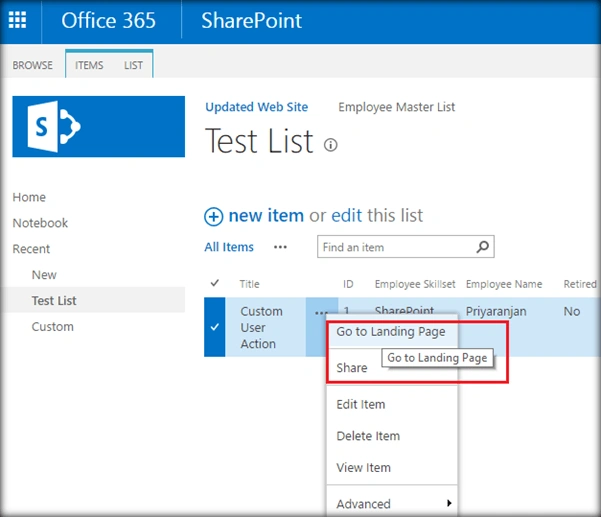
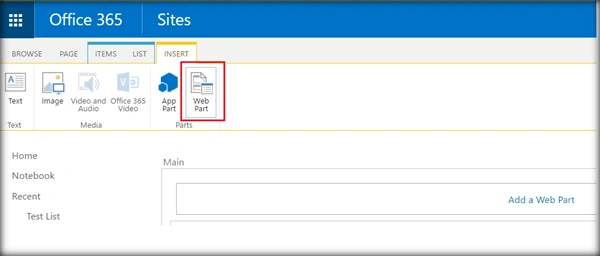
R TaylorPosted Jun 30, 2022, 1:35 AM
Great stuff. On a similar note, I'm hoping you might be able to tell me how to tweak it so that the 'Delete' option does not appear?
shishir khandelwalPosted Aug 26, 2019, 5:52 AM
This is a great article. But how we can check whether the customuser action is already available and if not available then only create a custom action. Here in this article we are just doing add() which is adding multiple custom action with same name.
Prasanna MuraliPosted Aug 4, 2016, 10:59 AM
Nice share..
Tarun DPosted Aug 4, 2016, 7:27 AM
Nice article. Thanks for sharing..
Siva Krishna KumarPosted Aug 4, 2016, 3:15 AM
Good article. Thanks for explaining how easily we can add ECB menu.