

Introduction
In this article, we explain how to create a Desktop shortcut to the Favorites in Windows 8. In Windows 8, we create a Favorites folder containing shortcut links to your Desktop, Downloads and Recent places folders to get to them easier. This is also available in Windows 7.
How to create a Favorites folder in Windows 8?
Step 1
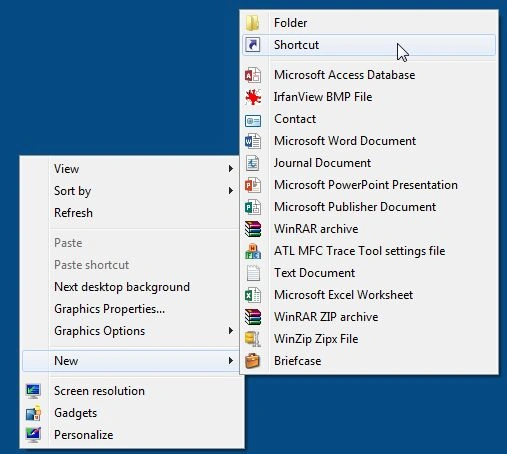
First, we must move to the Windows 8 Desktop and right-click then go to the "New" tab and then click "Shortcut".
Step 2
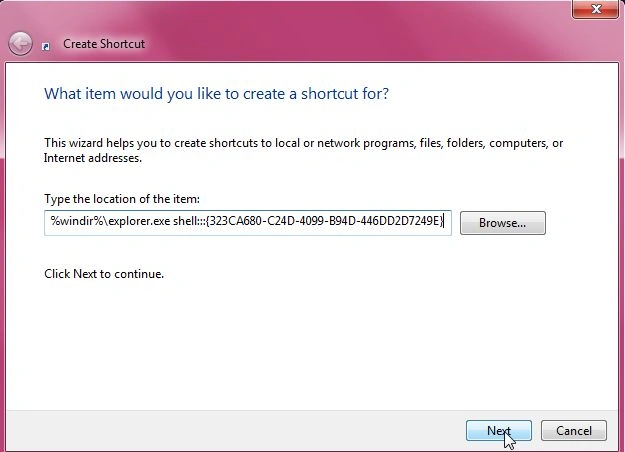
Now paste the following in the location field and click "Next":
%windir%\explorer.exe shell:::{323CA680-C24D-4099-B94D-446DD2D7249E}
Step 3
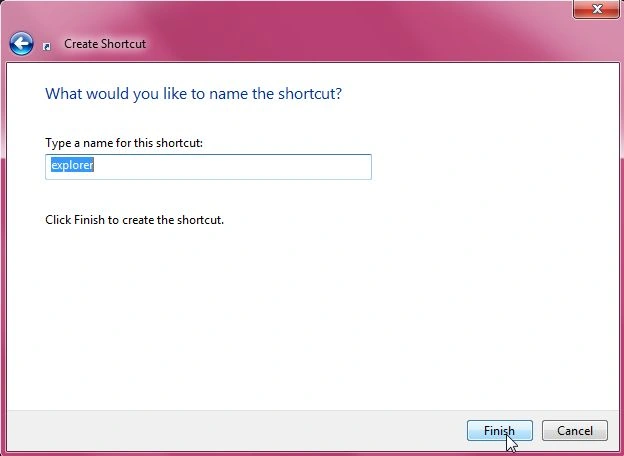
Then we type the name of shortcut and click "Finish".
Step 4
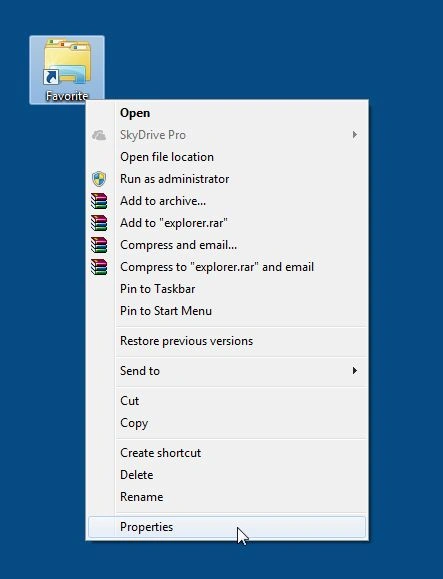
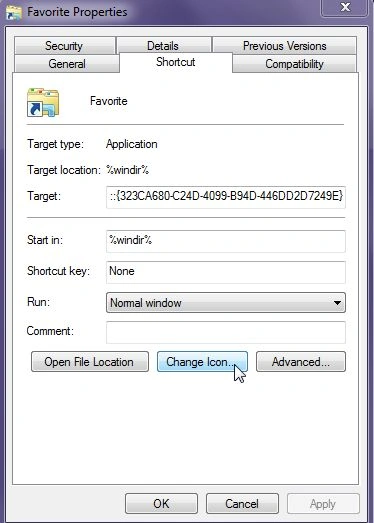
If we want to change the shortcut icon in our Desktop, then right-click on it and select "Properties".
Step 5
Then click the "Change Icon" button under the Shortcut tab.
Step 6
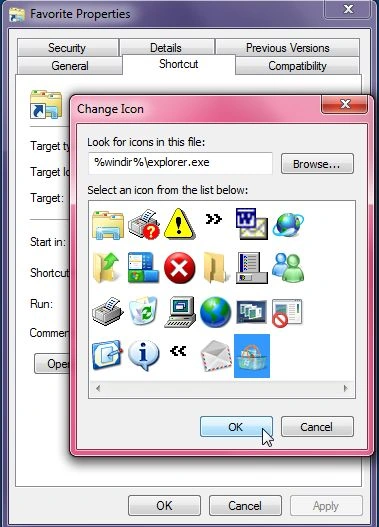
Select the icon and click "OK".
Step 7
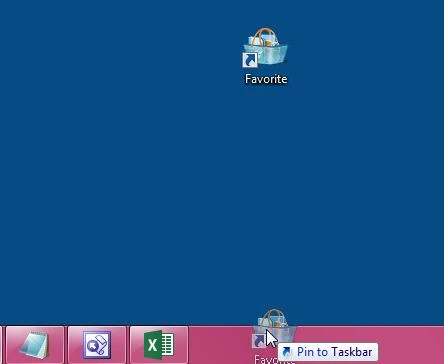
You can also pin it the Taskbar for easy access.
Step 8
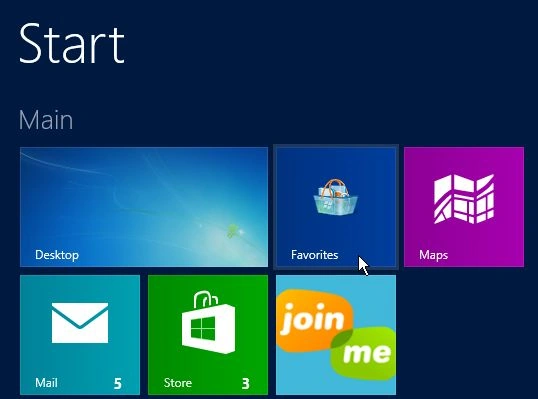
Or in Windows 8, you can pin the icon to the Start Screen.
Summary
In this article, we learned about Create Desktop Shortcut to Favorites in Windows 8.
Join the conversation! Your thoughts help the community grow.