As we all are developers we have various tasks to do in the company. In a similar way one of our clients had a requirement that he should get an email with sales orders every 2 hours. For completing his requirement I have created a Sql Procedure which gets records, and Using ClosedXML I created an excel file on the fly and then I have attached that file in the email to send to clients. For doing this process every two hours I am using Task Scheduler and Schedule task for sending mail every two hours.
Platform Used
I had developed this Application using Microsoft Visual Studio Ultimate 2012 with Microsoft SQL server 2008 and to create Excel I have Used Closed XML.
Database Part
Before starting to create Console Application first we are going to have a look at the Database part of it.
For showing this demo I am using database [AdventureWorks2008R2] which is free to download.
Download sample database used for demo. Below is a table of SalesOrderDetail which gets order details which we are going to send periodically to client.
Table SalesOrderDetail
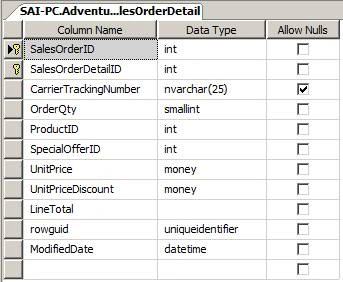
And store Procedure which is used for getting records from this table .
Store Procedure GetSalesDetails
- Create Proc [dbo].[GetSalesDetails]
- as
- begin
- SELECT TOP 20 [SalesOrderID]
- ,[SalesOrderDetailID]
- ,[CarrierTrackingNumber]
- ,[OrderQty]
- ,[ProductID]
- ,[SpecialOfferID]
- ,[UnitPrice]
- ,[UnitPriceDiscount]
- ,[LineTotal]
- ,[ModifiedDate]
- FROM [AdventureWorks2008R2].[Sales].[SalesOrderDetail]
- end
Finally we have completed with database part.
Let’s start with Creating Console Application.
Creating Console Application
From Start page select File - New - Project.
After that new dialogs pop up from that select Templates - Visual C# - Windows.
The select Template Console Application and Name your Project as “MailScheduler” and finally click on ok button.
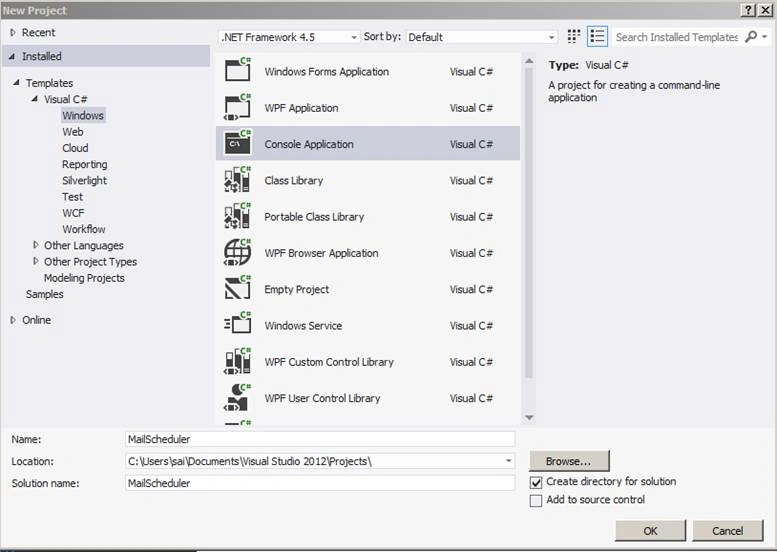
After doing this a complete empty Project template will be create with Program.cs file.
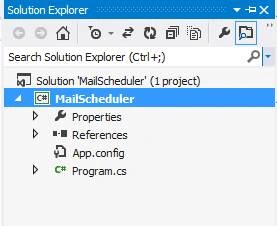
After creating Project the first thing we are going to do is create a connection with the database such that we can get data from database which we want to send for doing that lets add App.config.
Adding App.config
To add App.config just right click on “MailScheduler” project then select Add and inside that select new item after that a new dialog will pop up with name “Add New Item;” after that in Search Installed Template search App.config and select Application Configuration File and click on Add button.
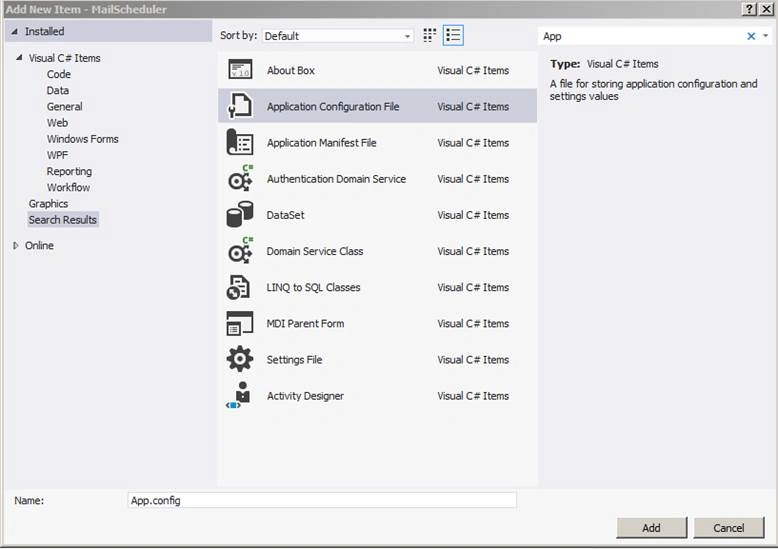
After adding App.config now we are going to add Connection string and app setting to this App.config.
- <?xml version="1.0" encoding="utf-8" ?>
- <configuration>
- <connectionStrings>
- <add name="Local"
- connectionString="Data Source=Sai-PC;
- Initial Catalog=AdventureWorks2008R2;
- Persist Security Info=True;
- User ID=Sa;Password=########;
- Min Pool Size=0;
- Max Pool Size=10000;
- Pooling=true;"
- providerName="System.Data.SqlClient" />
- </connectionStrings>
- <appSettings>
- <add key="MailFrom" value="sai#######@gmail.com" />
- <add key="Host" value="smtp.gmail.com" />
- <add key="Port" value="587" />
- </appSettings>
- </configuration>
After completing adding connection string and app setting to this App.config now we are going to add a Class and method to access data from database using simple ADO.NET.
Adding Class [GetExcelFile] to project
For adding class just right click on project then select add inside that select New item and from template select class and then name class as “GetExcelFile.cs”.
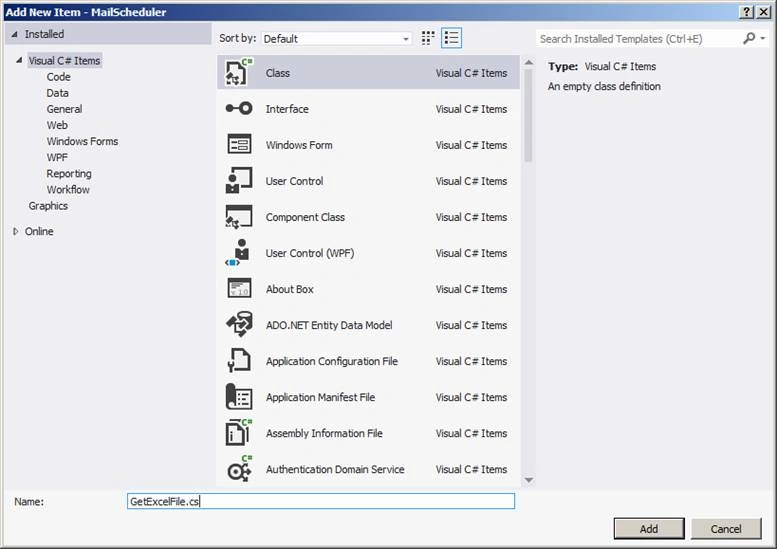
Snapshot after adding class GetExcelFile.
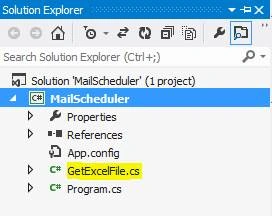
After adding “GetExcelFile.cs” now let add a Method in this class for getting data from sales table.
Adding Method getData to GetExcelFile class.
- using System;
- using System.Collections.Generic;
- using System.Data;
- using System.Data.SqlClient;
- using System.Linq;
- using System.Text;
- using System.Threading.Tasks;
- using System.Configuration;
- namespace MailScheduler
- {
- public class GetExcelFile
- {
- public void getData()
- {
- DataSet ds = null;
- using(SqlConnection con = new SqlConnection(ConfigurationManager.ConnectionStrings["Local"].ConnectionString))
- {
- try
- {
- SqlCommand cmd = new SqlCommand("GetSalesDetails", con);
- cmd.CommandType = CommandType.StoredProcedure;
- SqlDataAdapter da = new SqlDataAdapter();
- da.SelectCommand = cmd;
- ds = new DataSet();
- da.Fill(ds);
- } catch (Exception)
- {
- throw;
- } finally
- {
- ds.Dispose();
- }
- }
- }
- }
- }
Now we have got data from database now we need to export this to excel file for doing that we are going to add a package from NuGet Package.
Add NuGet Package [ClosedXML]
What is ClosedXML?
ClosedXML makes it easier for developers to create Excel 2007/2010 files. It provides a nice object oriented way to manipulate the files (similar to VBA) without dealing with the hassles of XML Documents. It can be used by any .NET language like C# and Visual Basic (VB).
For adding package from NuGet just right click on solution then select Manage NuGet Package from list.
Description
reference.
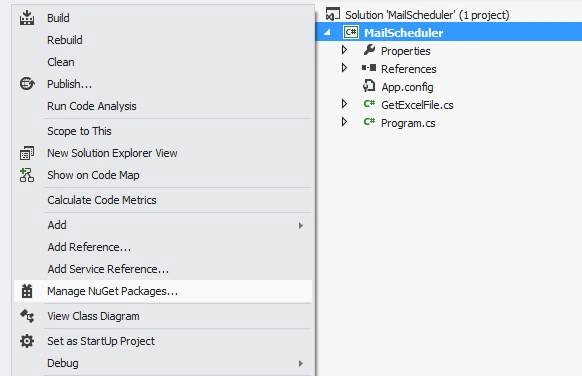
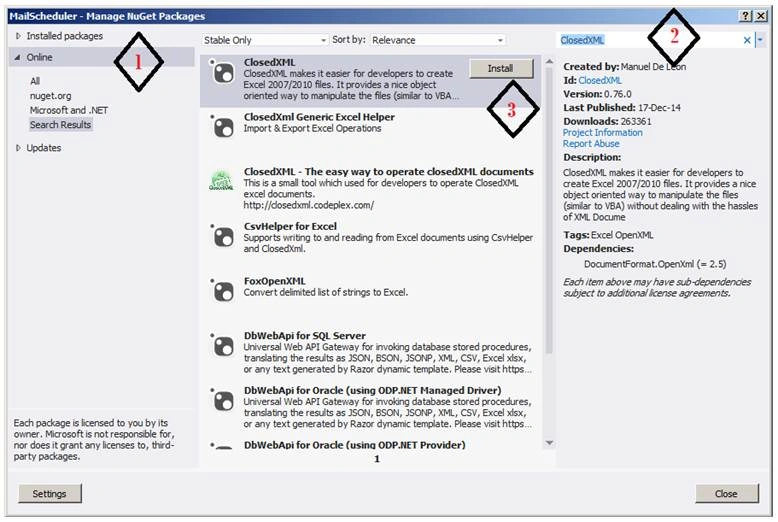
After selecting a new dialog will pop up of Manage NuGet Packages from that select online Menu from right, Then in search online box just enter ClosedXML after that in package select first one ClosedXML and click on installed button.
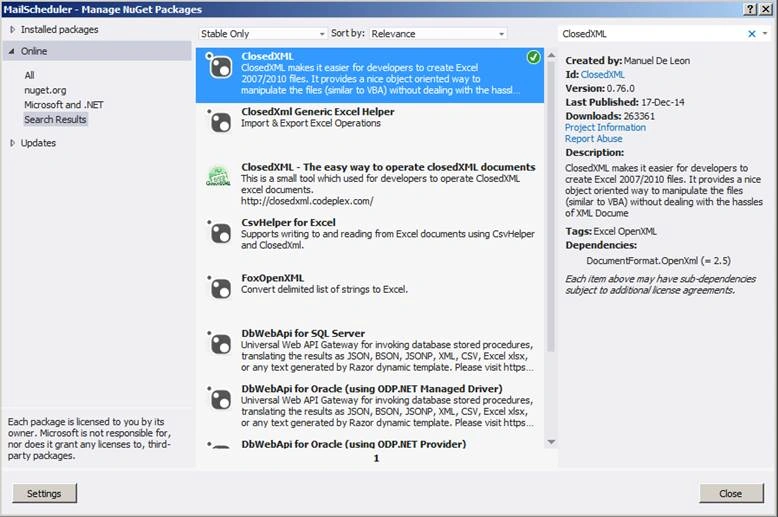
After successfully adding ClosedXML it should show a Right green mark.
After completing adding ClosedXML now we are going to write a method for creating an Excel in specific folder.
Add Method to GetExcelFile Class for creating Excel using Dataset
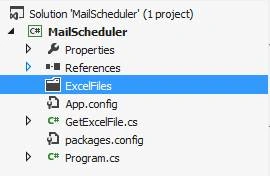
In this method we are going to get data from dataset and using ClosedXML we are going to create excel file in specific folder in application for that I have created a folder in application with name “ExcelFiles”.
- private void ExportDataSetToExcel(DataSet ds)
- {
- string AppLocation = "";
- AppLocation = System.IO.Path.GetDirectoryName(System.Reflection.Assembly.GetExecutingAssembly().CodeBase);
- AppLocation = AppLocation.Replace("file:\\", "");
- string file = AppLocation + "\\ExcelFiles\\DataFile.xlsx";
- using(XLWorkbook wb = new XLWorkbook())
- {
- wb.Worksheets.Add(ds.Tables[0]);
- wb.Style.Alignment.Horizontal = XLAlignmentHorizontalValues.Center;
- wb.Style.Font.Bold = true;
- wb.SaveAs(file);
- }
- }
To write Excel to specific folder we must get path to that folder where we want to write this Excel file below is code snippet for doing this.
- string AppLocation = "";
- AppLocation = System.IO.Path.GetDirectoryName(System.Reflection.Assembly.GetExecutingAssembly().CodeBase);
- AppLocation = AppLocation.Replace("file:\\", "");
- string file = AppLocation + "\\ExcelFiles\\DataFile.xlsx";
We are going to write this Excel file with name “DataFile.xlsx”.
GetExcel class code Snippet
Now we need to call ExportDataSetToExcel() Method in getData() Method.
- using System;
- using System.Collections.Generic;
- using System.Data;
- using System.Data.SqlClient;
- using System.Linq;
- using System.Text;
- using System.Threading.Tasks;
- using System.Configuration;
- using ClosedXML.Excel;
- namespace MailScheduler
- {
- public class GetExcelFile
- {
- public void getData()
- {
- DataSet ds = null;
- using(SqlConnection con = new SqlConnection(ConfigurationManager.ConnectionStrings["Local"].ConnectionString))
- {
- try
- {
- SqlCommand cmd = new SqlCommand("GetSalesDetails", con);
- cmd.CommandType = CommandType.StoredProcedure;
- SqlDataAdapter da = new SqlDataAdapter();
- da.SelectCommand = cmd;
- ds = new DataSet();
- da.Fill(ds);
- ExportDataSetToExcel(ds);
- } catch (Exception)
- {
- throw;
- } finally
- {
- ds.Dispose();
- }
- }
- }
- private void ExportDataSetToExcel(DataSet ds)
- {
- string AppLocation = "";
- AppLocation = System.IO.Path.GetDirectoryName(System.Reflection.Assembly.GetExecutingAssembly().CodeBase);
- AppLocation = AppLocation.Replace("file:\\", "");
- string file = AppLocation + "\\ExcelFiles\\DataFile.xlsx";
- using(XLWorkbook wb = new XLWorkbook())
- {
- wb.Worksheets.Add(ds.Tables[0]);
- wb.Style.Alignment.Horizontal = XLAlignmentHorizontalValues.Center;
- wb.Style.Font.Bold = true;
- wb.SaveAs(file);
- }
- }
- }
- }
After calling this method we have completed with creating Excel file on fly now we are going send this file with Mail as attachment.
Adding New Class and Method to SendMail
For adding class just right click on project then select add inside that select New item and from template select class and then name class as “SendMail.cs”,
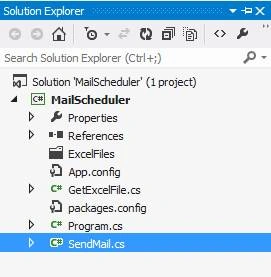
Inside that Class we are going to add Method with name SendMail.
Below is code Snippet of SendMail Class.
- using System;
- using System.Collections.Generic;
- using System.Configuration;
- using System.Linq;
- using System.Net;
- using System.Net.Mail;
- using System.Text;
- using System.Threading.Tasks;
- namespace MailScheduler
- {
- public class SendMail
- {
- public void SendEmail(string MailTo, string MailSubject)
- {
- try
- {
- string AppLocation = "";
- AppLocation = System.IO.Path.GetDirectoryName(System.Reflection.Assembly.GetExecutingAssembly().CodeBase);
- AppLocation = AppLocation.Replace("file:\\", "");
- string file = AppLocation + "\\ExcelFiles\\DataFile.xlsx";
- MailMessage mail = new MailMessage();
- SmtpClient SmtpServer = new SmtpClient(ConfigurationManager.AppSettings["Host"].ToString());
- mail.From = new MailAddress(ConfigurationManager.AppSettings["MailFrom"].ToString());
- mail.To.Add(MailTo);
- List < string > li = new List < string > ();
- li.Add("[email protected]");
-
-
-
-
- mail.CC.Add(string.Join < string > (",", li));
- mail.Bcc.Add(string.Join < string > (",", li));
- mail.Subject = MailSubject;
- mail.Body = "Sales Report *This is an automatically generated email, please do not reply*";
- System.Net.Mail.Attachment attachment;
- attachment = new System.Net.Mail.Attachment(file);
- mail.Attachments.Add(attachment);
- SmtpServer.Port = Convert.ToInt32(ConfigurationManager.AppSettings["Port"]);
- SmtpServer.EnableSsl = true;
- SmtpServer.DeliveryMethod = SmtpDeliveryMethod.Network;
- SmtpServer.UseDefaultCredentials = false;
- SmtpServer.Credentials = new NetworkCredential("Email id of Gmail", "Password of Gmail");
- SmtpServer.Send(mail);
- } catch (Exception ex)
- {
- throw ex;
- }
- }
- }
- }
Let’s understand code snippet of SendMail
Part 1
In this code snippet we are getting Excel file path and then attach this file to Mail.
- string AppLocation = "";
- AppLocation =
- System.IO.Path.GetDirectoryName(System.Reflection.Assembly.GetExecutingAssembly().CodeBase);
- AppLocation = AppLocation.Replace("file:\\", "");
- string file = AppLocation + "\\ExcelFiles\\DataFile.xlsx";
Part 2
In this code snippet we are sending Mail.
For sending mail we require Host name.
- <appSettings>
- <add key="Host" value="smtp.gmail.com" />
- </appSettings>
-
- MailMessage mail = new MailMessage();
- SmtpClient SmtpServer = new SmtpClient(ConfigurationManager.AppSettings["Host"].ToString());
Part 3
For setting mail from and Mail to,
- mail.From = new MailAddress(ConfigurationManager.AppSettings["MailFrom"].ToString());
- mail.To.Add(MailTo);
Part 4
For setting CC and BCC (required mail in comma separated format),
Part 5
For setting Mail Subject and Mail Body,
- mail.Subject = MailSubject;
-
- mail.Body = "Sales Report *This is an automatically generated email, please do not reply*";
Part 6,
For setting Attachment.
- System.Net.Mail.Attachment attachment;
- attachment = new System.Net.Mail.Attachment(file);
- mail.Attachments.Add(attachment);
Part 7
For setting port number and Gmail ID Credentials for sending mail.
- <appSettings>
- <add key="Port" value="587" />
- </appSettings>
-
- SmtpServer.Port = Convert.ToInt32(ConfigurationManager.AppSettings["Port"]);
- SmtpServer.EnableSsl = true;
- SmtpServer.DeliveryMethod = SmtpDeliveryMethod.Network;
- SmtpServer.UseDefaultCredentials = false;
- SmtpServer.Credentials = new NetworkCredential("Email id of Gmail", "Password of Gmail");
- SmtpServer.Send(mail);
After completing send mail now let’s call this method in main.
Main method Code snippet
Here we have called both class methods.
- using System;
- using System.Collections.Generic;
- using System.Linq;
- using System.Text;
- using System.Threading.Tasks;
- namespace MailScheduler
- {
- class Program
- {
- static void Main(string[] args)
- {
- GetExcelFile GF = new GetExcelFile();
- GF.getData();
- SendMail Sm = new SendMail();
- Sm.SendEmail("[email protected]", "Auto Mail");
- }
- }
- }
Now we have completed code part let’s checking this method in debug view.
Debug View
Below snapshot of Dataset while getting data,
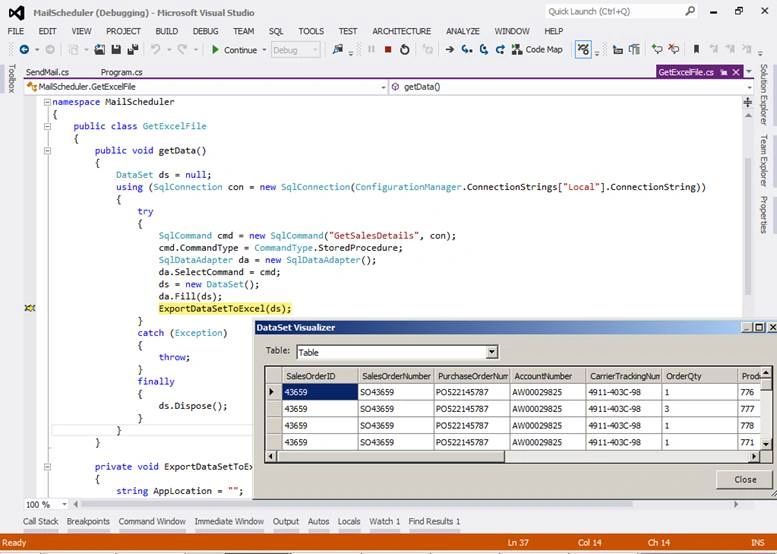
Below snapshot of Creating Excel file in specific folder on fly,
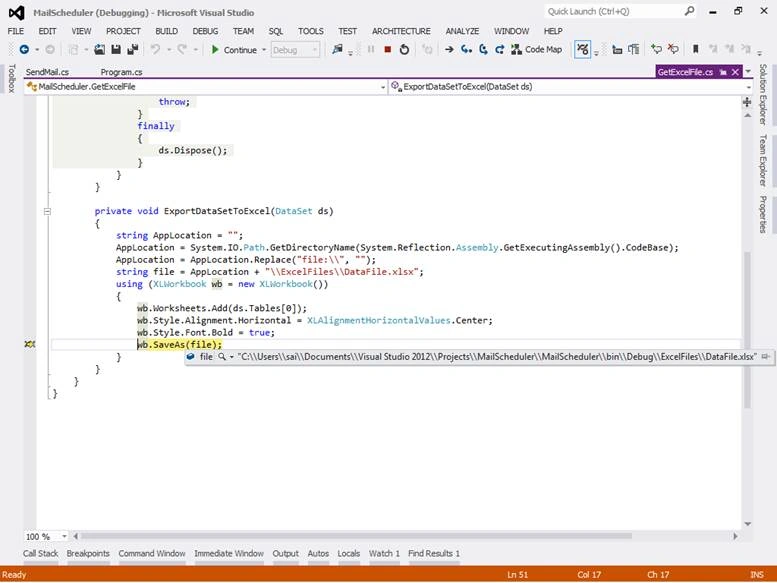
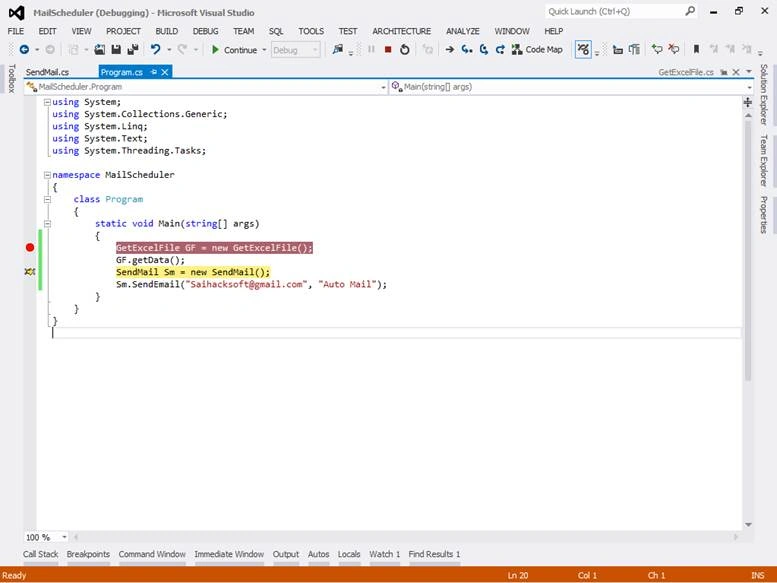
Below snapshot of Main Method while debugging,
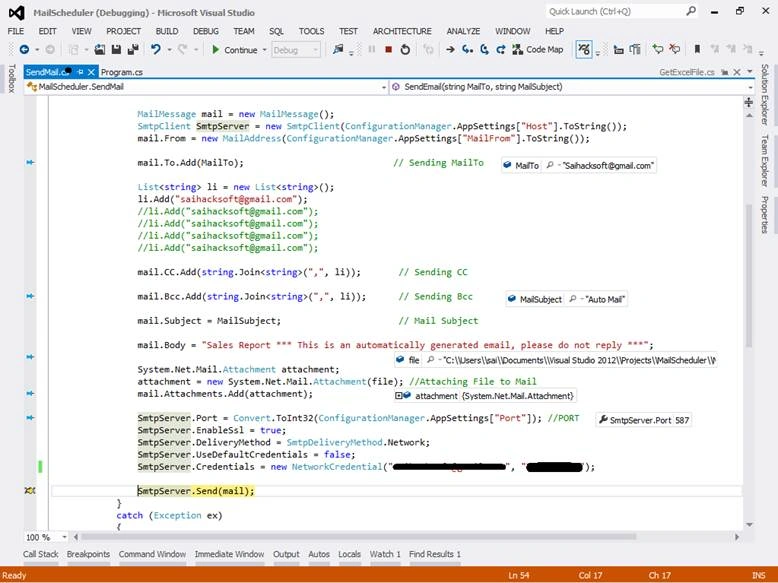
 Below snapshot of Sending Mail Method
I have pinned some variable while debugging to showing real time values.
Mail received to my Gmail.

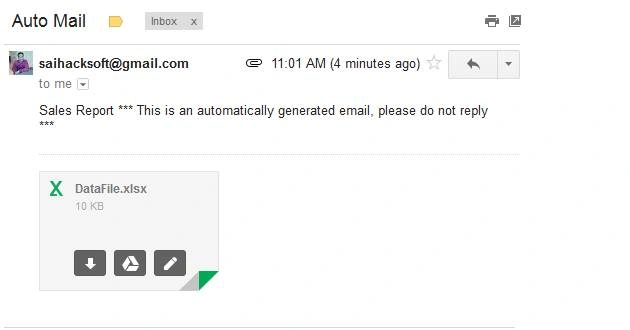
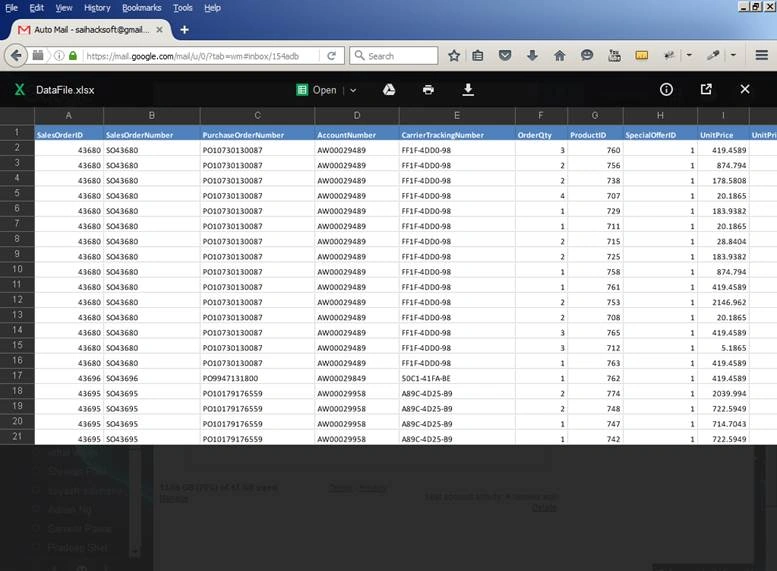
Now we have Sent Mail now let’s schedule this to Task Scheduler to send this to client in every 2 hour.
Scheduling Task
Just in windows Run type task then select Task Scheduler.
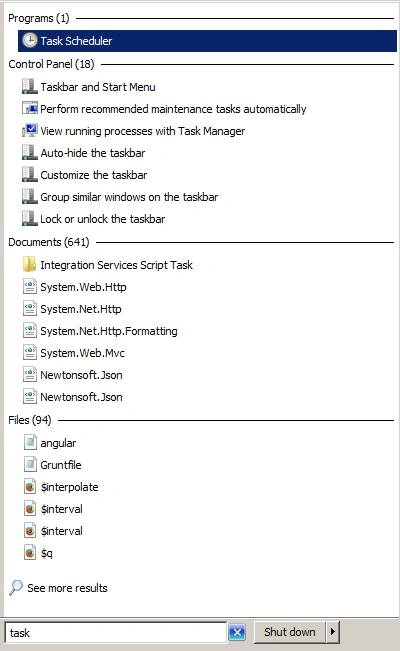
After selecting Task Scheduler a new dialog will pop up with name Task Scheduler.
Task Scheduler view
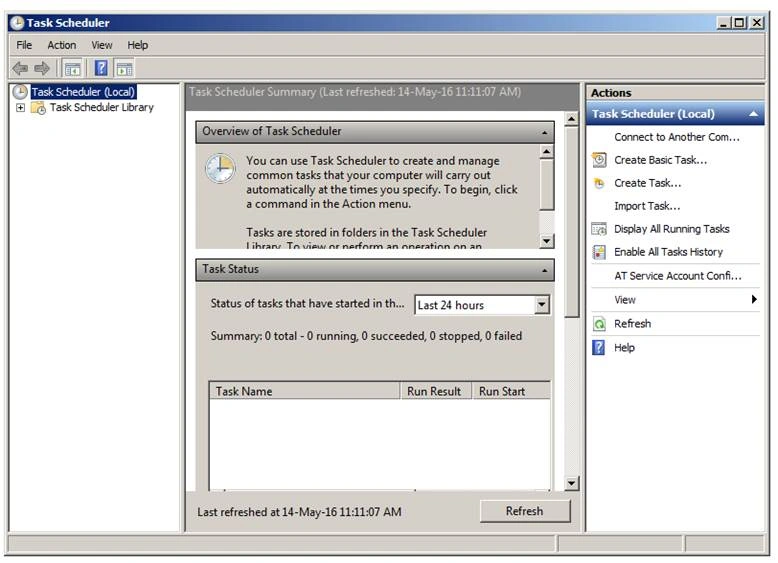
From Task Scheduler dialog there is Actions panel inside that select Create Task.
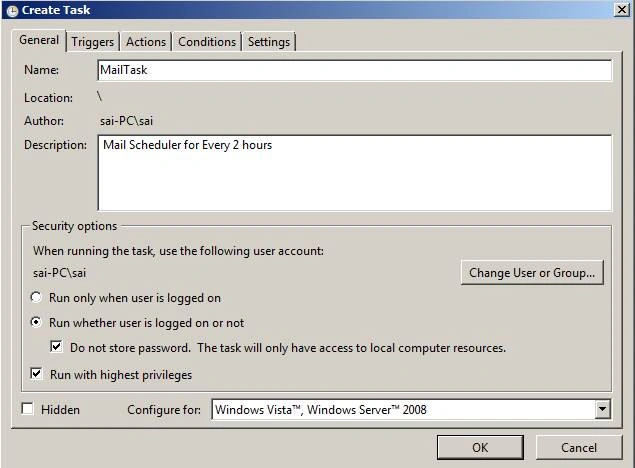
After selecting it will open new dialog inside that it will ask for task Name I have named as “MailTask” then need to enter Description “Mail Scheduler for Every 2 hours” this will help you to remember for what purpose you have create this Scheduler.
Then in Security option we are going to choose “Run whether user is logged on or not” below we are also going to check checkbox.
Finally we want this scheduler to run on high privileges for that we are going to check checkbox.
After doing all setting click on OK button.
You setting you can see below snapshot.
Create Task view
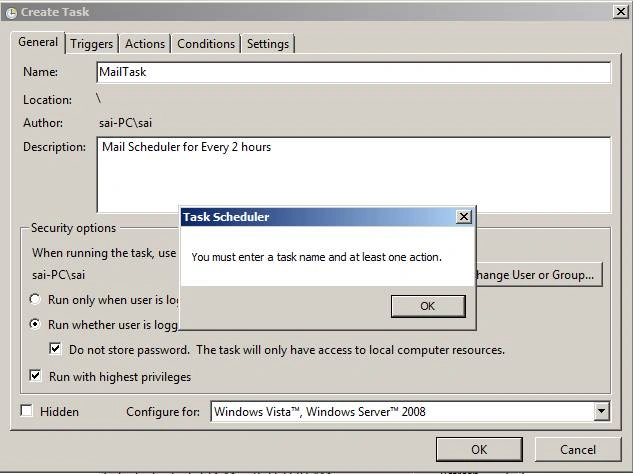
After clicking on OK button it will show a message to add a Task click on Ok button.
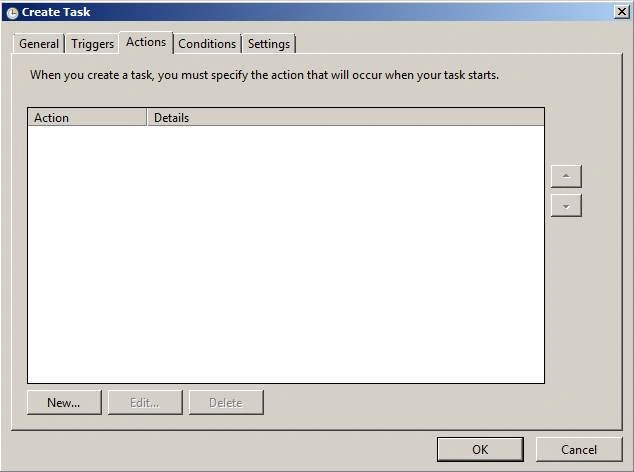
Create Action view Now after clicking it will take you to Action tab.
In New action tab just select new button [New] a new dialog will pop up as shown in below snapshot.
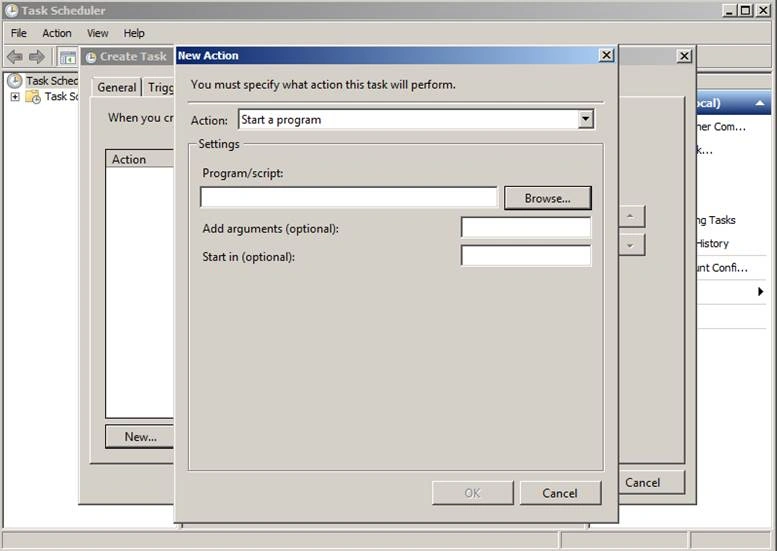
After in Action we are going to select “Start a Program”.
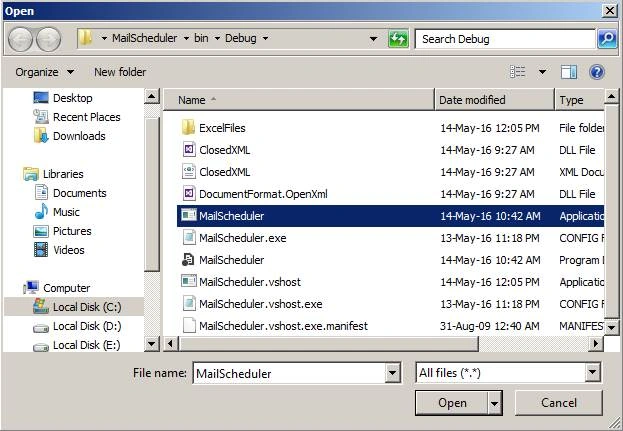
Then click on browse option for selecting program which should run on scheduling we are going to select .exe of our project which should run after every hour.
The .exe [MailScheduler.exe] is located in your bin folder of project and its name is same name as project name. In below snapshot I am displaying how to select .exe [MailScheduler.exe] file.
Selecting program view (selecting MailScheduler.exe),
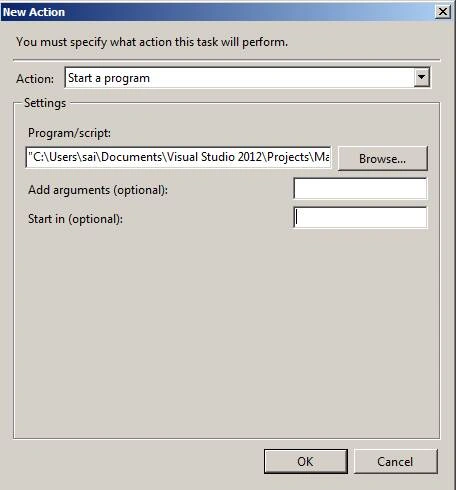
After selecting program just click on ok button a similar dialog must appear.
View after (selecting MailScheduler.exe)
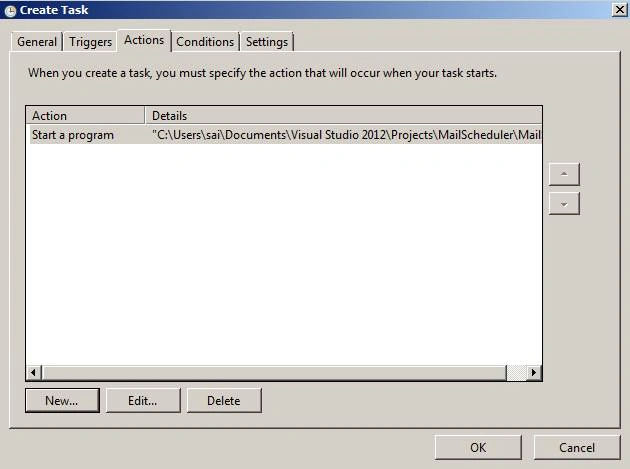
If you want to edit or delete this action you can select button below,
Let’s now we are moving forward to set trigger.
Setting Trigger
For that select Trigger tab as shown below.
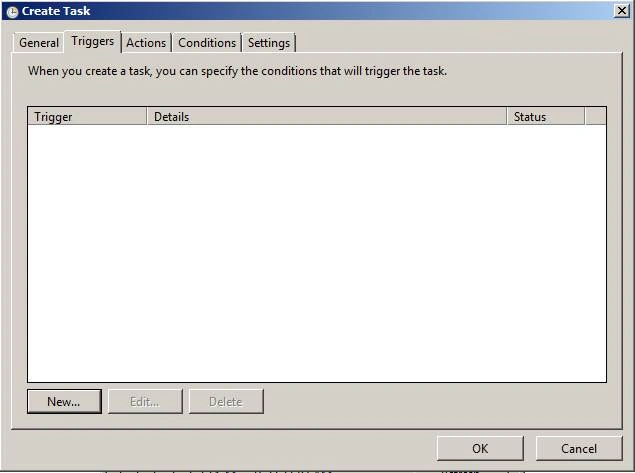
In New Trigger tab just select new button [New] a new dialog will pop up as shown in below snapshot.
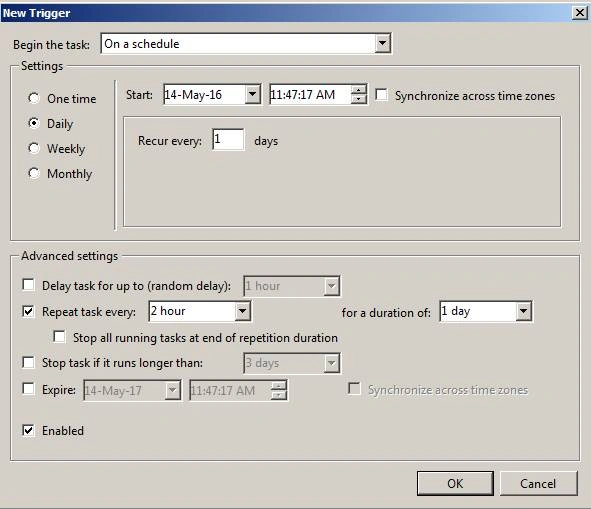 Settings
Inside setting we are going to select Daily option then it will be a Recur every 1 days.
Advanced settings
Select checkbox “Repeat task every” from dropdown select 2 hours if it is not there then you can enter it.
Then to set “for a duration of “from dropdown select 1 day.
Finally click on ok button you have successfully configured scheduler.
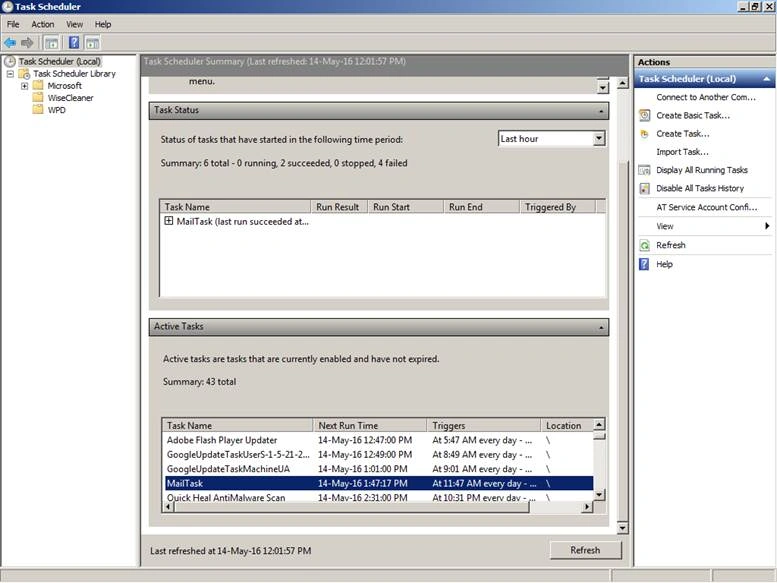
After scheduling it should display in Active Task Panel.
Final mail after scheduling.
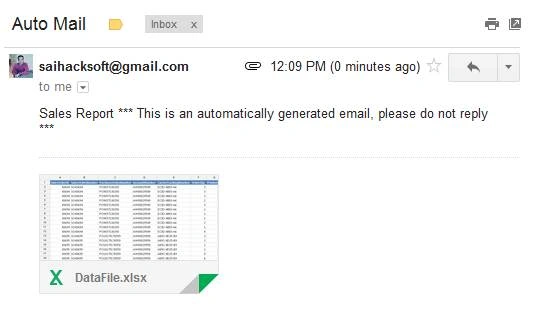
Finally we have mate Client Requirement.


Brian CookPosted Nov 1, 2022, 3:47 PM
I just came across this and it is almost perfect for my needs. Thanks!
QPosted Nov 29, 2020, 12:51 PM
This example suits my need with a variation, please help to do same using ODBC (for IBM data studio) and then I need to send that file using Outlook (to internal client) not gmail. Please mention all changes like port number, change in connection string etc.
Anu RamPosted Oct 12, 2020, 2:49 AM
How to do the reverse process.Like read the excel file from specific mail address and store the excel value to Database table
varsha babaniPosted Aug 5, 2019, 1:30 AM
Hi i am trying to use above steps but as i am using 4.5 framework not able to add ClosedXML can you pleas advice what is should do my error is:"Attempting to resolve dependency 'DocumentFormat.OpenXml (= 2.7.2)'.Attempting to resolve dependency 'ExcelNumberFormat (= 1.0.3)'. Attempting to resolve dependency 'FastMember (= 1.3.0)'. 'FastMember' already has a dependency defined for 'Microsoft.CSharp'."
Bhargav BennalliPosted Jun 24, 2019, 12:23 AM
Very nice article.. and very good and detailed explanation..
Vivek KumarPosted Jan 19, 2019, 1:16 AM
How I can edit the excel sheet color alignment etc.
Aniket NarvankarPosted Jan 11, 2019, 12:28 AM
I am getting system out of memory exception for large amount of data,i have around 40000 rows,it gives out of memory exception what could be done,please do let me know about this
Aniket NarvankarPosted Jan 11, 2019, 12:16 AM
Nice Article
abhishek amanPosted Apr 19, 2018, 5:47 AM
The remote name could not be resolved: 'smtp.gmail.com'
Shrikant RaskarPosted Sep 28, 2017, 3:57 AM
Very nice................................
Bhojraj AdhikariPosted Aug 9, 2017, 9:42 AM
Hi i am trying to use above steps but as i am using 4.5 framework not able to add ClosedXML can you pleas advice what is should do
Humayun Kabir MamunPosted May 22, 2016, 7:50 AM
Nice...
Debendra DashPosted May 18, 2016, 11:01 AM
Nice one sir..
Kuppurasu NagarajPosted May 17, 2016, 11:04 AM
Nice sharing..
Sonu ChaudharyPosted May 16, 2016, 3:29 PM
good one...
Debasis SahaPosted May 16, 2016, 1:01 AM
Nice one..
Manas MohapatraPosted May 16, 2016, 12:45 AM
Nice effort..