

Forms
- SharePoint list and libraries contains the forms, that allows users to create, edit and display the items to SharePoint Lists.
- Using custom list forms can show or hide certain fields, reorganize those fields, change the layout of the form and also customize the as we want.
Steps
Follow the below listed steps to create new custom form for SP list using SPD.
Step 1: Open the SharePoint site in SharePoint Designer.
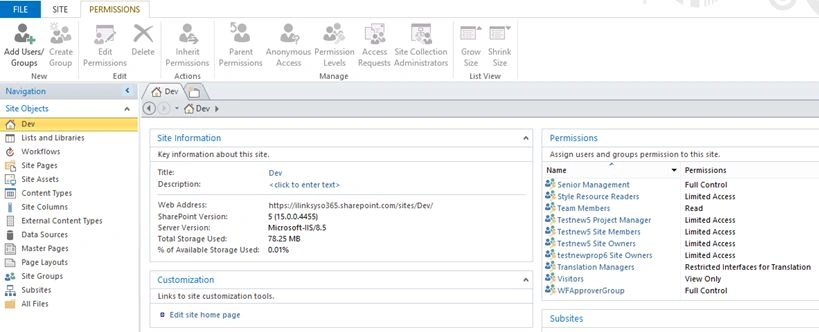
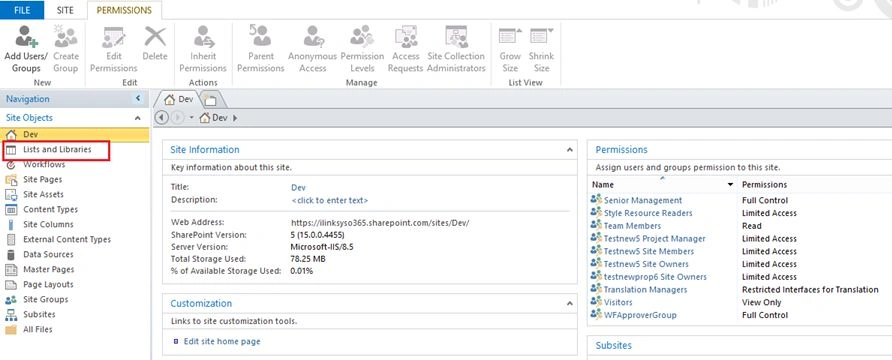
Step 2: Then click on the “List and Libraries” from left navigation.
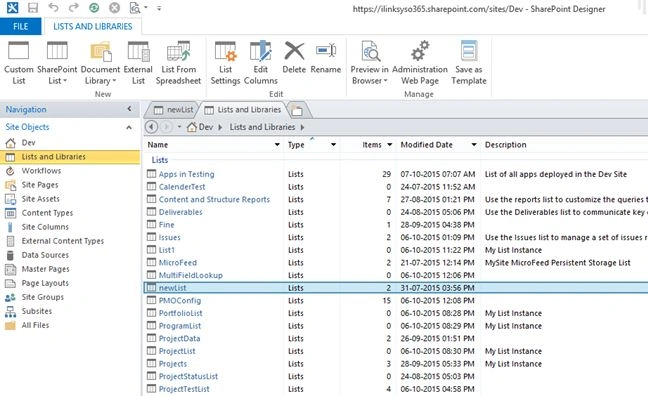
Step 3: On the List and Libraries section select the list, where you want to add the custom Display form.
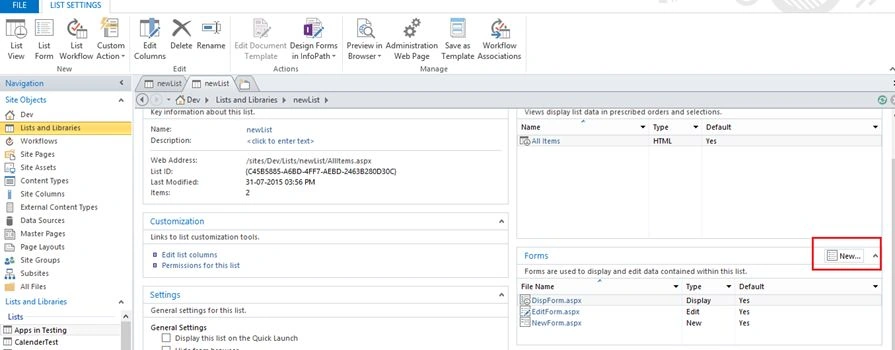
Step 4: Choose “New” button under the form section in list manage page then you will get pop-up
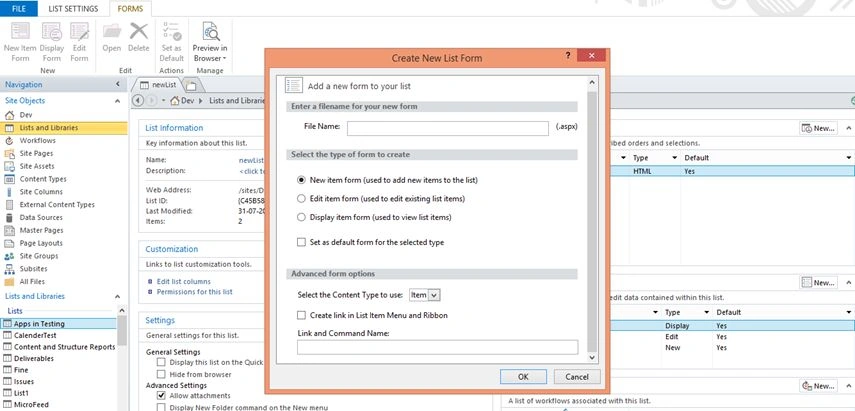
Step 5: On the pop-up you can see File Name, Type and advanced options for form as in the following,
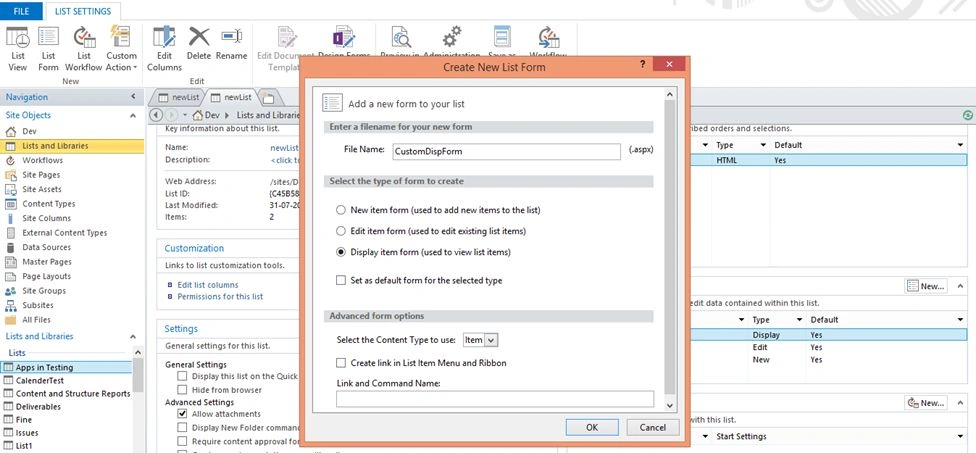
Step 6: Then provide the name of the form and select the form type as “Display item form”,
Step 7: Click “OK” to create new custom display for after providing the details,
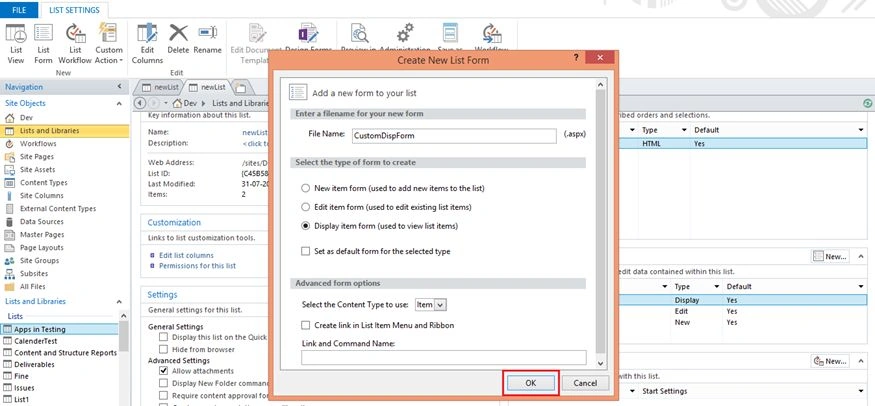
Step 8: Custom form will be created successfully as in the following,

By clicking on the custom display form we can customize as we need as I explained already.

Summary
In this article we have explored how to create new display form for list using SharePoint Designer.
Humayun Kabir MamunPosted Dec 14, 2015, 7:32 AM
Nice...
Anu VPosted Dec 14, 2015, 7:27 AM
like
Maruthi PalllamalliPosted Dec 14, 2015, 7:23 AM
What is the best use, If i use SP List with SharePoint Designer? I thought it is also CS object model right or any new model ?