
Create a team site in SharePoint.
Open the site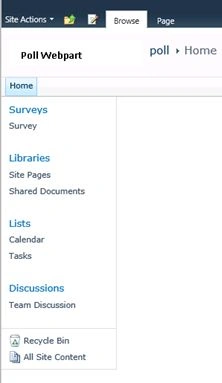
Click Site Actions and select More options...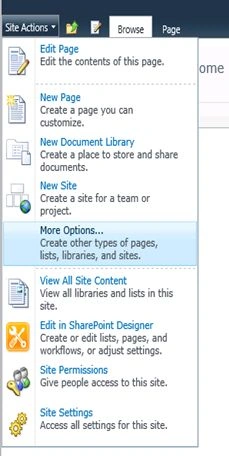
Create a Survey WebPart named "Poll".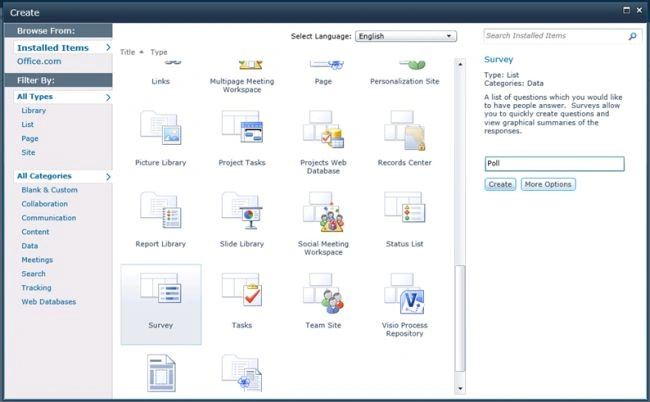
Now add questions and answers into the survey as in the following screenshots:
Click on the next question to add multiple questions.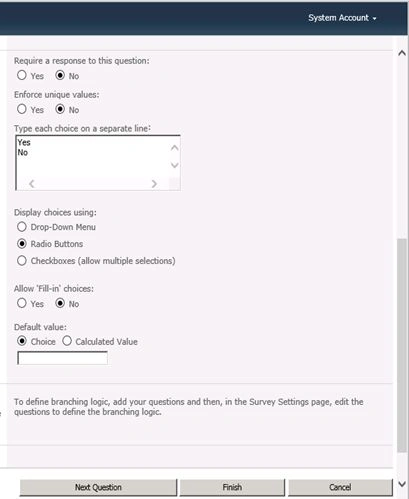
Click Finish.
Now open the site in SharePoint designer to create a poll WebPart using a DataView WebPart. Then open the site and go to list and libraries.
Go to the site pages and add a new WebPart page named "Poll.aspx".
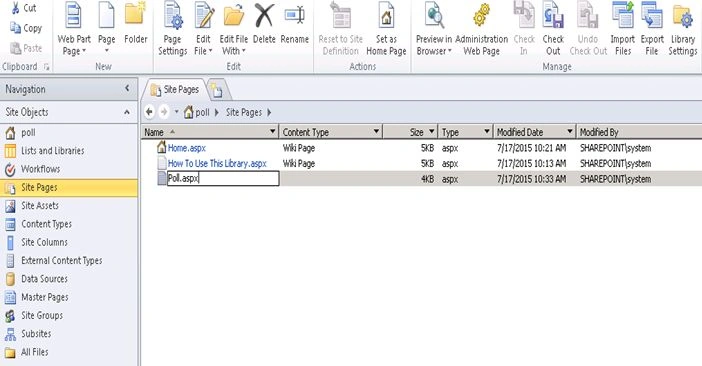
Now edit the .Aspx file in Advanced mode.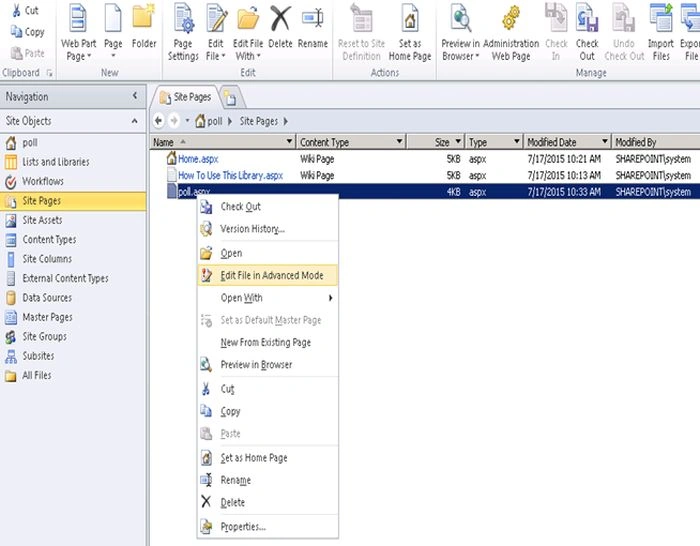
Now insert an Empty Data View into the WebPart zone.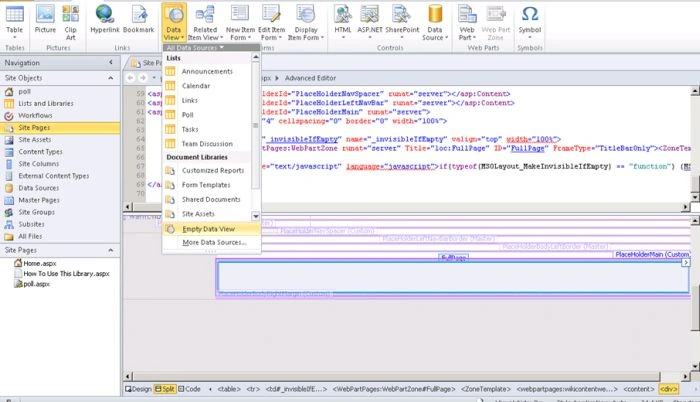
Now select the data source created for the survey named "Poll".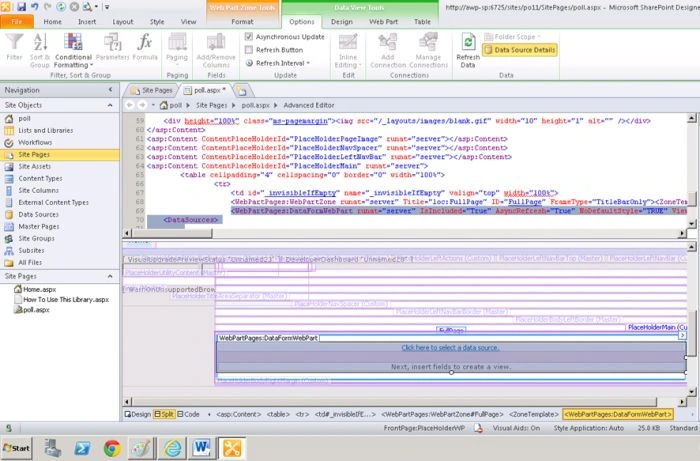
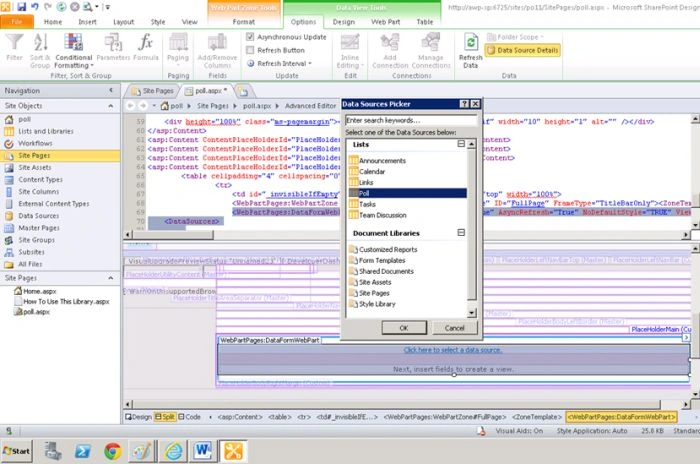
Select the Question Field, then insert the selected field as New Item Form.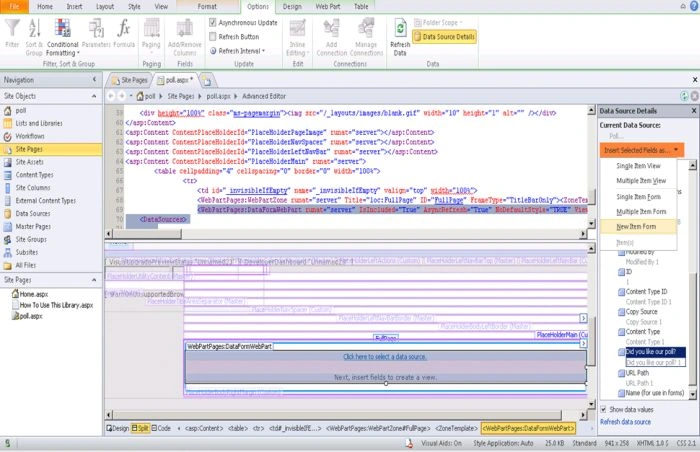
It looks like now we will merge the table cells at the top of the ribbon by selecting the table.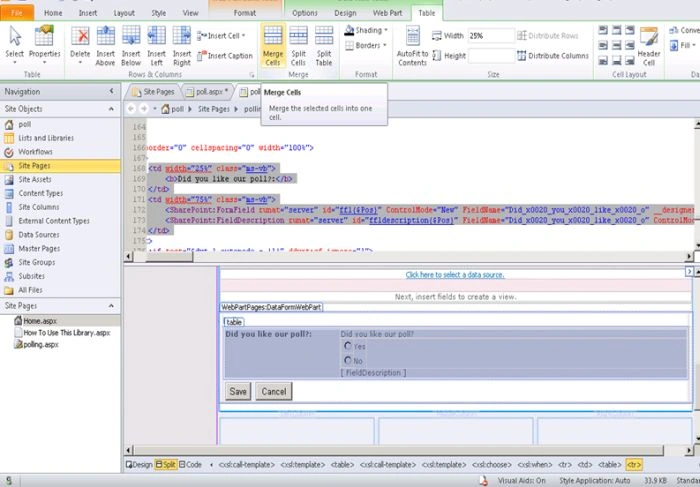
It will look like the following: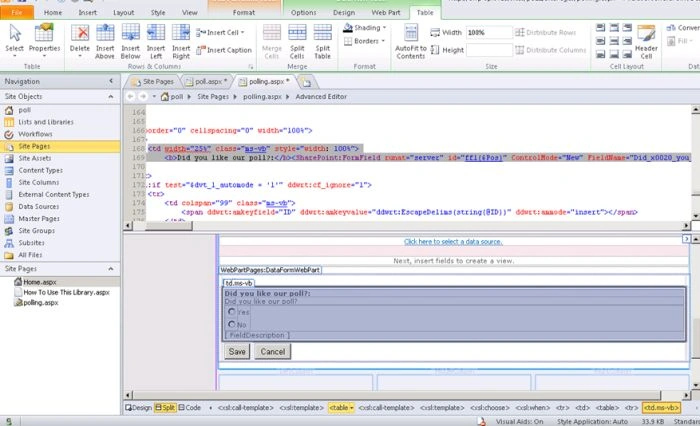
Remove the cancel button from the table.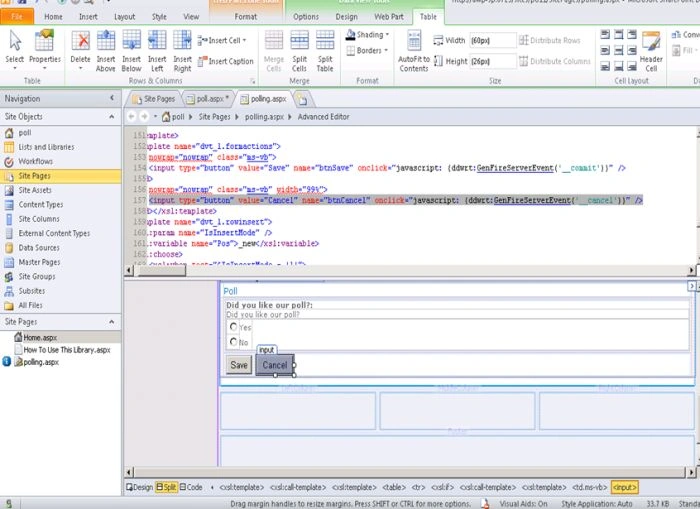
Change the Save button text to "Vote" and provide the action as submit.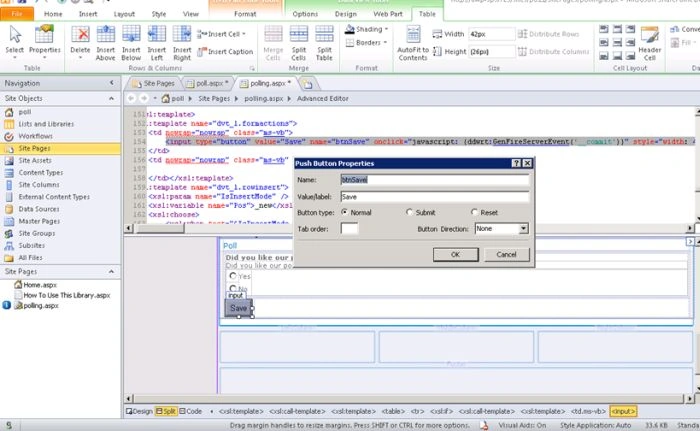
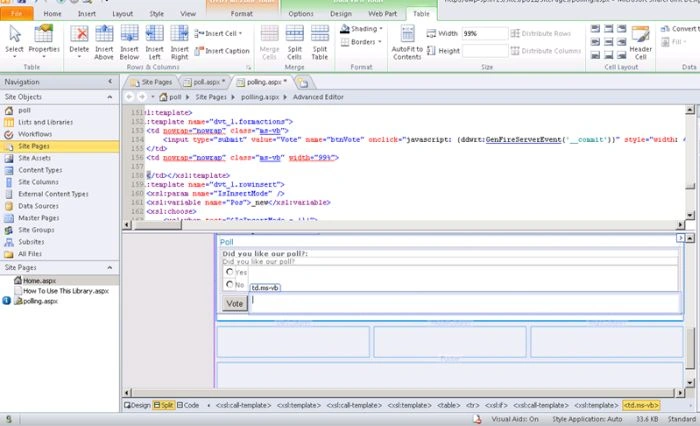
Now preview it in the web browser.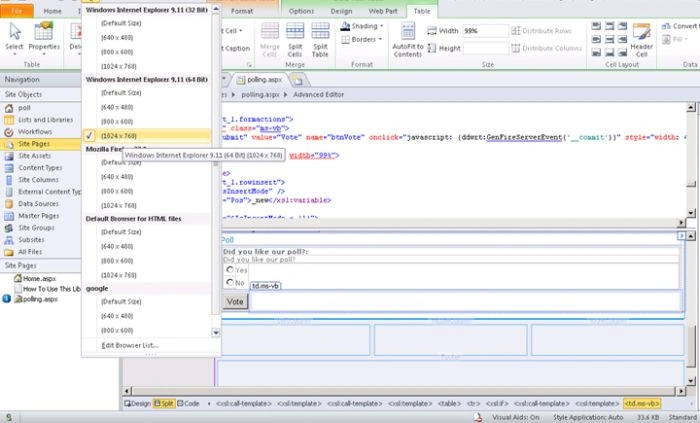
Now it's completed.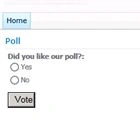
I will vote now for the poll.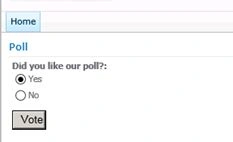
Now see the total responses has been counted as "1".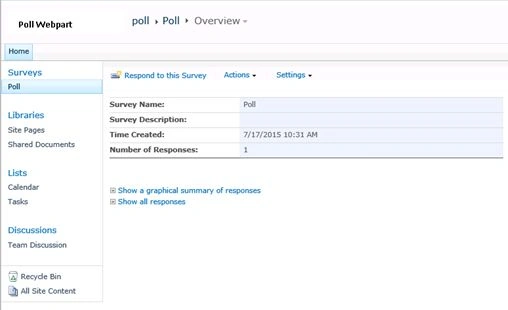
And here is the graphical summary.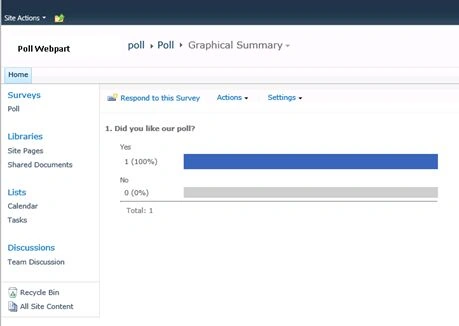
Now we have a poll WebPart free of cost.

Create Poll WebPart Using SharePoint
Join the conversation! Your thoughts help the community grow.
Sign in to leave a comment
It is the same account you read, post and publish with — and you will come straight back to this page.
Gowtham RajamanickamPosted Jul 27, 2015, 5:21 AM
good
Sibeesh VenuPosted Jul 18, 2015, 10:47 AM
Nice Share
Vinodh NarayananPosted Jul 18, 2015, 12:52 AM
Thank you guys
Nilesh JadavPosted Jul 18, 2015, 12:02 AM
Nice article sir
Pankaj Kumar ChoudharyPosted Jul 17, 2015, 11:43 PM
Nice Explain Sir.........
SharadPosted Jul 17, 2015, 11:37 PM
good one...