

Managing the lifecycle of emails and other items in Exchange Online is crucial for compliance and efficient data management. This article provides a detailed guide on creating retention tags, setting up retention policies, and checking these policies in the Exchange Online admin panel.
Access the Compliance Portal
To access the Microsoft Purview compliance portal.
- Go to the Compliance Portal: Open your web browser and navigate to compliance.microsoft.com.
- Sign In: Sign in with your Microsoft 365 admin credentials. Ensure you have the necessary permissions to access compliance features.
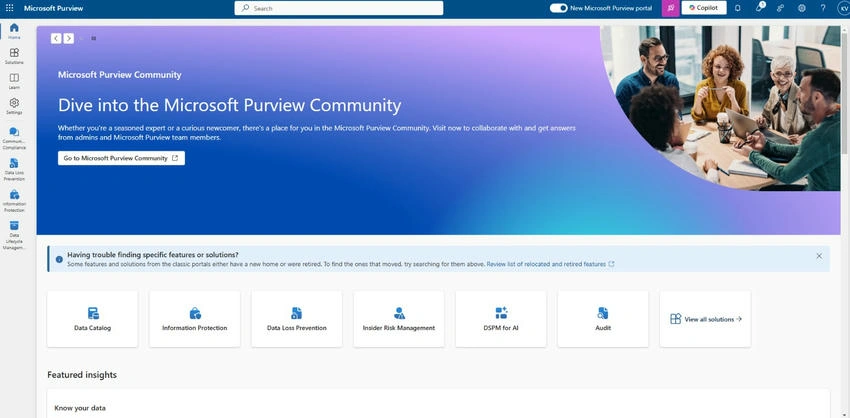
Navigate the Portal
Once signed in, you will see a navigation pane on the left side of the screen. This page provides access to various compliance solutions, including data lifecycle management, eDiscovery, and more.
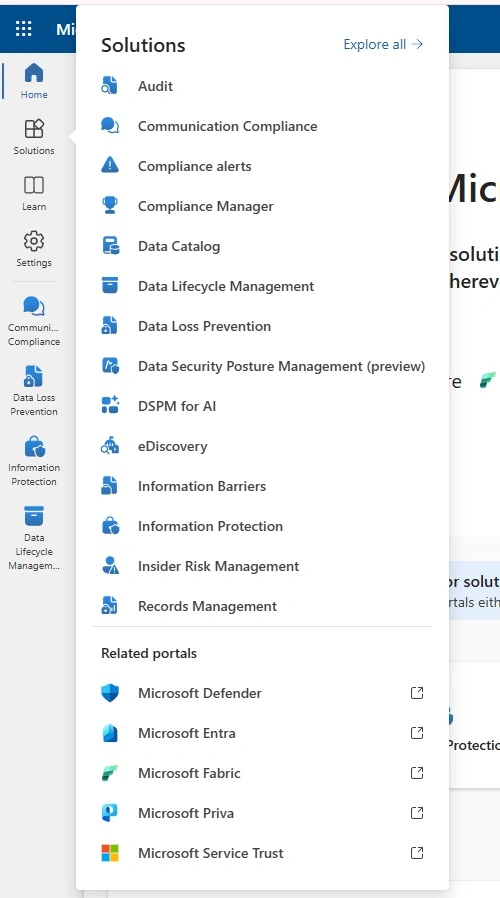
Create a Retention Tag & Create a Retention Policy
Retention tags define how long items are retained and what actions are taken when they reach the specified retention age.
A retention policy is a collection of retention tags that you apply to mailboxes.
1. Navigate to Data Lifecycle Management
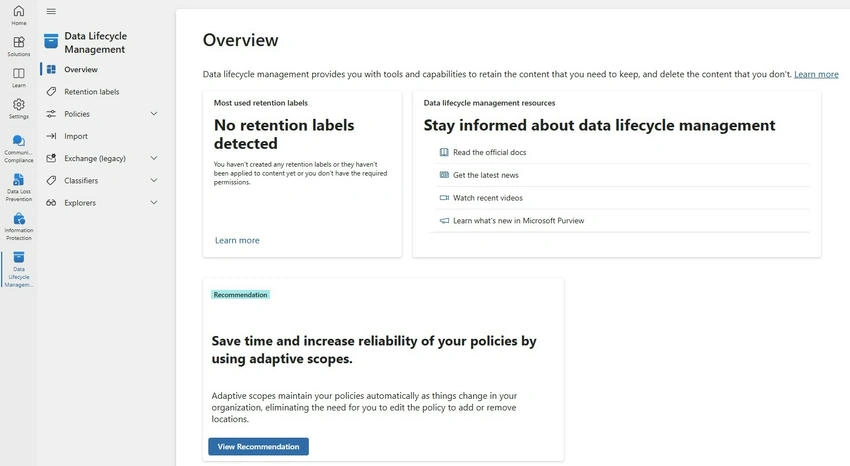
- In the compliance portal, select Data Lifecycle Management from the navigation pane.
- Go to Exchange (Legacy)
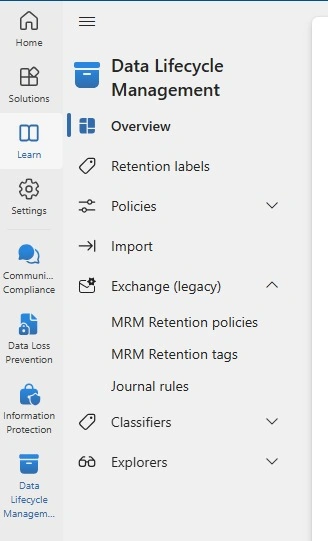
- Under Data lifecycle management, select Exchange (legacy).
2. Create a New Tag
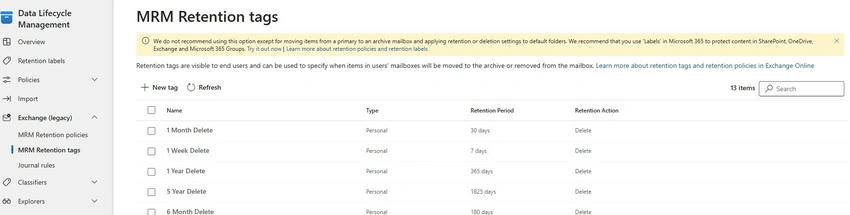
- Click on MRM Retention tags.
- Click on + New tag.
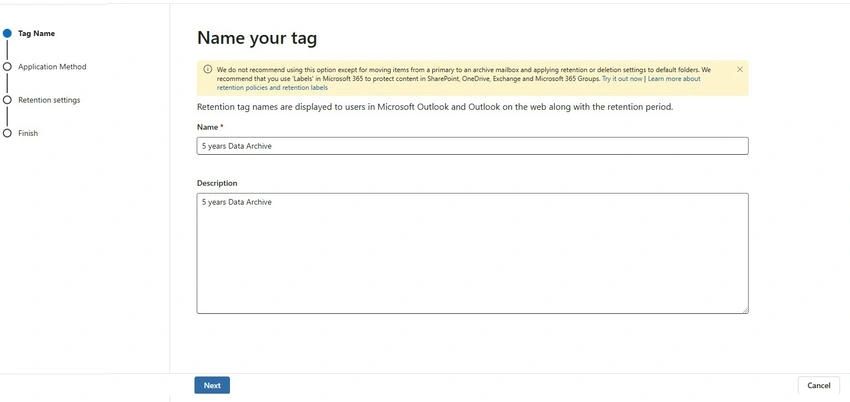
- Add a meaningful full name for the tag.
3. Define How the Tag Will Be Applied
Choose one of the following options.
- Automatically to entire mailbox (default): This option creates a Default Policy Tag (DPT). DPTs can be used to create a default deletion policy and a default archive policy, which applies to all items in the mailbox.
- Automatically to default folder: This option creates a Retention Policy Tag (RPT) for a default folder such as Inbox or Deleted Items. You can select the specific folder to which the tag will apply.
- Applied by users to items and folders (personal): This option allows users to apply the retention tag to custom folders and individual items. These are known as personal tags.
4. Set Retention Settings
Define the retention period (e.g., 1 year, 5 years).
Choose the retention action (e.g., Move to Archive, Delete and Allow Recovery, Permanently Delete).
Retention Actions: These define what happens to items when they reach the end of their retention period. Common actions include:
- Move to Archive: Move the item to the archive mailbox.
- Delete and Allow Recovery: Moves the item to the Deleted Items folder, where it can be recovered.
- Permanently Delete: Permanently deletes the item, making it unrecoverable
5. Save the Tag
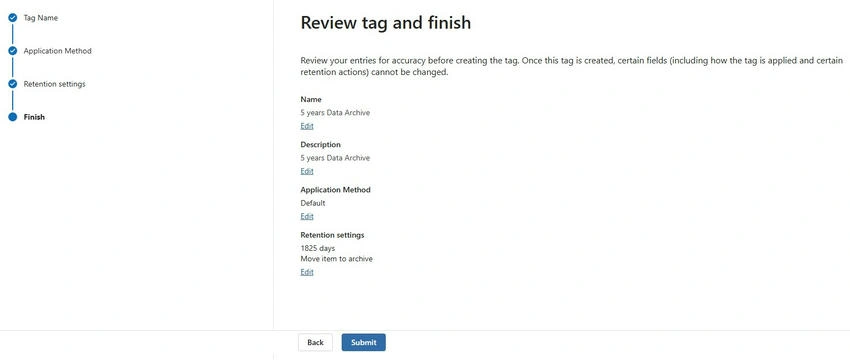
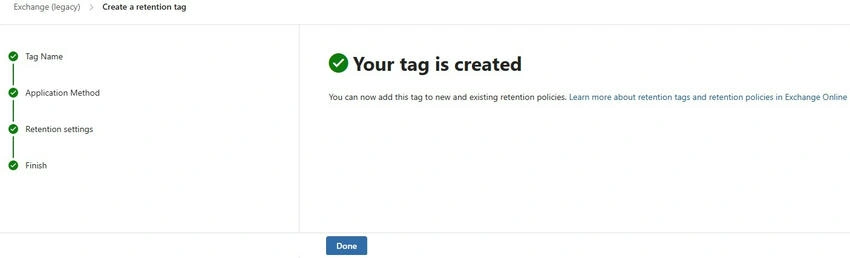
- Click Next, review your settings, and then click Save.
Create a Retention Policy
1. Navigate to Retention Policies
In the compliance portal, go to Solutions > Data lifecycle management > Exchange (legacy) > MRM Retention policies.
2. Create a New Policy
- Click on + New policy.
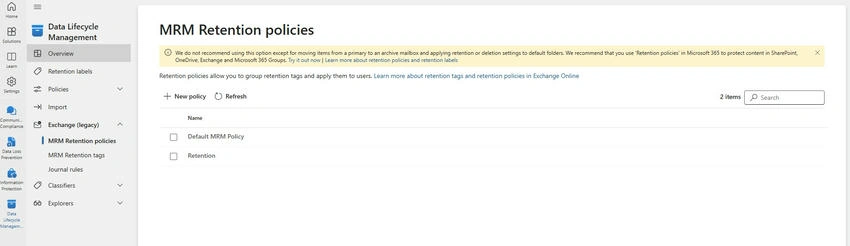
- Name the Policy: Provide a name and description for the policy.
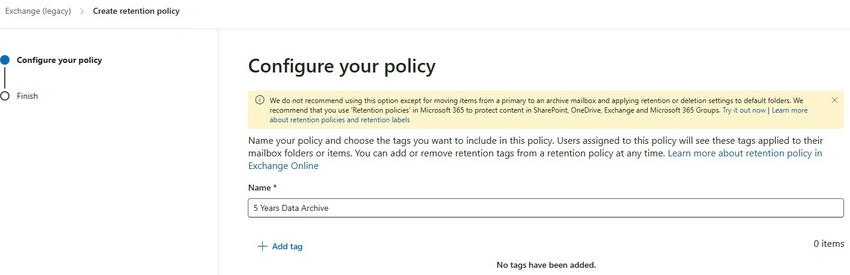
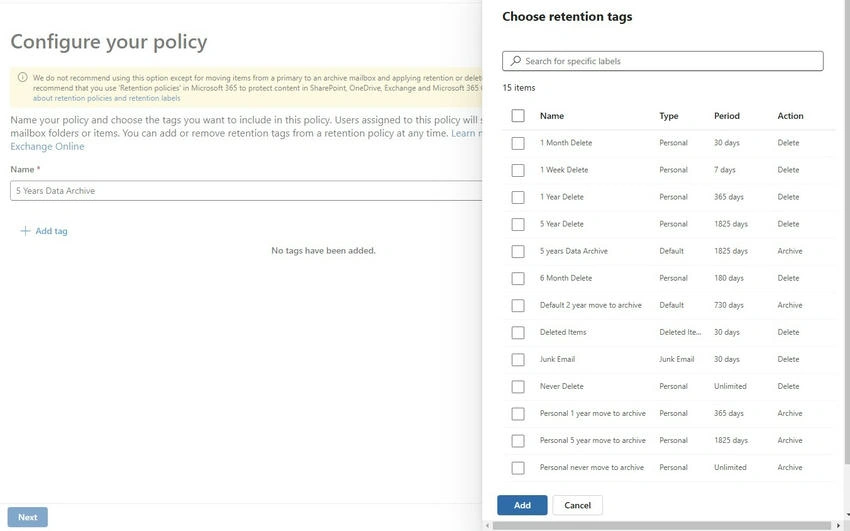
- Add Retention Tags: Select the retention tags you created earlier and add them to the policy.
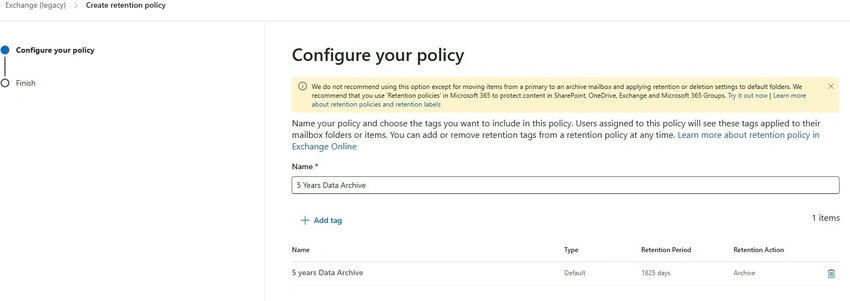
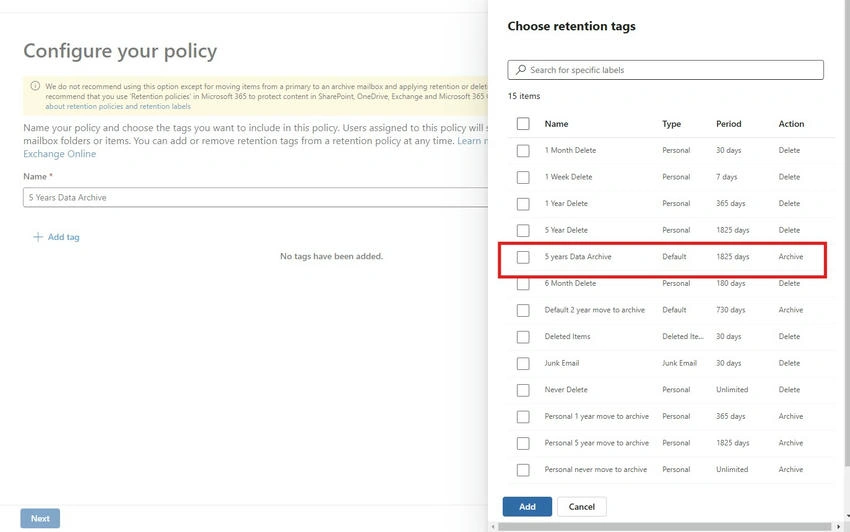
- Save the Policy: Click Next, review your settings, and then click Save.
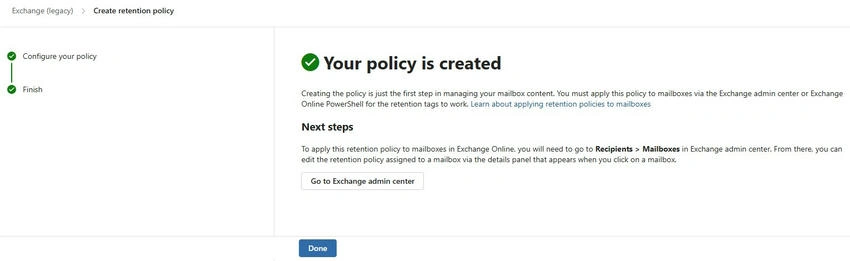
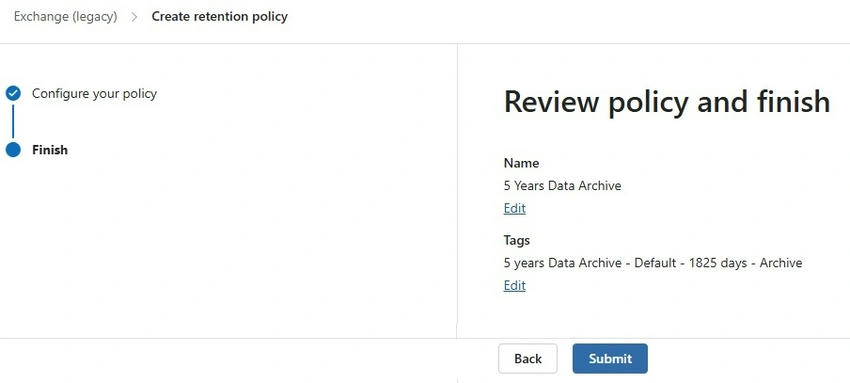
3. Check the Retention Policy in the Exchange Online Admin Panel
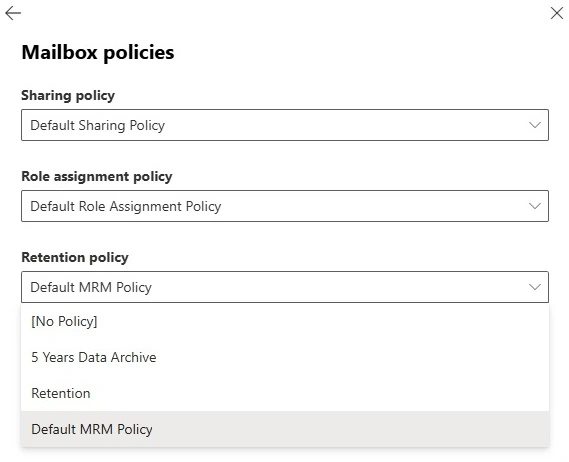
To verify that the retention policy is applied correctly.
To verify that the retention policy is applied correctly, you can check the mailbox properties in the Exchange admin center. Navigate to Recipients > Mailboxes, select the mailbox, and view the Mailbox features tab to see the applied retention policy.
By following these steps, you can effectively manage the retention of emails and other items in Exchange Online, ensuring compliance and efficient data management.
Join the conversation! Your thoughts help the community grow.