

Introduction
Today, in this article let's play around with one of the interesting and most useful concepts in SharePoint 2010.
Question: What is a ribbon?
In simple terms "A ribbon is a group of multiple controls used to perform any specific operations on the server. It can be placed under any specific group or tabs".
Step 1: Open SharePoint 2010 Central Administration and navigate to a specific site.
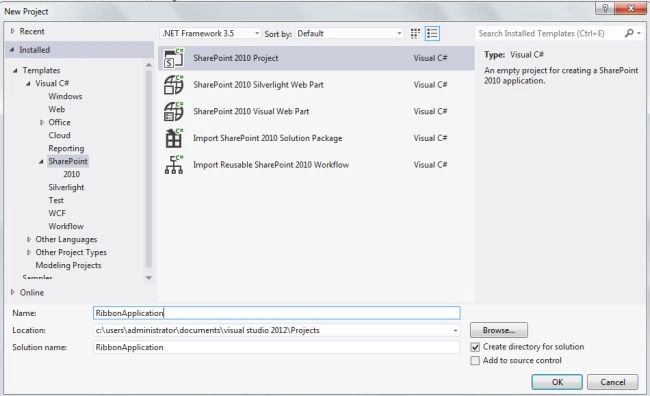
Step 2: Open up Visual Studio 2012 and create an "Empty SharePoint project":
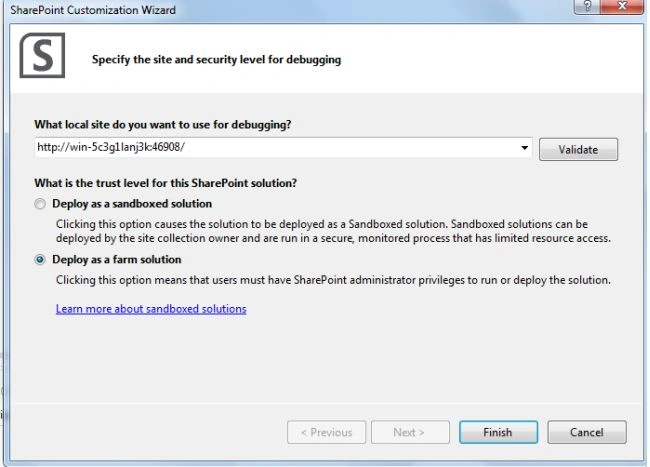
Step 3: Select "Deploy as a farm solution" as in the following and click the "Finish" button.
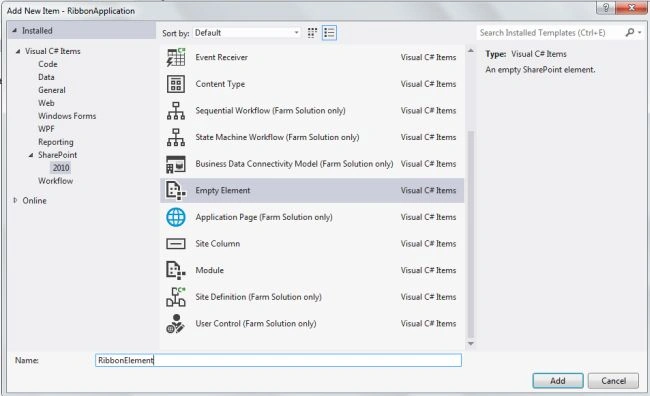
Step 4: Adding new empty element to the solution:
Step 5: The complete code of Elements.xml looks like this:
<?xml version="1.0" encoding="utf-8"?>
<Elements xmlns="http://schemas.microsoft.com/sharepoint/">
<CustomActionId="RibbonControl"RegistrationId="101"RegistrationType="List"Location="CommandUI.Ribbon">
<CommandUIExtension>
<CommandUIDefinitions>
<CommandUIDefinitionLocation="Ribbon.Documents.New.Controls._children">
<ButtonId="Ribbon.Documents.New.Controls._RibbonControl"Alt="SharePoint"Sequence="10"Image32by32="http://files.softicons.com/download/application-icons/32x32-free-design-icons-by-aha-soft/png/32/Microsoft%20flag.png"Command="RibbonControl"LabelText="SharePoint"TemplateAlias="o2"/>
</CommandUIDefinition>
</CommandUIDefinitions>
<CommandUIHandlers>
<CommandUIHandlerCommand="RibbonControl"CommandAction="javascript:window.open('http://sharepoint.microsoft.com/en-us/Pages/default.aspx');">
</CommandUIHandler>
</CommandUIHandlers>
</CommandUIExtension>
</CustomAction>
</Elements>
Step 6: The output of the application looks like this:
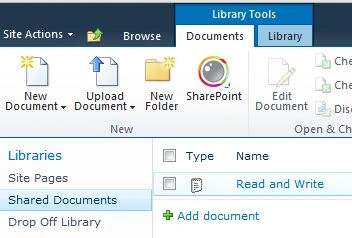
I hope this article is useful for you.
Comments
Join the conversation! Your thoughts help the community grow.