

Hopefully you have set your IDE for Windows Universal Platform and also created a “Hello World” project. Now the time is to create a simple “Login/Registration Page” on Blend 2015 with the help of Tool Bar and use of a little Navigation feature. Follow the steps and you can create your own.
Create Project in Blend 2015
I hope you are aware of creating your own project in Blend 2015, however if you are not there is no need to worry. Simply activate the Blend 2015 from your taskbar and do the following steps.
- Select “Universal ” from the left pane shown in circle.
- Select “Blank App” from the template as shown in picture.
- Name your solution anything you want as I named it “Signup Page“.
Designer Window
In next phase, a designer window will open after you created your project following the above mentioned guidelines. Divide the task into two categories.
- Create Sign in
- Create Sign up
Sign in
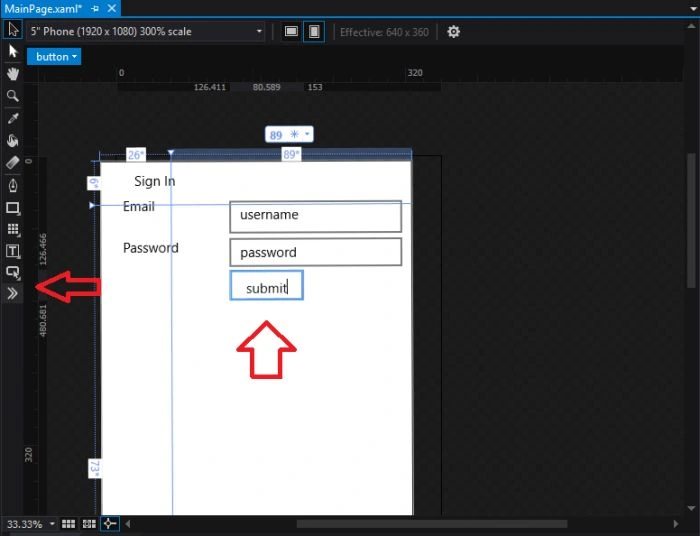
In order to create a sign in, use your “Tool Box” and simply drag and drop the following tools from your tool box. Toolbox is shown with help of arrow, on left side of your designer window.
- Drag the “TextBlock” and Drop to “Designer Window” and name it “Sign In“.
- Drag the “TextBlock” again and drop now on left hand side ,as shown in picture , name it “Email“.
- Now drag the “TextBox“again and drop next to the “email text block“.
- Again drag the “TextBlock” and drop it under the “Email“, name it “password“.
- Now drag the “password” and drop it next to the password textblock.
- In the end , drag and drop the “submit“ button.
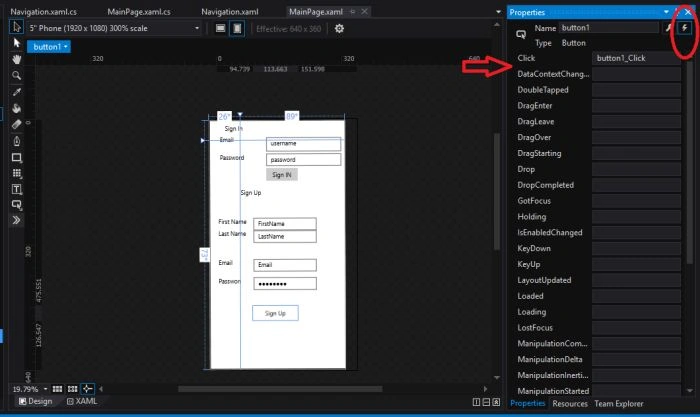
Hint: The following image will help you out,
Create Sign Up
On the same designer window, now the time is to create a “SignUp page". Simple steps using tool box are:
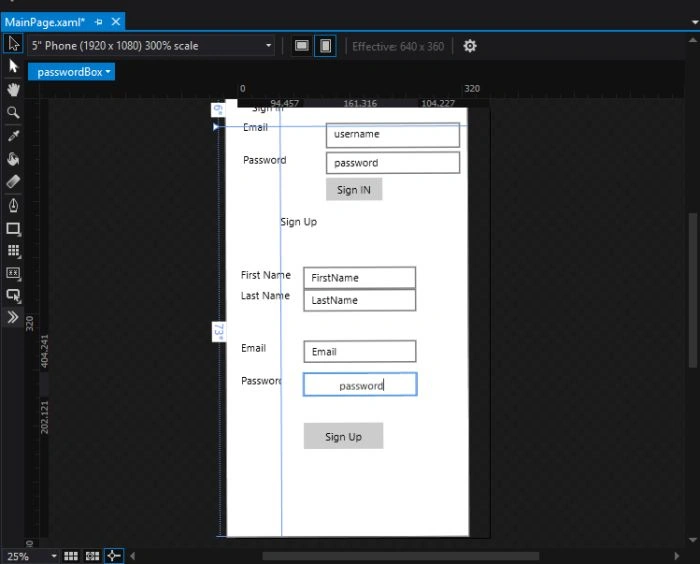
- Drag the “Textblock” and drop under the submit button, name it ”SignUp“.
- Now select the “Textblock” and drop it under the “SignUp”, name it “First Name”.
- Again select the “TextBlock” and drop it under the ”First Name“, name it “Last Name“.
- Same process repeat for ”Email” and “Password”, just select the “TextBlock” and drop them.
- Now use “TextBox” in front of every “TextBlock” in SignUp, except for password.
- For password, select “password “and then drop it next to “password textblock.” image will give you the idea.
- Drag and drop the “button” in end, change content to “Sign Up“.
Hint: Password will not be shown if you use that tool.
Ankur MistryPosted Nov 30, 2015, 12:15 AM
Nice Article
Santhakumar MunuswamyPosted Nov 28, 2015, 1:08 AM
Good One
Zain NisarPosted Nov 26, 2015, 12:51 AM
Thank you :)
Mukesh KumarPosted Nov 26, 2015, 12:22 AM
Good Start...
Zain NisarPosted Nov 25, 2015, 2:03 PM
Thank you :)
Ajay GandhiPosted Nov 25, 2015, 8:19 AM
Nice One
Raja TPosted Nov 25, 2015, 7:53 AM
Nice Sharing