

Create Simple Window Service
Open Visual Studio 10 then go to File > New > Project. That will open a dialog box for a new project then select “Window Service” and click on the OK button.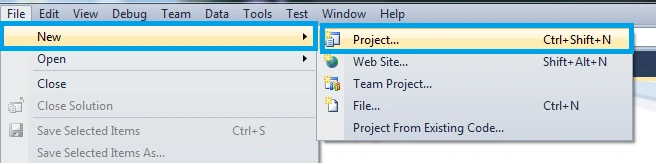
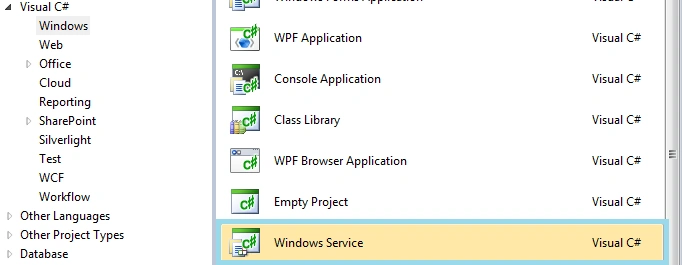
After creating the project you can see the service design page as in the following and click on the link “click here to switch to code view”.
The Solution Explorer will then look like this:
The WinService class should contain the two functions OnStart() and OnStop() and contain the following code:
- public partial class WinService : ServiceBase
- {
- public WinService()
- {
- InitializeComponent();
- }
- protected override void OnStart(string[] args)
- {
- //
- }
- protected override void OnStop()
- {
- //
- }
- }
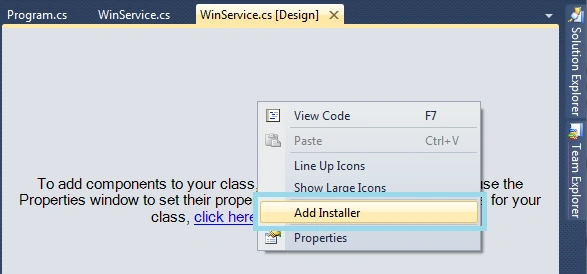
After adding the ProjectInstaller.cs you have 2 components in the design view of the ProjectInstaller.cs (serviceProcessInstaller1 and serviceInstaller1). You should then set up the properties as you need.
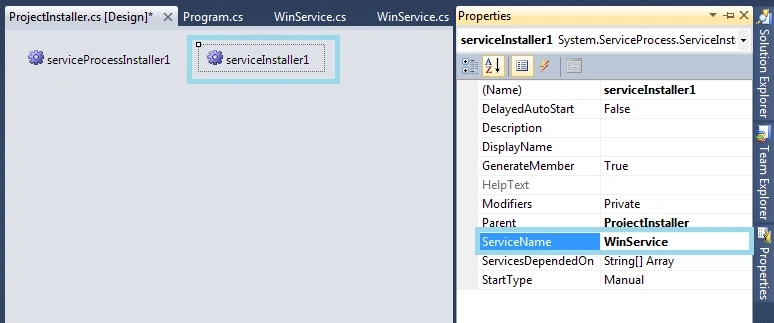
Click on serviceinstaller1 and go to the properties in the right pane and edit the service name Service1 to WinService as in the following:
Click on serviceProcessInstaller1 and go to the properties in the right pane and select Account and choose LocalService from the dropdown and save. See the following:

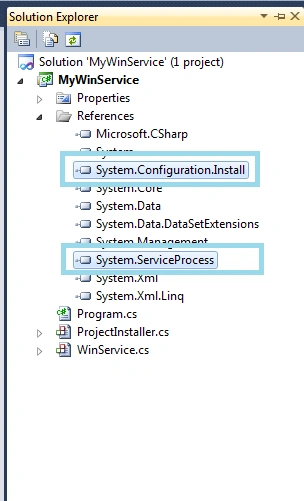
You have two assemblies under References as in the following highlighted (1) System.Configuration.Install and (2) System.ServiceProcess.
Create Setup Project
Build your service project, you need to set up the project to install the build/compiled project and run the installers to run the Windows service. Create a new project as a “Setup Project” and you need to add project output.
Create Setup Project for Window Service
Go to the Solution Explorer and right-click on the solution, go to Add > New Project.

Open a dialog box, go to left pane under Installed Templates > Other Project Types > Setup and Deployment > Visual Studio Installer and go to the right pane and select the project as a “Setup Project” and click on the OK button.

Custom actions add to setup project
Go to the solution, right-click on the setup project then select View > Custom action.

The “Custom action” editor appears.
Right-click on “Custom action > Add Custom action”.

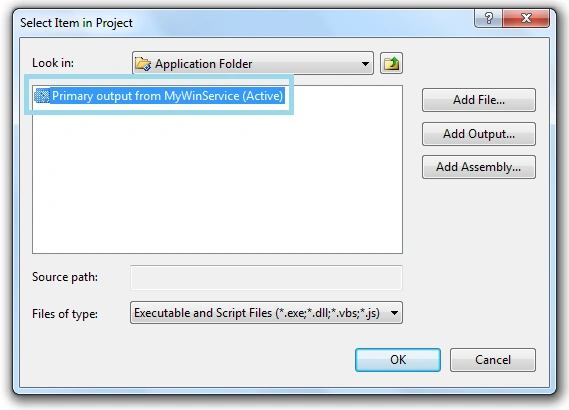
Open a dialog box “Select Item In Project” then double-click on “Application Folder” then click on the “Add Output” button. Open a dialog box, choose your project (Window service) and “Primary Output” from (Active) and click on the OK button.


Build your setup project and install the Windows service.
Install And Start The Service
Go to the Solution Explorer then select Build for both projects (Windows Service and Setup Project) then right-click on the Setup Project and click on the Install option and follow the setup wizard procedure. Finally your service is ready for being started and stopped. If you want to start the Windows server then go to Start > Administrator tools > Service > Find Your Service then right-click on the Service Name then select Start. Otherwise go to Start > Computer (My Computer) > Manage > Click on Service And Application from the left pane > Services.
Anandu G NathPosted Jan 12, 2024, 6:13 AM
Nice Article
Dinesh GabhanePosted Nov 12, 2019, 11:53 PM
Thanks for sharing. Good one
Bhushan BhasmePosted Dec 6, 2018, 1:10 AM
Hi,I have created set up of windows application but i need in such way that i can change the connection string of the service to which my set up is pointing while installing the application?is there any option to add configurable options while installing set up?
Deepak VermaPosted May 2, 2018, 7:11 AM
Thanks K.R. it helps me a lot.................. :)
Praveen KumarPosted Jan 18, 2018, 9:23 AM
After creating a windows service SETUP, I have changed my app.config file. Is it require to recreate setup project?
Kaviyarasan RPosted Jan 4, 2018, 5:12 AM
Please any one reply
Kaviyarasan RPosted Jan 4, 2018, 4:58 AM
Cannot start service from the command line or a debugger. A Windows Services Must First be Installed(Using InstallUtil.exe) and then started with the ServerExplorer,Windows Services Administrator Tool or the NET START command.
Abucheri DerrickPosted Jan 4, 2018, 4:23 AM
Thanks for this!!! This is too much helpful.
Swapnil LiparePosted Dec 6, 2017, 10:34 AM
Very useful . I followed all the steps but i am getting 1053 error while start the service. You have nay idea why i am getting this error ?
Rajesh PathakotiPosted Nov 10, 2017, 8:58 AM
Thanks for saving my time. Very helpful
sa saPosted Sep 27, 2017, 12:37 AM
Complete process for service setup. Very helpful!!!
Rajan MPosted Jun 16, 2017, 4:53 AM
Good one. It would have been great if you had added some code for custom action implementation.
Karen PaynePosted Apr 11, 2017, 3:49 PM
The setup extension is here https://marketplace.visualstudio.com/items?itemName=VisualStudioProductTeam.MicrosoftVisualStudio2015InstallerProjects
Gokul JPosted Mar 3, 2017, 6:10 AM
Hi in my application i could not able to find setup project in visual studio installer even i have searched in online templates but no luck.Please help.
Srikanth GandhamPosted Mar 18, 2016, 3:50 AM
I didn't got start option what the reason behind that
nilesh makadiyaPosted Mar 8, 2016, 3:42 AM
Nice Article.......
Tanmay NehetePosted Oct 3, 2015, 5:19 AM
thx for sharing bt i am getting error while installing the service on or more dependency is missing
Santhakumar MunuswamyPosted May 30, 2015, 12:58 PM
Thanks for sharing
Manoj BhoirPosted Apr 27, 2015, 5:36 AM
Good one !!!
Karthik Muthu KaruppanPosted Apr 23, 2015, 11:28 AM
good
NitinPosted Apr 19, 2015, 5:44 AM
nice
Sibeesh VenuPosted Apr 19, 2015, 3:46 AM
Good one