

SharePoint top navigation bar helps users to navigate to other sites. Top Navigation is also referred to as Global Navigation because it remains the same throughout the site collection. However, subsites can be configured in a way so that the top navigation does not come up in the top bar. We will have to enable publishing feature to work on the top navigation bar as it comes bundled with it.
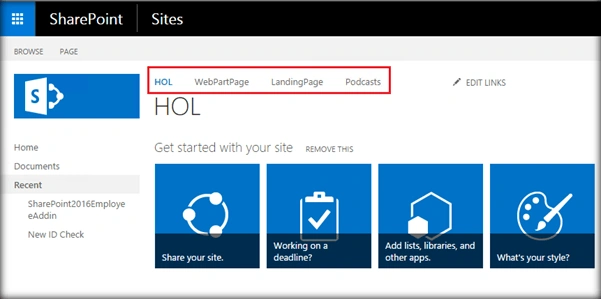
Top navigation can be of two types.
- Structural Navigation
- Metadata Navigation
Structural navigation is a navigation based on the site structure and the links will redirect to other sub sites, whereas, Metadata Navigation was introduced in SharePoint 2013 and is based on metadata terms defined in the taxonomy store. We can assign redirection URLs to the terms during their creation which can later be used in the top navigation.
Top Navigation can be configured by going to the Site Settings -> Navigation location.
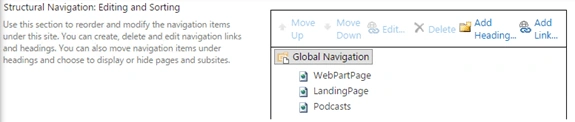
In this article, we will see how we can add new navigation nodes to the top navigation bar using JavaScript Object Model.
Internal Implementation
- Add reference to jQuery file.
- <script language="javascript" type="text/javascript" src="//ajax.googleapis.com/ajax/libs/jquery/1.8.1/jquery.min.js"></script>
- <script language="javascript" type="text/javascript">
- Within Document ready function, call SP.SOD.executeFunc so as to load the on demand script SP.js . Call the main starting point function, say: addTopNavigation
- SP.SOD.executeFunc('sp.js', 'SP.ClientContext', addTopNavigation);
- Instantiate client context and get the web instance.
- //Get client context and web object
- var clientContext = new SP.ClientContext();
- var oWeb = clientContext.get_web();
- Create top navigation node object using ‘NavigationNodeCreationInformation’ object
- oTopNavigationColl =oWeb.get_navigation().get_topNavigationBar();
- //Add a new top navigation object using NavigationNodeCreationInformation object
- var oNavigation = new SP.NavigationNodeCreationInformation();
- oNavigation.set_title("Employee Master List");
- oNavigation.set_url("/sites/playground/Lists/Employees/AllItems.aspx");
- oTopNavigationColl.add(oNavigation);
- Load the client context and execute the batch.
Full Code- clientContext.load(oQuickLaunchColl);
- clientContext.executeQueryAsync(QuerySuccess, QueryFailure);
The full code to add Top Navigation items using JavaScript Object Model is, as shown below:
- <script language="javascript" type="text/javascript" src="//ajax.googleapis.com/ajax/libs/jquery/1.8.1/jquery.min.js"></script>
- <script language="javascript" type="text/javascript">
- $(document).ready(function() {
- SP.SOD.executeFunc('sp.js', 'SP.ClientContext', addTopNavigation);
- });
- function addTopNavigation() {
- //Get the client context,web and top navigation object
- var clientContext = new SP.ClientContext();
- var oWeb = clientContext.get_web();
- oTopNavigationColl = oWeb.get_navigation().get_topNavigationBar();
- //Add a new top navigation object using NavigationNodeCreationInformation object
- var oNavigation = new SP.NavigationNodeCreationInformation();
- oNavigation.set_title("Employee Master List");
- oNavigation.set_url("/sites/playground/Lists/Employees/AllItems.aspx");
- oTopNavigationColl.add(oNavigation);
- //Load the client context and execute the batch
- clientContext.load(oTopNavigationColl);
- clientContext.executeQueryAsync(QuerySuccess, QueryFailure);
- }
- function QuerySuccess() {
- //Get the node count and loop through the collection
- var itemCount = oTopNavigationColl.get_count();
- console.log("Top Navigation Details are:");
- for (var i = 0; i < itemCount; i++) {
- var title = oTopNavigationColl.get_item(i).get_title();
- console.log(title);
- }
- }
- function QueryFailure(sender, args) {
- console.log('Request failed' + args.get_message());
- }
- </script>
Let’s see how we can implement it in SharePoint. Save the above scripts onto a text file and upload it to Site Assets library.
SharePoint Implementation
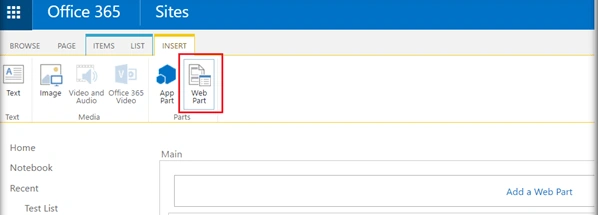
- Go to the edit settings of the SharePoint page and click on Web part from the Insert tab,
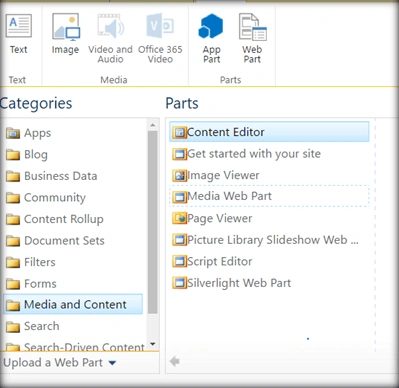
- Add Content Editor Web part.
- Click on Edit Web art from Content Edit Web part. Assign the URL of the script text file and click on Apply.
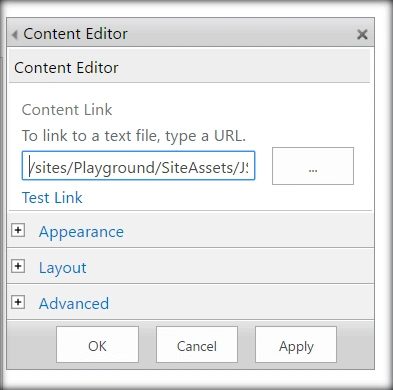
Click on Apply. We can see the new top navigation item added to the top link bar.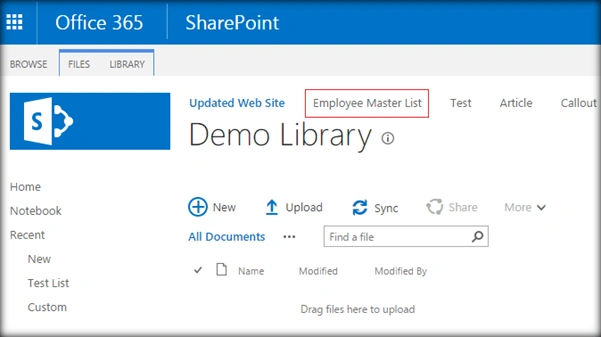
Summary
Thus, we have seen how we can modify the top navigation bar programmatically using JavaScript Object Model .This has been tried and tested out in SharePoint 2016 and Office 365.
arya manePosted Sep 4, 2018, 11:21 PM
HI Sir,I need to add folder icon in left naviagtionn of a subsite, I know it can only done by amending script in sharepoint designer, can you please help me with it.
arya manePosted Sep 4, 2018, 11:20 PM
HI Priyaranjan,
Vignesh ManiPosted Aug 30, 2016, 8:41 AM
Nice
Humayun Kabir MamunPosted Aug 30, 2016, 3:23 AM
Nice...
Prasanna MuraliPosted Aug 28, 2016, 9:24 PM
Nice one...