

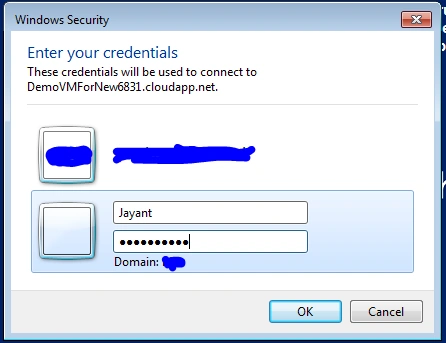
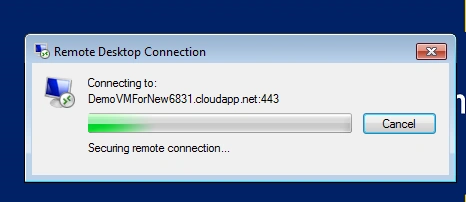
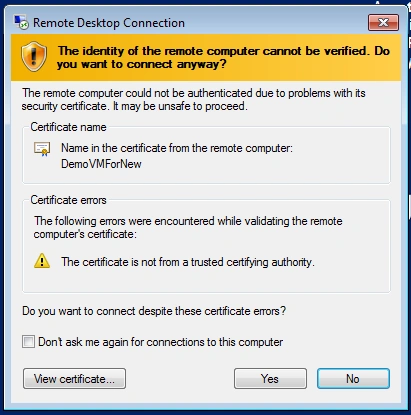
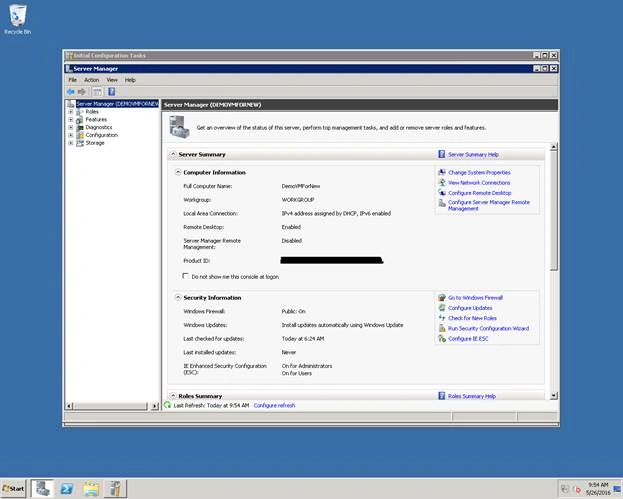
We are going to use a New Portal to create a Virtual Machine and learn how to access the Virtual Machine from RDP (Remote Desktop).
Required is internet connectivity without Proxy block in your internet connection and an Azure Account.
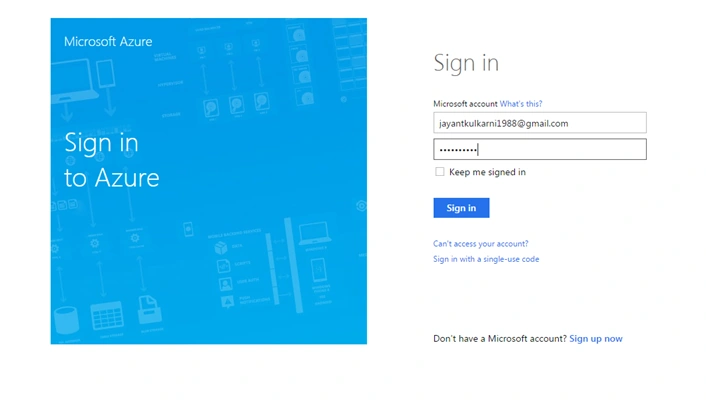
Step 1 - Login on the New Portal
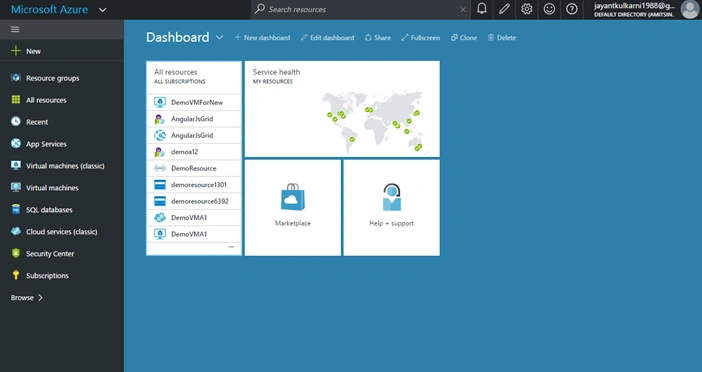
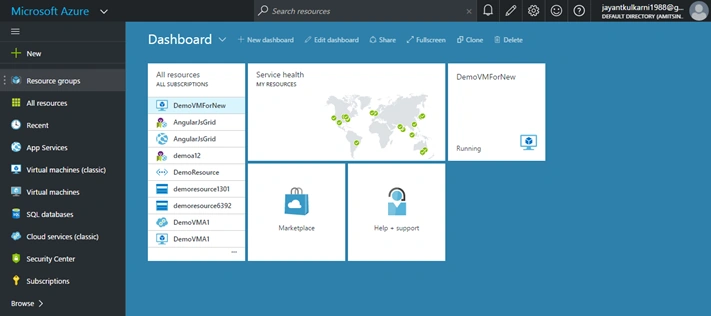
After login you will get Dashboard like this,
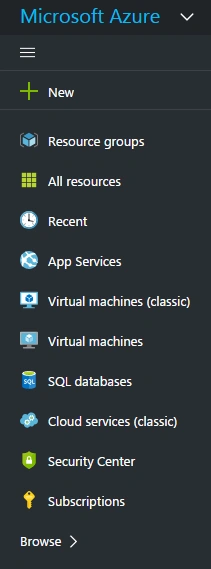
Step 2 - Click on Virtual Machines (Classic)
Click on Virtual Machine (Classic) from left side Menu, It will give you all Virtual machines list or blank screen with add button and refresh button.
Step 3 - Add Virtual Machine by Clicking on Add Button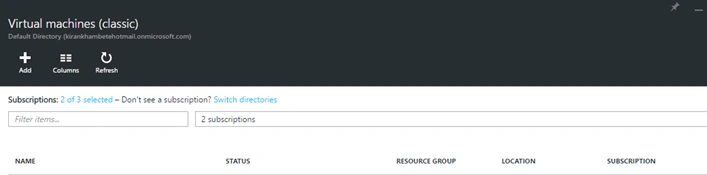
Gives you more options to create VM like Windows Server, Ubuntu Server, Service Fabric Cluster, Visual Studio etc.
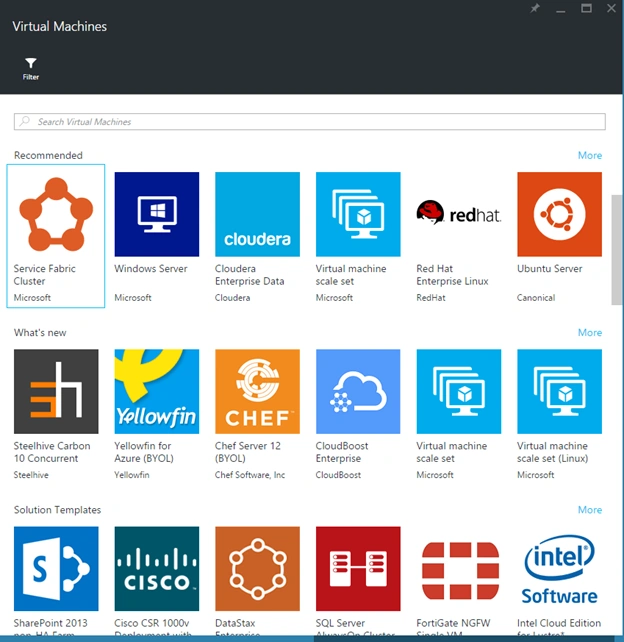
We are going to create windows Server.
Step 4 - Select Windows Server and choose Server type
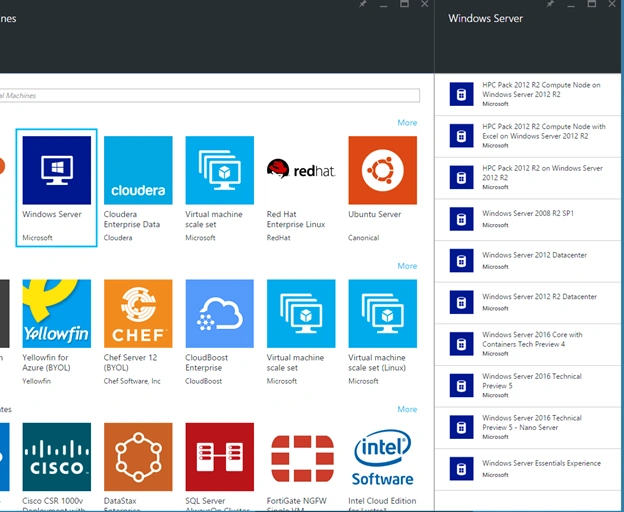
We are going to create Windows Server 2008 R2 SP1.
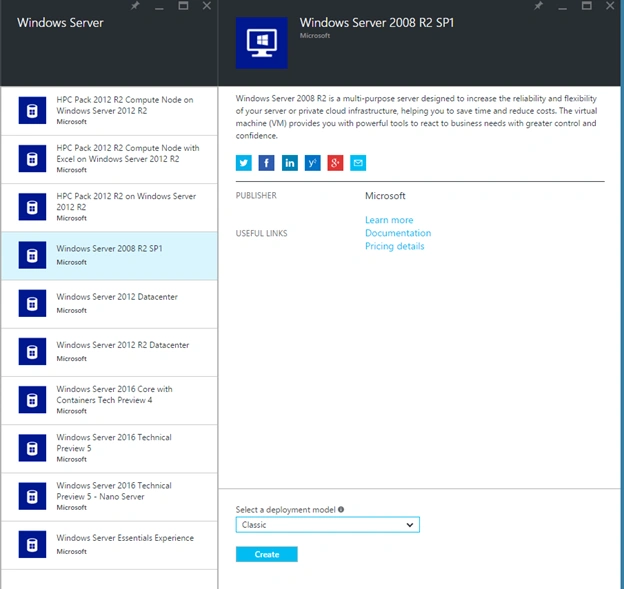
Step 5 - Click on Windows Server 2008 R2 SP1
It will ask for deployment model in the bottom of the page, please select Classic from the drop down list and Click on Create button. We will see what is Resource Manager in separate article.
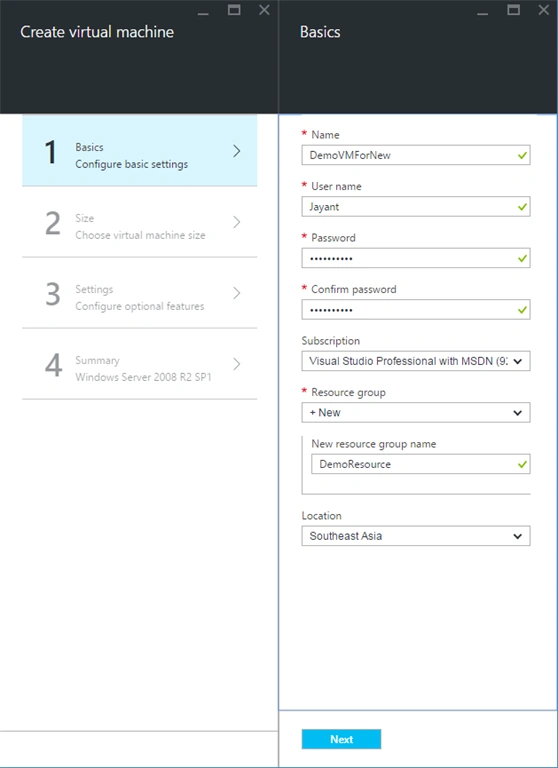
Step 6 - Fill Basics information for Virtual Machine
Fill the basics information like Name, User Name, Password, Confirm Password, Subscription, Resource group, Location.
- Name - Virtual machine name.
- User name - to access the virtual machine
- Password - It should be at least one capital, one special character & one numeric.
- Resource group - you can select pre define or you can create new one. We will see Resource group and Resource manager in deep in separate article.
- Location - It is a Region like Southeast Asia, East US etc.
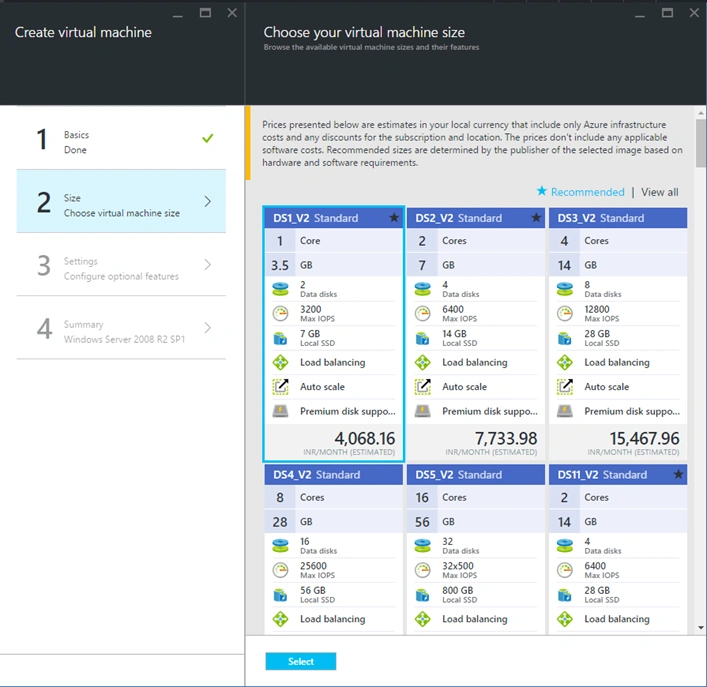
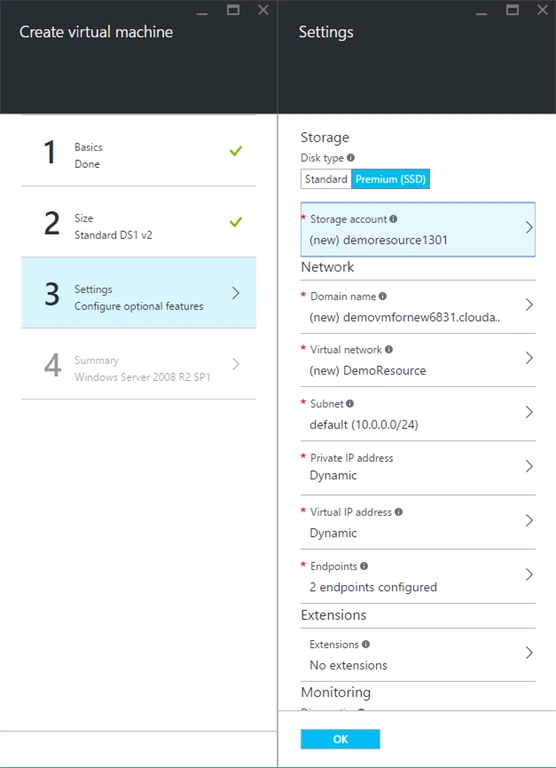
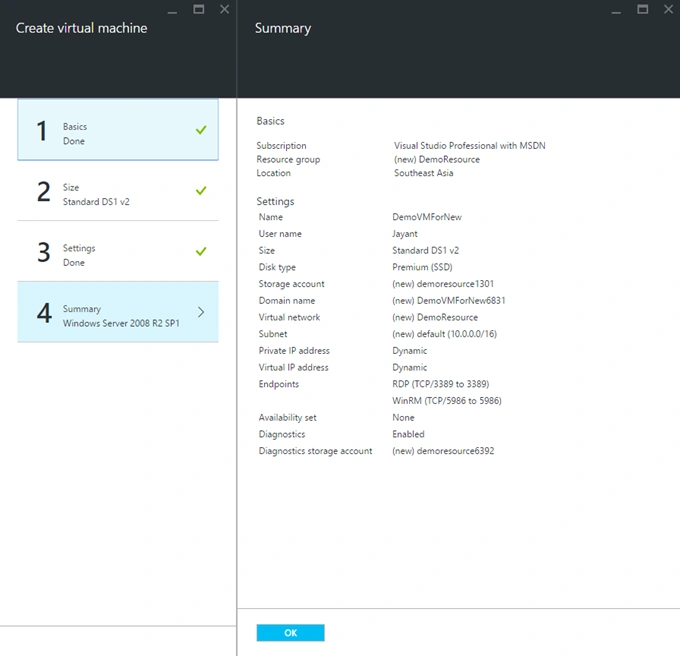
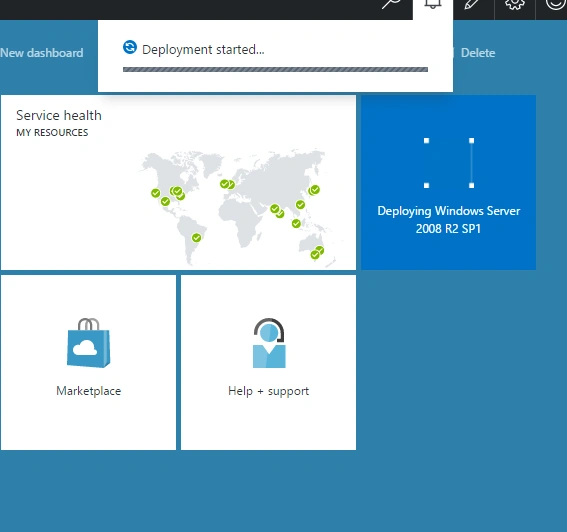
Praveen SreeramPosted Jun 10, 2016, 12:16 PM
Good
sujit patilPosted May 31, 2016, 3:02 AM
Very useful for new developers like me... :) Thanks. Keep posting...
Debasis SahaPosted May 30, 2016, 3:01 AM
Nice share..
Bhuvanesh MohankumarPosted May 29, 2016, 12:49 PM
Good one
Jayant KulkarniPosted May 29, 2016, 12:27 PM
Thanks Munesh...
Munesh SharmaPosted May 28, 2016, 11:54 AM
Nice article