

Introduction
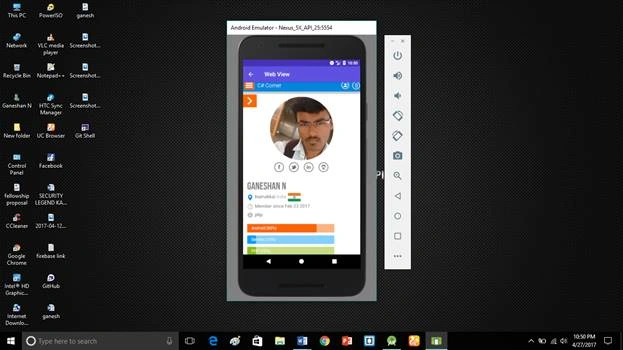
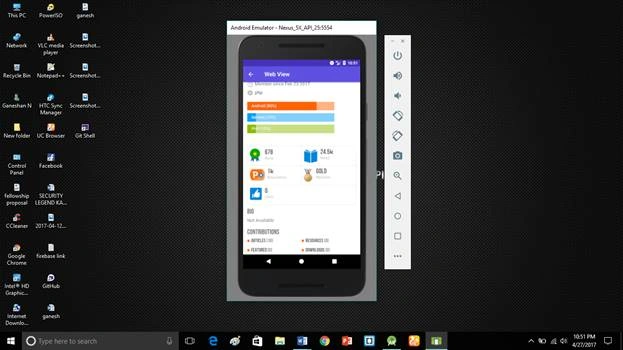
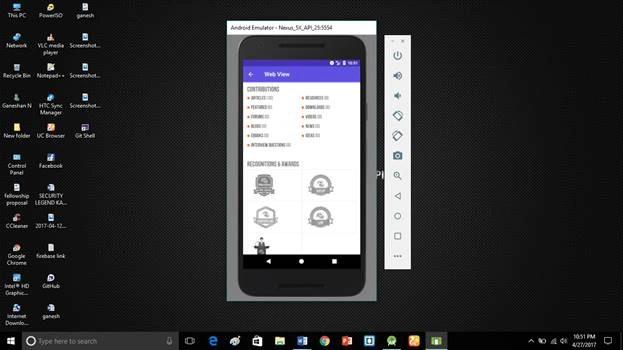
Android is one of the most popular operating systems for mobile. The User can access the internet through the Browser. Each Browser has the Web view module. The web view is the most important thing in Android and Web development. Thus, I will show you how to create a Web view Android Application, using Android Studio. Android is a kernel-based operating system. It allows the user to modify the GUI components and the source code.
Requirements
- Android Studio.
- Little bit XML and Java knowledge.
- Android emulator (or) an Android mobile.
- Stable internet connection during the execution.
- Download link (Android Studio)
Steps to be followed are given below
Carefully follow my steps to create Web view Android Application, using Android Studio and I have included the source code given below.
Step 1
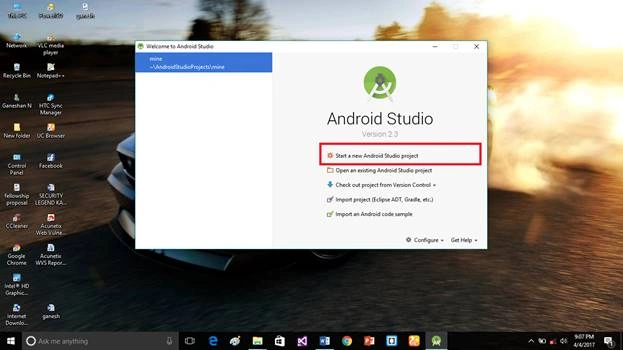
Open Android Studio. Start the new project.
Step 2
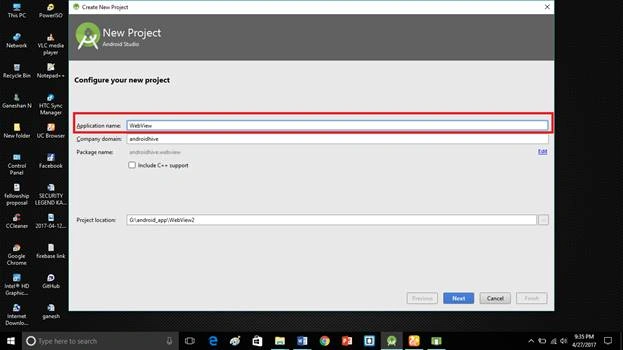
Put the Application name and the company domain. If you wish to use C++ to code the project, mark Include C++ support, followed by clicking Next.
Step 3
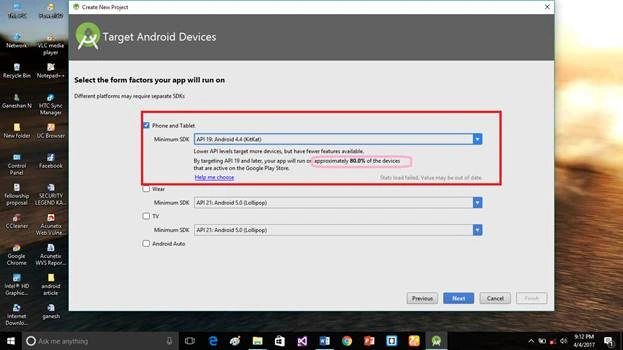
Select Android minimum SDK. Afterward, you chose the minimum SDK. It will show an approximate percentage of the people using the SDK, followed by clicking Next.
Step 4
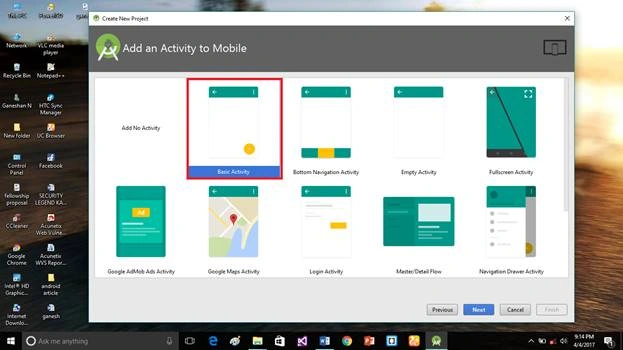
Choose the basic activity, followed by clicking Next.
Step 5
Put the activity name and the layout name. Android Studio basically takes a Java class name, which provides the activity name and click Finish.
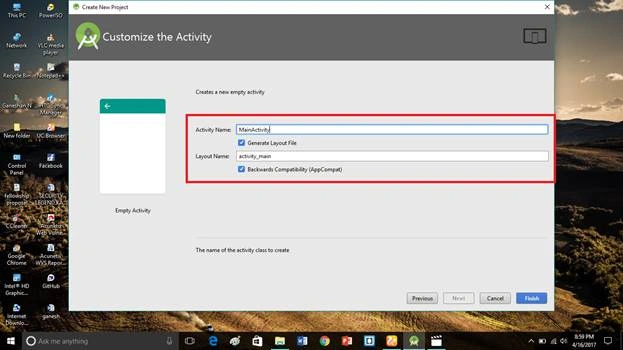
Step 6
Go to activity_main.xml, followed by clicking the text bottom. This XML file contains the designing code for an Android app. Into the activity_main.xml, copy and paste the code given below.
Activity_main.xml code
- <?xml version="1.0" encoding="utf-8"?>
- <android.support.design.widget.CoordinatorLayout xmlns:android="http://schemas.android.com/apk/res/android"
- xmlns:app="http://schemas.android.com/apk/res-auto"
- android:id="@+id/main_content"
- android:layout_width="match_parent"
- android:layout_height="match_parent"
- android:background="@android:color/white"
- android:fitsSystemWindows="true">
- <android.support.design.widget.AppBarLayout
- android:id="@+id/appbar"
- android:layout_width="match_parent"
- android:layout_height="@dimen/detail_backdrop_height"
- android:fitsSystemWindows="true"
- android:theme="@style/ThemeOverlay.AppCompat.Dark.ActionBar">
- <android.support.design.widget.CollapsingToolbarLayout
- android:id="@+id/collapsing_toolbar"
- android:layout_width="match_parent"
- android:layout_height="match_parent"
- android:fitsSystemWindows="true"
- app:contentScrim="?attr/colorPrimary"
- app:expandedTitleMarginEnd="64dp"
- app:expandedTitleMarginStart="48dp"
- app:expandedTitleTextAppearance="@android:color/transparent"
- app:layout_scrollFlags="scroll|exitUntilCollapsed">
- <RelativeLayout
- android:layout_width="wrap_content"
- android:layout_height="wrap_content">
- <ImageView
- android:id="@+id/backdrop"
- android:layout_width="match_parent"
- android:layout_height="match_parent"
- android:fitsSystemWindows="true"
- android:scaleType="centerCrop"
- app:layout_collapseMode="parallax" />
- </RelativeLayout>
- <android.support.v7.widget.Toolbar
- android:id="@+id/toolbar"
- android:layout_width="match_parent"
- android:layout_height="?attr/actionBarSize"
- app:layout_collapseMode="pin"
- app:popupTheme="@style/ThemeOverlay.AppCompat.Light" />
- </android.support.design.widget.CollapsingToolbarLayout>
- </android.support.design.widget.AppBarLayout>
- <include layout="@layout/content_main" />
- <ProgressBar
- android:id="@+id/progressBar"
- style="@style/Widget.AppCompat.ProgressBar.Horizontal"
- android:layout_width="match_parent"
- android:layout_height="wrap_content"
- android:layout_marginTop="-7dp"
- android:indeterminate="true"
- app:layout_behavior="@string/appbar_scrolling_view_behavior" />
- </android.support.design.widget.CoordinatorLayout>
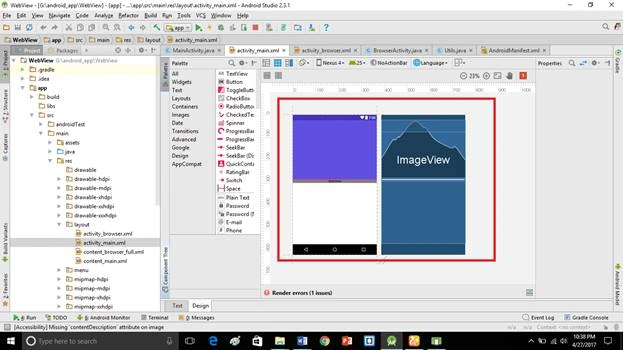
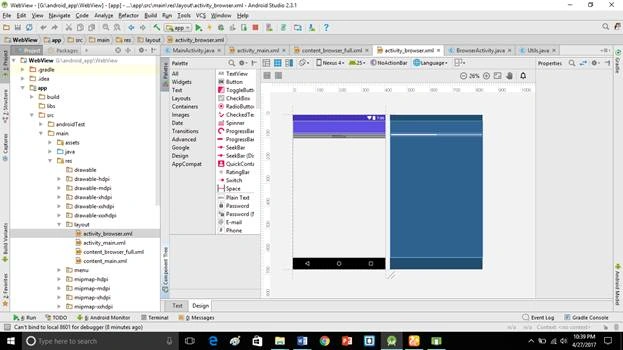
Create a new activity_browser.xml file (File ⇒ New ⇒Activity⇒Empty_activity).
Go to activity_browser.xml, followed by clicking the text bottom. This XML file contains the designing code for an Android app. In activity_browser.xml, copy and paste the code given below.
activity_browser.xml code
- <?xml version="1.0" encoding="utf-8"?>
- <android.support.design.widget.CoordinatorLayout xmlns:android="http://schemas.android.com/apk/res/android"
- xmlns:app="http://schemas.android.com/apk/res-auto"
- xmlns:tools="http://schemas.android.com/tools"
- android:id="@+id/main_content"
- android:layout_width="match_parent"
- android:layout_height="match_parent"
- android:background="@android:color/white"
- android:fitsSystemWindows="true"
- tools:context=".BrowserActivity">
- <android.support.design.widget.AppBarLayout
- android:layout_width="match_parent"
- android:layout_height="wrap_content"
- android:theme="@style/AppTheme.AppBarOverlay">
- <android.support.v7.widget.Toolbar
- android:id="@+id/toolbar"
- android:layout_width="match_parent"
- android:layout_height="?attr/actionBarSize"
- android:background="?attr/colorPrimary"
- app:popupTheme="@style/AppTheme.PopupOverlay" />
- </android.support.design.widget.AppBarLayout>
- <include layout="@layout/content_browser_full" />
- <ProgressBar
- android:id="@+id/progressBar"
- style="@style/Widget.AppCompat.ProgressBar.Horizontal"
- android:layout_width="match_parent"
- android:layout_height="wrap_content"
- android:layout_marginTop="-7dp"
- android:indeterminate="true"
- android:visibility="gone"
- app:layout_behavior="@string/appbar_scrolling_view_behavior" />
- </android.support.design.widget.CoordinatorLayout>
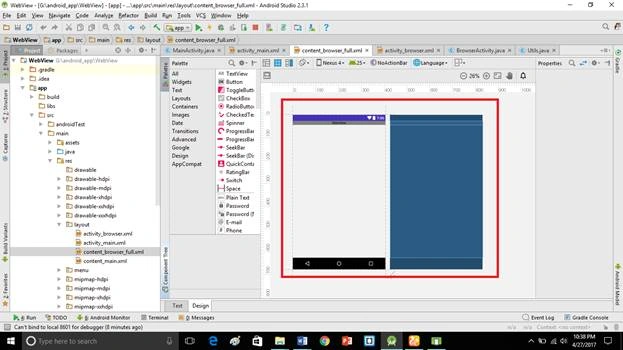
Create a new content_browser_full.xml file (File ⇒ New ⇒Activity⇒Empty_activity).
Go to content_browser_full.xml then click the text bottom. This XML file contains the designing code for android app. In content_browser_full.xml, copy and paste the code given below.
content_browser_full.xml code
- <?xml version="1.0" encoding="utf-8"?>
- <android.support.v4.widget.NestedScrollView xmlns:android="http://schemas.android.com/apk/res/android"
- xmlns:app="http://schemas.android.com/apk/res-auto"
- android:layout_width="match_parent"
- android:layout_height="match_parent"
- android:fadeScrollbars="false"
- android:scrollbarFadeDuration="0"
- app:layout_behavior="@string/appbar_scrolling_view_behavior">
- <WebView
- android:id="@+id/webView"
- android:layout_width="match_parent"
- android:layout_height="wrap_content" />
- </android.support.v4.widget.NestedScrollView>
MainActivity.java code
- import android.content.Context;
- import android.content.Intent;
- import android.os.Bundle;
- import android.support.design.widget.AppBarLayout;
- import android.support.design.widget.CollapsingToolbarLayout;
- import android.support.v7.app.AppCompatActivity;
- import android.support.v7.widget.Toolbar;
- import android.text.TextUtils;
- import android.view.MotionEvent;
- import android.view.View;
- import android.webkit.WebChromeClient;
- import android.webkit.WebView;
- import android.webkit.WebViewClient;
- import android.widget.ImageView;
- import android.widget.ProgressBar;
- import com.bumptech.glide.Glide;
- import com.bumptech.glide.load.engine.DiskCacheStrategy;
- public class MainActivity extends AppCompatActivity {
- private String postUrl = "/members/ganeshan-n";
- private WebView webView;
- private ProgressBar progressBar;
- private float m_downX;
- private ImageView imgHeader;
- @Override
- protected void onCreate(Bundle savedInstanceState) {
- super.onCreate(savedInstanceState);
- setContentView(R.layout.activity_main);
- Toolbar toolbar = (Toolbar) findViewById(R.id.toolbar);
- setSupportActionBar(toolbar);
- getSupportActionBar().setDisplayHomeAsUpEnabled(true);
- webView = (WebView) findViewById(R.id.webView);
- progressBar = (ProgressBar) findViewById(R.id.progressBar);
- imgHeader = (ImageView) findViewById(R.id.backdrop);
- if (!TextUtils.isEmpty(getIntent().getStringExtra("postUrl"))) {
- postUrl = getIntent().getStringExtra("postUrl");
- }
- initWebView();
- initCollapsingToolbar();
- renderPost();
- }
- private void initWebView() {
- webView.setWebChromeClient(new MyWebChromeClient(this));
- webView.setWebViewClient(new WebViewClient() {
- @Override
- public boolean shouldOverrideUrlLoading(WebView view, String url) {
- if (Utils.isSameDomain(postUrl, url)) {
- Intent intent = new Intent(MainActivity.this, MainActivity.class);
- intent.putExtra("postUrl", url);
- startActivity(intent);
- } else {
- // launch in-app browser i.e BrowserActivity
- openInAppBrowser(url);
- }
- return true;
- }
- @Override
- public void onPageFinished(WebView view, String url) {
- super.onPageFinished(view, url);
- progressBar.setVisibility(View.GONE);
- }
- });
- webView.clearCache(true);
- webView.clearHistory();
- webView.getSettings().setJavaScriptEnabled(true);
- webView.setHorizontalScrollBarEnabled(false);
- webView.setOnTouchListener(new View.OnTouchListener() {
- public boolean onTouch(View v, MotionEvent event) {
- if (event.getPointerCount() > 1) {
- //Multi touch detected
- return true;
- }
- switch (event.getAction()) {
- case MotionEvent.ACTION_DOWN: {
- // save the x
- m_downX = event.getX();
- }
- break;
- case MotionEvent.ACTION_MOVE:
- case MotionEvent.ACTION_CANCEL:
- case MotionEvent.ACTION_UP: {
- // set x so that it doesn't move
- event.setLocation(m_downX, event.getY());
- }
- break;
- }
- return false;
- }
- });
- }
- private void renderPost() {
- webView.loadUrl(postUrl);
- }
- private void openInAppBrowser(String url) {
- Intent intent = new Intent(MainActivity.this, BrowserActivity.class);
- intent.putExtra("url", url);
- startActivity(intent);
- }
- private void initCollapsingToolbar() {
- final CollapsingToolbarLayout collapsingToolbar =
- (CollapsingToolbarLayout) findViewById(R.id.collapsing_toolbar);
- collapsingToolbar.setTitle(" ");
- AppBarLayout appBarLayout = (AppBarLayout) findViewById(R.id.appbar);
- appBarLayout.setExpanded(true);
- // hiding & showing the txtPostTitle when toolbar expanded & collapsed
- appBarLayout.addOnOffsetChangedListener(new AppBarLayout.OnOffsetChangedListener() {
- boolean isShow = false;
- int scrollRange = -1;
- @Override
- public void onOffsetChanged(AppBarLayout appBarLayout, int verticalOffset) {
- if (scrollRange == -1) {
- scrollRange = appBarLayout.getTotalScrollRange();
- }
- if (scrollRange + verticalOffset == 0) {
- collapsingToolbar.setTitle("Web View");
- isShow = true;
- } else if (isShow) {
- collapsingToolbar.setTitle(" ");
- isShow = false;
- }
- }
- });
- // loading toolbar header image
- Glide.with(getApplicationContext()).load("http://www.ourlonelyuniverse.com/wp-content/uploads/2016/01/google-dont-be-evil.png")
- .thumbnail(0.5f)
- .crossFade()
- .diskCacheStrategy(DiskCacheStrategy.ALL)
- .into(imgHeader);
- }
- private class MyWebChromeClient extends WebChromeClient {
- Context context;
- public MyWebChromeClient(Context context) {
- super();
- this.context = context;
- }
- }
- }
Muhammad FawadPosted Mar 24, 2019, 3:48 AM
Where i change the code when i touch contact number and it is open in dial up of mobile. I already change the code BrowserActivity as @Overridepublic boolean shouldOverrideUrlLoading(WebView view, String url) { if (url.startsWith("tel:")) { Intent intent = new Intent(Intent.ACTION_DIAL, Uri.parse(url)); startActivity(intent); }else if(url.startsWith("http:") || url.startsWith("https:")) { webView.loadUrl(url); } return true;
Ganeshan NPosted Apr 30, 2017, 12:23 PM
Thanks Mr.Hanif Hefaz . I will try to make video soon :)
Hanif HefazPosted Apr 30, 2017, 5:14 AM
Great! sharing a video will be more significant!