

Introduction
Power Automate Desktop (PAD) is Microsoft’s no-code/low-code automation tool designed to help Windows users automate daily tasks. Whether you're a student, an IT admin, or a business user, PAD makes it easy to build desktop flows without deep programming knowledge.
With over 400 prebuilt actions and an easy-to-use desktop recorder, anyone can automate repetitive work like data entry, app launching, file conversion, or website interaction.
What Can You Automate with Desktop Flows?
You can automate practically any Windows or browser-based task. A few simple examples include.
- Extracting product prices from online stores and exporting them to Excel.
- Filling out repetitive online forms.
- Automating file conversions (PDF to Word, etc.).
- Backing up folders and creating organized archives.
- Launching applications and typing content.
- Tracking price changes and updating reports.
Power Automate Desktop supports both attended (user-triggered) and unattended (fully automatic) flows. For enterprise use, flows can connect to the cloud securely using on-premises data gateways, ensuring secure and scalable automation.
Let’s Build a Simple Desktop Flow (Beginner Demo)
To get started, we’ll automate the following task:
Use Case: Launch Notepad and type a custom message.
We’ll use these two actions.
- Launch Application: To open Notepad
- Send Keys: To type a message in Notepad
Step-by-Step Guide
Step 1. Install Power Automate Desktop
If you haven’t already.
- Download Power Automate Desktop from the official Microsoft site.
- Install it and log in using your Microsoft account.
- Once installed, launch the app.
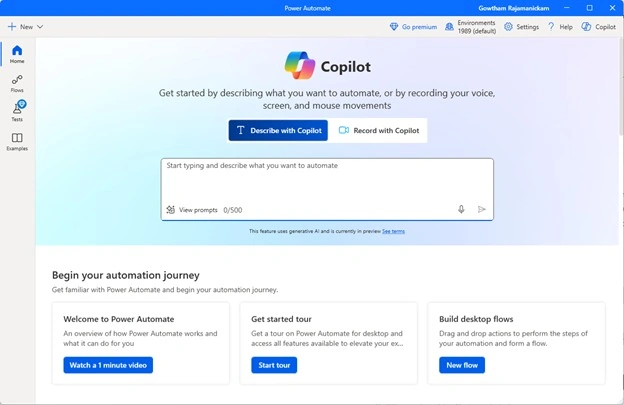
Step 2. Create a New Flow
- Open Power Automate Desktop
- Click on New Flow

- Name it HelloNotepadFlow
- Click Create
- You’ll now enter the flow designer workspace.
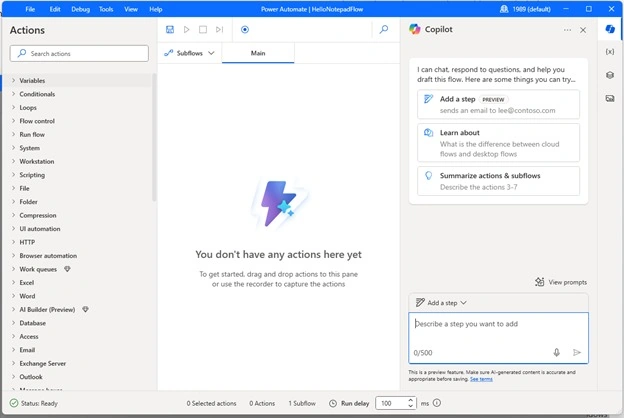
Step 3. Add Actions
Action 1. Launch Notepad using the RUN Action.
- In the Actions pane (left side), search for Run application.
- Drag and drop it into the main canvas.

- In the dialog,
- Application path: C:\Windows\System32\notepad.exe
- Leave the rest as default and click Save.

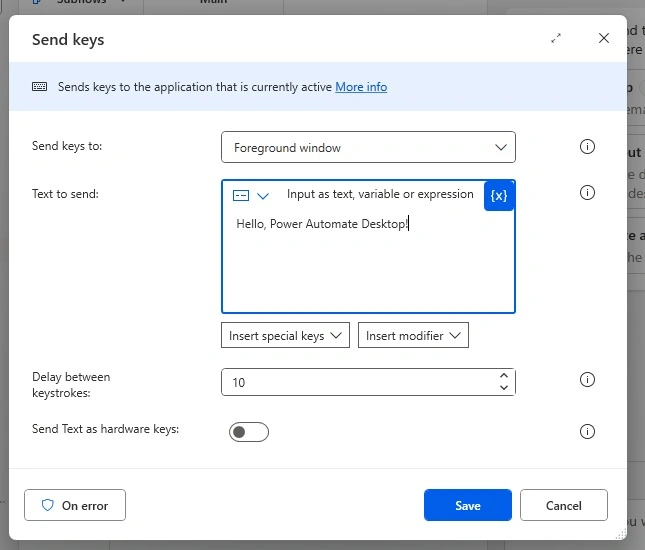
Action 2. Send Keys.
- Search for Send Keys in the Actions pane.

- Drag it below the previous action.
- In the dialog.
- Keystrokes to send: Hello, Power Automate Desktop!
- Click Save.
Step 4. Run the Flow
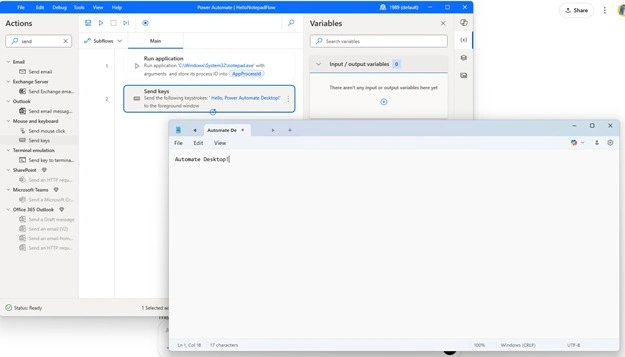
- Click on Run (top menu).
- You’ll see Notepad open, and the message will be typed automatically!
Summary
That’s it – you’ve created your first desktop automation using Power Automate Desktop!
This was just the beginning. With practice, you can automate complex tasks like reading data from Excel, interacting with webpages, filling forms, and more.
Power Automate Desktop is powerful, and the best part – it's completely free for Windows users.
What's Next?
In upcoming articles, I’ll show how to,
- Use conditional logic in flows
- Automate Excel interactions
- Use variables and loops
- Trigger flows from the cloud
Stay tuned and happy automating!
If you liked this blog, drop a comment or question below!
Join the conversation! Your thoughts help the community grow.