

In this article I will show you how to write a barcode and QR scanner for Windows Phone 8.1 Runtime Apps. So let's start.
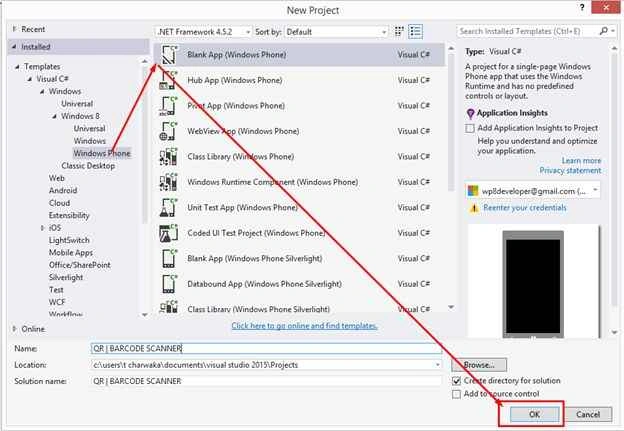
Step 1: Firstly, create a Windows Phone RT Project.
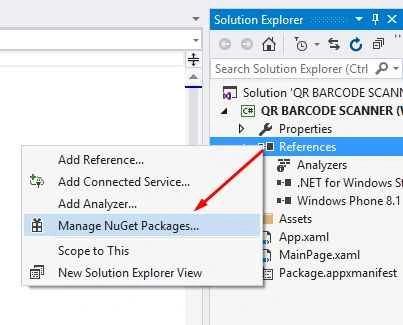
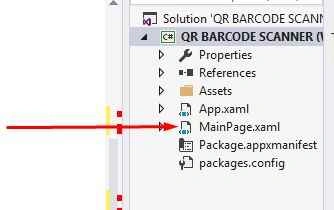
Step 2: Now Go to References, then Manage Nuget Packages and search now Add Zxing Nuget Package to your app as in the following screenshots:
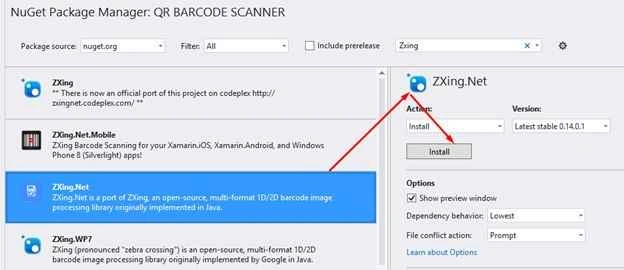
Accept the Agreement and Install the Nuget Package.
Step 3: Now first we start with creating UI for our App Go to MainPage.xaml, open the Designer.write xaml code like the following code snippet and you have to upload your own images and fonts.
- <Grid x:Name="LayoutRoot" Height="640" Margin="0,0.333,0,-0.333" HorizontalAlignment="Left" VerticalAlignment="Top" Background="#163146">
- <Grid.RowDefinitions>
- <RowDefinition Height="Auto" />
- <RowDefinition Height="*" />
- </Grid.RowDefinitions>
- <StackPanel Grid.Row="0" Height="110" Background=" #36B4A8" Orientation="Horizontal">
- <TextBlock Margin="12,40,0,0" FontFamily="Fonts/HelveticaNeue Thin.ttf#HelveticaNeue" FontSize="38" Foreground="White" Text="QR & BARCODE SCAN" />
- </StackPanel>
- <Grid Grid.Row="1" Background="#FFFFFF">
- <StackPanel Margin="12,100" HorizontalAlignment="Stretch" VerticalAlignment="Top" Orientation="Vertical">
- <StackPanel Height="50" Orientation="Horizontal" Tapped="StackPanel_Tapped">
- <Image HorizontalAlignment="Left" Source="Assets/QR Code-50.png" Stretch="Uniform" />
- <TextBlock Margin="8,8" FontFamily="Fonts/HelveticaNeue Thin.ttf#HelveticaNeue" FontSize="32" Foreground="#36B4A8" Text="Scan" />
- </StackPanel>
- <StackPanel Height="50" Margin="0,30" Orientation="Horizontal" Tapped="StackPanel_Tapped_1">
- <Image HorizontalAlignment="Left" Source="Assets/View File-50.png" Stretch="Uniform" />
- <TextBlock Margin="8,8" FontFamily="Fonts/HelveticaNeue Thin.ttf#HelveticaNeue" FontSize="32" Foreground="#36B4A8" Text="View" />
- </StackPanel>
- </StackPanel>
- </Grid>
- </Grid>
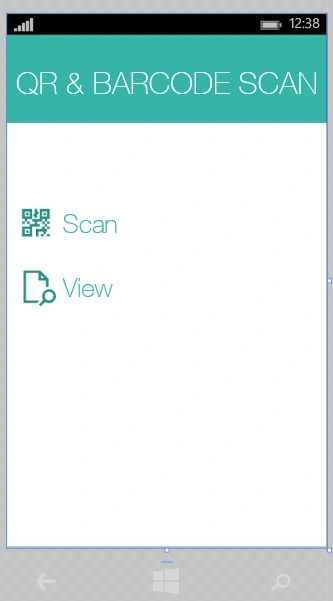
Under Tap Events Navigate write the following code snippet to navigate respective pages.
this.Frame.Navigate(typeof(MainPage)); like this whatever the page name put there.
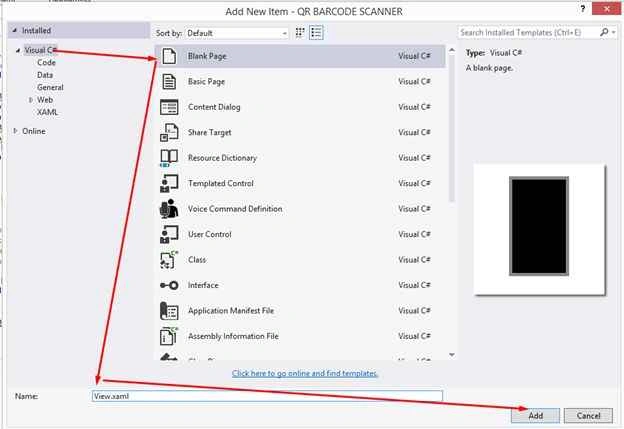
Step 4: Add another blank page to your project, add the following code to UI (Make sure Add to Navigate To This Page in Tapped Event of Scan) as shown above.
- <Grid x:Name="LayoutRoot" Background="#163146" HorizontalAlignment="Left" VerticalAlignment="Top">
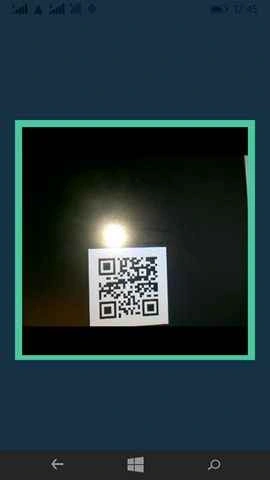
- <CaptureElement x:Name="captureElement" Stretch="UniformToFill" />
- </Grid>
- private MediaCapture _mediaCapture;
- private byte[] imageBuffer;
- public int exit = 0;
- private MessageDialog dialog;
- private ApplicationView currentView = ApplicationView.GetForCurrentView();
- protected override void OnNavigatedTo(NavigationEventArgs e)
- {
- exit = 0;
- ScanQrCode();
- }
- private async void ScanQrCode() {
- try {
- await InitializeQrCode();
- var imgProp = new ImageEncodingProperties {
- Subtype = "BMP", Width = 380, Height = 380
- };
- var bcReader = new BarcodeReader();
- while (exit == 0) {
- var stream = new InMemoryRandomAccessStream();
- await _mediaCapture.CapturePhotoToStreamAsync(imgProp, stream);
- stream.Seek(0);
- var wbm = new WriteableBitmap(380, 380);
- await wbm.SetSourceAsync(stream);
- var result = bcReader.Decode(wbm);
- if (result != null) {
- var torch = _mediaCapture.VideoDeviceController.TorchControl;
- if (torch.Supported) torch.Enabled = false;
- await _mediaCapture.StopPreviewAsync();
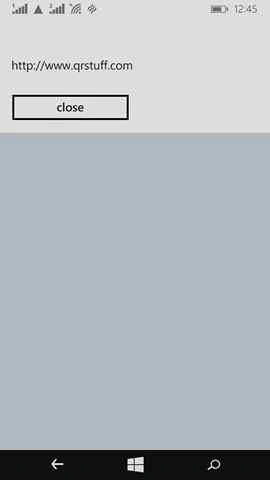
- var msgbox = new MessageDialog(result.Text);
- await msgbox.ShowAsync();
- try {
- StorageFolder folder = ApplicationData.Current.LocalFolder;
- if (folder != null) {
- //Saving Scan Text
- StorageFile sampleFile = await folder.CreateFileAsync("sample.txt", CreationCollisionOption.ReplaceExisting);
- await Windows.Storage.FileIO.WriteTextAsync(sampleFile, "Swift as a shadow");
- //Saving Scan Image
- StorageFile file = await folder.CreateFileAsync("imagefile" + ".jpg", CreationCollisionOption.ReplaceExisting);
- using(var storageStream = await file.OpenAsync(FileAccessMode.ReadWrite)) {
- var encoder = await BitmapEncoder.CreateAsync(BitmapEncoder.JpegEncoderId, storageStream);
- var pixelStream = wbm.PixelBuffer.AsStream();
- var pixels = new byte[pixelStream.Length];
- await pixelStream.ReadAsync(pixels, 0, pixels.Length);
- encoder.SetPixelData(BitmapPixelFormat.Bgra8, BitmapAlphaMode.Ignore, (uint) wbm.PixelWidth, (uint) wbm.PixelHeight, 48, 48, pixels);
- await encoder.FlushAsync();
- }
- }
- MyImage.Source = wbm;
- exit = 1;
- } catch (Exception ex) {
- MessageDialog dialog = new MessageDialog("Error while initializing media capture device: " + ex.Message);
- dialog.ShowAsync();
- GC.Collect();
- }
- //
- }
- }
- } catch {}
- }

Jack WinterPosted Jul 30, 2018, 2:43 PM
Can you please email the code to [email protected]
manish guptaPosted Jun 1, 2017, 4:22 AM
Hii Please provide me the code to my email id [email protected] If any has for this blog
Charwaka ThupiliPosted Dec 5, 2016, 8:03 AM
I will upload entire project ziped pls inbox me [email protected]
Alex LuisPosted Aug 31, 2016, 12:41 PM
Can you PLEASE upload you sample project?
Lucky NcubePosted Jul 23, 2016, 10:58 PM
Unfortunately Code is not working as explained
Stuart BuckwellPosted Jul 21, 2016, 11:13 AM
Hi, I couldn't get this to work either (probably because I am new to wp8!) Does anyone have a dummy basic version of this yet? Please upload it!!
Alex LuisPosted Jul 8, 2016, 10:20 AM
Can you provide a sample project with running code?
Kishor Bikram OliPosted Apr 15, 2016, 3:13 AM
Nice. Thanks!
Vakils PremediaPosted Dec 21, 2015, 6:49 AM
Hey i am new to windows phone development and am struggling with this QRCode scanner kindly provide me app code
Charwaka ThupiliPosted Nov 26, 2015, 3:17 AM
In Landscape mode it can Scan Both Qr and Barcode Checkout !
Arun DavePosted Nov 26, 2015, 1:36 AM
I am successfully able to developed application in windows phone 8.1 winrt. But the problem is only qr code is scanning. Can any one guide how to scan barcode.
Charwaka ThupiliPosted Oct 15, 2015, 2:49 AM
Hi everyone one i'm super busy with projects now ,i will surely post complete working project.
Mark VenerPosted Oct 1, 2015, 7:34 PM
Hello! I can't find the declaration of MyImage in Step 5 line 53. May I ask you to tell me where should I declarate it?
Sven GschwendPosted Sep 25, 2015, 8:18 PM
In Step 9 in OnNavigatedTo() on Line 11: storageFolde is not defnied (should be probablymyFolder), result ond Line 13 is not defnied, but defined on Line 44 with another meaning. One should probably be the textbox. result.Label does not exist, cannot await in catch block ... I guess you didn't copied the source of your running example into this article?
Sven GschwendPosted Sep 25, 2015, 8:04 PM
Unfortunately badly explained. Using statements are missing, it's not obvious in which class I have to implement the OnNavigateTo()-events of Step 4 and Step 8. MyImage in Step 5 Line 53 is not declared, Step 6, event on Line 36 is not declared. Can't you just upload your dummy solution? Thx
Santhakumar MunuswamyPosted Sep 22, 2015, 3:10 PM
Nice Article. Thanks for sharing
Charwaka ThupiliPosted Sep 22, 2015, 10:59 AM
Thank James I Forgot To Mention This. Flip Through this page https://msdn.microsoft.com/en-us/library/windows/apps/xaml/hh465115.aspx for handling in resume and suspend state
James CroftPosted Sep 22, 2015, 8:29 AM
Great post for getting started with barcode/QR scanning. For those looking to implement this further, remember to handle suspend and resume in your app as the connection to the camera will need to be re-established correctly.
Karthikeyan KPosted Sep 21, 2015, 11:36 PM
Good one sir
Sumit JoshiPosted Sep 21, 2015, 1:31 PM
thanks for share.
Pankaj Kumar ChoudharyPosted Sep 21, 2015, 12:33 PM
Nice Explain Sir........
RakeshPosted Sep 21, 2015, 9:58 AM
Good one