

But here we discuss how to create a Database Checkpoint using Microsoft Query.
How to create a Database Checkpoint
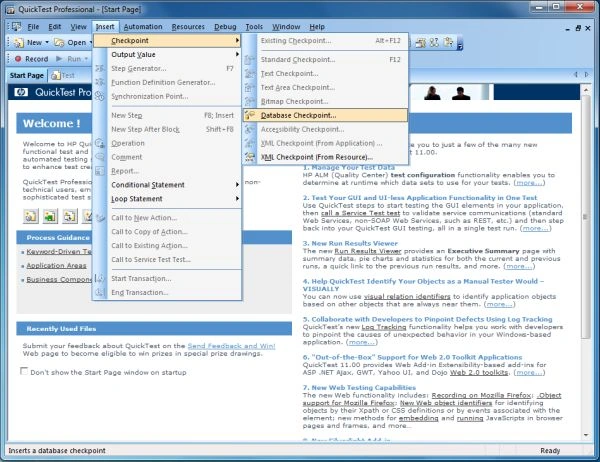
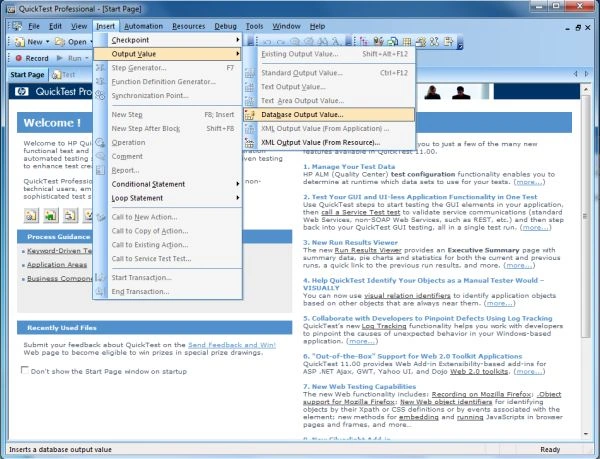
- Choose Insert > Checkpoint > Database Checkpoint or Insert > Output Value > Database Output Value. The Database Query Wizard opens.
- Select your database selection preferences and click Next.
- Create Query using Microsoft Query
- Specify SQL statement manually
- Maximum number of rows
- Show me how to use Microsoft Query
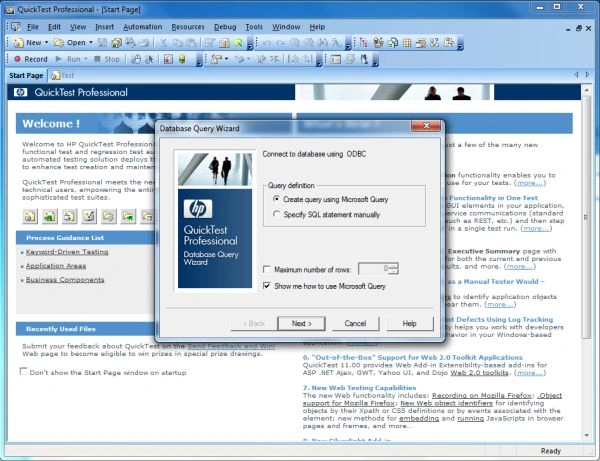
It opens Microsoft Query, enabling you to create a new query. When you have finished defining your query, you return to QuickTest. This option is available only if you have Microsoft Query installed on your computer.
3. Click next. The screen that opens depends on the option you selected in the previous step. If you choose Create query using Microsoft Query in the previous step, Microsoft Query opens. Specify the connection string and the SQL statement, then click Finish.
Join the conversation! Your thoughts help the community grow.