

Introduction
Here's a step-by-step guide to creating a Power App that translates text using Power Automate.
Step 1. Create a new canvas app in Power Apps
-
Log in to Power Apps and click "Create" to create a new app.
-
Select "Canvas app" and choose a layout (tablet or phone).
-
Give your app a name and click "Create."
Step 2. Add a Text Input control to the app
-
Click on "Insert" on the left-hand side menu.
-
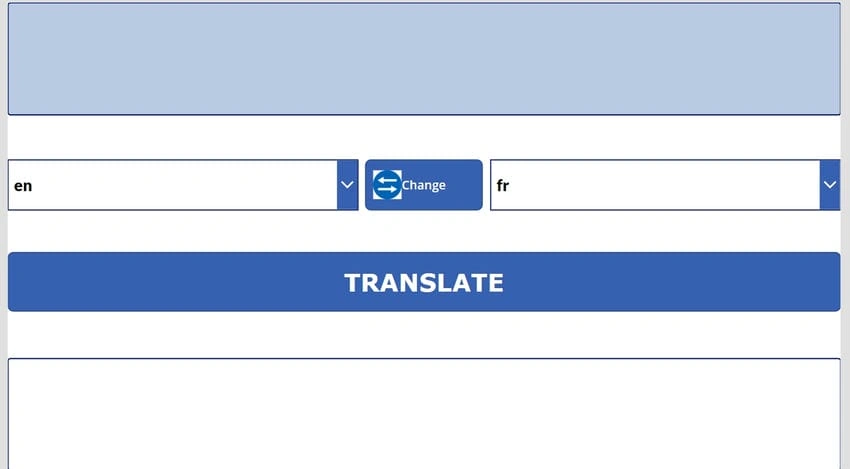
Select "Text input" and drag and drop it onto the canvas.
-
Label the Text Input control as "Input Text."
Step 3. Add two dropdown controls to the app
-
Click on "Insert" on the left-hand side menu.
-
Select "Dropdown" and drag and drop it onto the canvas twice.
-
Label one dropdown control as "Source Language" and the other as "Target Language."
-
Populate both dropdown controls with the relevant language options.
Step 4. Add a button to the app
-
Click on "Insert" on the left-hand side menu.
-
Select "Button" and drag and drop it onto the canvas.
-
Label the button as "Translate."
Step 5. Add a Label control to the app
-
Click on "Insert" on the left-hand side menu.
-
Select "Label" and drag and drop it onto the canvas.
-
Label the Label control as "Output Text."
Step 6. Create a new flow in Power Automate
-
Open a new tab and go to Power Automate.
-
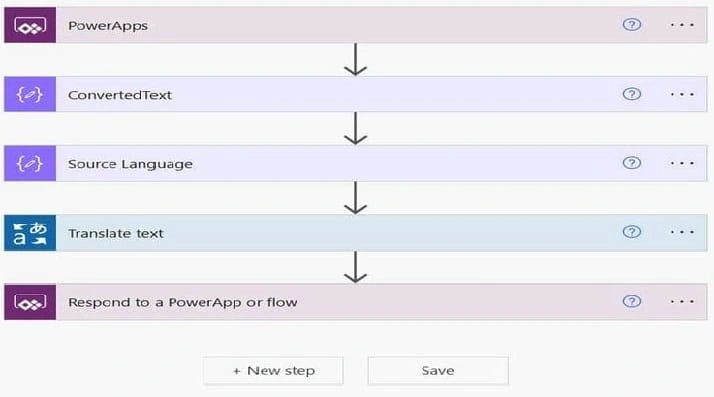
Click on "Create" and select "Instant Cloud Flow."
-
Click "Create."
Step 7. Add a "Translate text" action to the flow
-
Click on "New Step" and select "Add an action."
-
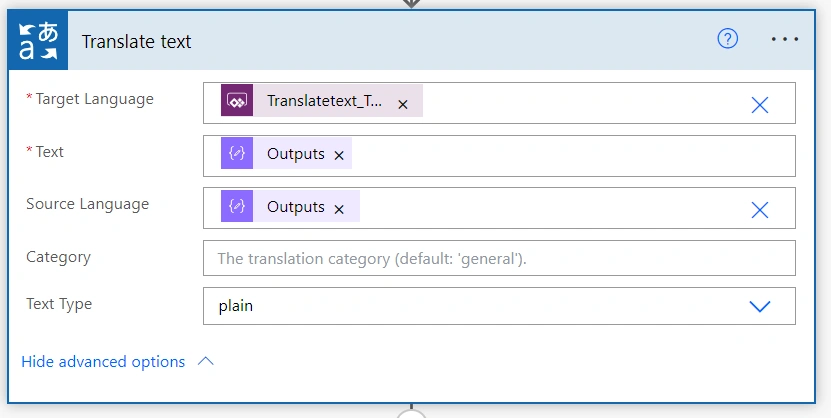
Search for "Translate text" and select the "Translate text (V3)" action.
-
Select the source and target languages from the dropdowns and add the "Input Text" from the Power App as the input.
Step 8. Add a "Response" action to the flow
-
Click on "New Step" and select "Add an action."
-
Search for "Response" and select the "Response - Compose" action.
-
Add the "Translate text" output as the Body.

Step 9. Test the flow
-
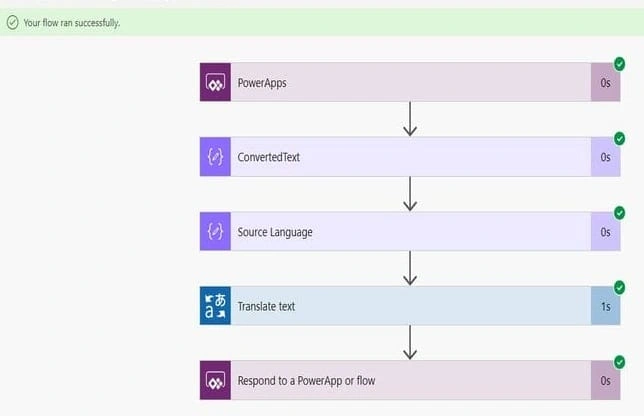
Save and test the flow to make sure it's working correctly.
Step 10. Connect the Power App and the Power Automate flow
-
Return to the Power App and click the "Translate" button.
-
Select "Power Automate" from the dropdown and choose the flow you just created.
-
Add the "Input Dropdown" and the selected source and target languages as inputs to the flow.
-
Add the "Response - Compose" output as the output to the "Output Text" Label control.
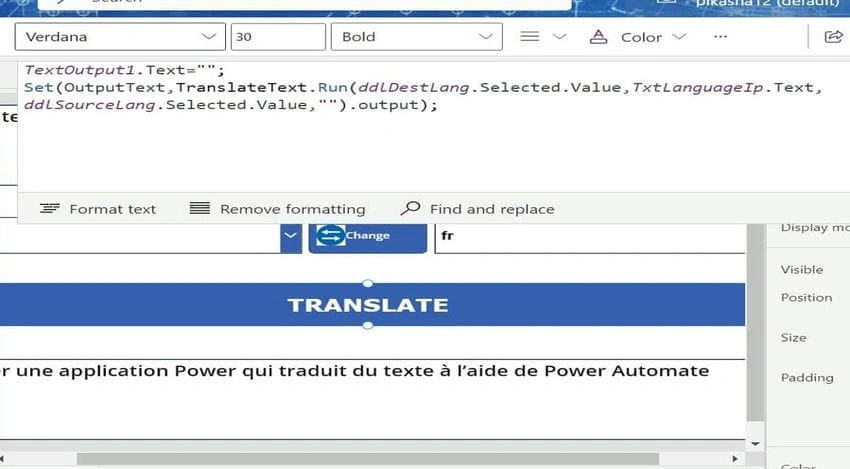
TextOutput1.Text="";
Set(OutputText,TranslateText.Run(ddlDestLang.Selected.Value,TxtLanguageIp.Text,ddlSourceLang.Selected.Value,"").output);
Note. Congratulations! You have created a Power App that translates text using Power Automate.

Join the conversation! Your thoughts help the community grow.