

To add a text checkpoint while recording:
- Display the page, window, or screen containing the text you want to check.
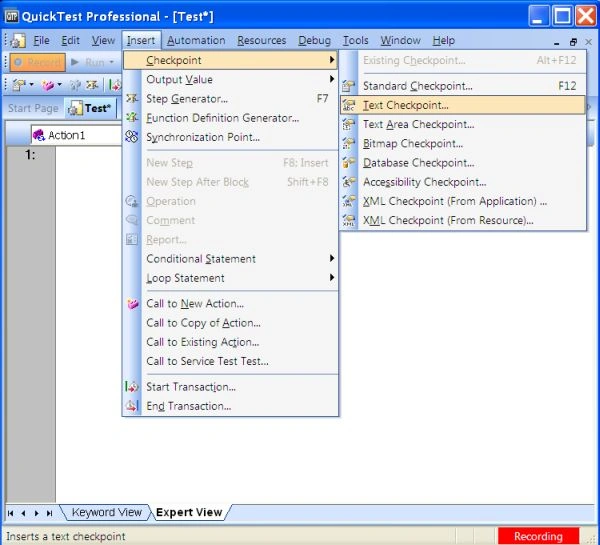
- Choose Insert > Checkpoint > Text Checkpoint, or click the Insert Checkpoint button and choose Text Checkpoint. The QuickTest window is minimized and the mouse pointer turns into a pointing hand.
- Click the text string for which you want to create the checkpoint. The "Text Checkpoint Properties" dialog box opens, see:
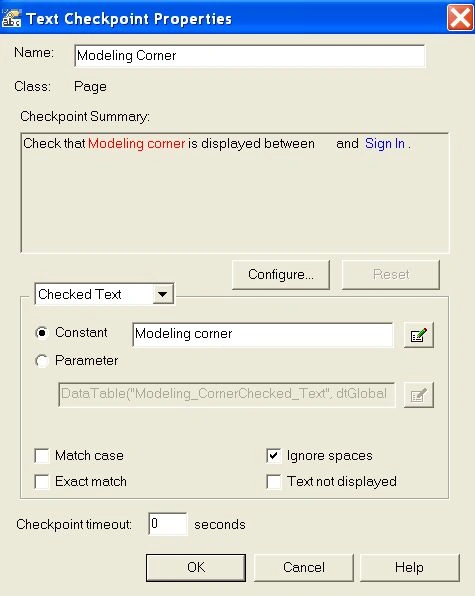
- Specify the checkpoint settings.
- Click OK to close the dialog box. A checkpoint statement is added for the selected object in the Keyword View and Expert View.
Keyword view displaying Text Checkpoint appears as in the following image: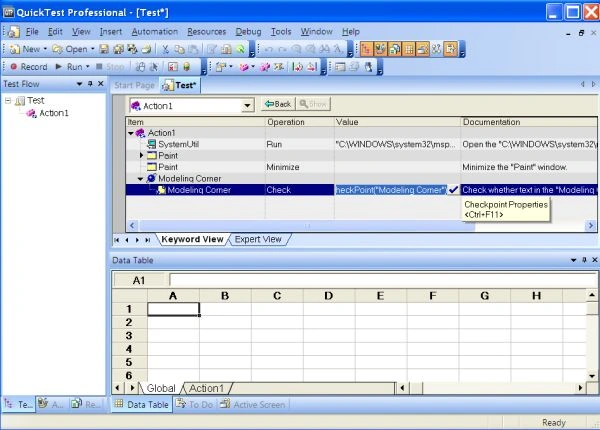
Expert View displaying Text Checkpoint appears as in the following image: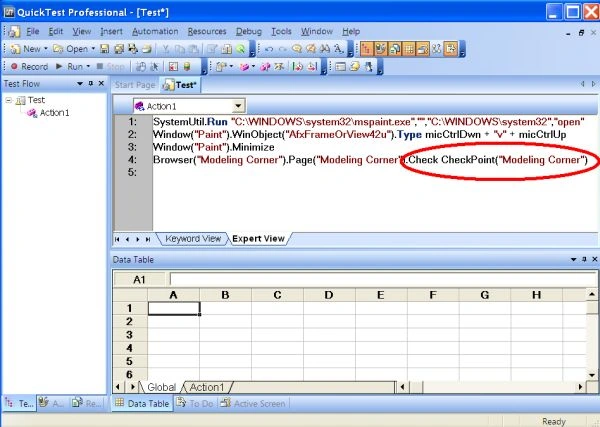
Join the conversation! Your thoughts help the community grow.