

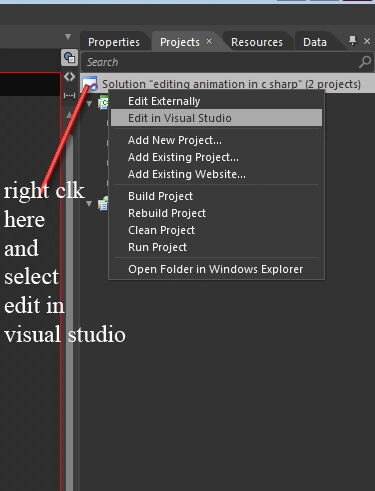
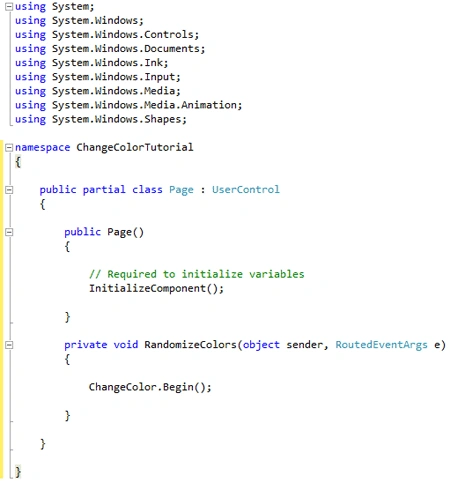
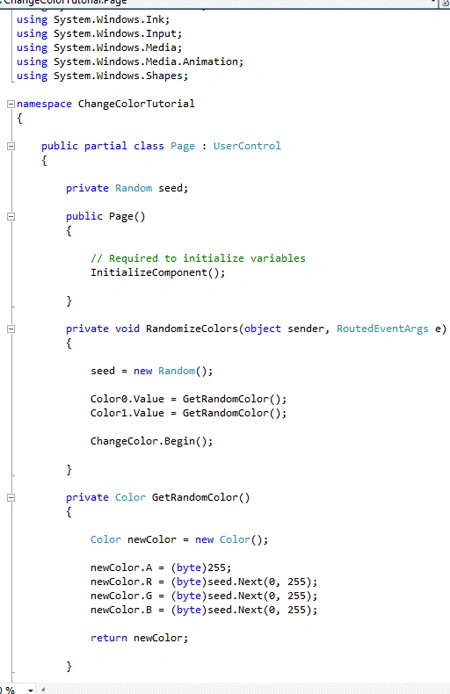
Creating animations in Expression Blend\Silverlight is made quite easier with the introduction of XAML but the animation created in Silverlight could be enhanced or enlivened when the animation is provided additional functionality through coding and this job is well accomplished through Visual Studio 2010\C#. In Visual Studio 2010\C# we can edit the Silverlight animation and add behavior to it. This not only brings life to the animation but also enlightens it with excellent look and feel.
First create a simple animation in Expression Blend. Add a Storyboard Workspaces.
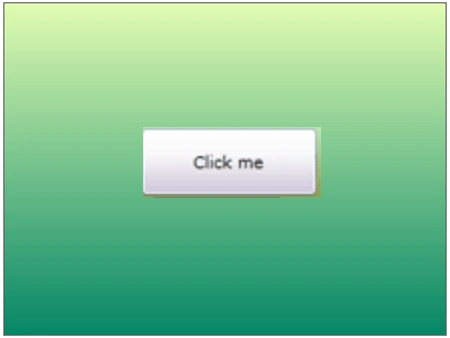
In this animation, what we do is add a button and name it as Click me!! on the art board. The aim is to create an animation such that the artboard changes color on pressing the button.
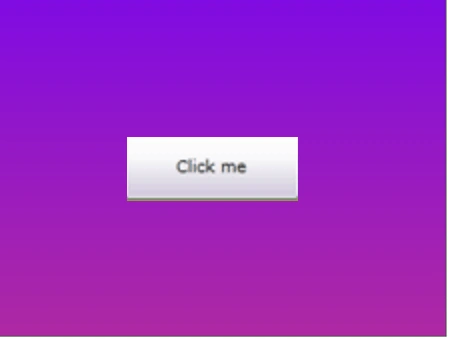
Lets Start, the design part looks like this.
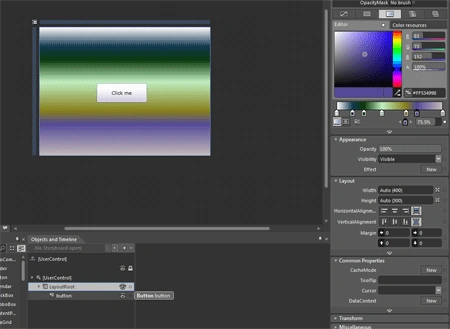
Working with Expression Blend the animation would result in change of the background but it would change just once and to bring continuity to this application we would edit and add functionality to this application in C#.
In Blend, select the "ChangeColor" storyboard from the Storyboard picker in the Objects and Timeline panel.
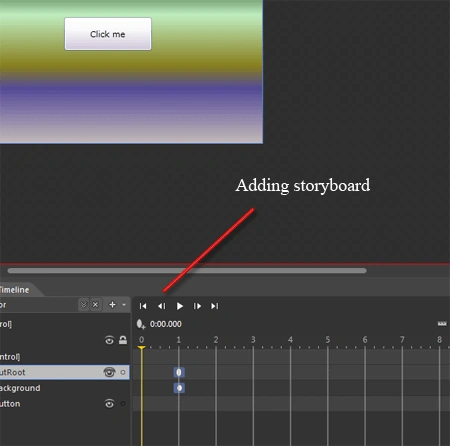
Selecting the storyboard we are provided with the
Timeline part where the recording of the events start. Now to begin the
animation lets shift the timeline to 1 second ahead.
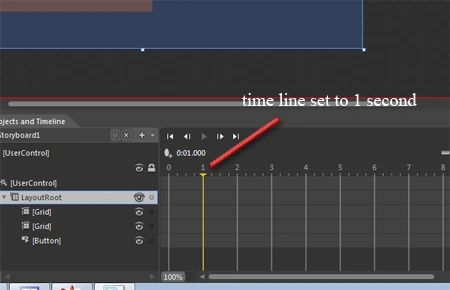
Setting the timeline to 1 sec. Opens the brush property where we can select the colors that we would like to add to our animation.
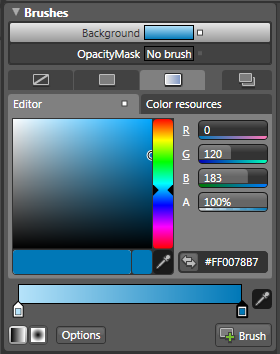
Now we have to add respective gradient to the
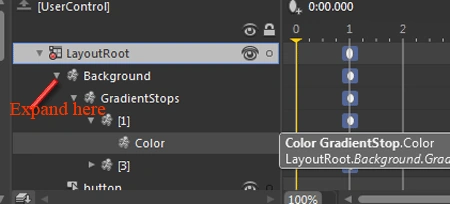
animation, for this in the storyboard select the LayoutRoot and expand it as far
as possible. This is done to add animation to the application than selecting the color property: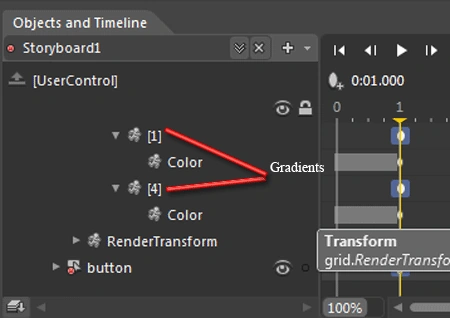
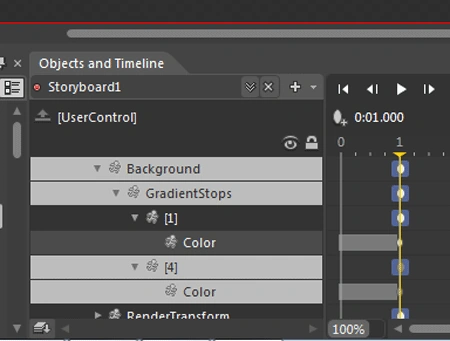
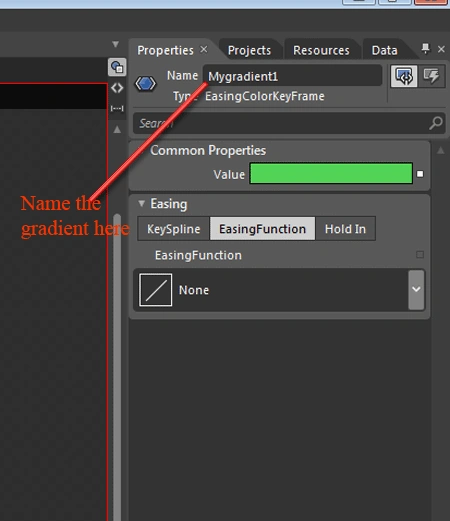
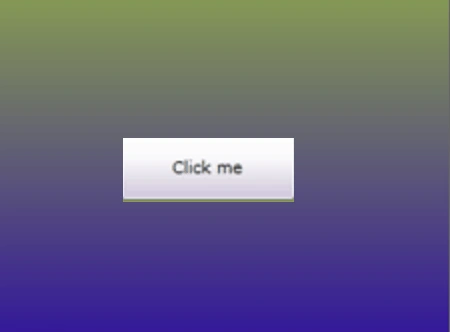
Now after expanding the select the property whose gradient has to be changed, this is basically selecting the color node, be sure that the timeline remains at the 1sec mark. This modification in the property looks like the figure given below:
Join the conversation! Your thoughts help the community grow.