

The Azure application gateway is the feature that directs the application web traffic to specific resources in a backend pool. We can assign listeners to ports, create rules, and add resources to a backend pool.
This article will learn how to configure Azure application gateway and use a simple setup with a public front-end IP, a primary listener to host a single site on the application gateway, a basic request routing rule, and two virtual machines in the backend pool.
In this demo I have already created the following instances:
- Virtual Network (Blog-VNet)
- Subnet1 (BackendPool) for Virtual machines
- Subnet 2 (AppPool) for Application Gateway
- Virtual Machine (Blog-VM) with IIS service
Create an application gateway
On the Azure Portal page, in Search resources, enter the application gateway, select Application Gateway, and click Create.

In the Basics tab, enter the following information.
- Resource group: select the correct Resource group that we have already deployed the instances.
- Virtual Network: Select the existing Virtual Network
- Subnet: Select the empty Subnet
Click Next: Frontends to configure the frontends.

In the Frontends tab, enter the following information:
- Frontend IP type: Public
- Public IP address: Create a New Public IP address
Click Next: Backends to configure the Backends

In the Backends tab, enter the following information:
- Click Add a backend pool
- Enter the Name for the backend pool
- Target type: Virtual machine
- Target: Select the existing Virtual Machine
Click Add button, and then click Next: Configuration.


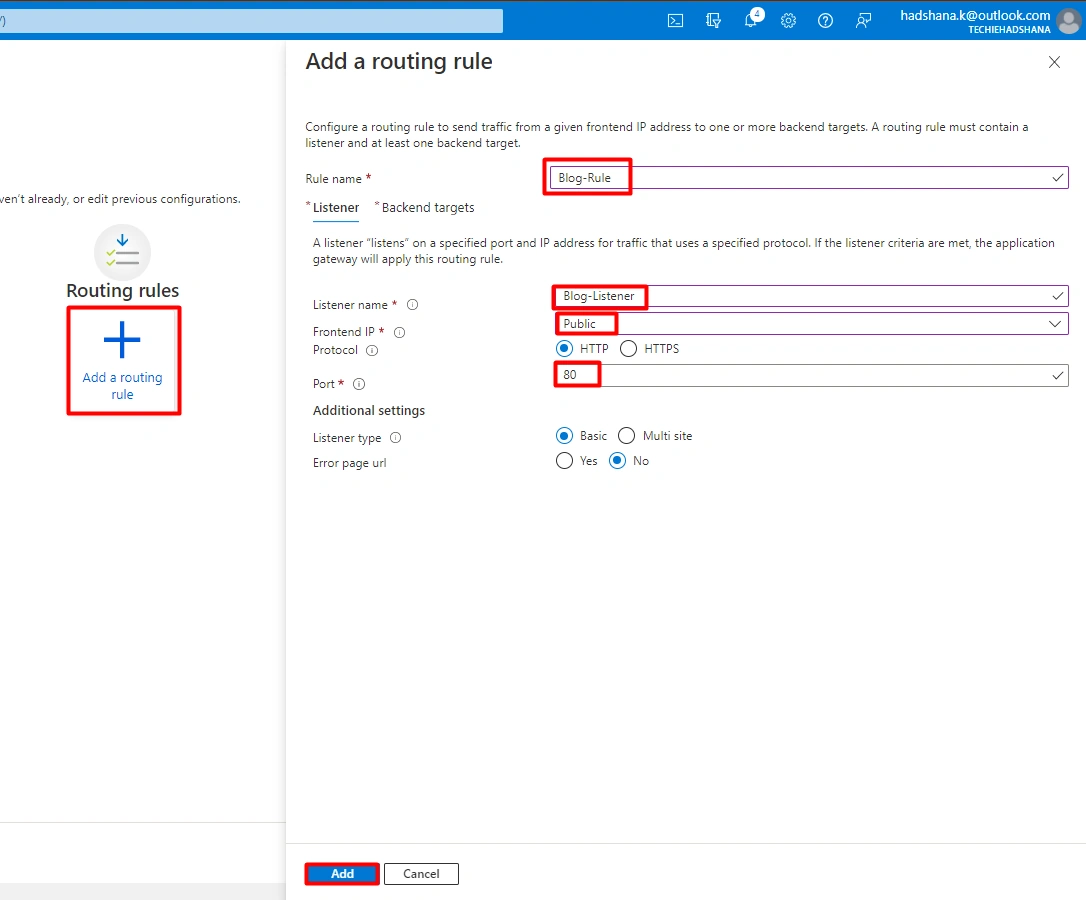

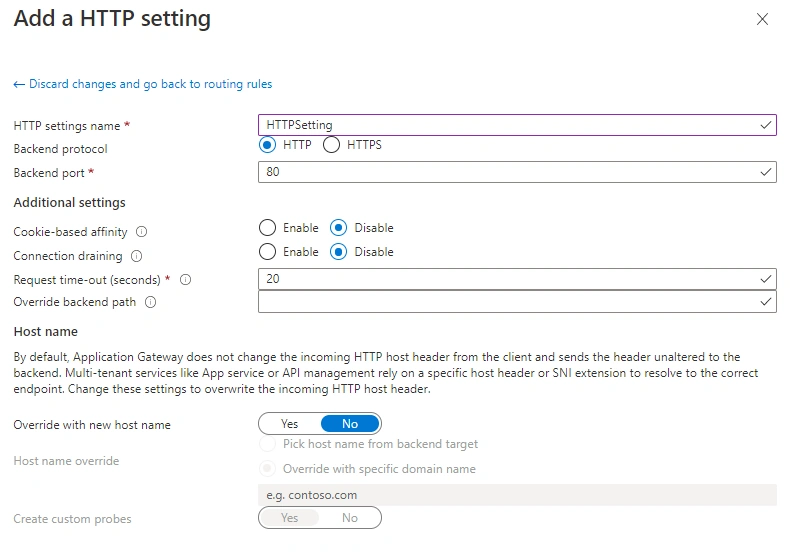

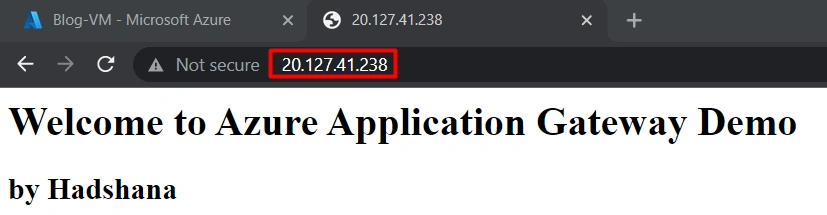
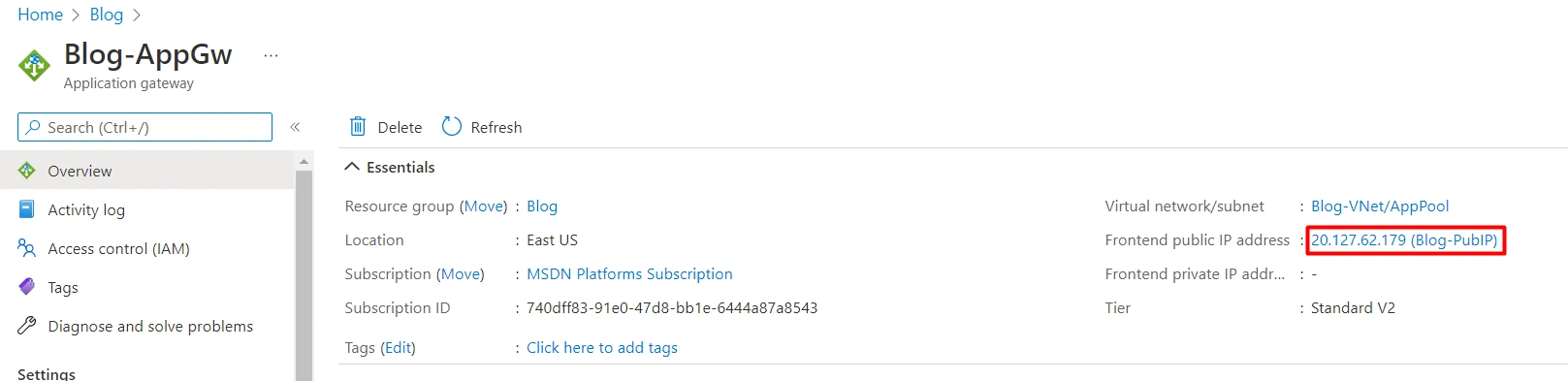
Andrew GartnerPosted Dec 27, 2021, 12:55 PM
I like this article because the solution segregates the components on their own virtual networks which important from security prospective. I'll need to search how to setup a Azure WAF to advance this solution.
Viknaraj ManogararajahPosted Dec 27, 2021, 6:37 AM
Nice Article, Hadshana