

This article will explain how to create Azure Storage Account and explore various options provided by it like Blob storage, File share, etc. We will see it step-by-step.
Please refer to my previous article Creating Azure Resource Group And Using Tags.
Before we start, let's understand the objective of this demonstration which tells what exactly will be covered in this article.
- Create a Storage Account.
Prerequisites
- Conceptual understanding of Storage Accounts and their various options like containers, file share, etc.
- You must have Azure Portal Access.
So, let's get started.
Storage Account
An Azure storage account contains all of your Azure Storage data objects, including blobs, file shares, queues, tables, and disks. The storage account provides a unique namespace for your Azure Storage data that's accessible from anywhere in the world over HTTP or HTTPS. Data in your storage account is durable and highly available, secure, and massively scalable.
Step 1
Open the Azure management portal and log in to https://portal.azure.com
Step 2
Click on "Create a Resource"
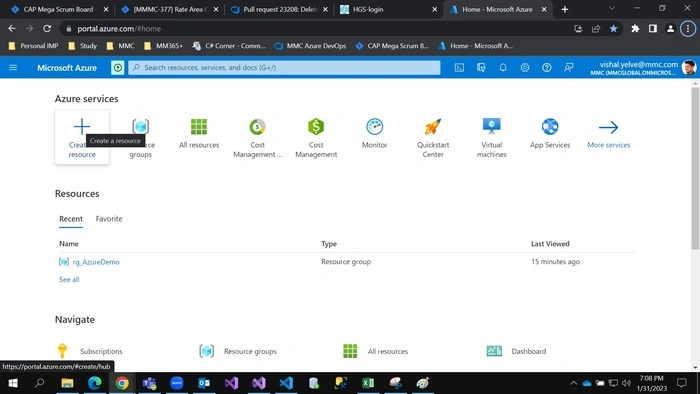
Step 3
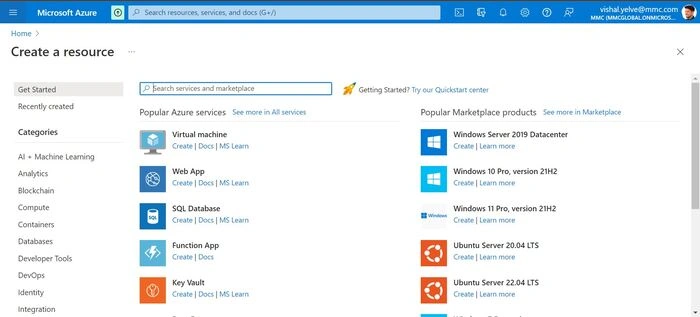
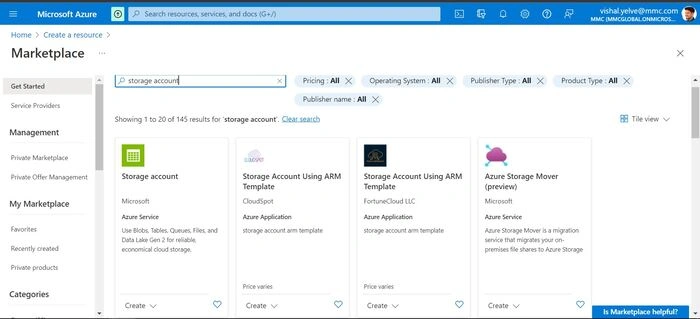
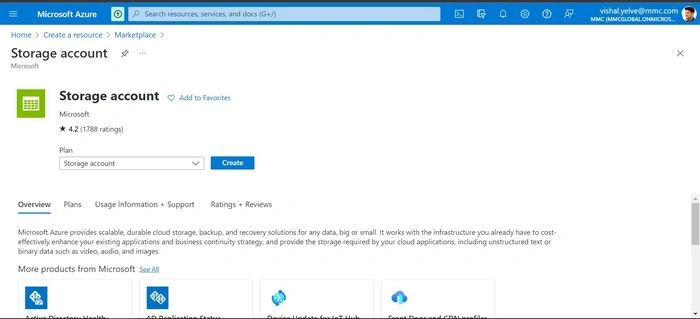
Search and Select "Storage Account". Then, Click on "Create"
Note
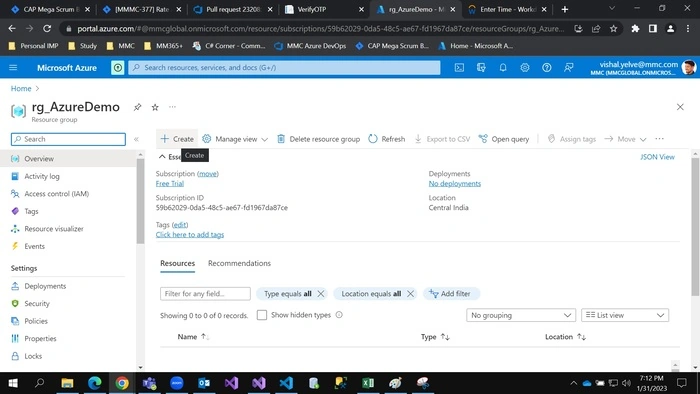
Also, we can create a "Storage Account" from "Resource Group". Open "Resource Group" Then, Click on "Create"
Step 4
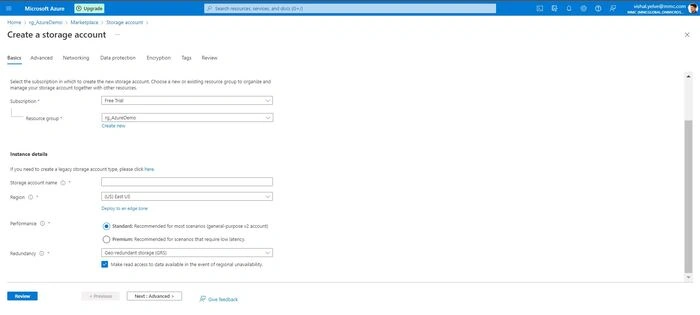
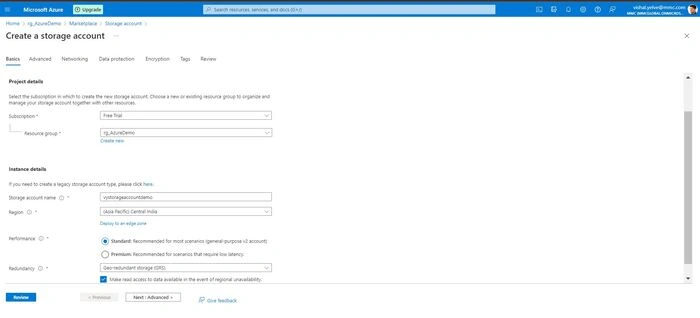
After clicking create option, fill in the required details in the Basics tab
- Subscription
Choose a suitable subscription.
- Resource group
Resource group is a container that holds related resources for an Azure solution. You can keep the resource group as it is or you can also create one by clicking "Create New".
- Storage Account Name
Mention a name for your storage account. Remember, You’ll likely have to type this name to access the storage account, so make it something reasonable.
- Location
Choose the location for your server based on your geographical location.
- Performance
Choose performance type- Standard or premium. Standard (general purpose v2 account) should be fine for most use cases. Premium is recommended for scenarios that require low latency.
- Redundancy
If the data you will be storing is business-critical and cannot be lost at any time, then you should opt for the more reliable Geo-redundant storage (GRS) setting. It is recommended for backup scenarios. If the data destined for your Azure storage account can be replicated from other sources, then the much less expensive Locally redundant storage (LRS) should be chosen. LRS is recommended for non-critical scenarios
Before details are filled.
After the details are filled.
Step 5
Click on "Review" to validate the settings. After clicking on it, If Validation is Passed it will enable the "Create" button.
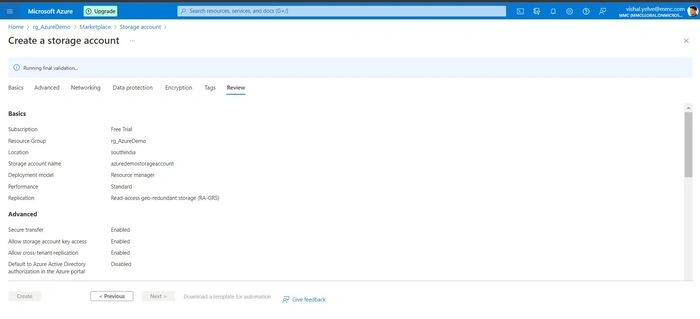
After Validation Passed
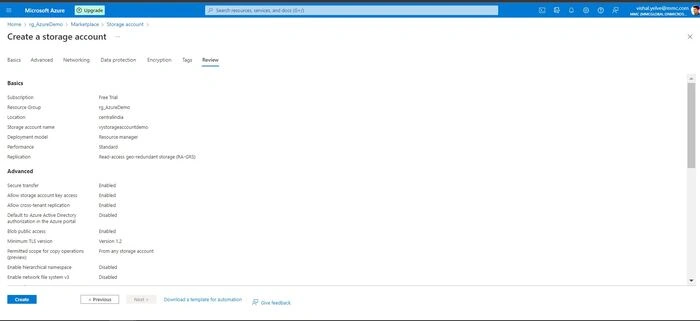
Step 6
Now, once the "Validation is Passed", Then, click on Create button at the bottom for the deployment process.
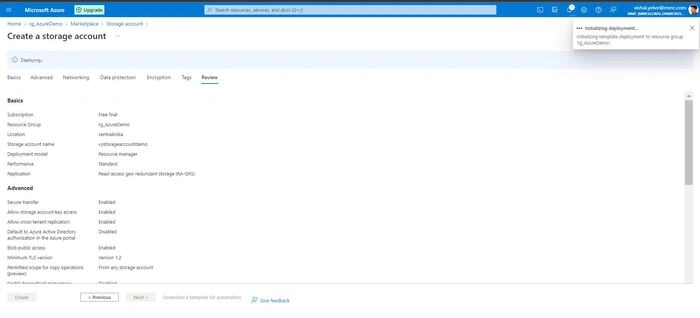
Step 7
A message will notify you that your Storage Account is created.
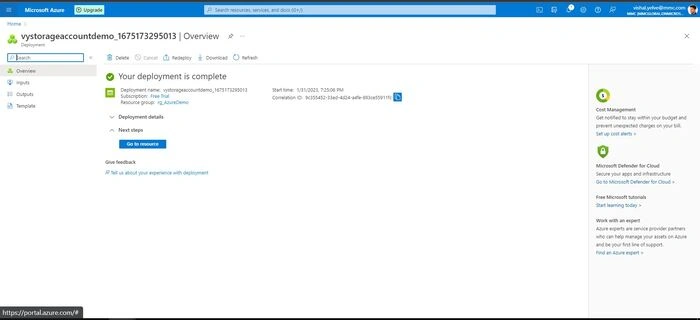
Step 8
Now once your Azure Storage Account is successfully created. Click on "Go to Resource" to overview your storage account inside it.
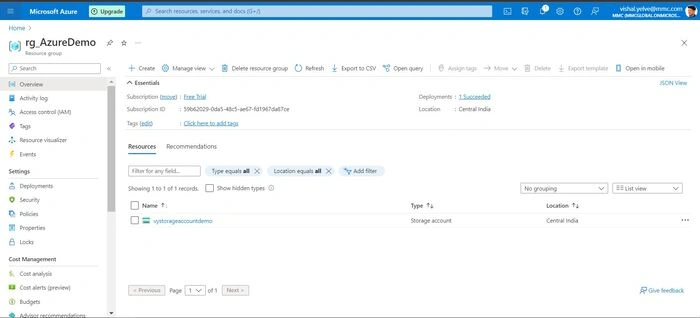
Join the conversation! Your thoughts help the community grow.