

First, we need to create a Picture Library and upload a few images to it. Then, go to an existing WebPart page or create a new WebPart page and add "Picture Library Slideshow WebPart".
Then, a little bit of the property settings need to be changed and you will see the magical carousel in a few minutes.
Step 1. Create a picture library, as shown below. Go to the "Site Contents" page and click on "Add an app".

Select the "Picture Library" app.

Provide the name of the picture library.

Now, you will see the "Picture Library" created, in the Site contents.
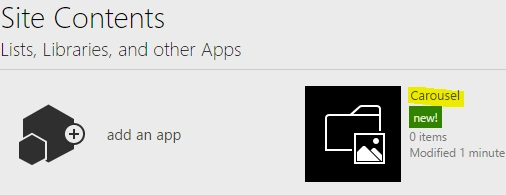
Step 2. Add a few image files to the "Carousel" picture library.
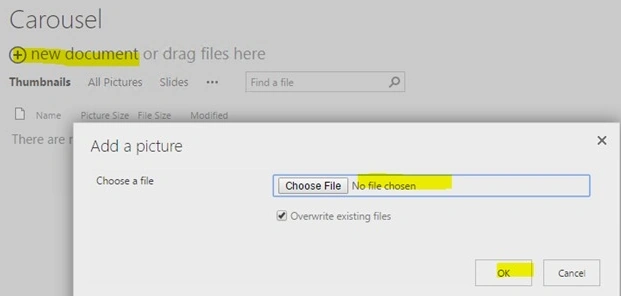
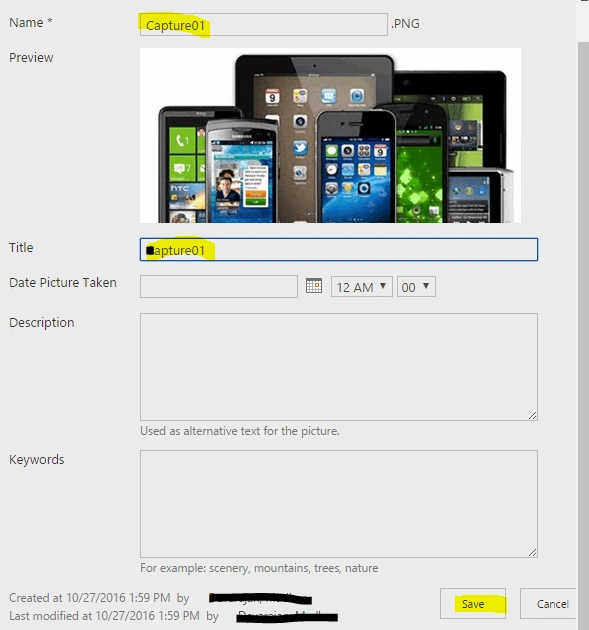
On clicking the "new document" link, you will see a small pop-up with "Choose a file". After selecting the picture from your local file system, click "OK" to proceed next. Then, you will see a pop-up with a few mandatory columns. Fill up the highlighted fields as shown below and save it. Repeat this process for all the pictures you are uploading to this picture library.
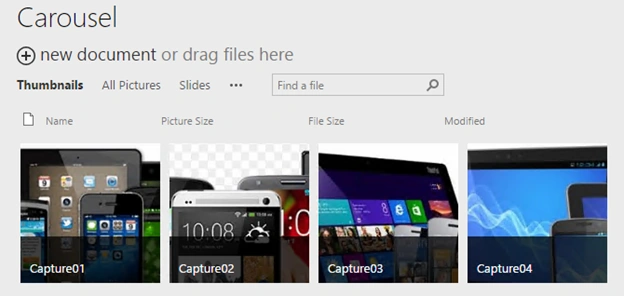
Upload a minimum of 3-4 images, as shown below.
Step 3. Go to "Site Pages" from "Site Contents" and create a new page.
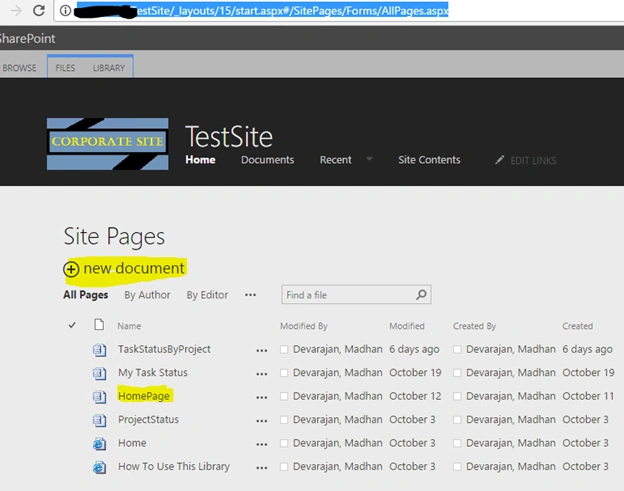
Now, click "Edit Page" to edit the newly created WebPart page.

Click the "Add a Web Part" link and select "Media and Content" in the Categories section of the top ribbon. Now, you will find the "Picture Library Slideshow Web Part", select and add it to the current page.
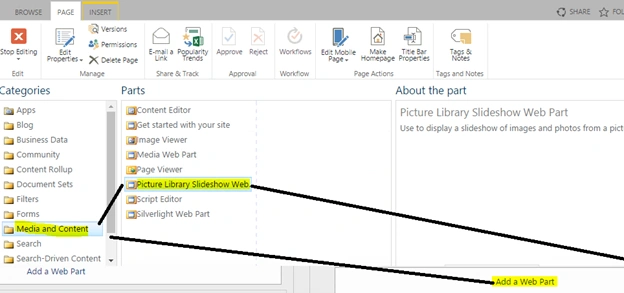
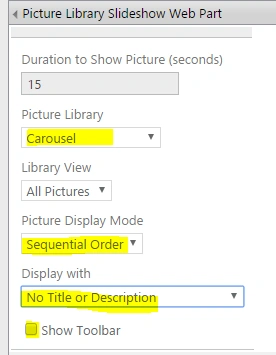
Now, we need to map the picture library and provide a few values in the Web Part properties to create the "Carousel".
Click on the down arrow in the "Picture Library Slideshow Web Part" and then select "Edit Web Part" from the "context menu", as shown below.

Now, select the time delay in seconds, Picture library name, Picture display mode, and Display with "No Title or Description".
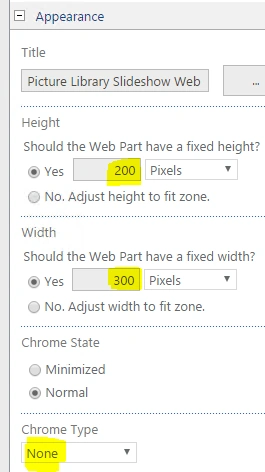
You can also set the "Width and Height" of the Web Part so that the image will be resized accordingly.
Once you are done with the changes, click "Stop Editing" to save the changes you have made.

Now, you can see the final output. You have achieved this with no code.
dilip kumarPosted Dec 16, 2019, 9:53 AM
How to enable autorotational carousal web part in online?
arun sPosted Nov 11, 2018, 1:11 PM
Hello there please use the below code for dynamic sharepoint slider. <script src="https://ajax.googleapis.com/ajax/libs/jquery/3.3.1/jquery.min.js"></script><style>/* W3.CSS 4.12 Novemberr 2018 by Jan Egil and Borge Refsnes */ .mySlides {display: none;} img {vertical-align: middle;} /* Slideshow container */ .slideshow-container { max-width: 1000px; height:300px!important; position: relative; margin: auto; } .active { background-color: #717171; } .mySlides.fade >a img { width:100%;height:300px; } /* Fading animation */ .fade { /* -webkit-animation-name: fade; -webkit-animation-duration: 1s; animation-name: fade; animation-duration: 1s;*/ } @-webkit-keyframes fade { from {opacity: .4} to {opacity: 1} } @keyframes fade { from {opacity: .4} to {opacity: 1} } /* On smaller screens, decrease text size */ @media only screen and (max-width: 300px) { .text {font-size: 11px} } .mySlides {display: none;} img {vertical-align: middle;} /* Slideshow container */ .slideshow-container { max-width: 1000px; height:300px!important; position: relative; margin: auto; } .active { background-color: #717171; } .mySlides.fade >a img { width:100%;height:300px; } /* Fading animation */ .fade { /* -webkit-animation-name: fade; -webkit-animation-duration: 1s; animation-name: fade; animation-duration: 1s;*/ } @-webkit-keyframes fade { from {opacity: .4} to {opacity: 1} } @keyframes fade { from {opacity: .4} to {opacity: 1} } /* On smaller screens, decrease text size */ @media only screen and (max-width: 300px) { .text {font-size: 11px} } </style><script type="text/javascript"> var requestUri = _spPageContextInfo.webAbsoluteUrl + "/_api/web/lists/getByTitle('buddy')/items?$select=EncodedAbsUrl,Title,TargetURL"; var requestHeaders = { "accept": "application/json;odata=verbose" } $.ajax({ url: requestUri, type: 'GET', dataType: 'json', headers: requestHeaders, success: function (data) { $.each(data.d.results, function(i,result) { var Url= result.EncodedAbsUrl; $(".slideshow-container").append("<div class='mySlides fade'><a href ='"+result.TargetURL+"'><img src='"+Url+"'></a></div>");}); showSlides(); }, error: function ajaxError(response) { alert(response.status + ' ' + response.statusText); } }); var slideIndex = 0; function showSlides() { var i; var slides = document.getElementsByClassName("mySlides"); var dots = document.getElementsByClassName("dot"); for (i = 0; i < slides.length; i++) { slides[i].style.display = "none"; } slideIndex++; if (slideIndex > slides.length) {slideIndex = 1} slides[slideIndex-1].style.display = "block"; setTimeout(showSlides, 2000); // Change image every 2 seconds } </script> <div class="slideshow-container"> </div>
Humayun Kabir MamunPosted Nov 2, 2016, 3:18 AM
Nice & helpful...
Karthikeyan KPosted Nov 1, 2016, 12:43 PM
Nice Share...