

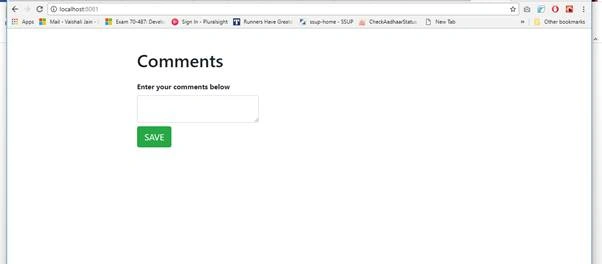
In this article, we will create a simple comment form that displays a list of comments and allows the user to enter a new comment using React, Redux, Webpack, Babel. We will be using the below Tools/libraries to build the application.
- Visual Studio Code
- React JS library
- Redux library
- Node package manager
- Webpack
- Babel
- Bootstrap for styling
- Javascript, ES6
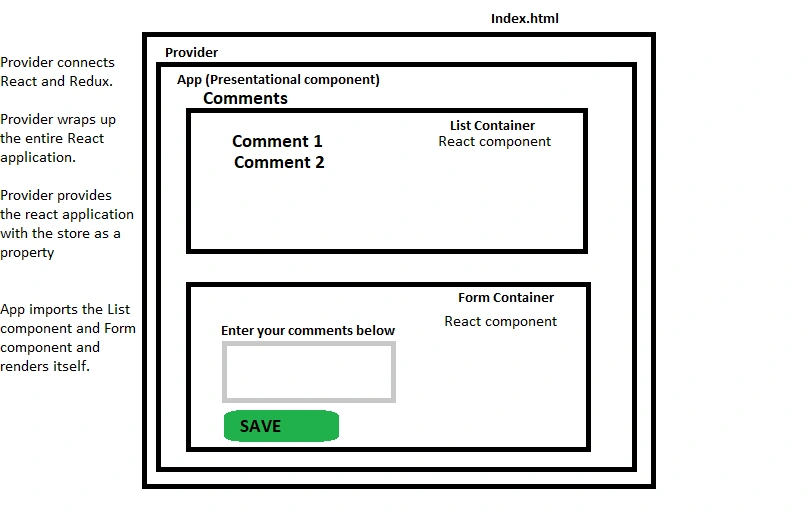
React
React is a JavaScript library for building user interfaces. It allows developers to create web applications that use data and can change over time without reloading the page.
ES6 (ECMAScript 6)
JavaScript is a superset of ECMAScript. ECMAScript (ES) is a specification standardized by ECMAScript International. The 5th edition of the specification is called ES5. ES6 contains many new features for JavaScript. ECMAScript is used by applications to enable client-side scripting.
A good understanding of ES6 features is important for JavaScript developers.
Babel
Babel "transpiles" ES6 to ES5 to ensure that our code runs in all recent browsers. It transpiles newer ECMAScript features down into a format that is supported by older ECMAScript browsers.
It is for developers who write plain JavaScript using newer language features.
Babel is configured using .babelrc file in the root of the project.
Webpack
Webpack is a module builder. Webpack performs transpilation, concatenation, minification, and combines CSS into JavaScript. Webpack uses npm and module system.
Let us start creating the application.
Create a directory for the project and name it "react-redux-sampleapp".
- mkdir react-redux-sampleapp
- cd react-redux-sampleapp
In the above project, Initialize the project using npm by running below command
- npm init -y
This generates package.json file in the project. npm uses package.json file to manage dependencies.
We will be using Visual Studio code to work on this project.
In the command prompt, inside the root project folder(react-redux-sampleapp), run the below command. This opens the project in Visual Studio Code.
Code .
Now let us setup Webpack. Webpack is used to build the project.
In Visual Studio Code, Go to View Tab then Integrated Terminal window. Install webpack by running below command.
npm i webpack --save-dev
After running this command, "--save-dev" adds webpack to the devDependencies section in package.json file which indicates that it is a development dependency.
iI also installs webpack package locally under node_modules folder.
Let's configure development server which enables webpack to launch your application inside the browser. Webpack also takes care of refreshing the browser every time you update a file.
Run the below command to setup development server
npm i webpack-dev-server --save-dev
You have to add webpack command inside package.json file as below. This runs webpack located within our npm scripts. The build script below builds the assets of the project in one go. Start script starts the webpack development server and hosts our application.
- "scripts": {
- "start":"webpack-dev-server --open",
- "build": "webpack"
- },
Webpack needs configuration file to run. So create webpack.config.js file inside the project folder.
React components are generally written using Javascript ES6 which needs to be transformed to be understood by browsers. Babel loader is webpack loader which transforms ES6 code to the browser in understandable code. Babel-loader uses babel which needs to be configured to use below two presets.
- babel-preset-env : Compiles JavaScript ES6 down to ES5.
- babel-preset-react: Compiles JSX to Javascript.
Get the above dependencies using the below command. This adds the dependencies to the devDependencies section in package.json file.
npm i babel-loader babel-core babel-preset-env babel-preset-react --save-dev
babel-core is a compiler for writing next generation JavaScript which contains Node API.
Let's configure babel by adding .babelrc file at the root of the project. Add the below code to the .babelrc file. This tells babel to use these 2 presets.
- {
- "presets": ["env", "react"]
- }
To display the React form, we have to tell Webpack to produce an HTML page. Webpacks needs two components for processing HTML: html-webpack-plugin and html-loader. Install these dependencies using below command
npm i html-webpack-plugin html-loader --save-dev
Let's set up webpack configuration in the webpack.config.json file as below.
- const path = require("path");
- const HtmlWebpackPlugin = require("html-webpack-plugin");
- module.exports = {
- entry: ["./src/js/app.js"], // Entry point for our application
- output: {
- path: path.resolve(__dirname, "dist"),// __dirname is the current directory. Our app will run from the dist folder.
- filename: "js/[name].js"
- },
- module: { // module section tells webpack what file types it should handle.
- rules: [ // this rule tells webpack to handle javascript files and use babel to transpile the code.
- {
- test: /\.js$/,
- exclude: /node_modules/,
- use: {
- loader: "babel-loader"
- }
- },
- {
- test: /\.html$/,
- use: [
- {
- loader: "html-loader"
- }
- ]
- }
- ]
- },
- devServer: {
- contentBase: "./dist"
- },
- plugins:[
- new HtmlWebpackPlugin({
- template: "./src/index.html",
- filename:"./index.html"
- })
- ]
- };
In the above code, path is used to resolve absolute path to project's root directory (where web pack.config.js should be located).
path is Node.js' native utility module.
require is Node.js' global function that allows you to extract contents from module.exports object inside some file.
The path.resolve() method resolves a sequence of paths or path segments into an absolute path to your file. It takes ./src/js/app.js as the entry point to produce an output into ./dist/js/main.js
Install react by running the below command from the View menu -> integrated Terminal
npm i react react-dom --save-dev
Install the prop-types package by running the below command
npm i prop-types --save-dev
Create the below directory structure to create React/Redux files for holding the code.
Create src folder inside root project folder. Inside the src folder, create js folder. Inside js folder, create actions, components, constants, reducers, store folders.
Inside the components folder, create container and presentation folders.
Inside the src folder, create app.js file and index.html file.
Inside the constants folder, create action-types.js file with the below content.
- export const ADD_COMMENT = "ADD_COMMENT";
This file contains the constants defining the action-types we will be using in our actions.
Inside the actions folder create index.js file with the below content,
- import { ADD_COMMENT } from "../constants/action-types"
- export const addComment = comment =>
- (
- {
- type: ADD_COMMENT,
- payload: comment
- }
- );
Here, addComment is an action object containing action type and payload (data).
Inside the reducers folder create index.js file with the below content,
- import { ADD_COMMENT } from "../constants/action-types";
- const initialState = {
- comments: []
- };
- const rootReducer = (state = initialState, action) => {
- switch (action.type) {
- case ADD_COMMENT:
- return { ...state,comments:[...state.comments,action.payload]};
- default:
- return state;
- }
- };
- export default rootReducer;
Reducer performs the action based on the action type and returns the state. Reducer is a pure function which does not mutate the state but returns a new copy of the state. It does not have side effects because it does not modify the state.
In this code, the initialstate, comments array does not change. The state returned is a copy of the initial state containing the old comments and the newly added comment from the payload. The spread operator (...) used here does not mutate the state rather it creates a copy of the state.
To support spread operator in Babel, Install Object rest spread transform using below command
npm i --save-dev babel-plugin-transform-object-rest-spread
Open up .babelrc and update the configuration,
- {
- "presets": ["env", "react"],
- "plugins": ["transform-object-rest-spread"]
- }

Samaira BabyPosted Sep 26, 2020, 5:29 AM
Wonderful post! We are linking to this great post on our website. Keep up the great writing.
ajay kumarPosted Feb 18, 2018, 10:40 PM
If it Possible Can Please u please Explain like above Article ,if not possible give an simple Example to me My Mail ID [email protected].
ajay kumarPosted Feb 18, 2018, 1:45 AM
Can u explain how to do it same in visual studio 2015 or 2017.