

Crystal Reports is a mechanism which is used to
create a report from various datasources, it is a popular report writing
technique used to generate reports from different data sources and show
to data in a report format. Crystal Reports allows users to graphically design
data connection(s) and a report layout. Using Database Experts user / developers
link the tables from various data sources (sql server, mysql, oracle, excel,
access etc). Columns from the table are placed on the design surface of the
report and can also be used in formulas for generating reports of a specific
criteria. While generating the report you are given the flexibility to design it
as per your requirements. Enough of this theory about crystal report we'll move
to our example.
We'll create a crystal report based on a user's criteria ie a user will select a
particular empid and we'll display the record of that employee in a report
format.
Create a table in your sql server
create
table Emp
(
EmpId
int identity(1,1)
not null,
EmpName varchar(20)not
null,
EmpAdd varchar(20)not
null,
EmpCity varchar(20)not
null,
EmpState varchar(20)not
null,
EmpCountry varchar(10)
default 'India'
)
insert
into Emp values('vishal','Andheri','Mumbai','Maharashtra','India')
insert
into Emp values('Rahul','Virar','Thane','Maharashtra','India')
insert
into Emp values('John','Naigoan','Thane','Maharashtra','India')
insert
into Emp values('Pinky','Bandra','Mumbai','Maharashtra','India')
insert
into Emp values('Lincy','Worli','Mumbai','Maharashtra','India')
Now create a new Project in visual Studio 2005/ 2008 / 2010
- For creation of a report first Open visual
studio and create a new website.
- Add a new item to the website Cyrstal
report.rpt.
- Select Blank report option from the wizard
window.
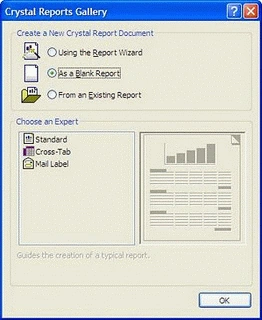
- Now Click Ok.
- You'll find that an cyrstal report is
being added in your project now on the fields explorer select Database
Expert or CrystalReports menu and select DataBase Expert.
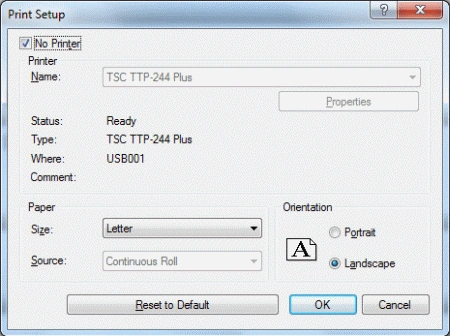
Again right on the crystal report and select design-> page setup option, Specify the margin option which you like.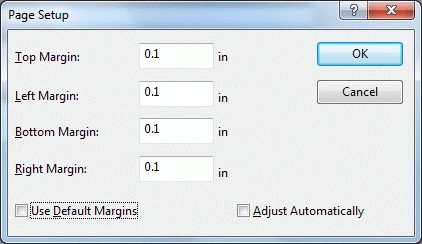
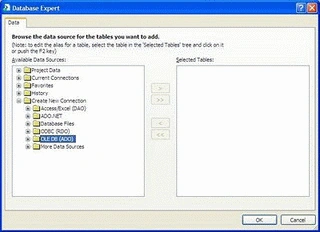
Now select fields explorer -> Database -> Database Expert. Or the same thing can be done through Crystal Report Menu which is appearing in the menu bar.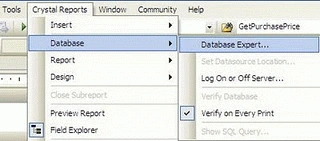
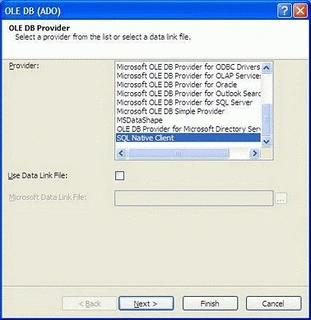
- Now in next window expand Create new
connection section and OLEDB(ADO) and in next window Select Sql Native
client.
- Now in next window enter your server name,
user id, word to connect and the database to connect.
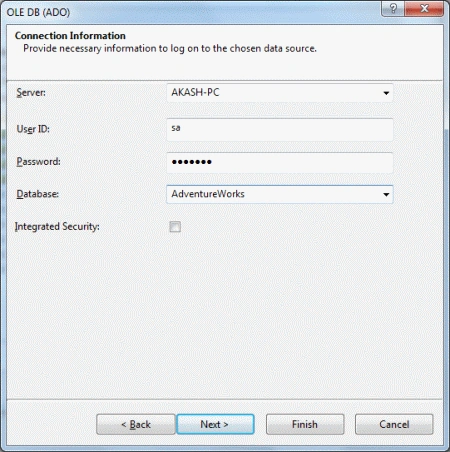
- Click Next and Finish.
- Now in next window select the tables whose
data you want to display.
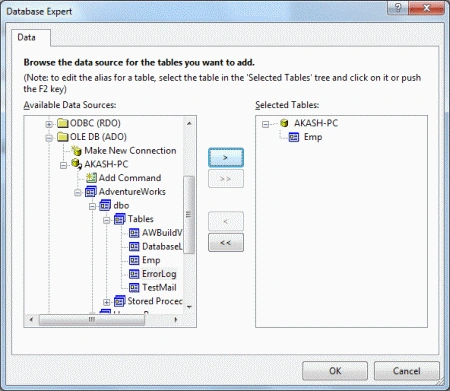
- Click ok. Now if you look at fields
explorer in the database expert you'll find all the columns of the emp table
is displayed. Now Start Desiging your report.
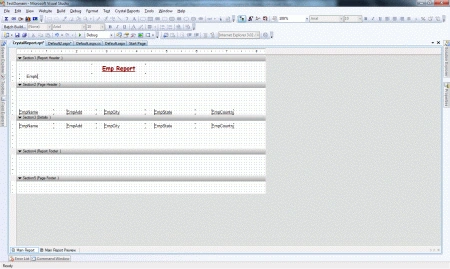
- If you want that your report columns
should expand as and when the need grows then do the following things:
- Determine the columns whose data can
grow for example in this I'm taking name.
- Right click on that columns in the
details view and click on Format Object.
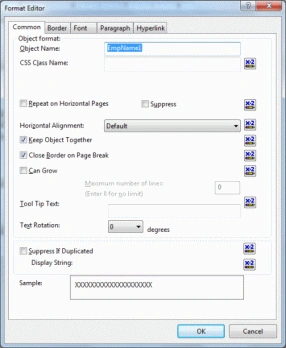
- Select the Can Grow checkbox and click
ok.
- Determine the columns whose data can
grow for example in this I'm taking name.
- Now we'll create a parameter fields for
the crystal report ie when user will select an Id from the Drop Downlist on
the web page and clicks on the submit button the records of that employee
should be displayed in the crystal report. This can be done through
parameterized variables or parameterized fields.
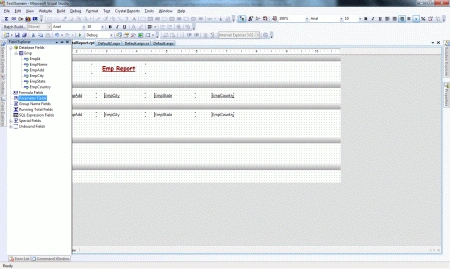
- Right click on the parameter fields click
on new the following dialog box will appear fill in the proper details.
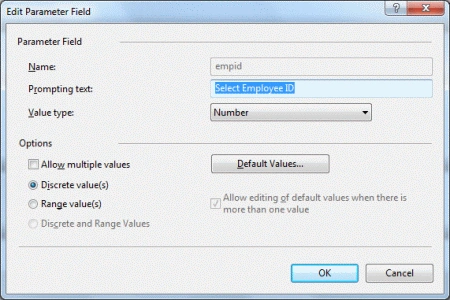
- We'll be ing values for this variable from the front end. You'll find that the empid parameterized variable is added in the parameter fields.
- Now click on Special Fields in Field
Explorer and select Record Selection Formula and insert it into the
pageFooter section of our crystal report webpage.
- Right click on it and click on Select
Expert select Emp.EmpId from Report Fields.
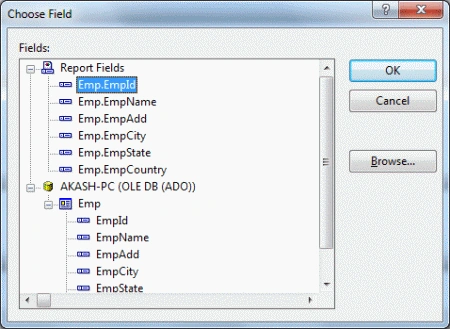
- Click on ok.
- Select is equal to and {?empid} from the
dropdowns and click on OK.
- Now the designing part of the crystal
report is done. Now we'll move to the coding part of the WebPage.
- Create a table Control with a drop
downlist and also add a crytalreportviewer control from the Reporting
Section.
- Uncheck the checkboxes of the
crystalreportviewer by clicking the smart tag of it.
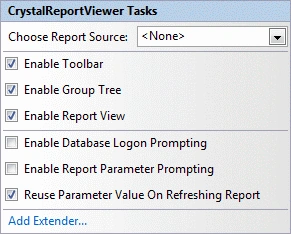
- Design you web page like the following.
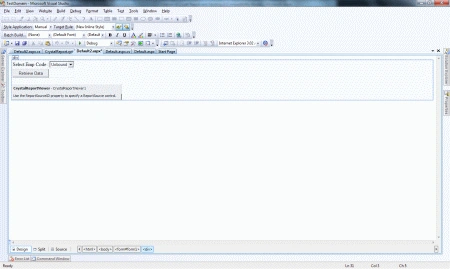
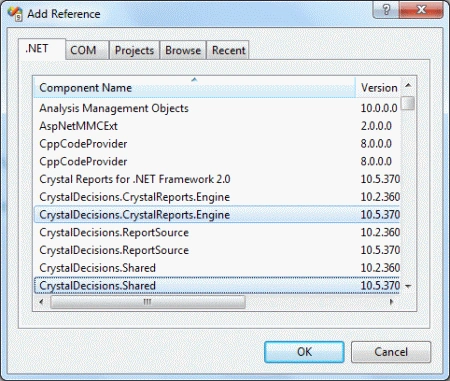
- For working with crystal report we'll have
to include serveral references such as:
Yashwanth MuthineniPosted Aug 27, 2015, 7:32 AM
Nice Share
Akash AhlawatPosted Dec 23, 2011, 11:58 PM
Very nicely presented article with good use of images..great