

Each control in WPF has a Tooltip property that can be accessed through XAML or code behind. The Tooltip property can host any kind of controls such as a rectangle, text block, or a panel. In other words, we can display another window with any number of controls as a tooltip of a control.
The following code creates a simple tooltip for a button control.
<Button Width="100" Height="30">Click Me
<Button.ToolTip>
<ToolTip>This is a tooltip test for a button control. You
can click me if you want but I will do nothing for you.
</ToolTip>
</Button.ToolTip>
</Button>
The output looks like Figure 1.
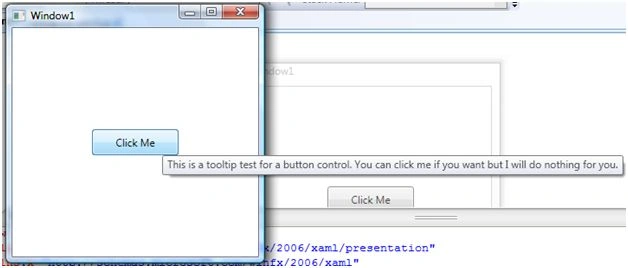
Figure 1. A simple Tooltip
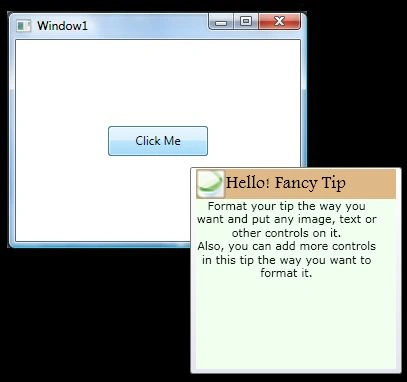
As I said earlier, a Tooltip can host any number of controls. For example, in the below code, a button tooltip hosts a StackPanel with two children StackPanels. First StackPanel hosts an image and a text block and second StackPanel hosts a larger textblock. The output looks like Figure 2, which is a fancy tooltip.
<Button Width="100" Height="30">Click Me
<Button.ToolTip>
<StackPanel Background="Honeydew" Height="200" Width="200">
<StackPanel Background="BurlyWood" Height="30" Width="200" Orientation="Horizontal" HorizontalAlignment="Left" VerticalAlignment="Top" >
<Image VerticalAlignment="Top" Width="30" Height="30" Source="C:\Projects\XAML\FancyTooltip\FancyTooltip\samp.png" Name="image1" />
Join the conversation! Your thoughts help the community grow.