
Here are the steps:
Open SharePoint team site.
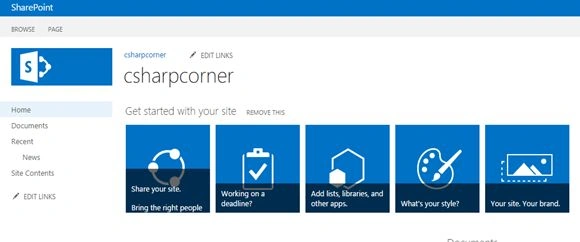
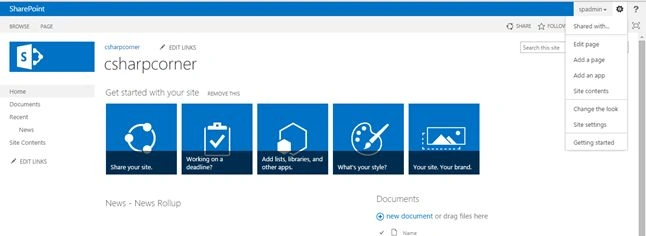
Click on Site Action, then Add an app.
Click on Custom List App.

Provide the name of the list.

So now the new custom list has been created.
Now I will show you how to create a Columns into this list.
Click on List, then List Settings.

Click on create column.

Provide the title of the column and select the datatype of the column.
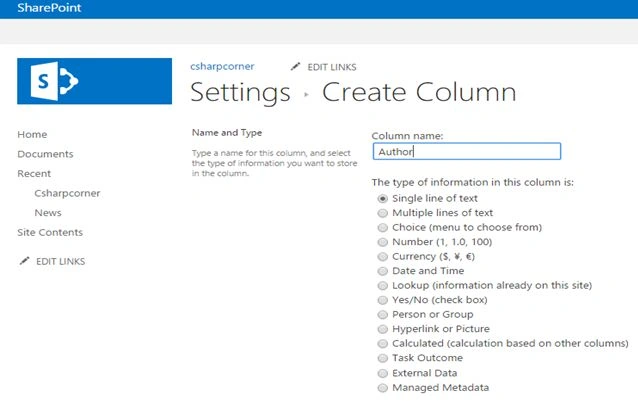
Click Yes “Require this column contain information”.

Click Ok.
So now the columns has been created successfully.
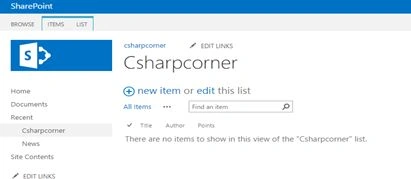
Now going to insert data into the created list.
Click on new item.
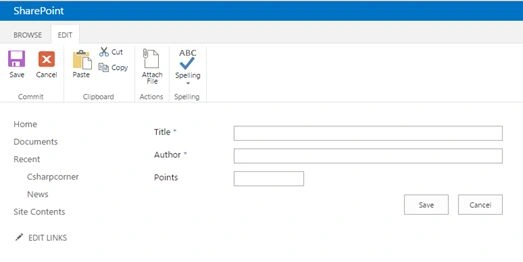
Fill the details and click Save.

You can also use inline editing to update the information stored in the list.
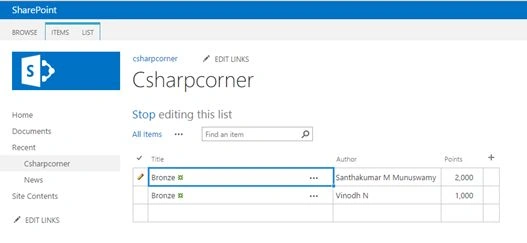
Next one is “Pagination”.
Click on list, then Modify View.
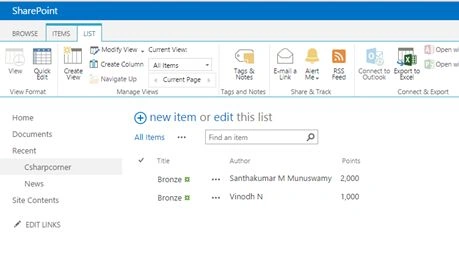
Go down and click on item limit.
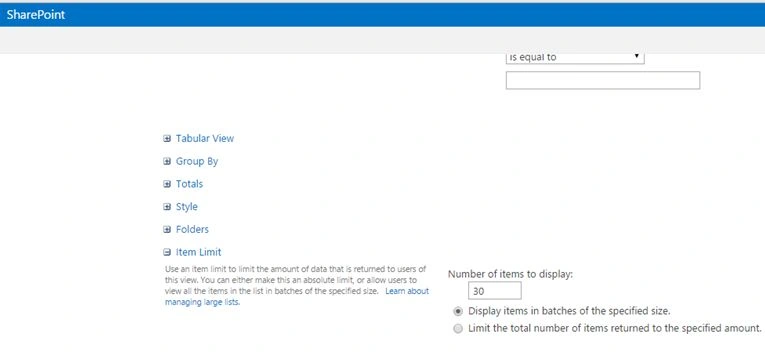
Change number of items to display “2”.

Click Ok.
Now adding one more item into the list.


See the pagination has been done successfully.
Already I have discussed how to enable barcode and ratings in list and libraries.

Creating List In SharePoint 2013
Join the conversation! Your thoughts help the community grow.
Sign in to leave a comment
It is the same account you read, post and publish with — and you will come straight back to this page.
Abhay ShankerPosted Oct 2, 2015, 4:01 AM
Nice One..
Vinodh NarayananPosted Oct 2, 2015, 2:35 AM
Thanks a lot Karthikeyan K
Karthikeyan KPosted Oct 2, 2015, 2:14 AM
Good one sir...Thanks for sharing
Santhakumar MunuswamyPosted Oct 1, 2015, 3:58 PM
Good one
Vinodh NarayananPosted Oct 1, 2015, 8:59 AM
Nilesh Jadav Thanks a lot
Vinodh NarayananPosted Oct 1, 2015, 8:59 AM
Harshad Pansuriya Thanks a lot
Nilesh JadavPosted Oct 1, 2015, 8:50 AM
Great !! Nice article
Harshad PansuriyaPosted Oct 1, 2015, 8:44 AM
Nice One