

In my previous article Creating Provider-Hosted App in Office 365 and Azure Using VS 2013: Part 2 you saw how to do the following procedure:
- Publish the web to Microsoft Azure Websites
- Register the App in Office 365
- Configure the app settings for Azure Website
In this article you will perform the following procedure:
- Publish the app.
- Upload the app file to the app catalog in Office 365.
- Add the app to the Office 365 site.
Publish the app
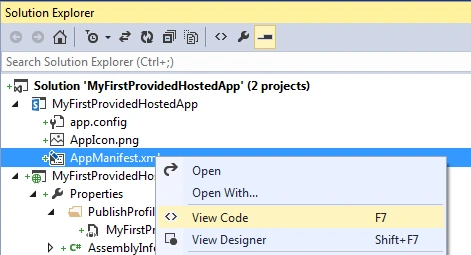
- In the Solution Explorer, expand MyFirstProvidedHostedApp and then right-click on AppManifest.xml. Click on View Code.
- AppManifest.xml will have the following metadata.
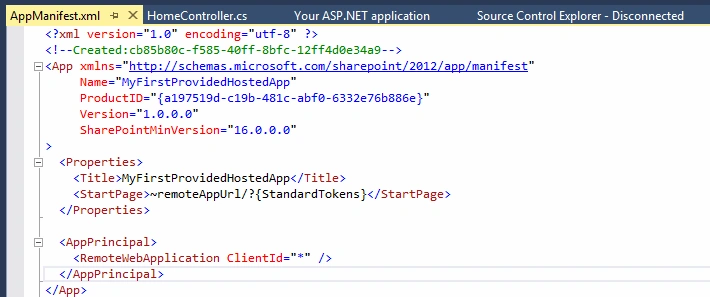
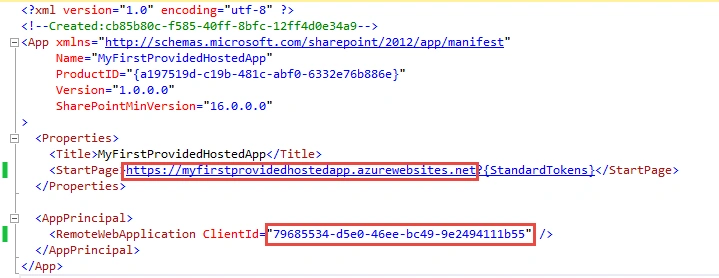
- Replace ~remoteAppUrl/ with the Azure website URL https://myfirstprovidedhostedapp.azurewebsites.net/ and replace ClientId with the Id that we generated previously. Ensure that the Azure Website URL has https.
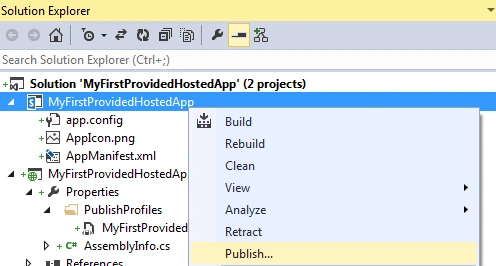
- Save the AppManifest.xml file. In the Solution Explorer, right-click on the app project and then click on Publish.
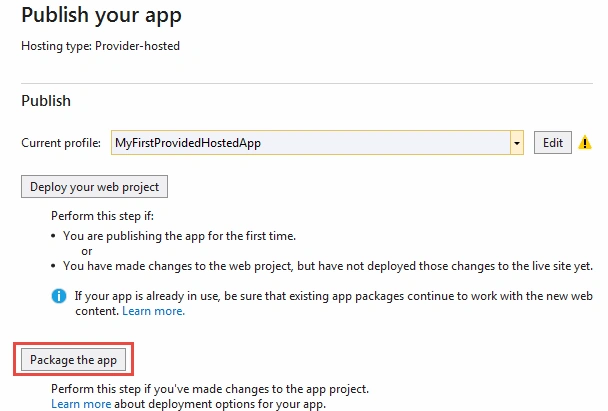
- Click on the Package the app button.
- Enter the Azure website URL (https://myfirstprovidedhostedapp.azurewebsites.net/) and the client Id as shown below. Ensure the URL has https.
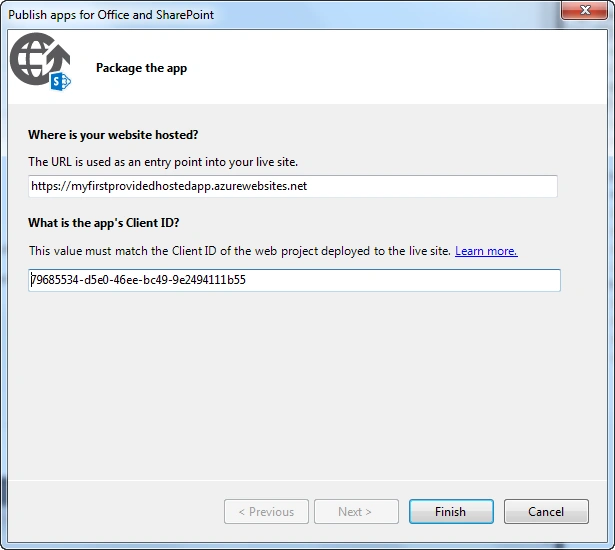
- Click on the Finish button.
- The folder that contains the app file will be opened.

Upload the app file to the app catalog in Office 365
- Log into the O365 App Catalog as an administrator (example: https://c986.sharepoint.com/sites/AppCatalog/).
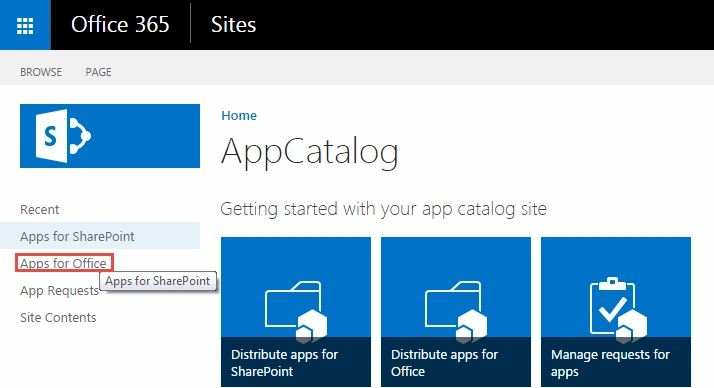
- Click on the Apps for SharePoint link in the Quick Launch bar.
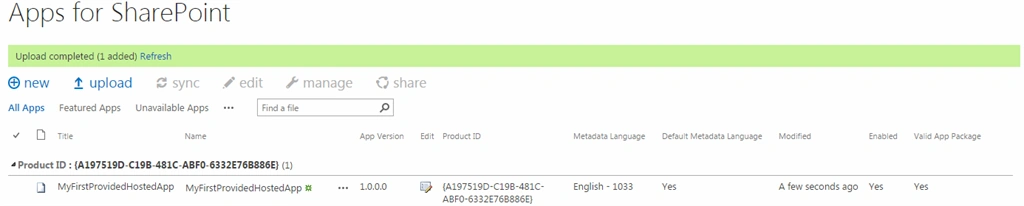
- Upload the app file.
- Log into the O365 developer site as an administrator (example: https://c986.sharepoint.com/).
- Click on Site Contents in the Quick Launch bar.
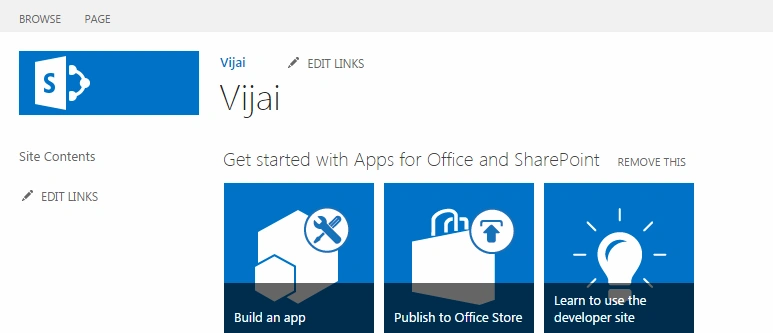
- Click on add an app.
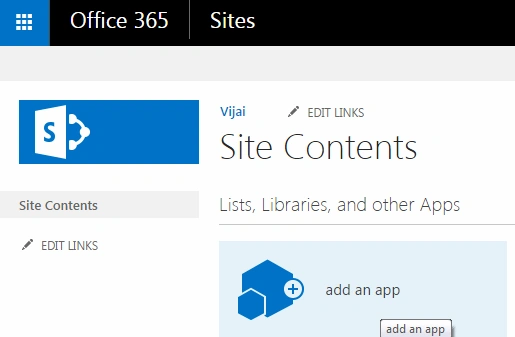
- Click on the From Your Organization link in the Quick Launch bar and you will be able to see the provider-hosted app that we created. Click on MyFirstProvidedHostedApp.
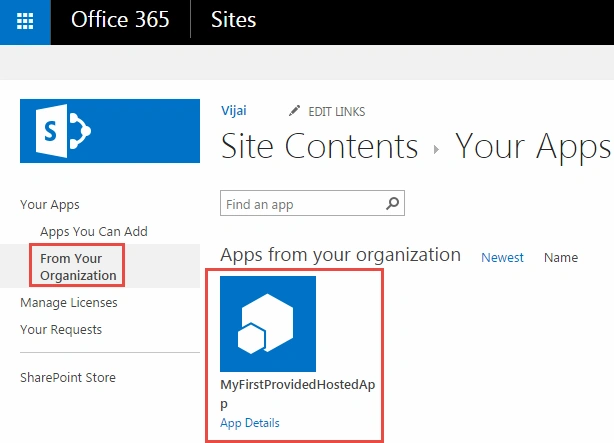
- Click on the Trust it button.
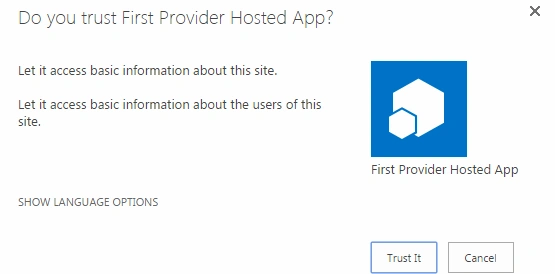
- The app will be installed successfully as shown below.
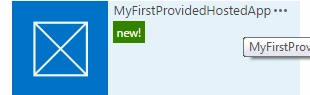
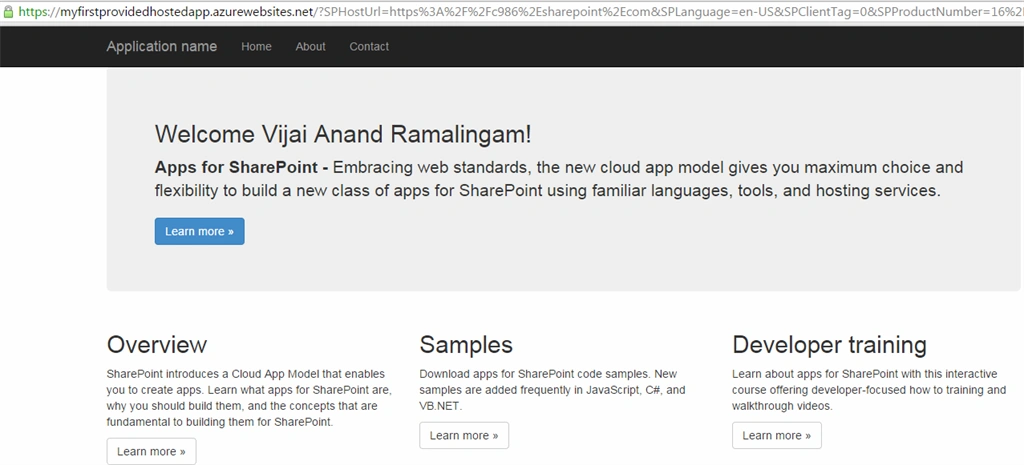
- Click on the app and it will be redirected to the Azure website as shown below.
Summary
Thus in this article series you saw how to create a Provider-Hosted app in Office 365 and Azure using Visual Studio 2013.
Reference
https://github.com/OfficeDev/TrainingContent/blob/master/O3651/O3651-7%20Setting%20up%20your%20Developer%20environment%20in%20Office%20365/Lab.md
Safiya PoltharanPosted Feb 12, 2017, 10:35 PM
Thank you so much! Very helpful article and detailed very well...Thanks again. Safiya
Chakra PaniPosted Dec 15, 2015, 5:54 AM
im getting above error after launching my provider hosted app,please help
Chakra PaniPosted Dec 15, 2015, 5:53 AM
The remote server returned an error: (400) Bad Request. Description: An unhandled exception occurred during the execution of the current web request. Please review the stack trace for more information about the error and where it originated in the code. Exception Details: System.Net.WebException: The remote server returned an error: (400) Bad Request. Source Error: An unhandled exception was generated during the execution of the current web request. Information regarding the origin and location of the exception can be identified using the exception stack trace below. Stack Trace: [WebException: The remote server returned an error: (400) Bad Request.] System.Net.HttpWebRequest.GetResponse() +1465 Microsoft.IdentityModel.S2S.Protocols.OAuth2.OAuth2WebRequest.GetResponse() +241 Microsoft.IdentityModel.S2S.Protocols.OAuth2.OAuth2S2SClient.Issue(String securityTokenServiceUrl, OAuth2AccessTokenRequest oauth2Request) +57 [RequestFailedException: Token request failed.] Microsoft.IdentityModel.S2S.Protocols.OAuth2.OAuth2S2SClient.Issue(String securityTokenServiceUrl, OAuth2AccessTokenRequest oauth2Request) +156 PersonalBrandingWeb.TokenHelper.GetAccessToken(String refreshToken, String targetPrincipalName, String targetHost, String targetRealm) +115 PersonalBrandingWeb.TokenHelper.GetAccessToken(SharePointContextToken contextToken, String targetHost) +103 PersonalBrandingWeb.SharePointAcsContext.<get_UserAccessTokenForSPHost>b__0() +26 PersonalBrandingWeb.SharePointAcsContext.RenewAccessTokenIfNeeded(Tuple`2& accessToken, Func`1 tokenRenewalHandler) +58 PersonalBrandingWeb.SharePointAcsContext.GetAccessTokenString(Tuple`2& accessToken, Func`1 tokenRenewalHandler) +13
SharadPosted Jul 22, 2015, 12:26 AM
nice
Gowtham RajamanickamPosted Apr 20, 2015, 1:08 PM
good one vijay
Tom MohanPosted Mar 26, 2015, 11:03 PM
nice